







































Video Tutorials: How to Enable USB Debugging on Android
- Support
- Software Tutorials
- Kate
 277
277- 2026-07-02 15:24:54


As the steps to enable USB Debugging may vary slightly depending on different Android devices and system versions, we have prepared several video tutorials to help you complete the setup on most Android phones, including Samsung, Xiaomi, Huawei, Vivo, and OPPO.
For Android 6.0 & Above
How to Enable USB Debugging on Your Android
Step 1. Go to your Android phone’s Settings app.
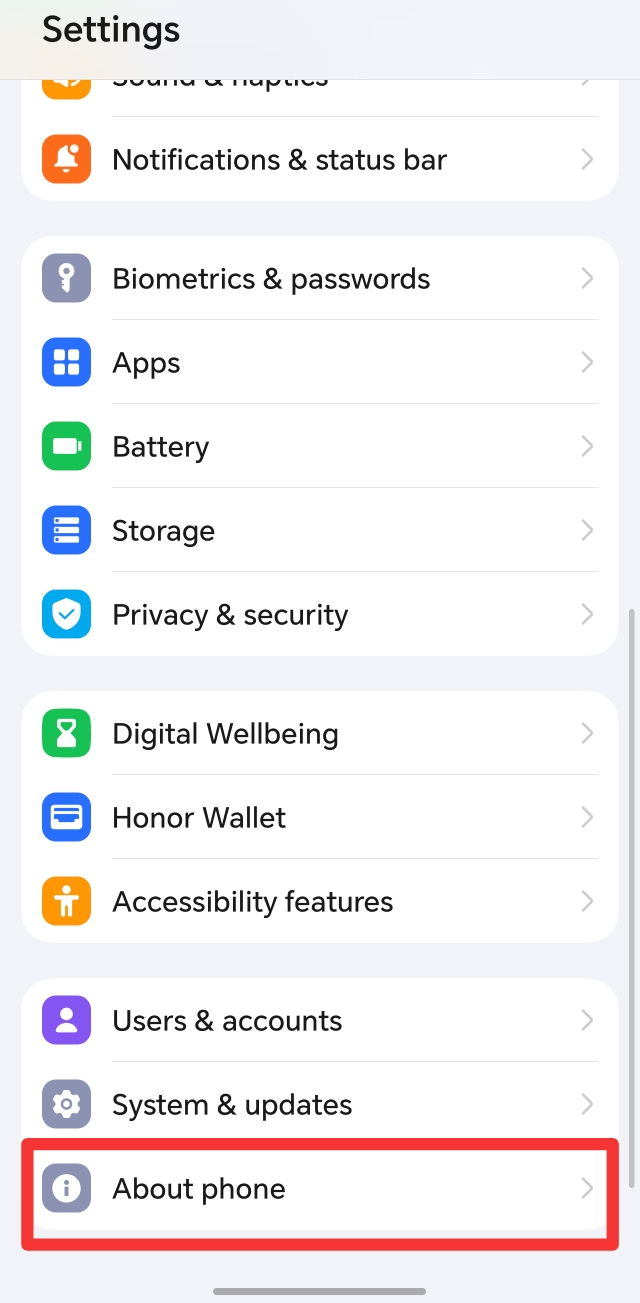
Step 2. Scroll down and tap “About Phone” (or About Device).
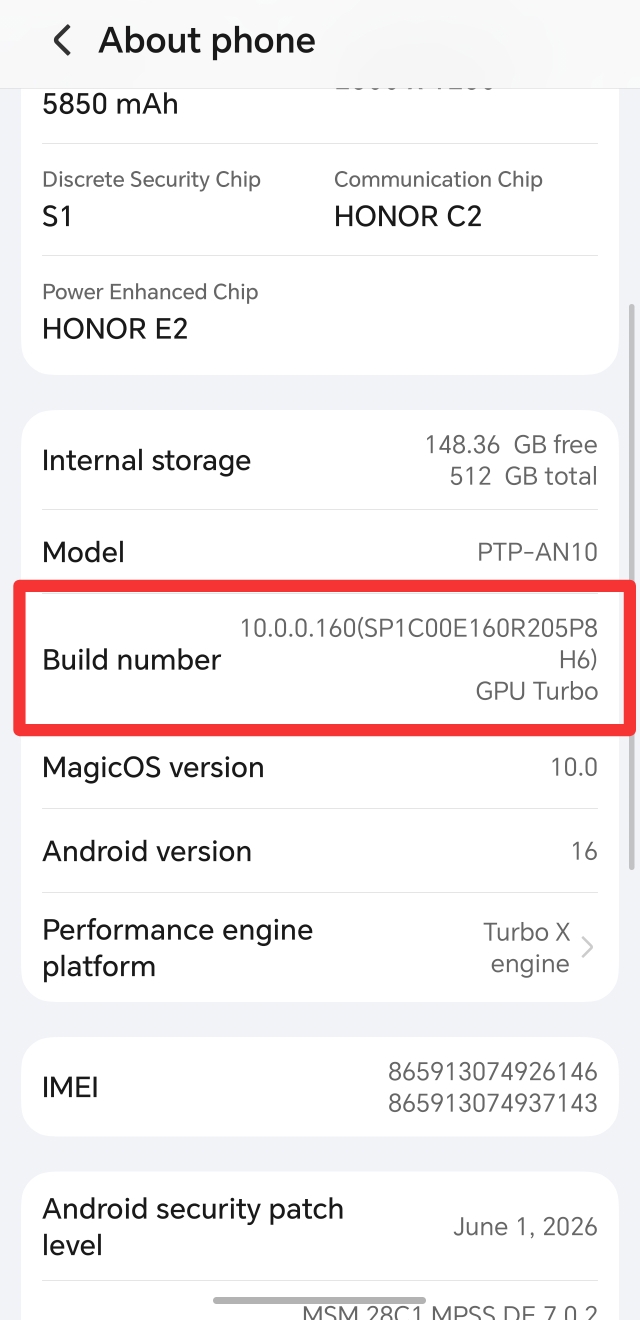
Step 3. Find "Build Number", then tap it 7 times continuously. After that, you will see a message saying Developer Mode is enabled.
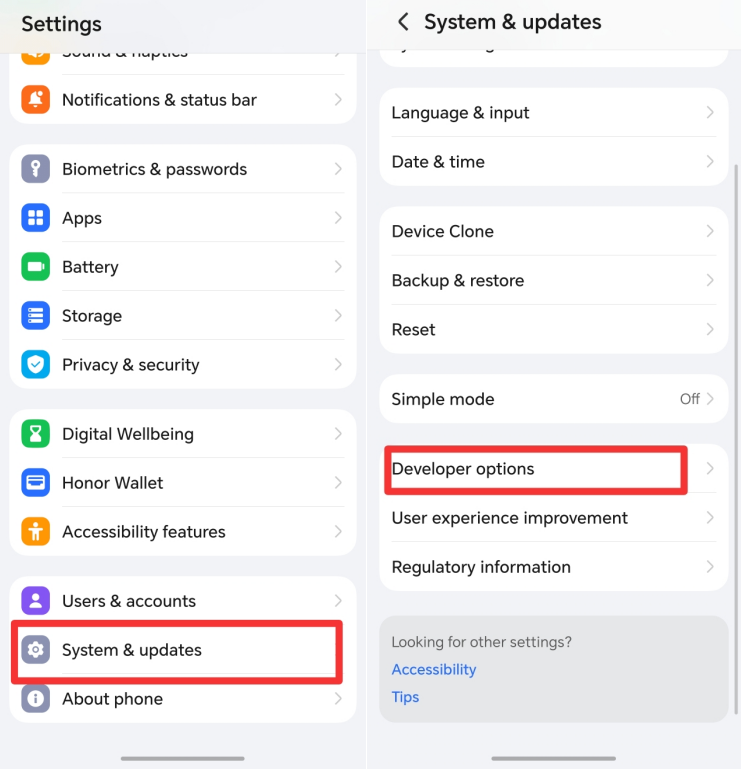
Step 4. Return to the main Settings page.
Step 5. Go to "System & updates", tap on the "Developer Options" (or directly search “Developer Options” in Settings).
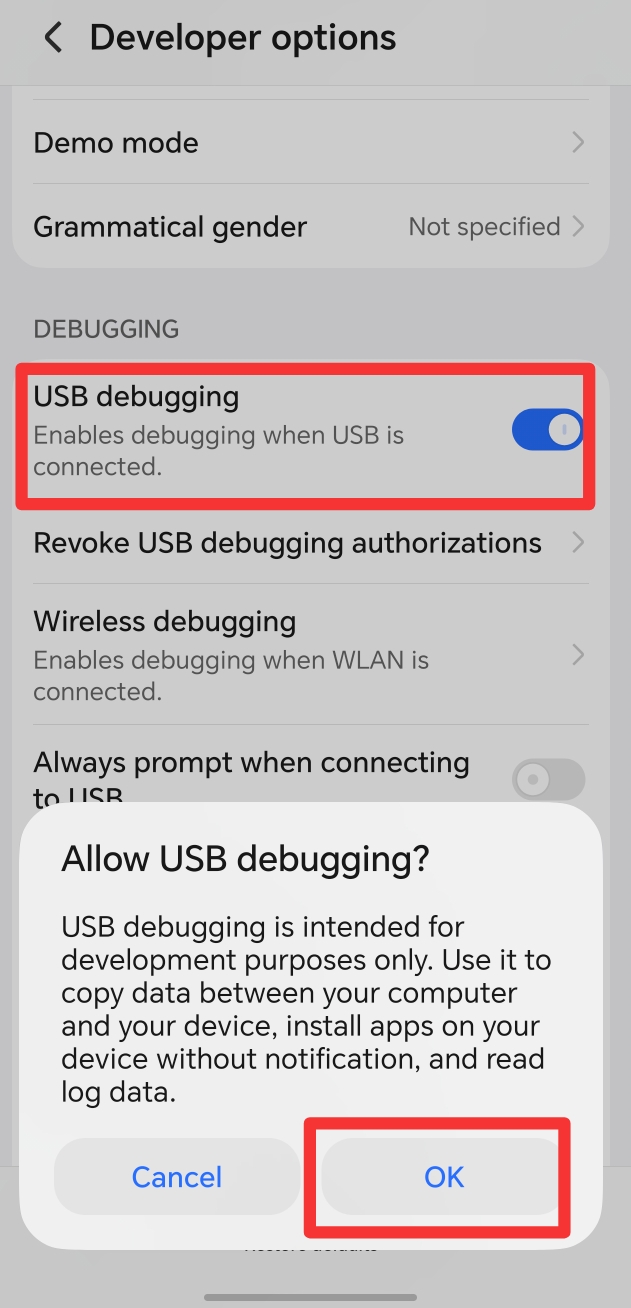
Step 6. Scroll down to find "USB Debugging" and switch it ON. Confirm the prompt when it appears.
After you finish the steps by following the step-by-step guide or video tutorial, USB Debugging will be successfully enabled on your device.