










































How to Fix Easy Anti-Cheat Error Code on Windows
- Support
- Software Tutorials
- Kate
 688
688- 2026-03-10 18:21:50


When launching a game on Windows, you may encounter an Easy Anti-Cheat (EAC) error code that prevents the game from starting. This issue often appears in games that use the Easy Anti-Cheat system to detect cheating or unauthorized software.
Common messages include Easy Anti-Cheat Error Code 20006, 20006 (0), or 20006 (1058). When this error occurs, the game may close automatically or fail to load.
If you’re facing this problem, don’t worry. In most cases, the issue is caused by a corrupted EAC installation, network restrictions, or interference from security software. This guide explains the possible causes and provides some effective solutions to fix Easy Anti-Cheat errors on Windows.
Fix 1. Repair Easy Anti-Cheat (Error Code 20006 (0))
If you see Easy Anti-Cheat Error Code 20006 (0), it usually means the EAC service files are damaged or missing. Repairing the service can often solve the problem.
Step 1. Open “Steam” on your computer, find the game that shows the Easy Anti-Cheat error.
Step 2. Right-click the game and select “Manage” -> “Browse Local Files”.
Step 3. Locate the folder named EasyAntiCheat and double-click “EasyAntiCheat_Setup.exe”.
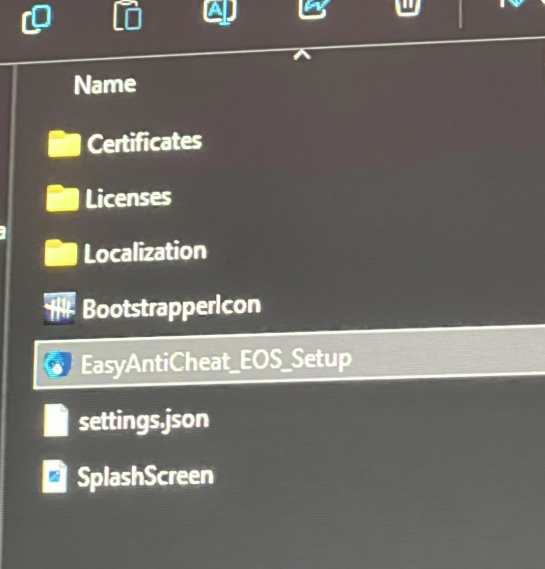
Step 4. Select your game from the drop-down list and click “Repair Service.” Then, wait for the repair process to finish.
Fix 2. Check Network or Firewall Settings (Error Code 20006 (1058))
Some Easy Anti-Cheat errors, especially Error Code 20006 (1058), are caused by network restrictions or firewall interference. If EAC cannot communicate with its servers, the game may fail to start.
A) Switch to a Different Network
Step 1. Connect to a different Wi-Fi network or use a wired Ethernet connection.
Step 2. Restart your router or temporarily disable VPN services.
B) Check Firewall Settings
Step 1. Open “Windows Security” -> “Firewall & network protection”.
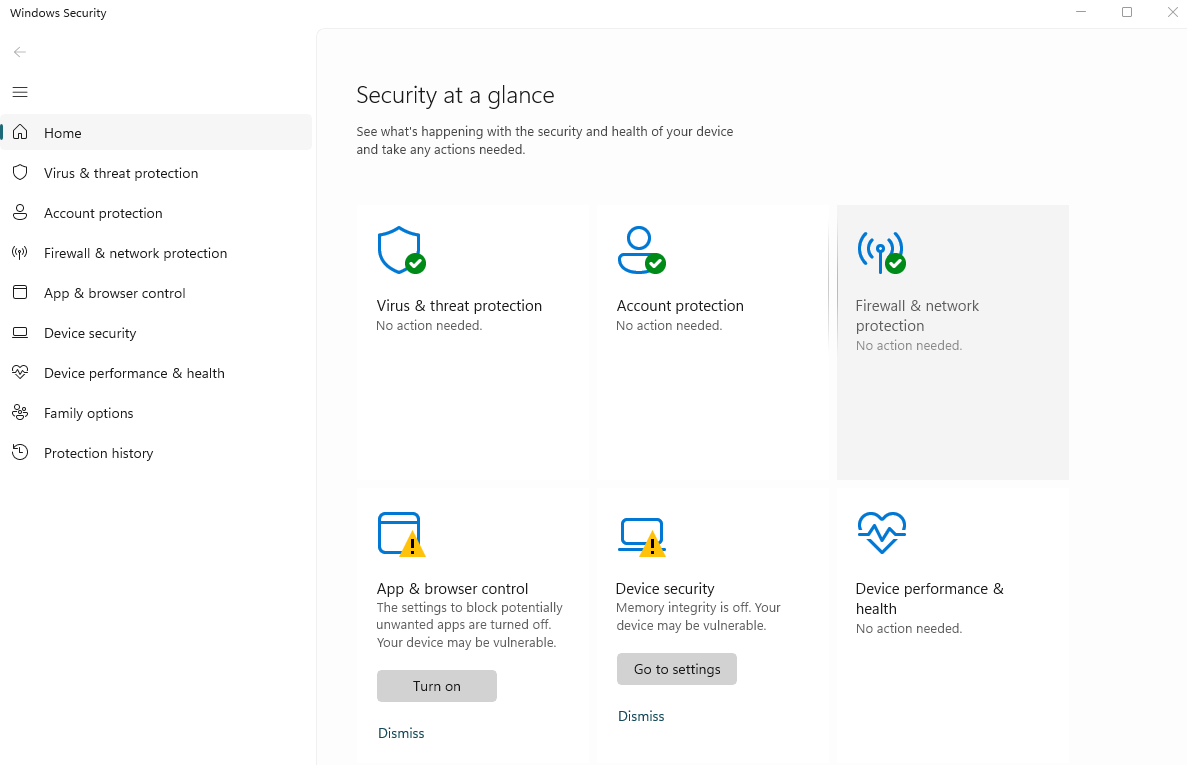
Step 2. Temporarily turn off the firewall and launch the game.
Step 3. If the game works, add the game and “Easy Anti-Cheat” to the firewall whitelist.
Conclusion
Easy Anti-Cheat errors on Windows can prevent your game from launching, and repeated failures may stop you from enjoying your favorite games. By following the repair steps, checking network and firewall settings, and resolving software conflicts, you can fix most Easy Anti-Cheat errors quickly without interruptions. You can manually repair EAC and adjust settings, but with Auto DLL Fixer, the process becomes even simpler and faster, automatically repairing missing or corrupted DLL files that often trigger EAC launch errors.







