










































How to Fix Windows Update Error 0x8007041D in Windows
- Support
- Software Tutorials
- Kate
 561
561- 2026-03-10 18:21:37


Windows Update error 0x8007041D can block important system updates on Windows PC. This issue often happens when core services required for updating are not running or are misconfigured. In this guide, we show you how to troubleshoot and fix the problem quickly.
What Is Error Code 0x8007041D?
When attempting to install a Windows update, you may see a message like:
“There were some problems installing updates, but we’ll try again later. If this keeps happening, try searching the web or contacting support for assistance: (0x8007041D).”
This error typically means that one or more Windows Updaterelated services are stopped or failing, preventing the update process from running.
How to Fix Windows Update Error 0x8007041D in Windows
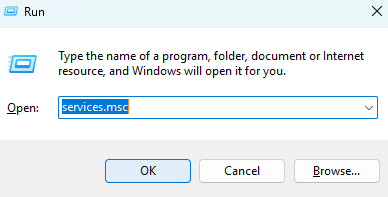
Step 1. Press “Win + R”, type “services.msc”, and press “Enter” to open the Services window.
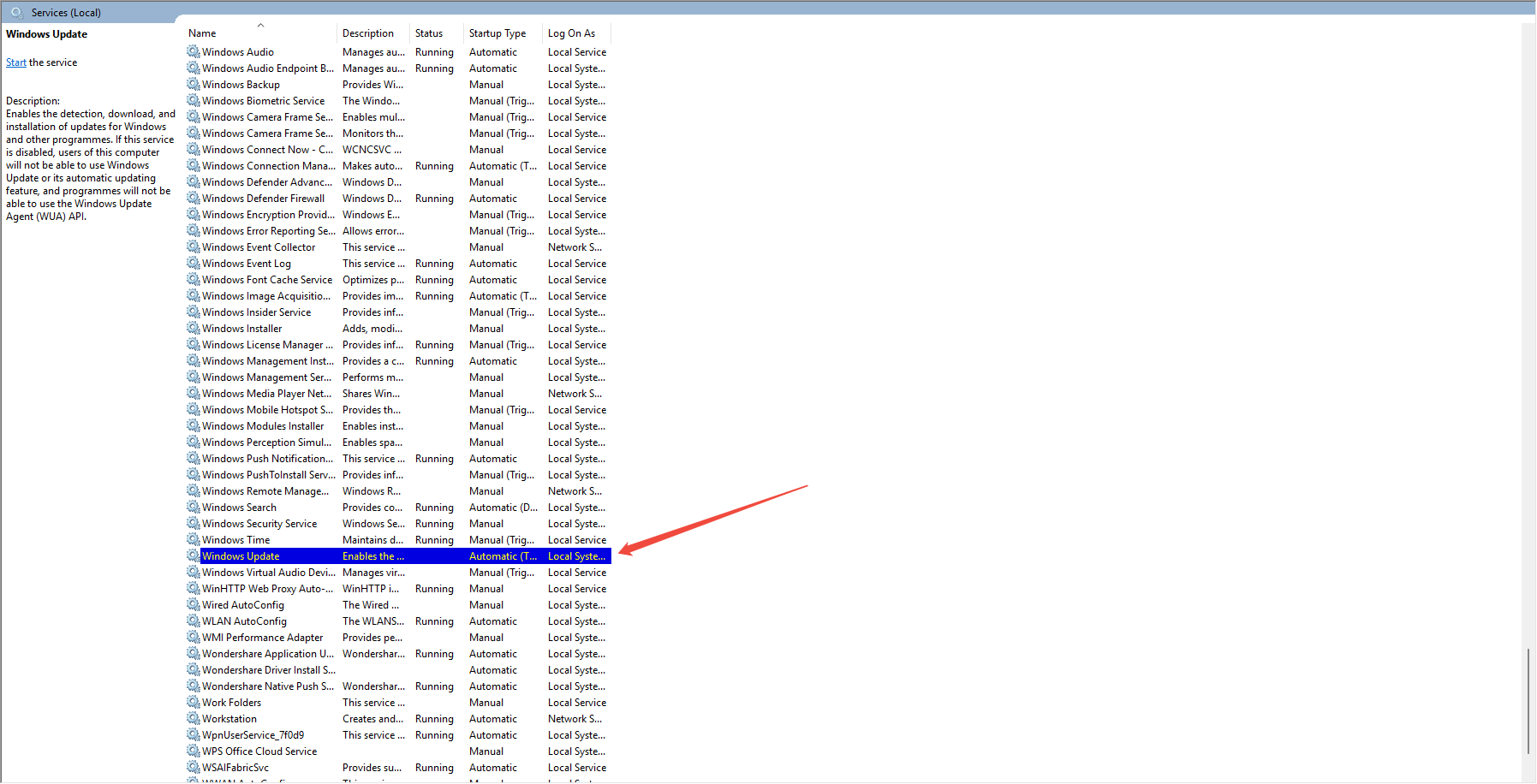
Step 2. Locate Windows Update, BITS, Cryptographic Services, and Windows Installer in the list.
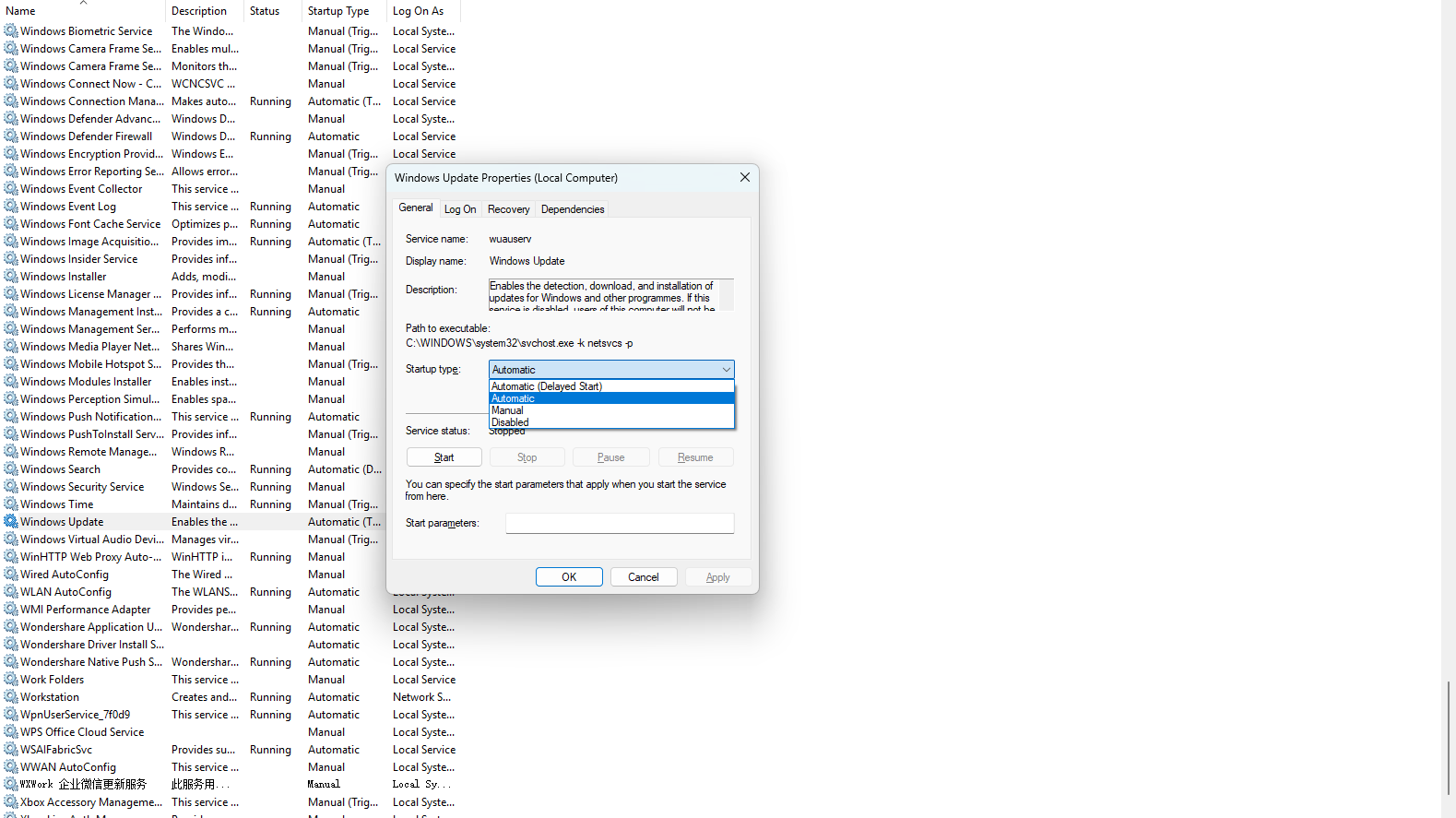
Step 3. Double-click each service, set “Startup type” to “Automatic” or “Manual”, and click “Start” if not running.
Step 4. Restart your PC and run Windows Update again.
Final Thoughts
Windows Update error 0x8007041D is usually caused by stopped or disabled system services. Fixing these services and restarting your system resolves the issue for most users. If the problem continues after all steps, consider using the Auto DLL Fixer or Copilot ReWin11 to clean reinstall your Windows PC.







