










































How to Fix Windows Update Error 0x80070005 (Access Is Denied)
- Support
- Software Tutorials
- Kate
 443
443- 2026-03-10 18:23:19


If you encounter Windows Update error 0x80070005 while starting the Windows Update service, you’re not alone. This error usually indicates a permission or access issue, preventing Windows from running essential update components. In this guide, we’ll explain what causes error 0x80070005: Access is denied and walk you through a simple, proven fix that works on Windows 10 and Windows 11.
What Is Windows Update Error 0x80070005?
Error 0x80070005 typically appears when you try to start the Windows Update service and see this message:
“Windows could not start the Windows Update service on Local Computer.
Error 0x80070005: Access is denied.”
This means Windows does not have the required permissions to access or modify certain system files related to updates.
Several factors can trigger this Windows Update error, including:
Corrupted Windows Update cache files
Incorrect folder permissions
Interrupted or failed update processes
System files are being locked by security software
Among these, a corrupted SoftwareDistribution folder is one of the most common reasons.
How to Fix Windows Update Error 0x80070005
The SoftwareDistribution folder stores temporary Windows Update files. If it becomes corrupted, Windows Update may fail to start. Therefore, we need to delete or rename the SoftwareDistribution folder. Below are the detailed steps:
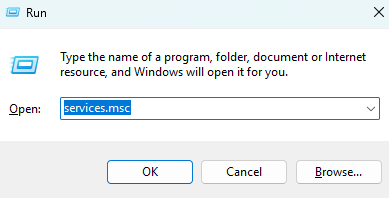
Step 1. Press “Win + R”, type “services.msc”, and press Enter.
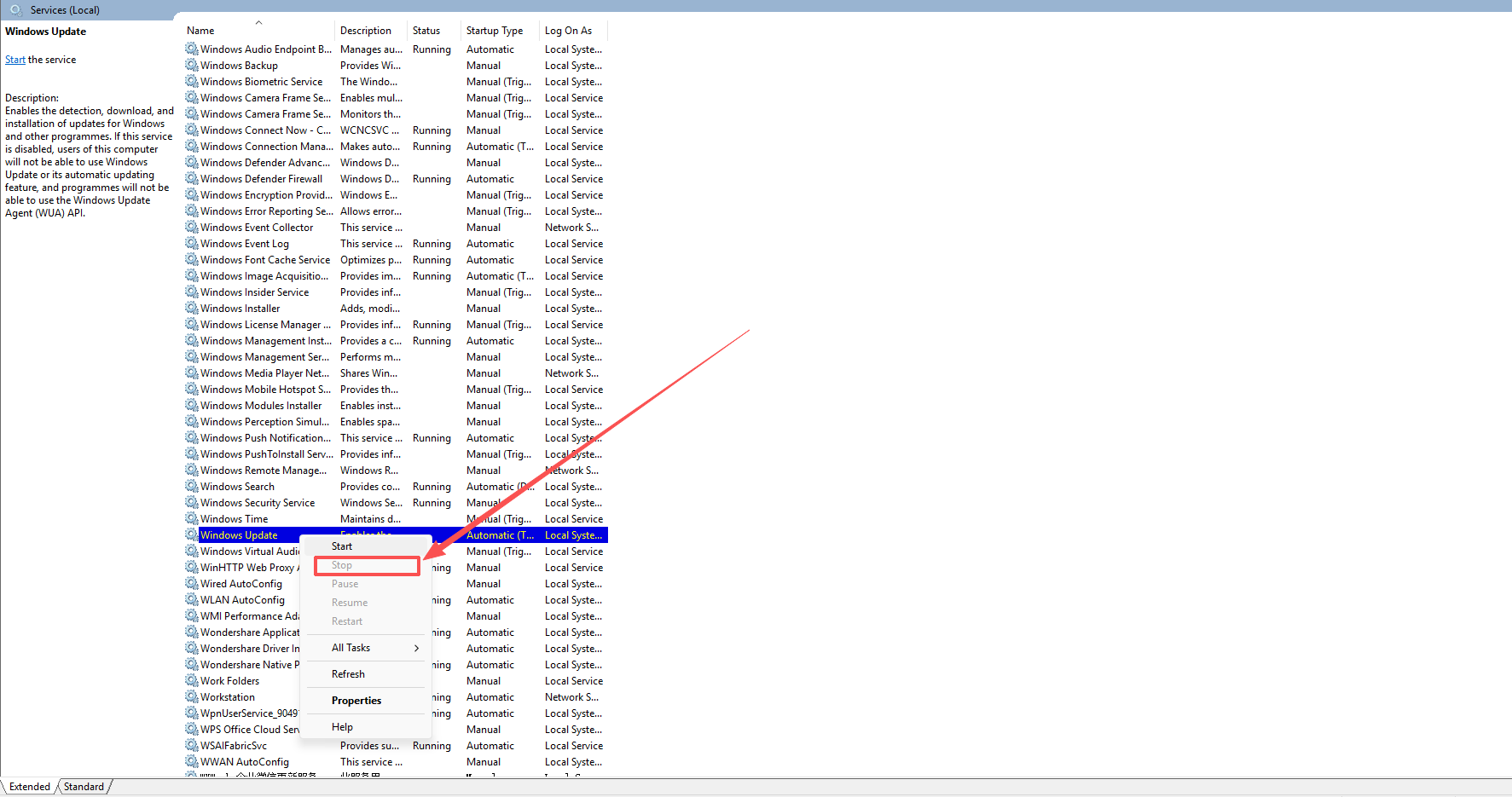
Step 2. Locate “Windows Update”, right-click it, and choose “Stop.”
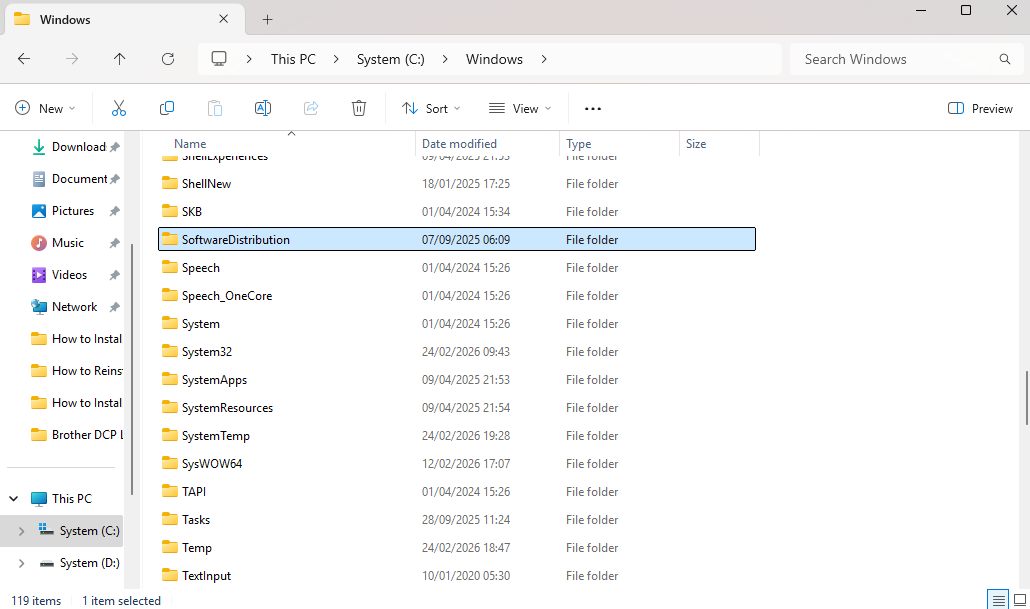
Step 3. Open File Explorer and go to: C:\Windows, find the SoftwareDistribution folder. You can either delete the folder or rename it to SoftwareDistribution.old
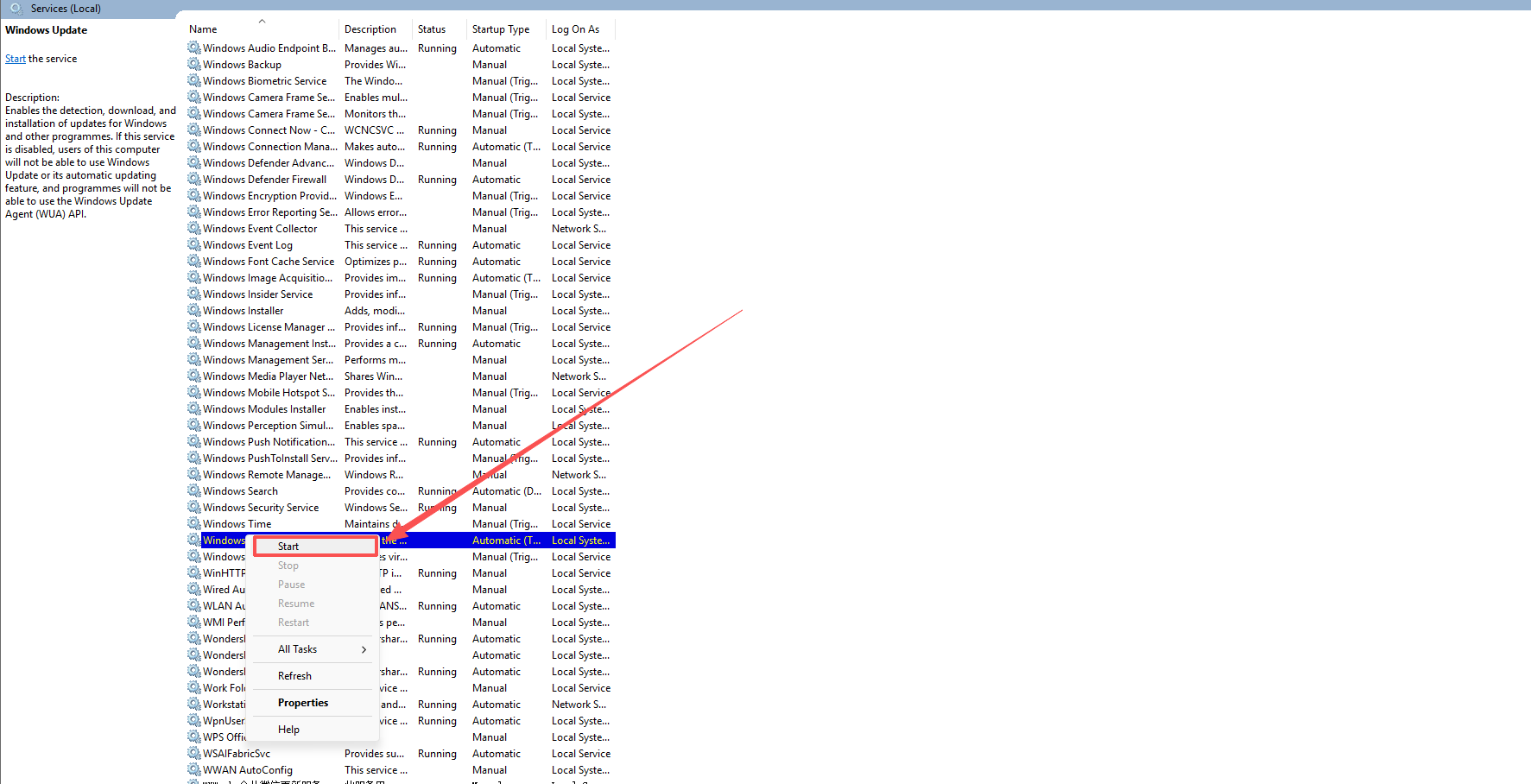
Step 4. Go back to Services. Right-click “Windows Update” and choose “Start”. After restarting the service, Windows will automatically recreate the folder and rebuild the update files.
Final Thoughts
Windows Update error 0x80070005 can look serious, but in most cases, it’s caused by a corrupted update cache. Deleting or renaming the SoftwareDistribution folder is a quick and effective fix that works for most users. If your Windows Update service fails to start due to access denial, follow the steps above and get your system back on track in minutes. For more solutions on fixing Windows issues, please pay attention to Kingshiper Software.







