










































How to Fix .NET Framework 3.5 Installation Errors
- Support
- Software Tutorials
- Kate
 1008
1008- 2026-03-10 18:26:44


Installing .NET Framework 3.5 on Windows can sometimes fail due to multiple error codes. Common errors include 0x80240438, 0x80070002, 0x80070003, 0x80072EE2, 0x80072EE6, 0x800F0922, 0x800F0950, 0x80070005, and 0x8007041d. This guide provides step-by-step solutions to help you fix these errors and successfully install .NET Framework 3.5 for your applications.
Fix 1. NET Framework 3.5 Error Code 0x80240438
This error usually happens when Windows Update is configured to use a corporate update server (WSUS) or the system cannot reach Microsoft update servers. The registry key UseWUServer is often set to 1, which blocks the installation.
Step 1. Press “Win + R”, type “regedit”, and press Enter.
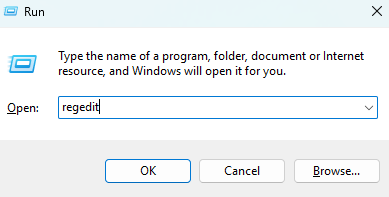
Step 2. Navigate to: HKEY_LOCAL_MACHINE\SOFTWARE\Policies\Microsoft\Windows\WindowsUpdate\AU. Change “UseWUServer” from “1” to “0” and click “OK”.
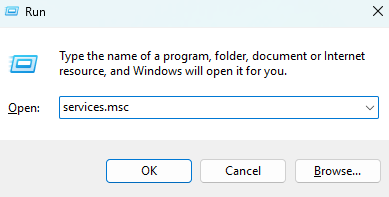
Step 3. Press “Win + R”, type “services.msc” and press “OK”.
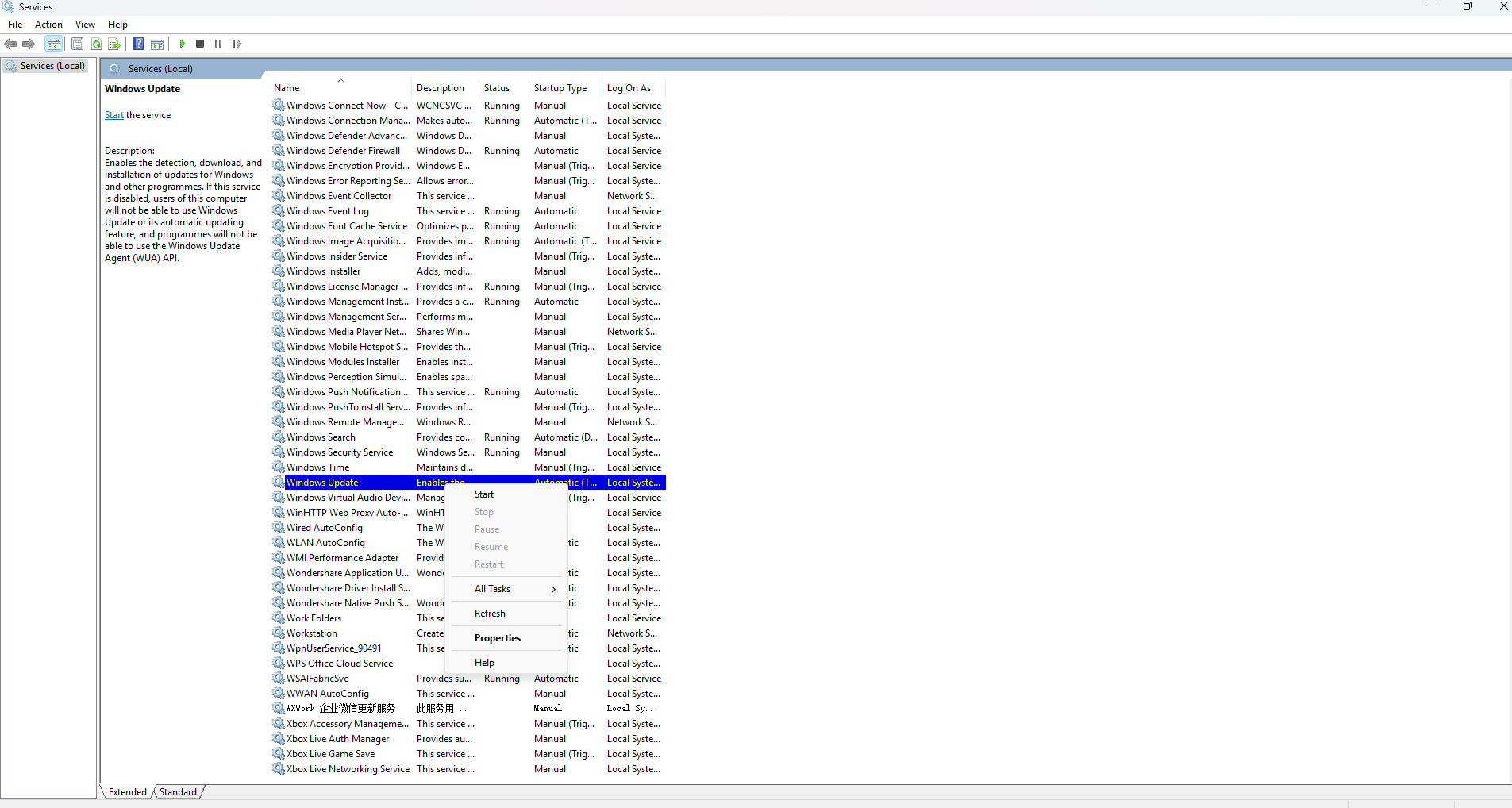
Step 4. Restart the Windows Update service and then retry installing .NET Framework 3.5.
Fix 2. NET Framework 3.5 Error Code 0x80070002
Error 0x80070002 occurs when Windows cannot locate certain update files. It often happens due to incomplete Windows Updates, corrupted system files, or a broken update cache.
Step 1. Download the .NET 3.5 offline installer.
Step 2. Run the offline installer as administrator.
Step 3. Follow the on-screen instructions to complete the installation.
Fix 3. NET Framework 3.5 Error Code 0x80070003
This error usually appears when leftover registry entries from deleted user accounts interfere with the installation. The system tries to access old profiles, causing the installation to fail.
Step 1. Press “Win + R” and type “regedit” in the run window to open Registry Editor.
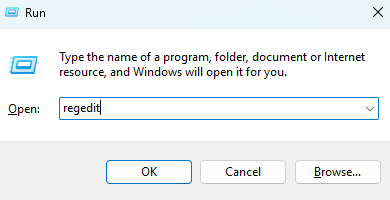
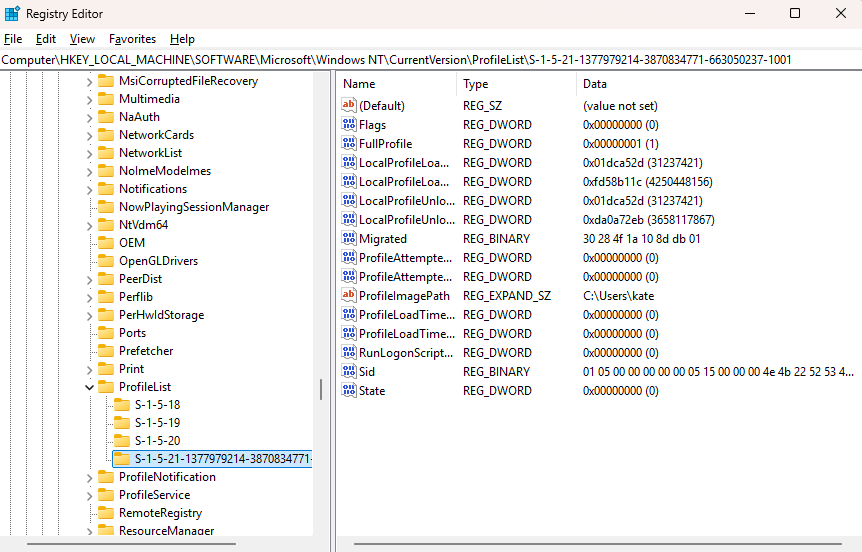
Step 2. Navigate to: HKEY_LOCAL_MACHINE\SOFTWARE\Microsoft\Windows NT\CurrentVersion\ProfileList
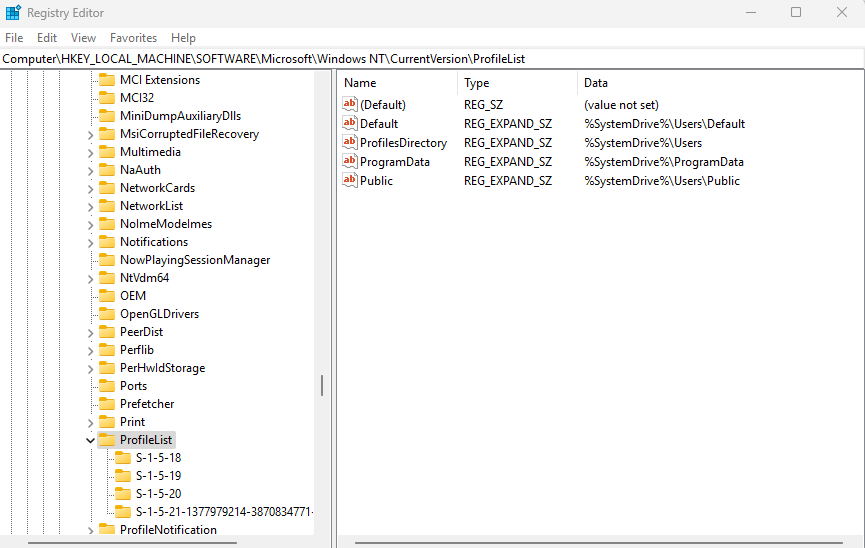
Step 3. Identify entries for deleted accounts (S-1-5-21-xxxx) and remove them carefully. Do not delete your current user account.
Fix 4. NET Framework 3.5 Error Code 0x80072EE2
This error indicates your PC cannot connect to the Microsoft update server, often due to firewall restrictions, network issues, or incorrect DNS settings.
Step 1. Check your internet connection. Try switching networks.
Step 2. Temporarily disable firewall or antivirus software.
Step 3. Retry installation or use the offline installer: https://dotnet.microsoft.com/en-us/download/dotnet-framework/net35-sp1.
Fix 5. NET Framework 3.5 Error Code 0x80072EE6
This error occurs when essential services are stopped or disabled. Without services like Windows Update or Background Intelligent Transfer Service, the installer cannot download the required components.
Step 1. Press “Win + R”, type “services.msc”, and press Enter.
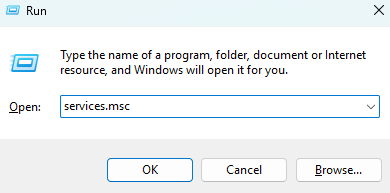
Step 2. Ensure the following services are running:
Windows Update
Background Intelligent Transfer Service
Cryptographic Services
Windows Installer
Windows Modules Installer
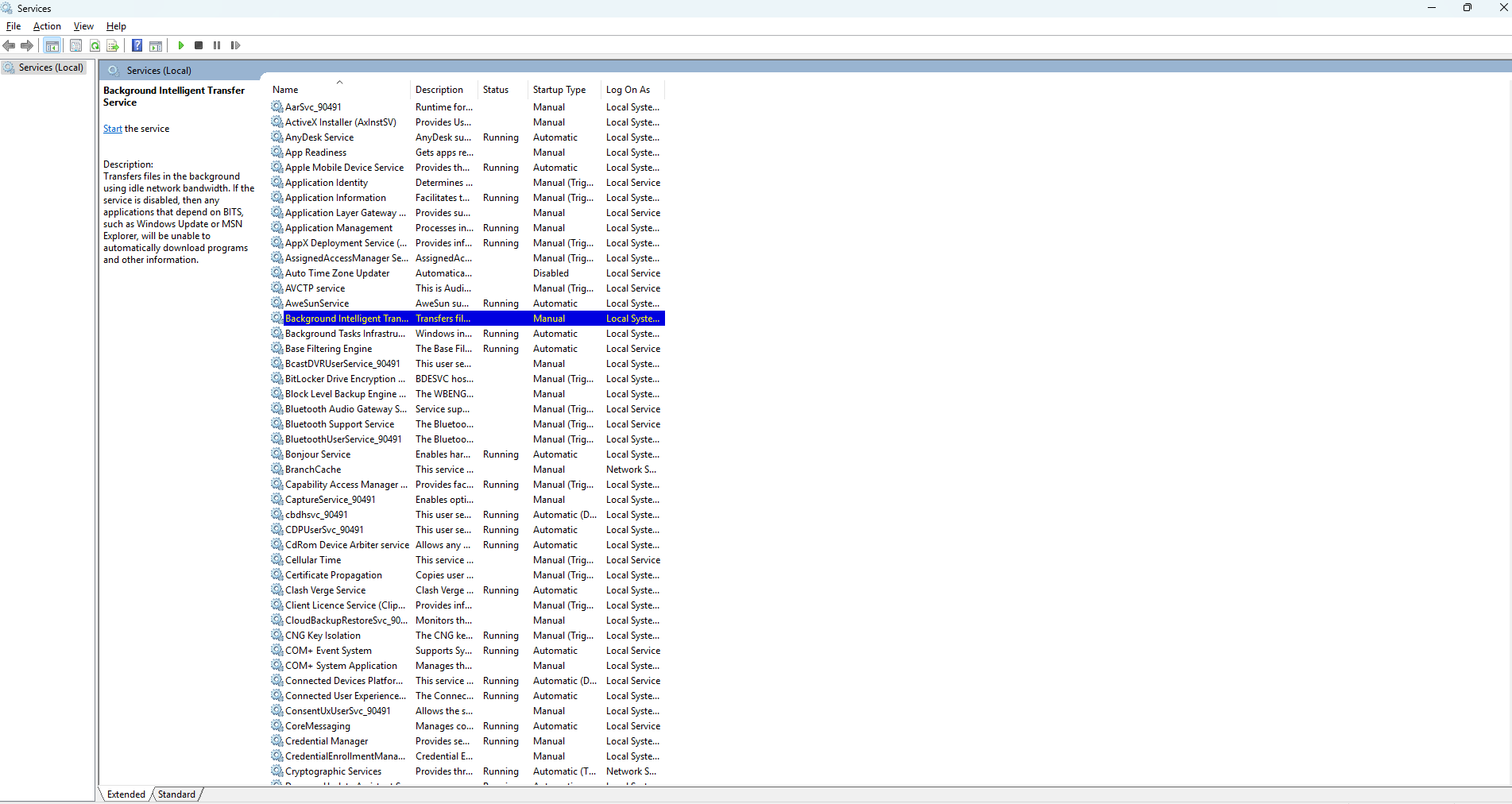
Step 3. Double-click each service to open its properties. Under the “General” tab, make sure the “Startup type” is set to “Automatic” or “Manual”, then click the “Start” button under Service status if the service is not already running.
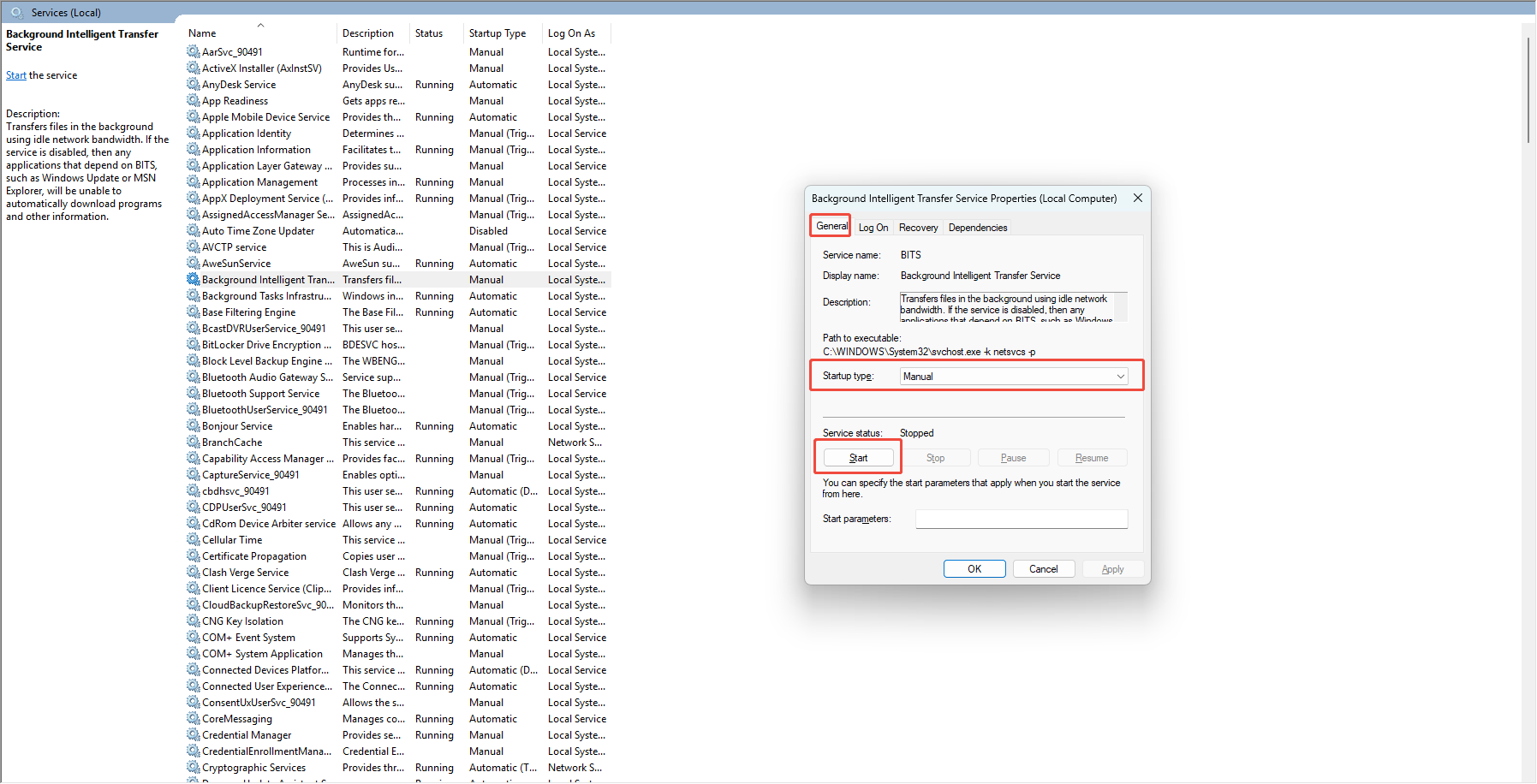
Step 4. After completing the above steps, try installing .NET Framework 3.5 again.
Fix 6. NET Framework 3.5 Error Code 0x800F0922
This error typically occurs when the installation is blocked by the firewall, or there is a conflict with an existing .NET Framework 4.x installation. It may also happen if the system cannot connect to the update server while installing components.
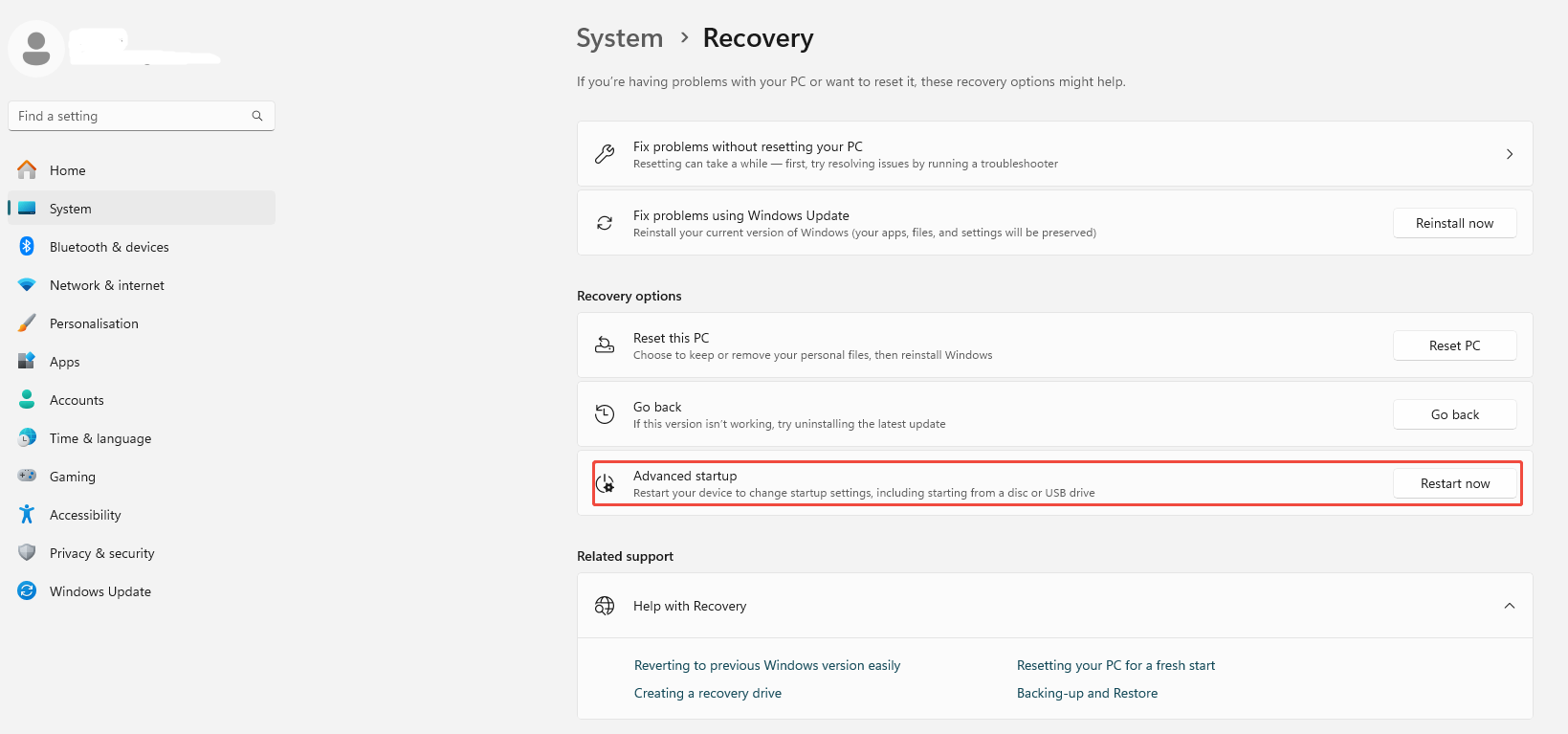
Step 1. Go to your “Settings” -> “System” -> “Recovery”. Click on the “Restart now” button to boot your PC into Safe Mode via Advanced Startup.
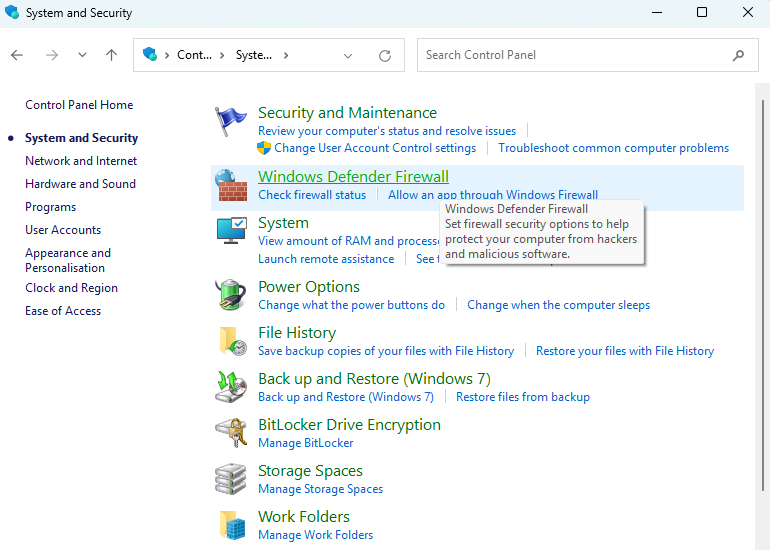
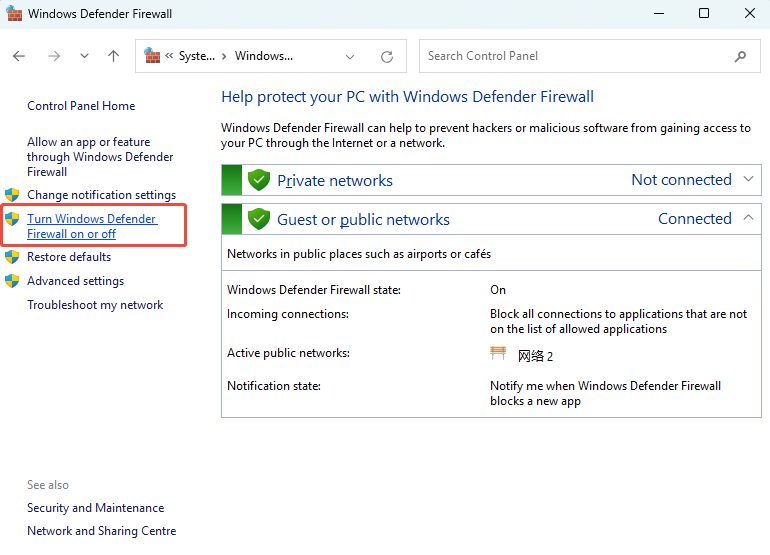
Step 2. Open “Control Panel” -> “System and Security” -> “Windows Defender Firewall”. Temporarily disable the firewall for all network profiles.
Step 3. Open “Programs” in the control panel -> Turn Windows features on or off and uninstall .NET Framework 4.x if installed.
Step 4. Select .NET Framework 3.5 and install it.
Step 5. After installation completes, reinstall .NET Framework 4.x if needed, then restart your computer.
Note: Installing in Safe Mode and temporarily disabling the firewall ensures the installer can access required system components without interruption.
Fix 7. NET Framework 3.5 Error Code 0x800F0950
This error is often caused by network issues or disabled Windows services. The installer cannot reach the update server, or required services are not running, such as the Windows Update or Background Intelligent Transfer Service.
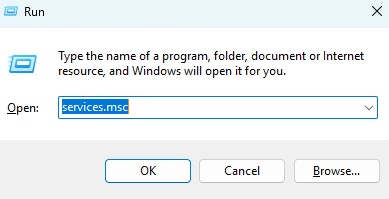
Step 1. Press “Win + R”, type “services.msc”, and press Enter.
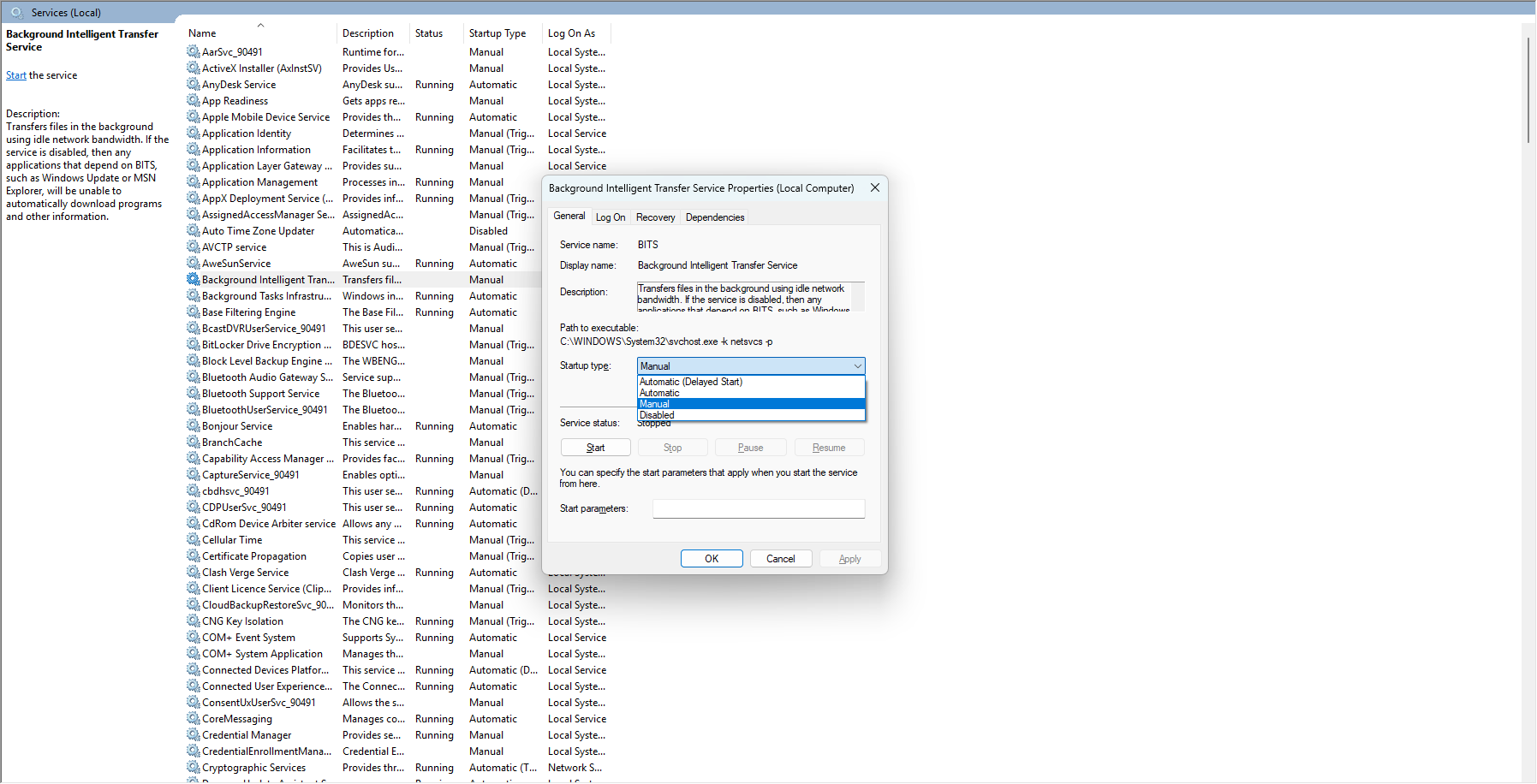
Step 2. Locate the following services:
Windows Update
Background Intelligent Transfer Service (BITS)
Step 3. Make sure both services are set to Automatic and are running. Ensuring these services are active allows the installer to download and apply necessary components.
Fix 8. NET Framework 3.5 Error Code 0x80070005
This error occurs due to insufficient permissions or disabled services. The installer cannot access required files or registry entries without administrative rights or running services.
Step 1. Press “Win + R” and type “services.msc” in the Run dialog. Locate Windows Update.
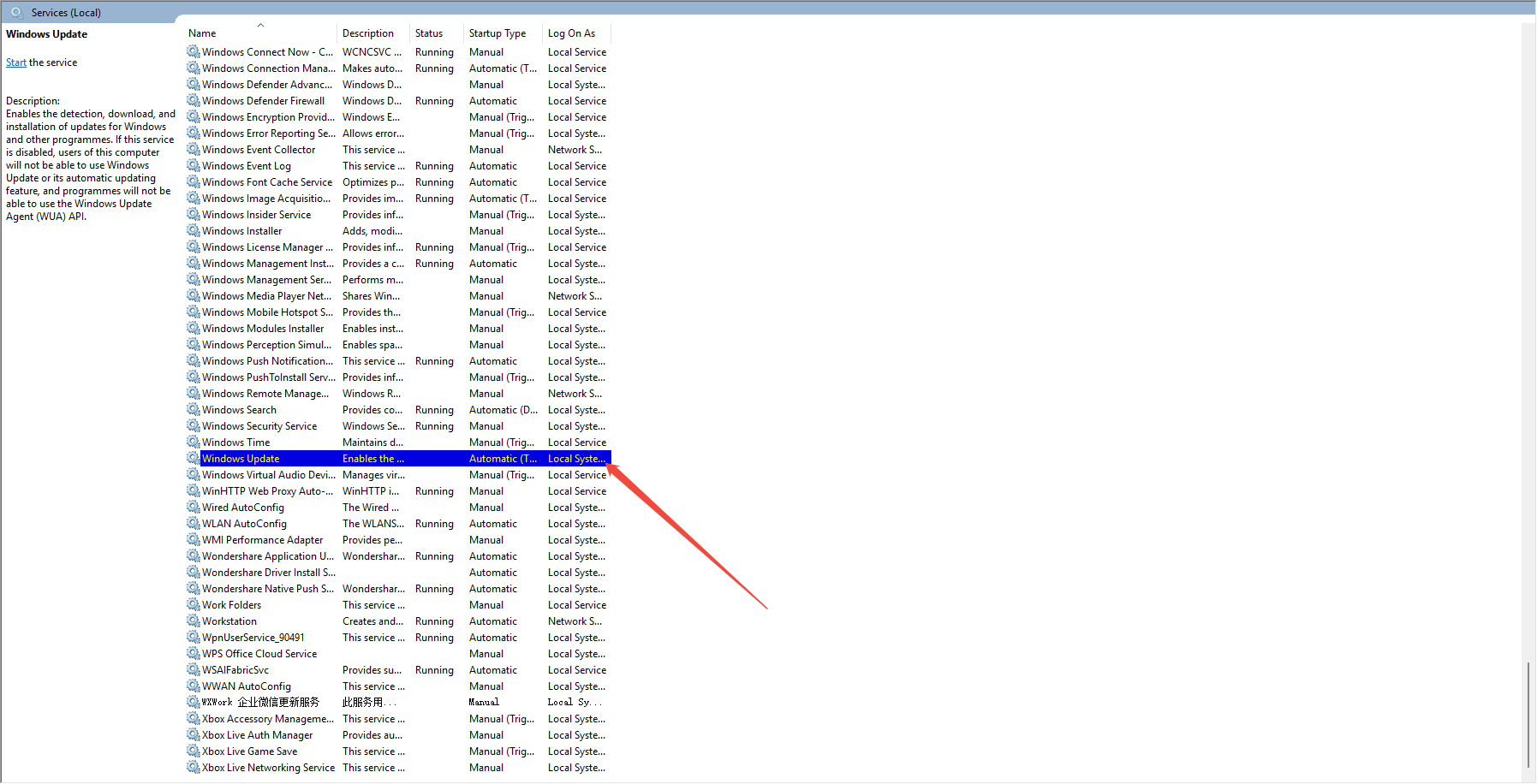
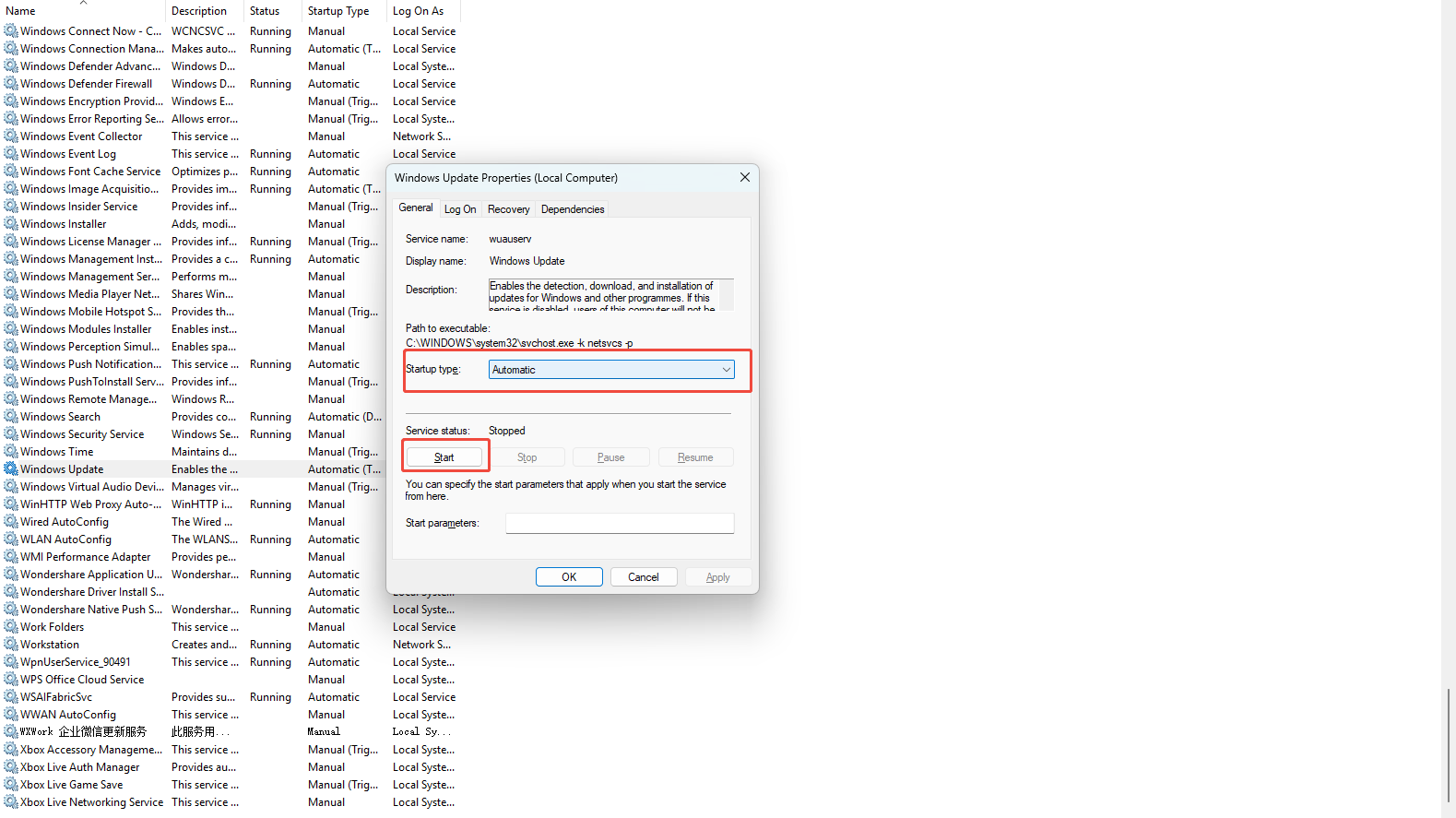
Step 2. Double-click it, set Startup type to “Automatic” or “Manual”, and click “Start” if it’s not running.
Step 3. Run the .NET Framework 3.5 installer as an administrator. Using administrative privileges and enabling required services usually resolves the Access Denied error.
Fix 9. NET Framework 3.5 Error Code 0x8007041d
This error happens when the optional component installation or repair is blocked by group policies or when required Windows services are disabled.
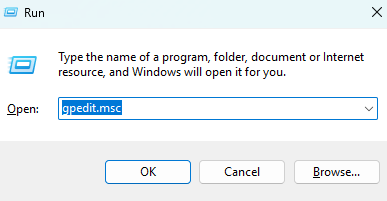
Step 1. Press “Win + R”, type “gpedit.msc”, and press Enter to open Group Policy Editor.
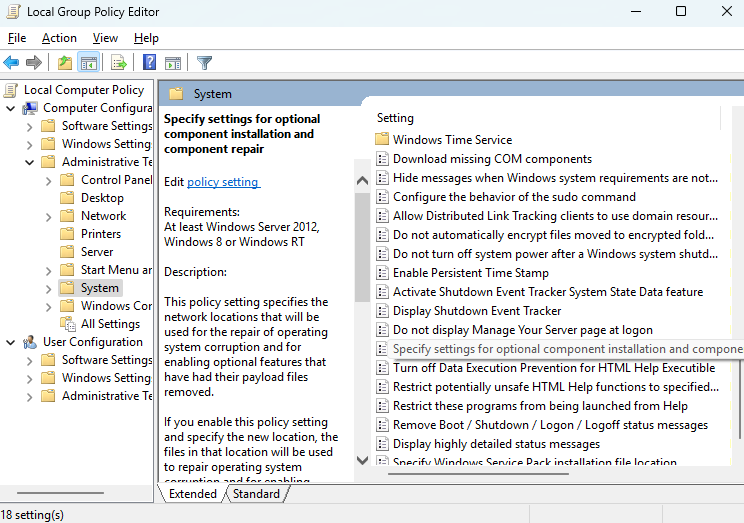
Step 2. Navigate to: Computer Configuration -> Administrative Templates -> System -> Specify settings for optional component installation and component repair.
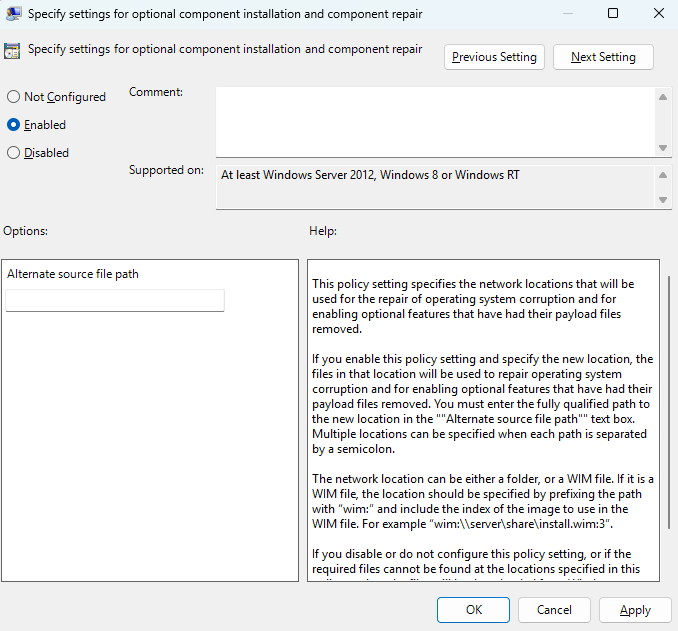
Step 3. Set this policy to “Enabled” and click “Apply”.
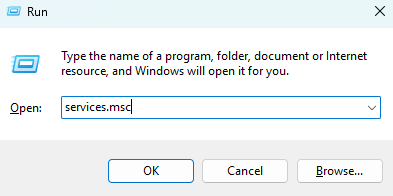
Step 4. Press “Win + R” and type “services.msc” to open Services.
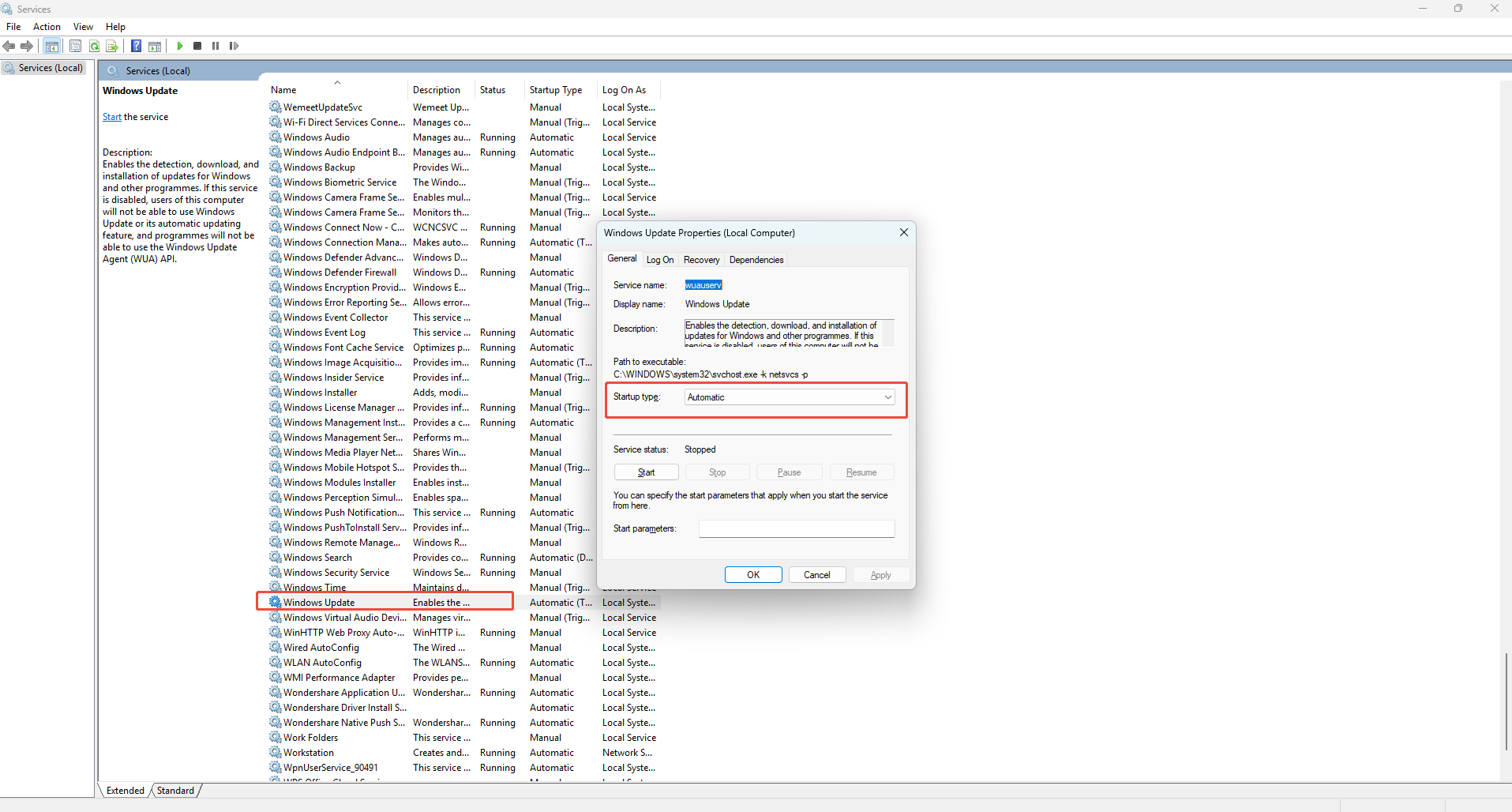
Step 5. Ensure Windows Update is running and set to “Automatic”. Click “Apply”.
Step 6. Use Auto DLL Fixer to scan the computer for system issues. Close any pop-up windows, then select the “Runtime Library Installation” feature. In the search box, type “.NET Framework 3.5” and click “High-Speed Download” to install it.
Conclusion
Installing .NET Framework 3.5 can sometimes run into issues, but these problems are usually solvable with the right approach. For a reliable and easy solution, using a trusted tool like Auto DLL Fixer can simplify the process and ensure a successful installation. If difficulties persist, it’s always a good idea to back up important data and seek professional assistance. With the right approach, you can get .NET Framework 3.5 running smoothly and keep your Windows system stable.







