










































Missing VC++ Runtime? Install VC2022 x86/x64 in One Click
- Support
- Software Tutorials
- Kate
 459
459- 2026-03-10 18:26:20


Are you seeing a “VC++ Runtime Missing” error on your Windows PC? This issue often occurs when applications or games require Microsoft Visual C++ libraries that are not installed on your system. The good news is that you can fix it quickly by installing VC2022 x86 and x64 in just one click.
Why Your System Needs VC++ Runtime
Many Windows programs depend on the Visual C++ runtime libraries to run. Without them, you might encounter errors such as:
MSVCP140.dll is missing
VCRUNTIME140.dll not found
Application crashes on startup
Installing the correct VC++ runtime ensures that your software works smoothly and prevents runtime errors.
How to Install VC2022 x86/x64 on Windows 7/8/10/11 in One Click
Follow these easy steps to fix the missing VC++ runtime:
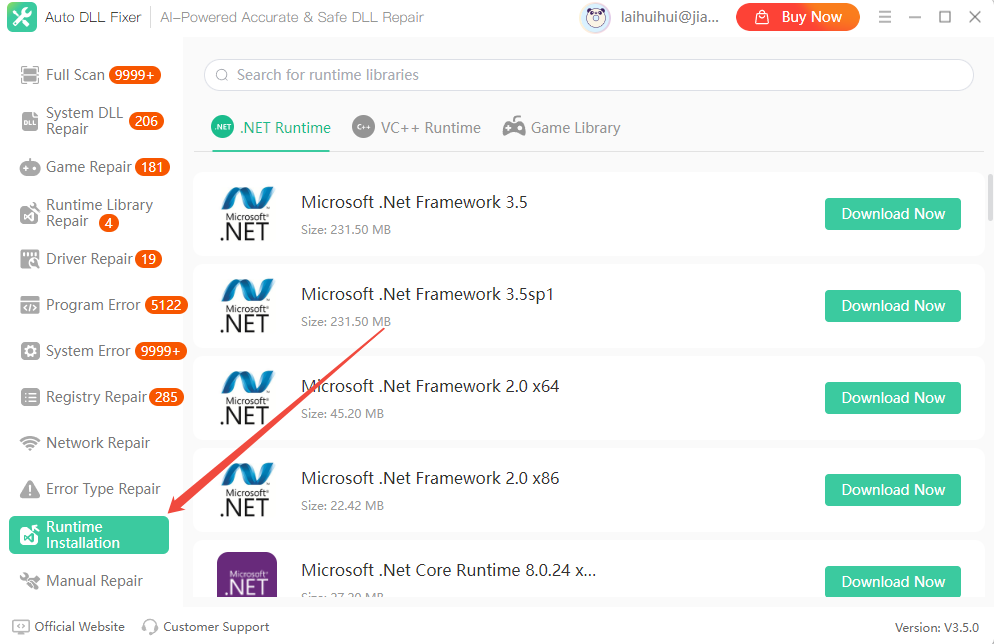
Step 1. Launch Auto DLL Fixer and go to the “Runtime Installation” section.
Step 2. Choose “VC++ Runtime”. Scroll down and find the “Microsoft Visual C++ 2022 x64” and “Microsoft Visual C++ 2022 x86”.
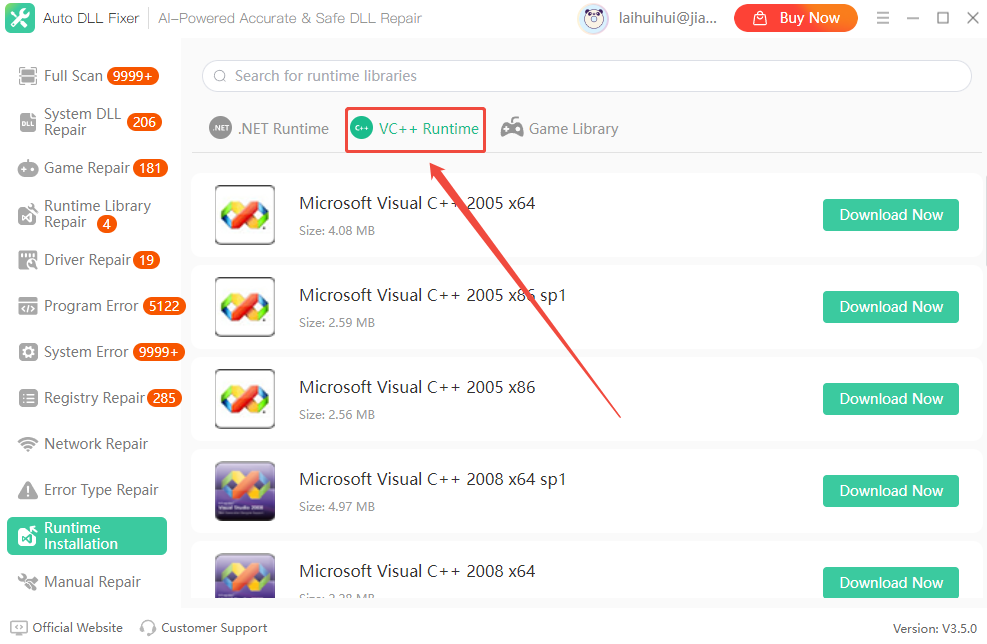
Step 3. Install both of them. x86 is needed for 32-bit applications, and x64 is needed for 64-bit applications. Once installed, your applications should run without runtime errors.
Tips for Installing VC++ Runtime
Restart your PC after installation to apply all changes.
Keep VC++ runtimes updated for maximum compatibility.
Check if specific apps require particular versions of the VC++ runtime.
Conclusion
If you encounter a missing VC++ runtime error, the fastest solution is to install VC2022 x86 and x64 in one click using Auto DLL Fixer. This simple method ensures your system has the necessary C++ libraries, preventing crashes and errors in Windows applications. For more solutions to fix VC++ runtime errors, please pay attention to Kingshiper Software.







