










































How to Reinstall Windows 7/10/11 from USB Safely
- Support
- Software Tutorials
- Kate
 494
494- 2026-01-28 17:44:21


After creating a bootable USB drive with Copilot ReWin11, you can use it to reinstall Windows on other computers. Follow the steps below to complete the process safely and smoothly.
Step 1. Insert the bootable USB drive into the computer that needs system reinstallation, then restart the computer.
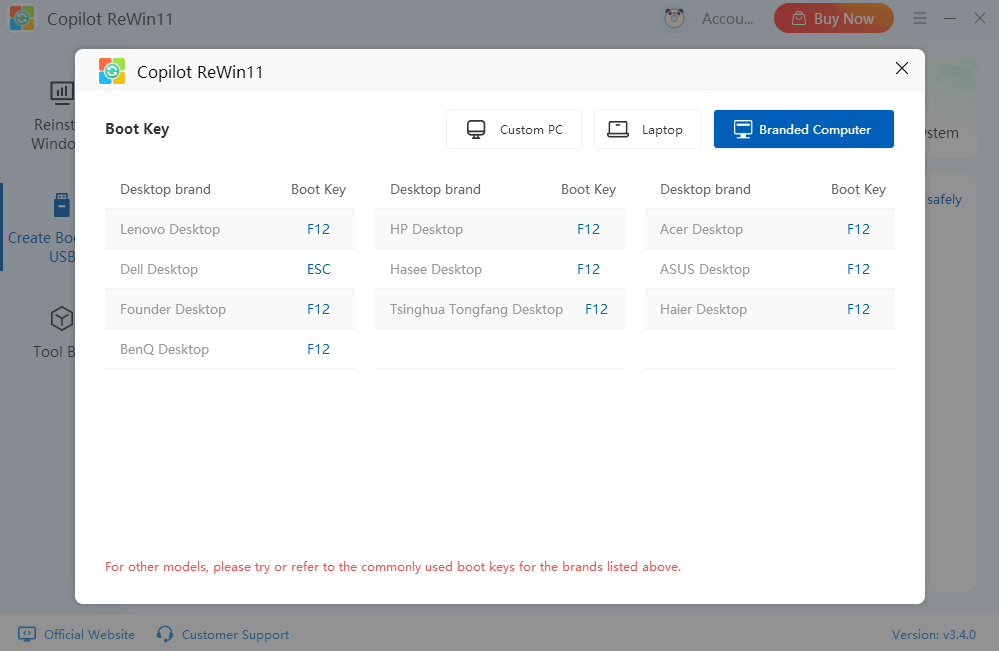
Step 2. Before Windows starts loading, press the corresponding key (such as F2, F10, Delete, etc.) to enter the BIOS/UEFI settings.
Note: Copilot ReWin11 provides commonly used boot keys for major computer brands. Please choose the correct key based on your device. If your model is not listed, try the available options or refer to the brand’s standard boot hotkeys.
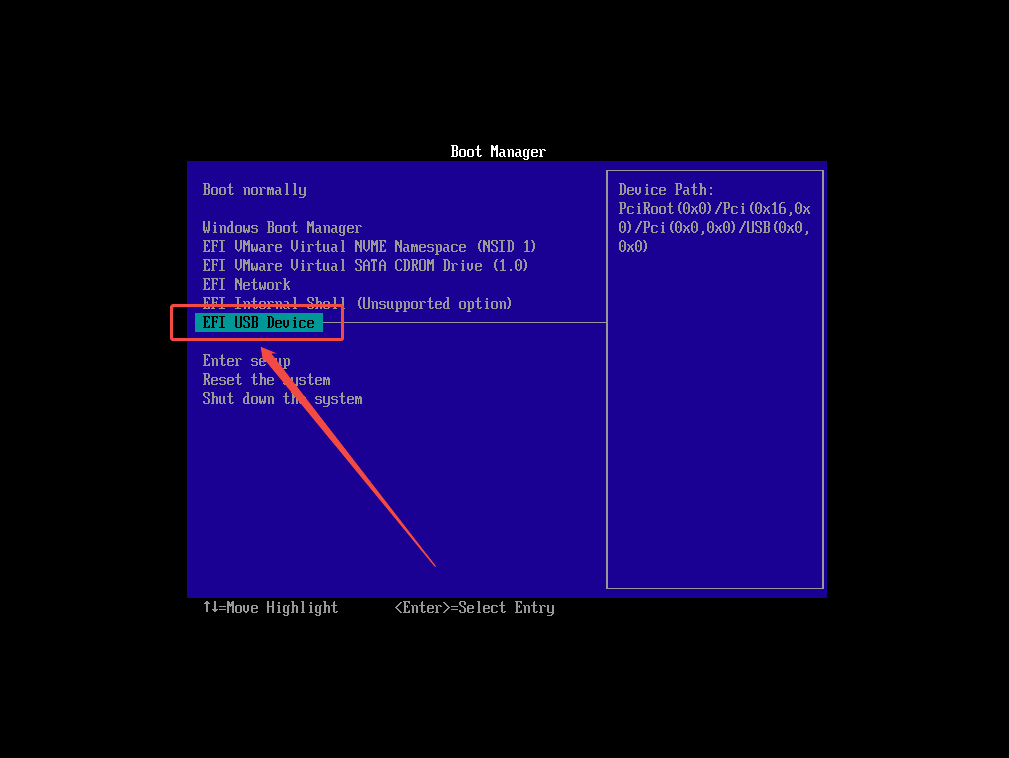
Step 3. In the BIOS interface, locate the option that includes “USB Device”, select it, and press Enter to confirm.
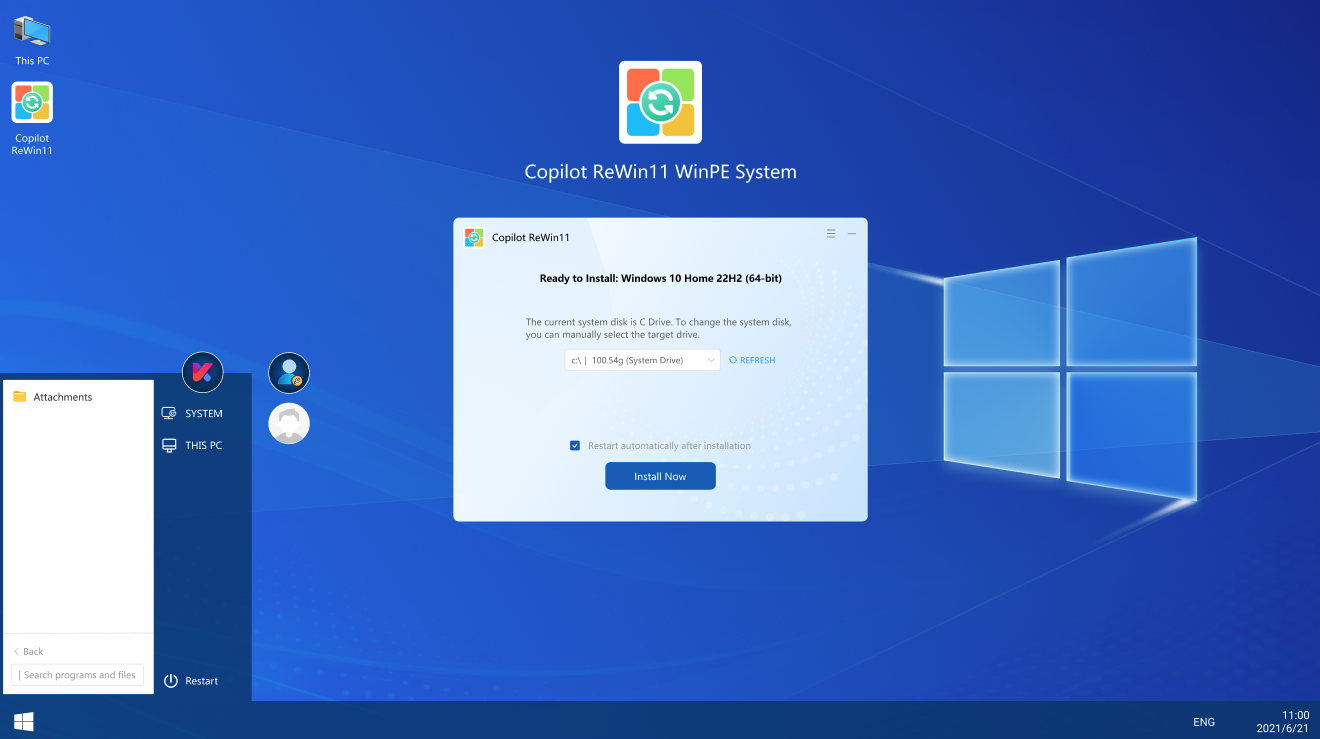
Step 4. Wait for the system to load the installation interface, then click “Install Now”.
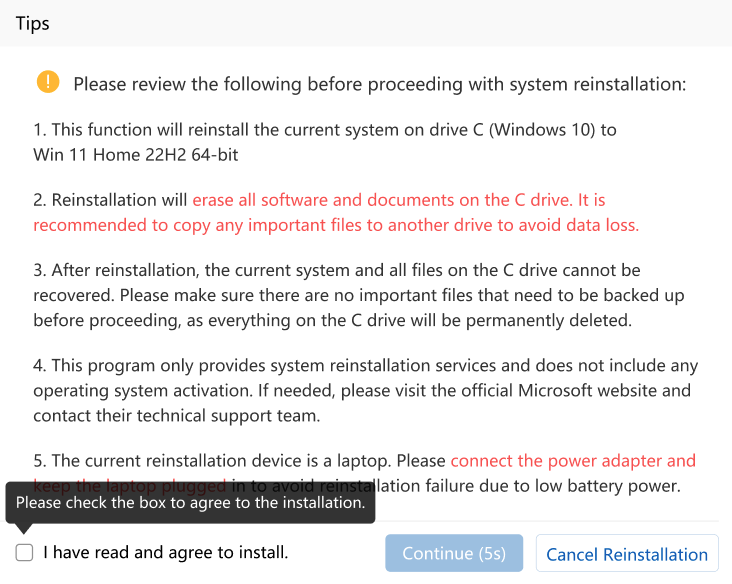
Step 5. Carefully read the instructions, check the required options, and click “Continue”.
Step 6. The system will begin preparing for installation. Please wait patiently.
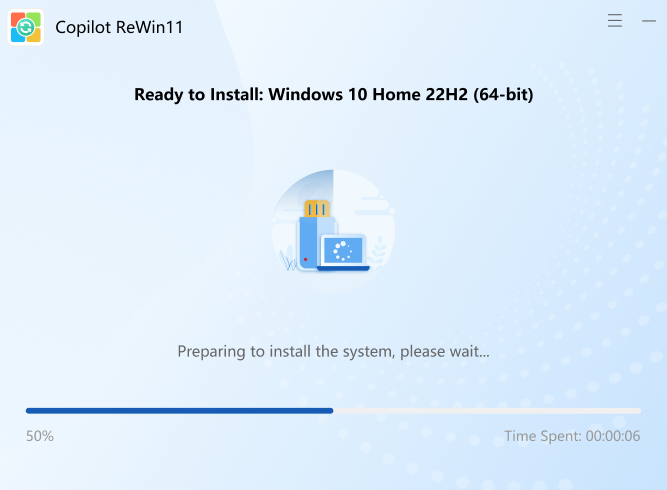
Step 7. Once the installation is complete, click “Restart Now.”
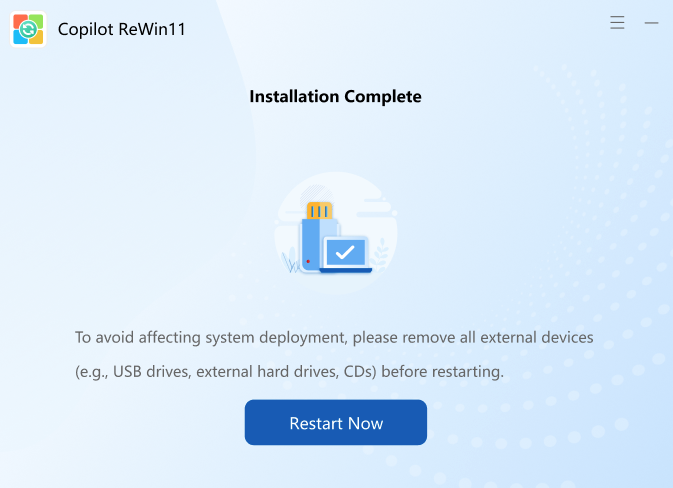
Step 8. The computer will enter the next setup stage. Continue waiting while the system completes configuration.
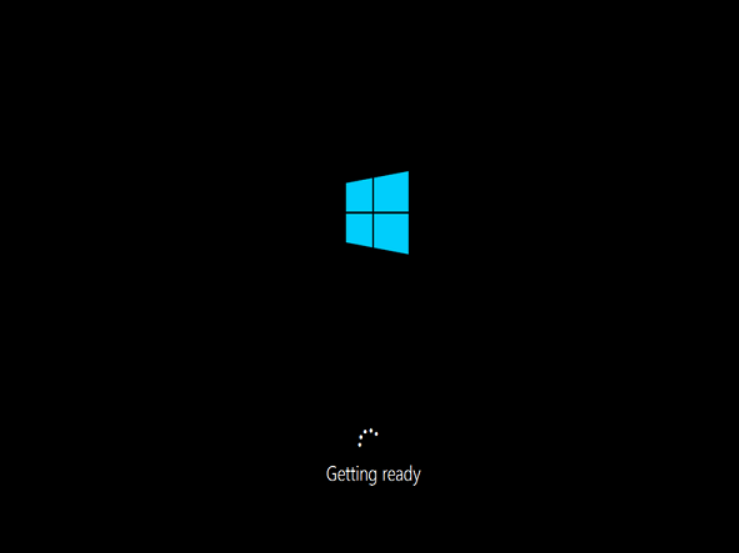
Step 9. Do not shut down the computer during this process to avoid installation errors.

Step 10. When the final prompt appears, it means the system reinstallation is complete. You can now start using your newly installed Windows system.
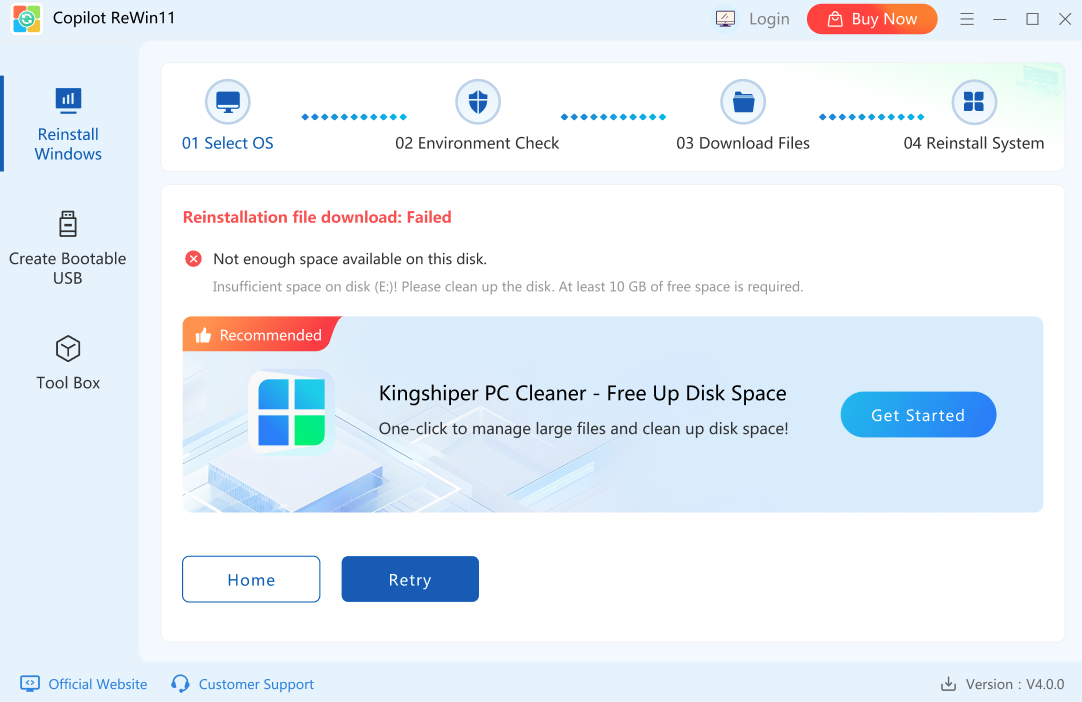
Reinstalling Windows from a USB drive is a safe and practical solution for fixing system errors and restoring performance. By using a bootable USB created with Copilot ReWin11s, you can complete the process smoothly and avoid common issues. This method works well even when Windows fails to boot, making it a reliable option for system recovery and reinstallation. For more helpful tutorials and updates, pay attention to Kingshiper Software.







