










































How to Fix Printer 'Out of Ink' or 'Out of Paper' Errors
- Support
- Software Tutorials
- Kate
 969
969- 2026-01-22 18:05:23


Encountering "Out of Ink" or "Out of Paper" errors can be frustrating, especially when you need to print important documents. Fortunately, these issues are often fixable with a few simple troubleshooting steps. In this article, we'll walk you through the common causes of these errors for popular brands such as HP, Canon, Epson, Brother, and more, providing practical solutions for resolving them, so your printer can get back to work quickly.
How to Fix "Out of Ink" Errors
Fix 1. Check Ink Cartridge Installation
One of the most common reasons for the "Out of Ink" error is improper cartridge installation. If the cartridge is not seated correctly, the printer cannot detect it properly.
Step 1. Turn off the printer and unplug it.
Step 2. Open the cartridge compartment and gently remove the new ink cartridge.
Step 3. Check if the metal contacts on the cartridge are aligned with the contact points inside the printer. Ensure there’s no looseness or obstruction.
Step 4. Reinsert the cartridge until you hear a "click" sound (some brands like Canon and Brother provide a more noticeable locking feel).
Step 5. Close the compartment, power the printer back on, and check if the error message has disappeared.
Notice: For some models, the cartridge needs to be "pushed all the way in and lightly pressed." If the cartridge is simply "placed" without locking, it may not make proper contact with the printer's sensors, leading to an "Out of Ink" or "Not Recognized" error.
Fix 2. Clean the Sensors and Cartridge Contacts
Applicable Brands: HP, Canon, Epson, Brother
Dust or ink residue on the sensors or cartridge contacts can prevent the printer from detecting ink levels, especially in inkjet printers.
Step 1. Turn off the printer and unplug it for safety.
Step 2. Open the cartridge compartment and use a clean, soft cloth or tissue to gently wipe the metal contacts on the cartridge (avoid harsh scrubbing).
Step 3. Locate the corresponding metal contact points inside the printer (usually beneath the cartridge slot) and gently wipe them as well.
Step 4. After cleaning, leave the printer off for about 1 minute. Reinsert the cartridge and turn the printer back on to test.
Notice: Do not use alcohol or water directly on the contacts, as this could damage the sensors or motherboard.
Fix 3. Ensure Cartridge Compatibility
Each printer brand and model has specific cartridge compatibility requirements. Using an incorrect cartridge can lead to false "Out of Ink" errors.
Examples of Brand Compatibility:
HP: The DeskJet series typically supports cartridges 802 and 680, while the Ink Tank series requires specialized high-capacity cartridges.
Canon: The TS series often uses PG-845 (Black) and CL-846 (Color), while the MG series may require PG-88/CL-98.
Epson: Models like the L3118 use the T003 series cartridges; older inkjet printers may require the T049 cartridges.
Brother: The DCP-J105 uses the LC-3617 cartridge, while the MFC-J2330 needs the LC-3619.
How to Check Cartridge Compatibility:
Step 1. Check the printer manual or label to confirm the correct cartridge models.
Step 2. Ensure the cartridge model listed on the packaging matches what your printer requires.
Step 3. Opt for original brand cartridges. Some third-party cartridges may cause ongoing "Out of Ink" warnings due to chip compatibility issues.
Fix 4. Update or Repair Printer Drivers
Applicable Scenario: The system shows “Printer Not Found” or “Driver Missing.”
The printer driver acts as the "communication bridge" between the printer and your computer. A malfunctioning driver can result in incorrect ink status detection. It's recommended to use third-party repair tools like AiPrinter Fixer for fixing driver issues.
How to Use AiPrinter Fixer:
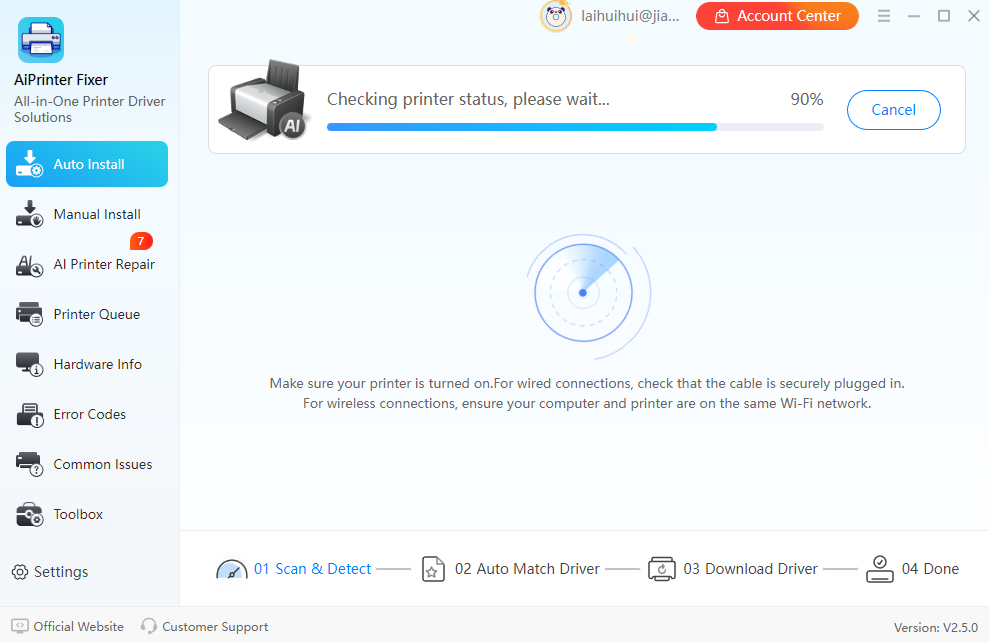
Step 1. Launch AiPrinter Fixer and select “Auto Install”. It will automatically scan and detect the connected printer model and check for the latest matching drivers. Click “Install Now” to update the printer driver.
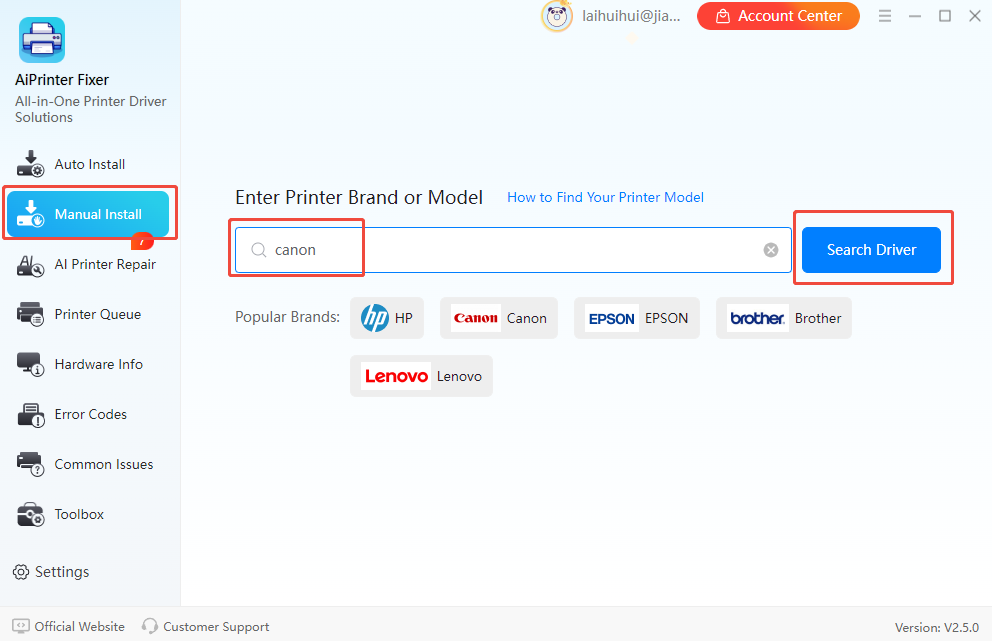
Step 2. If Auto Install does not work, you can select the “Manual Install” feature. Enter your printer model in the search box and click “Search Drivers”. In the search results, choose the correct driver version and click “Download”.
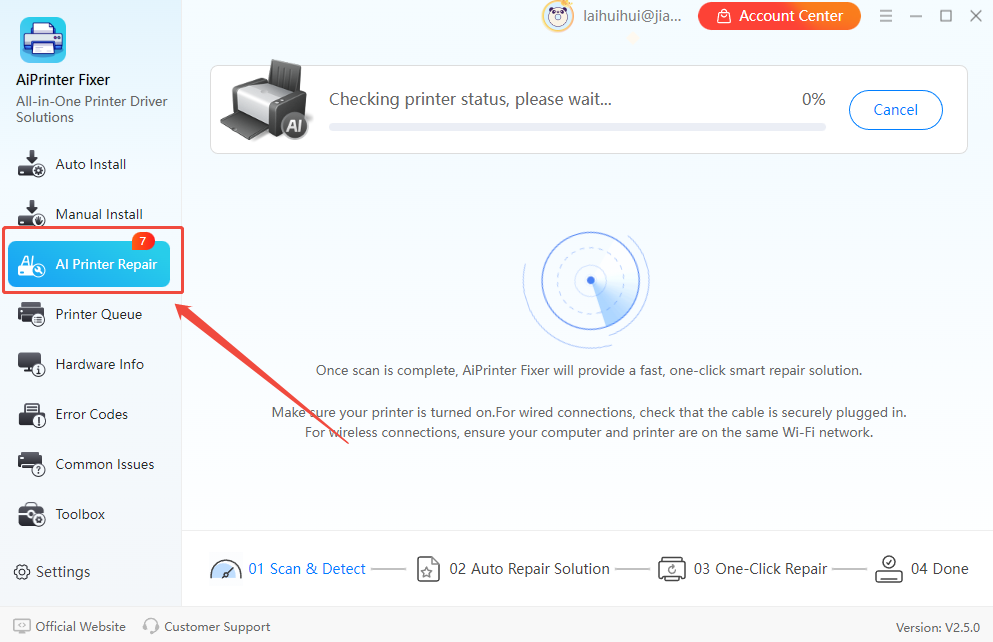
Step 3. Choose “AI Printer Repair,” and then it will automatically detect and fix printer driver issues, including "Out of Ink" and "Out of Paper" errors.
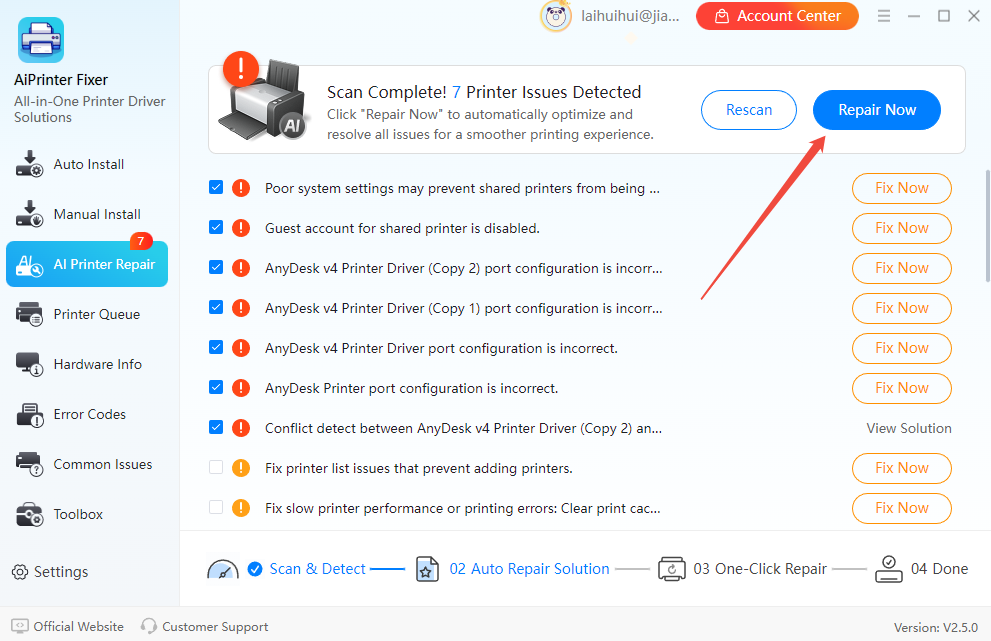
Step 4. After the diagnosis is complete, click “Repair Now” to let the software automatically repair the printer driver issues.
Fix 5. Special Settings for Popular Printer Brands
Different printer brands have unique cartridge recognition logic, and some models require manual actions to bypass false alerts. Below are specific tips for handling ink cartridge issues for popular printer brands.
1. HP Printers:
If a non-original cartridge triggers a "Cartridge Not Recognized" error, click "Continue Printing" to force the printer to use the cartridge.
For some models like the OfficeJet Pro, you can enter the Service Menu to reset the ink level counter (refer to the printer’s manual for specific instructions).
2. Canon Printers:
When the ink warning light blinks, press and hold the "Stop/Cancel" button for 5 seconds to bypass ink level detection.
In the printer driver settings, you can disable "Ink Level Detection" to avoid frequent warnings about low ink.
3. Epson Printers:
Go to Maintenance -> "Ink Cartridge Replacement" to manually trigger cartridge recognition.
When prompted with a "Non-Original Cartridge" message, press and hold the "Stop" button for 5 seconds to ignore the warning.
4. Brother Printers:
After replacing the cartridge, press and hold the "Clear" button, then follow the on-screen instructions to select the corresponding ink color, completing the ink status initialization.
For some models, like the DCP-T310, you can access the "Ink Reset" function through the printer menu.
How to Fix "Out of Paper" Errors
If your printer shows an "Out of Paper" error even though there is paper in the tray, it is usually due to a paper detection failure. Common causes include improper paper loading, dust on the rollers or paper sensor, or a mismatch between the paper type/size set in the driver and the actual paper in the tray. Here are the steps you can take to resolve the issue:
Fix 1. Ensure Proper Paper Placement
Improper paper loading is one of the most common causes of the "Out of Paper" error, especially for new users who may overlook small details.
Step 1. Arrange the paper neatly and gently shake the edges to loosen any stuck sheets.
Step 2. Push the paper all the way to the back of the tray until it touches the paper stopper.
Step 3. Make sure the guide fits snugly against the edges of the paper (if it's too loose, the paper may skew; if it's too tight, it can cause a paper jam).
Step 4. Keep the paper stack between 5 and 50 sheets (too few sheets may slip, too many may cause a jam).
Tip: Use standard A4 paper to avoid issues with specialty papers such as colored or glossy sheets.
Fix 2. Clean the Paper Feed Rollers and Paper Sensor
Dust on the paper feed rollers or obstruction of the paper sensor can cause the printer to fail to detect paper, leading to a false "Out of Paper" error.
Step 1. Unplug the printer for safety and open the paper tray and paper path.
Step 2. Open the paper tray and the paper path.
Step 3. Locate the rubber feed rollers (typically under the paper feed slot). Use a damp cloth to gently wipe them clean. Allow the rollers to dry completely before using them again.
Step 4. Locate the paper sensor (usually an optical sensor near the paper output) and use a cotton swab to remove any dust or paper debris around the sensor.
Step 5. After cleaning, plug the printer back in and power it on to check if the issue has been resolved.
Tip: For some Epson models, there is a special cleaning sheet that can be inserted into the printer. Once inserted, activate the "Roller Cleaning" mode to thoroughly clean any residual paper dust.
Fix 3. Check Paper Settings in the Printer Driver
If the paper type or size in the printer driver settings does not match what’s actually loaded in the printer, it can cause paper recognition issues.
Step 1. In your document, select "Print", then click "Properties" and go to the "Paper/Quality" tab.
Step 2. Ensure that the "Paper Size" (e.g., A4, A5) and "Paper Type" (e.g., Plain, Photo Paper) match the paper loaded in your printer.
Step 3. If you have multiple paper trays, make sure the "Paper Source" is set to the correct tray (e.g., "Main Tray", "Manual Feed").
Step 4. Use the "Auto Select" option to let the printer automatically detect the paper type and size, or manually select the correct tray.
Fix 4. Solutions for Common Printer Brands' "Out of Paper" Errors
Different printer brands may display the "Out of Paper" error for different reasons, and specific models may require unique troubleshooting steps. Below are solutions for handling this issue with popular printer brands.
1. HP Printers:
For DeskJet models: If you see the "Out of Paper" error, press the "Continue" button on the control panel to force the printer to try feeding the paper.
For duplex (double-sided) printers: Make sure paper is placed in the main tray, not just in the auxiliary tray, to ensure proper printing.
2. Canon Printers:
If only a small amount of paper is loaded: Add a few more sheets, reposition the paper, and restart the printer.
If a paper jam has occurred previously, clear the paper jam record by pressing the "Cancel" button on the control panel.
3. Epson Printers:
For some models, you may need to manually select the "Paper Source". If not selected, the printer defaults to "No Paper".
Check the Auto Feed switch: If the auto feed is off, the printer may incorrectly show a "False Out of Paper" error in manual mode.
4. Brother Printers:
When the display shows "Tray Empty": Ensure that the paper tray is pushed all the way in (on some models, you may hear a "click" sound when it's locked in place).
Common Printer Issues and How to Fix Them
Here are some common printer problems and their solutions to help you resolve errors like "Out of Ink" or "Out of Paper" quickly and efficiently.
Issue | Possible Cause | Suggested Action |
"Out of Ink" After Replacing Cartridge | Incorrect installation, dirty contacts/sensors, incompatible cartridge | - Reinstall the cartridge securely. |
Unable to Recognize Third-Party Cartridges | Incompatible chip, outdated drivers | - Follow brand-specific instructions to bypass the error. |
"No Cartridge Detected" Error | Driver failure, poor contact | - Repair the printer driver or reinstall it. |
Print Quality Issues (Faint Prints or Incorrect Colors) | Empty ink cartridge, clogged printhead | - Replace the ink cartridge. |
"Out of Paper" Despite Paper in the Tray | Improper paper loading, dust on rollers or sensors, mismatched paper settings | - Reposition the paper and adjust the guides. |
Repeated "Out of Paper" Error | Paper feed sensor failure, debris in the paper path | - Clean the paper feed sensors. |
Printer Cannot Recognize Special Paper | The printer does not support the paper type, incorrect paper settings | - Use standard paper (A4, Letter, etc.). |
"Out of Paper" When Printing Double-Sided | Insufficient paper, duplex unit issue | - Add more paper to the tray. |
Printer Maintenance Recommendations:
Clean the printer’s interior and sensors monthly to ensure consistent performance and prevent issues.
Always use original cartridges and recommended paper to avoid compatibility issues and ensure the best print quality.
Place the printer in a clean, dust-free area to prevent dust buildup, which could affect functionality.
Regularly check for and install firmware updates to improve printer performance and address any software bugs.
Refer to the user manual for correct cartridge installation and paper loading to avoid errors and ensure optimal operation.
The Bottom Line
This article provides practical solutions for resolving common printer errors and provides tips for maintaining optimal printer performance. By following simple troubleshooting steps and regular maintenance practices, you can address issues related to the “Out of Ink” and “Out of Paper” errors. For more tips about repairing a printer, you can pay attention to Kingshiper Software.







