










































How to Install a Printer on Windows 11
- Support
- Software Tutorials
- Kate
 429
429- 2026-01-28 17:44:53


Many Windows 11 users encounter difficulties when trying to set up a local printer for the first time. Without a properly installed printer, print jobs can fail, drivers may conflict, and workflow efficiency can drop. Since printers are essential office devices, having them correctly installed is crucial. In this guide, we’ll provide a detailed process to help you install a local printer on Windows 11.
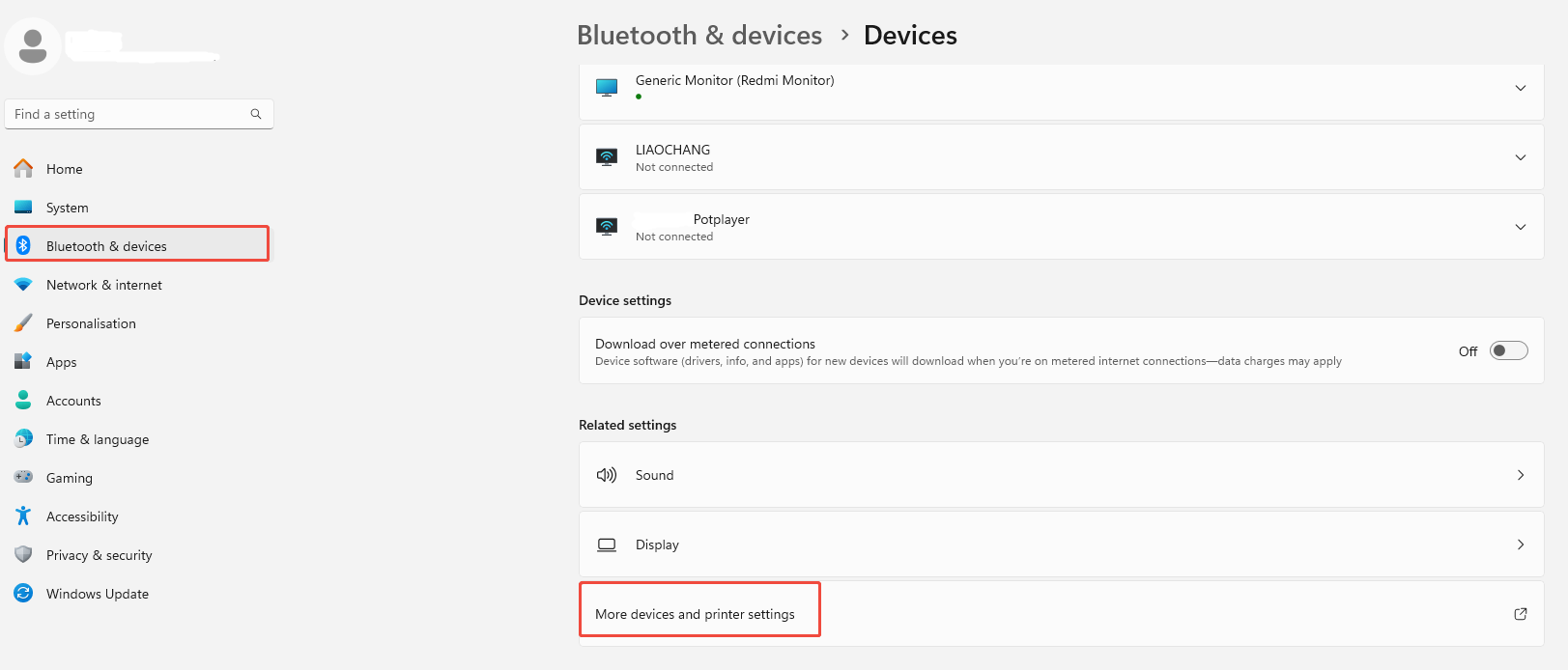
Step 1. Go to “Settings” and click the “Bluetooth & devices” option. Tap on the “Devices” > “More devices and printer settings” in the Related settings.
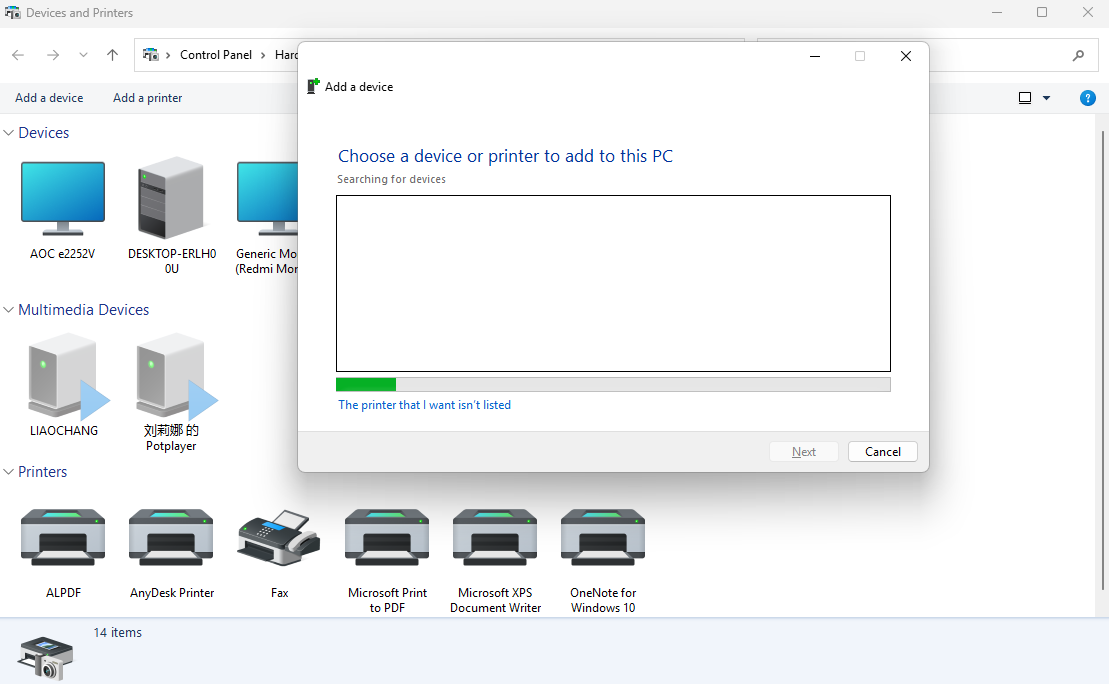
Step 2. Click the “Add a printer” button at the top of the “Devices and Printers” page. Then, Windows will search for available printers on your network or connected to your computer.
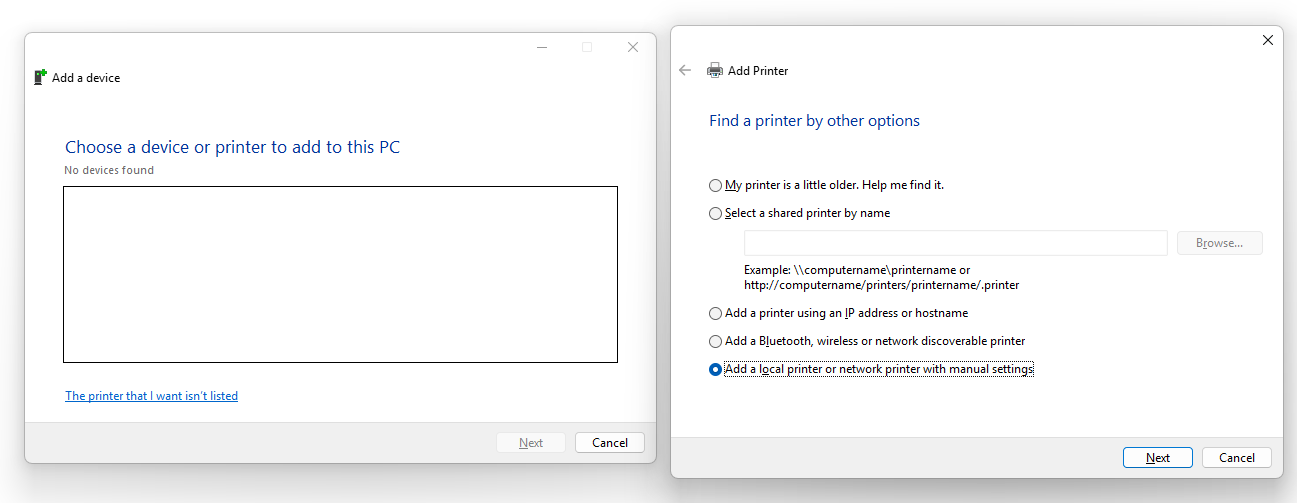
Step 3. If your printer appears in the list of detected devices, simply select it and click Add device to start the installation. If your printer doesn’t show up, click “The printer that I want isn’t listed”. Then select “Add a local printer or network printer manually”, and click “Next”.
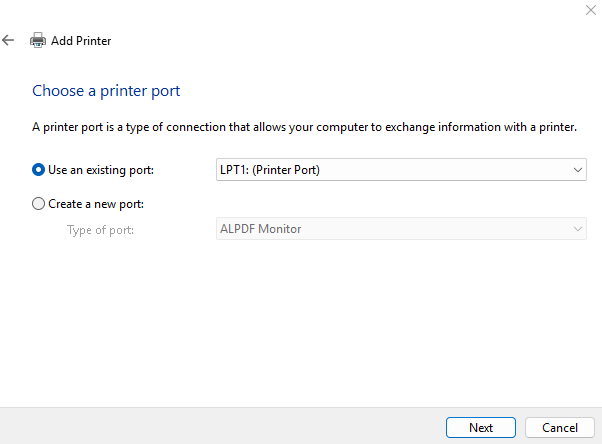
Step 4. Select the appropriate printer port for your printer. For USB printers, make sure to choose the correct USB port like “USB00x”, and then click “Next”.
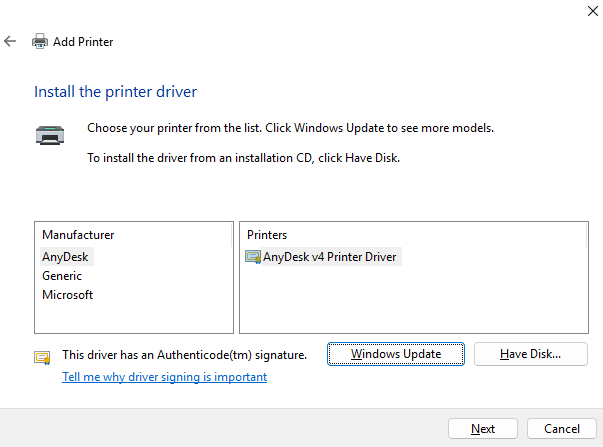
Step 5. Choose your printer’s manufacturer and model from the list. If it’s not listed, you may need to download and install the driver from the manufacturer’s website. Click “Next” to proceed.
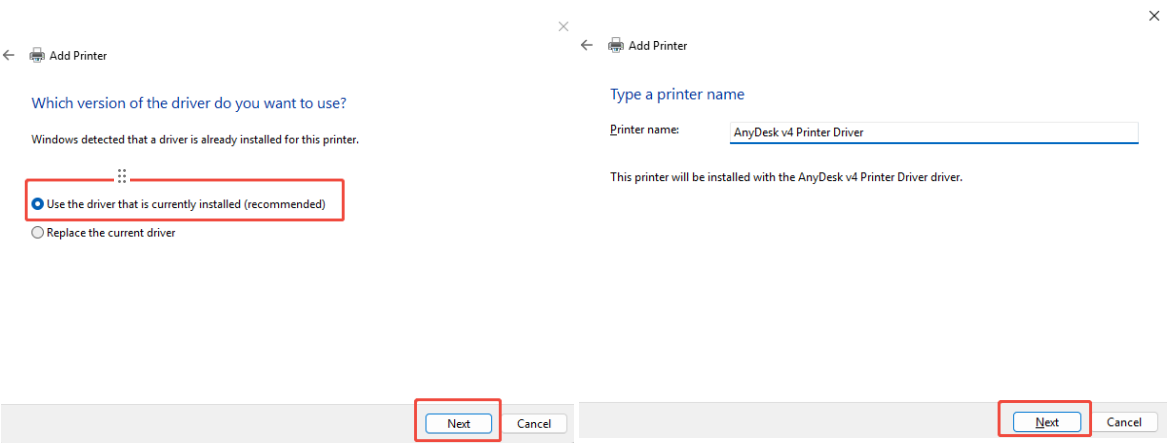
Step 6. Select “Use the driver that is currently installed (recommended)”, then confirm your printer's name and click “Next”.
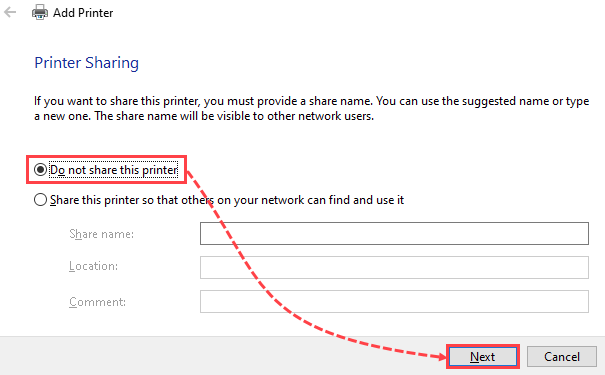
Step 7. For a local office printer, you typically do not need to share it over the network. Select "Do not share this printer" and click “Next”.
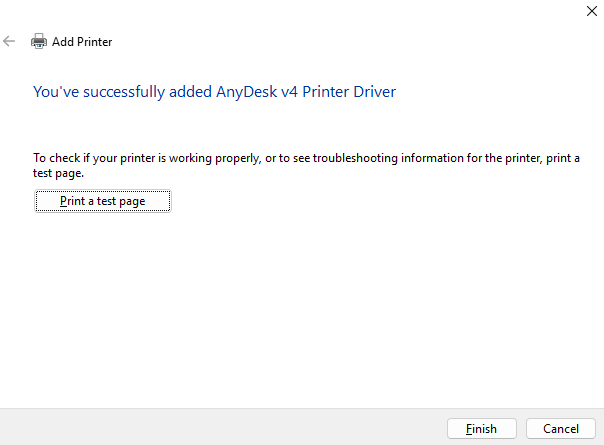
Step 8. Now, you will see a success message. Click “Print a test page”. If the paper prints correctly, your setup is complete. Click “Finish”.
By following these steps, you should have successfully manually installed your local printer on Windows 11 using the specific USB port settings. However, we know that Windows updates or outdated drivers can sometimes cause unexpected connection failures. If you are still facing issues after trying the manual setup, or simply want to save time on troubleshooting, give AiPrinter Fixer a try. It is designed to automatically detect driver conflicts and system errors, allowing you to fix any printer problem with just one click.







