










































How to Fix Multiple Printers Connected to the Same Port
- Support
- Software Tutorials
- Kate
 1035
1035- 2026-01-28 17:46:47


If multiple printers are connected to the same printer port on your computer, only one of them will work properly. The rest may appear installed, but won’t respond to print commands. This is a common Windows issue caused by duplicate printer drivers or incorrect port assignments. In this guide, you’ll learn why this happens and how to fix multiple printers connected to the same port step by step.
Why Are Multiple Printers Using the Same Port?
When you install printer drivers multiple times or connect different printers using the same USB port, Windows may assign them all to one port (such as USB001). As a result, the system cannot correctly route print jobs, causing printer conflicts.
Common causes include:
Duplicate printer driver installations
Multiple printers added to the same USB port
Improper manual printer setup
Incomplete driver removal from previous installations
Method 1: Remove Unnecessary Printers (Recommended)
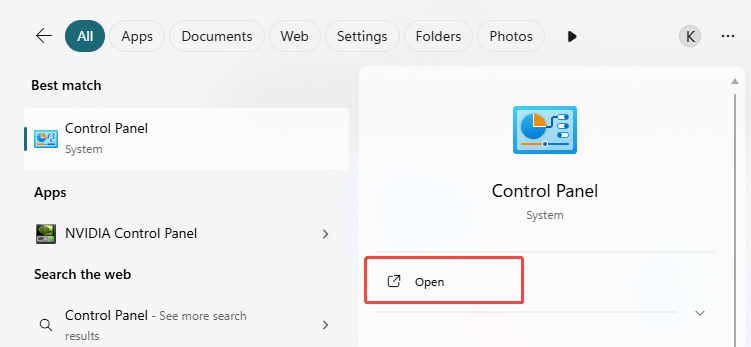
Step 1. Type “Control Panel” in the Windows search bar and open it.
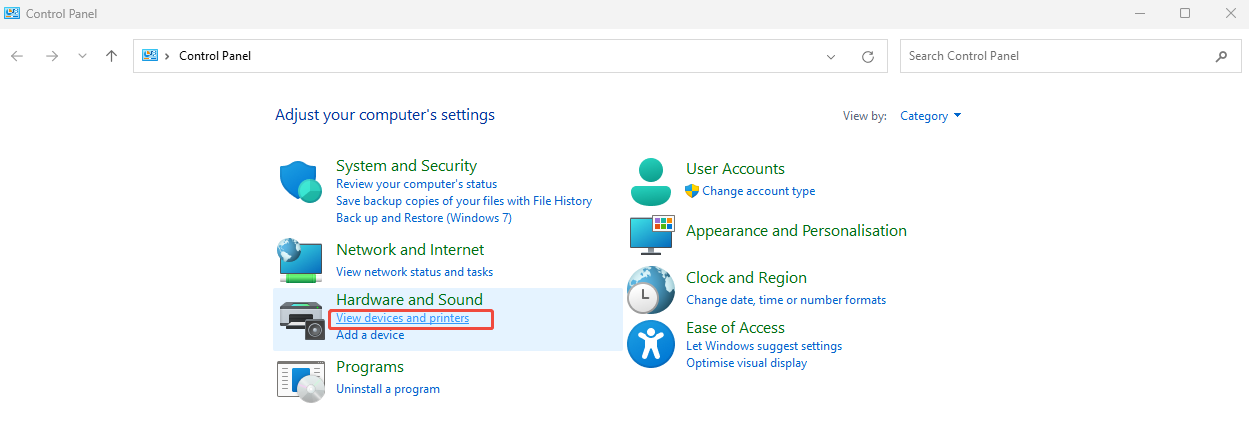
Step 2. Click “View devices and printers” under the “Hardware and Sound” section.
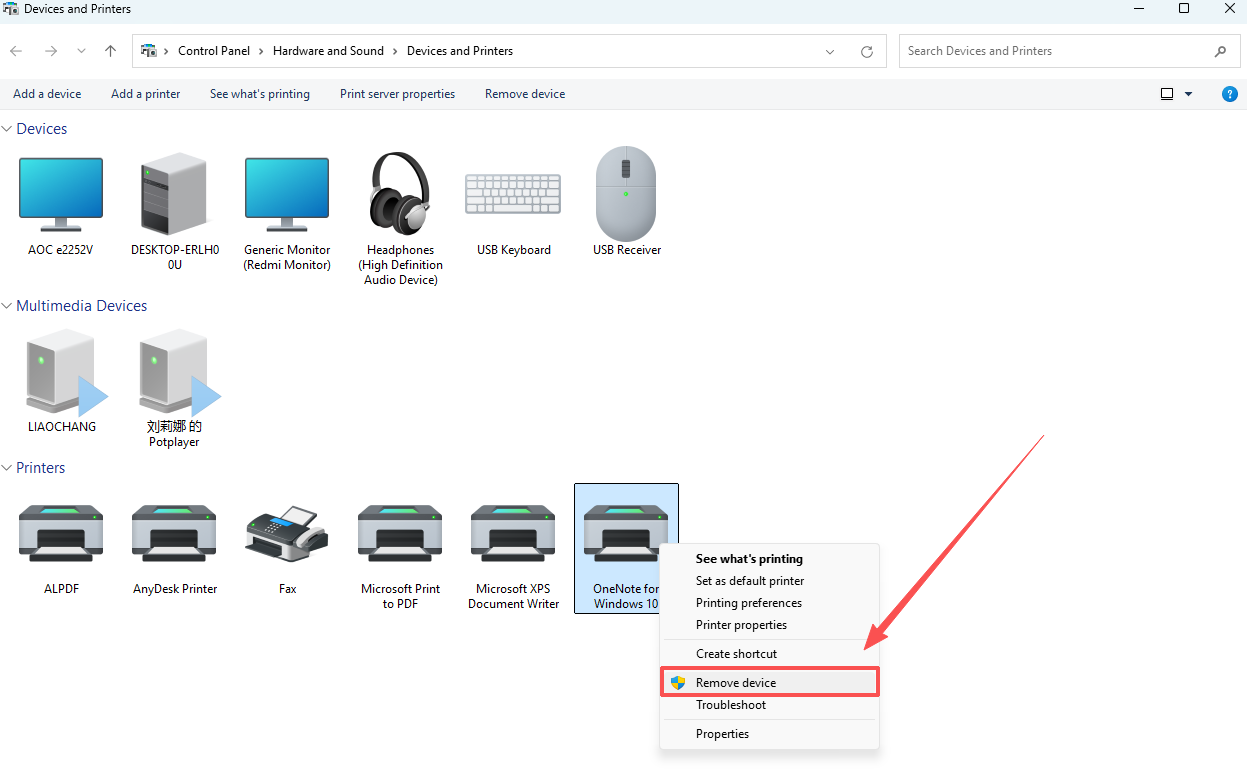
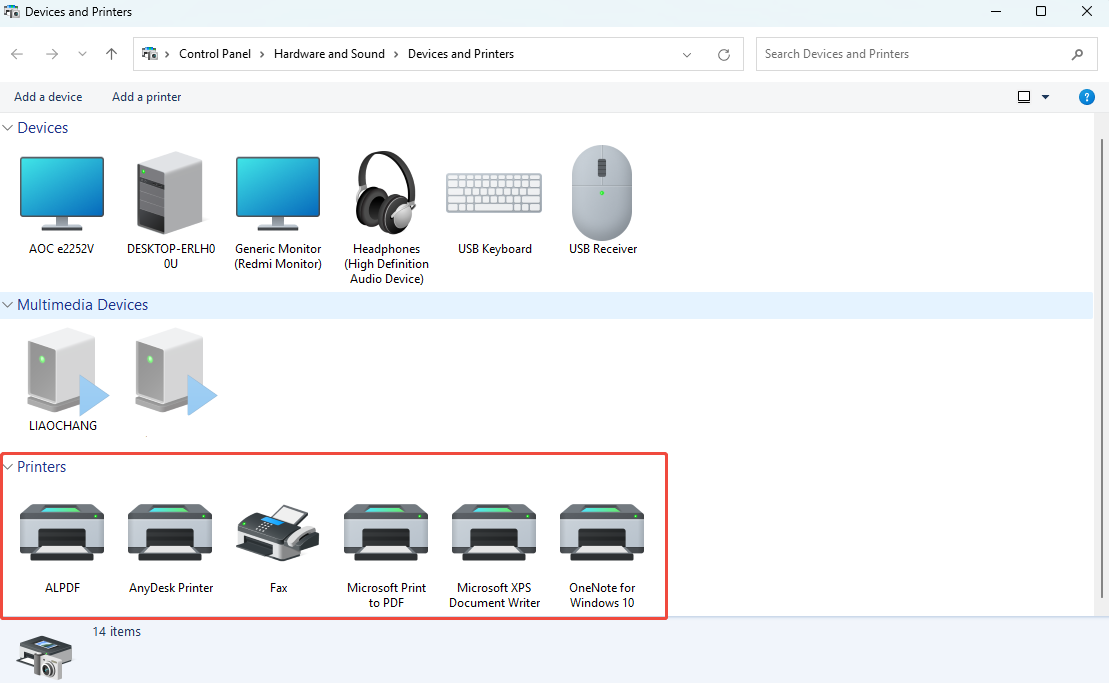
Step 3. Now, you’ll see all the printers here. Right-click the printer you don’t need and select “Remove device”.
Method 2: Remove All Printers and Re-add Them
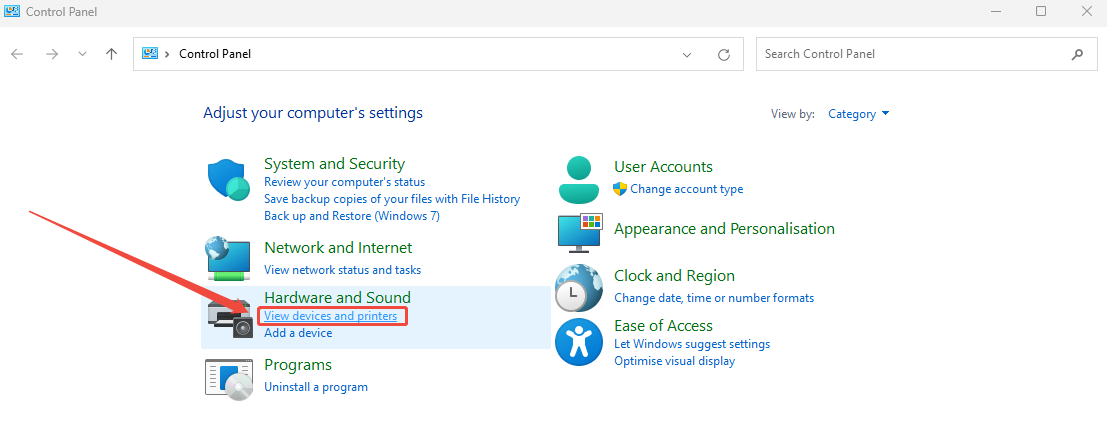
Step 1. Open the Control Panel, and click on the “View devices and printers”.
Step 2. Go to “Devices” > “More devices and printer settings”. Right-click each printer and choose “Remove device”. Then, restart your computer.
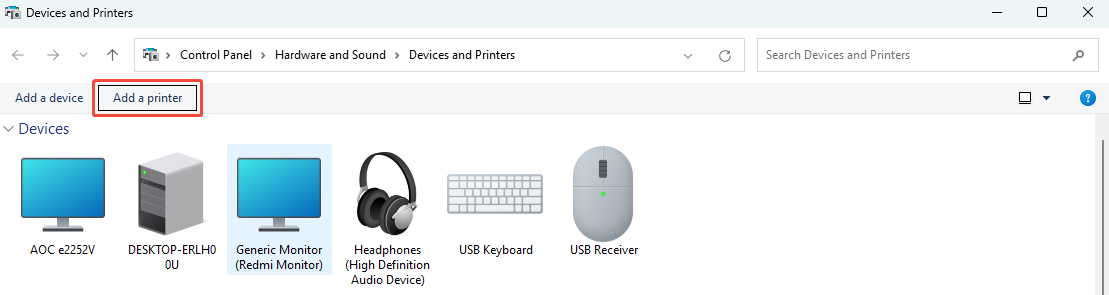
Step 3. Go back to “Devices and Printers” and click “Add a printer”.
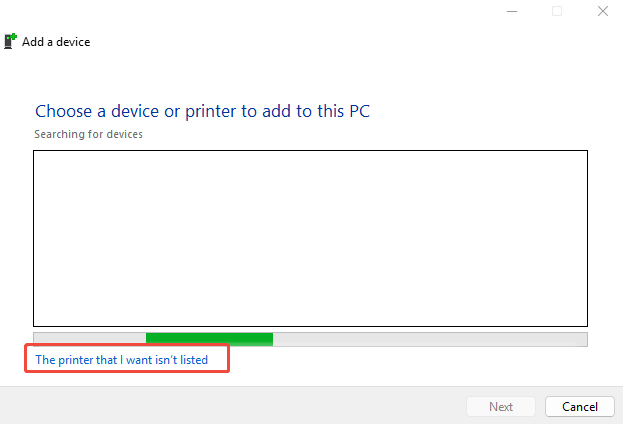
Step 4. Click on “The printer that I want isn’t listed”.
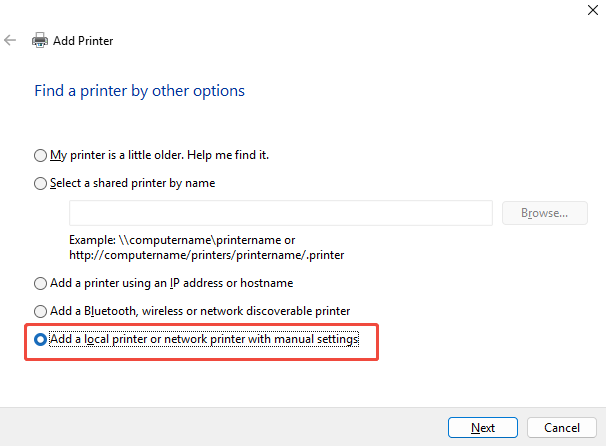
Step 5. Choose “Add a local printer or network printer with manual settings” and click “Next”. Then, select the correct printer port and install the appropriate driver.
Method 3: Assign Different Ports to Each Printer
Step 1. Go to “Control Panel” > “View devices and printers” > “Devices” > “More devices and printer settings”.
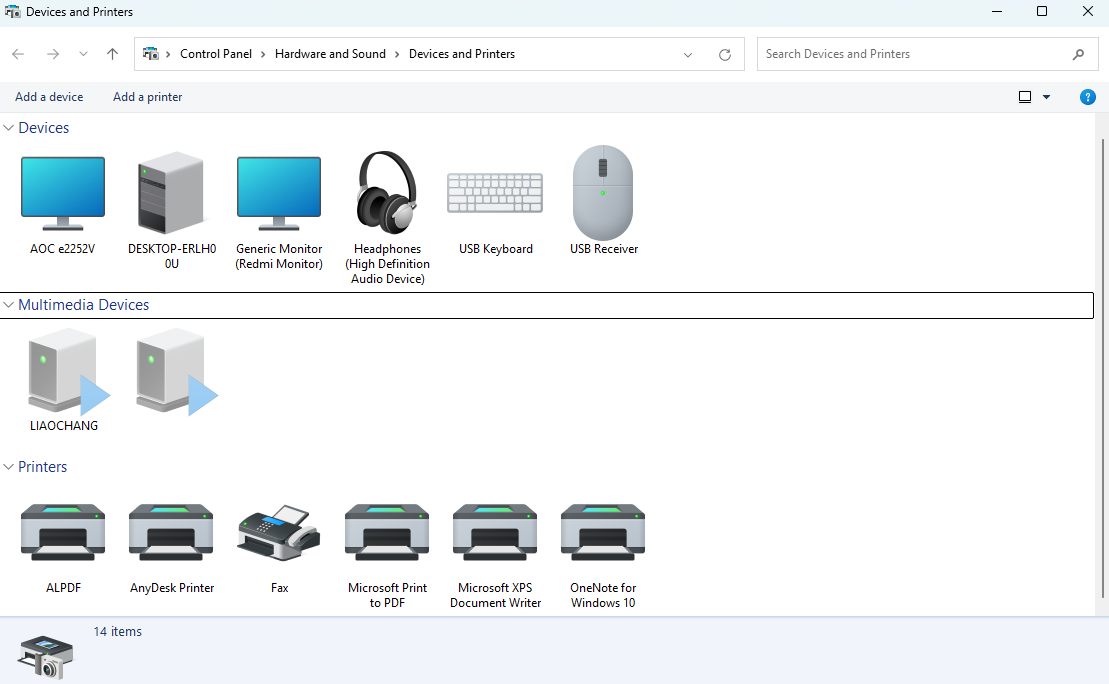
Step 2. Right-click a printer and select “Properties”.
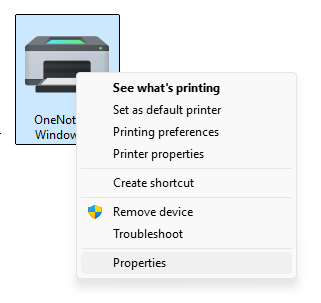
Step 3. Go to the “Ports” tab to check if multiple printers are sharing the same port. Assign a different available port to each printer.
Conclusion
Printer port conflicts are a common cause of printing issues on Windows systems. When multiple printers are associated with the same port, printing functionality can be affected or completely blocked. Resolving these conflicts helps restore normal printing behavior and improves overall system reliability. With proper printer configuration and driver handling, printers can operate smoothly without recurring connection problems. For more printer solutions, please pay attention to Kingshiper Software.







