










































Printer Not Working? Common Problems and Easy Fixes
- Support
- Software Tutorials
- Kate
 486
486- 2026-01-28 17:45:49


Printers have become an essential part of modern offices and home setups. However, they sometimes stop working properly, affecting your productivity and daily tasks. In this article, we’ll cover common printer problems and provide 9 solutions to get your printer back to work quickly.
Fix 1. Paper Jam
A paper jam is one of the most common printer issues. It can happen if the printer is not placed on a level surface, if the paper is improperly loaded, or if the paper is wrinkled, curled, or torn.
How to Fix it:
If the jammed paper is visible in the paper feed area, gently pull it out.
If you cannot see the paper, open the top cover, locate
the stuck paper, and carefully remove it from the rollers.
Fix 2. Printer Offline
Sometimes you click “Print,” but the printer doesn’t respond. This is often caused by network issues, driver problems, or settings that set the printer offline.
How to fix it:
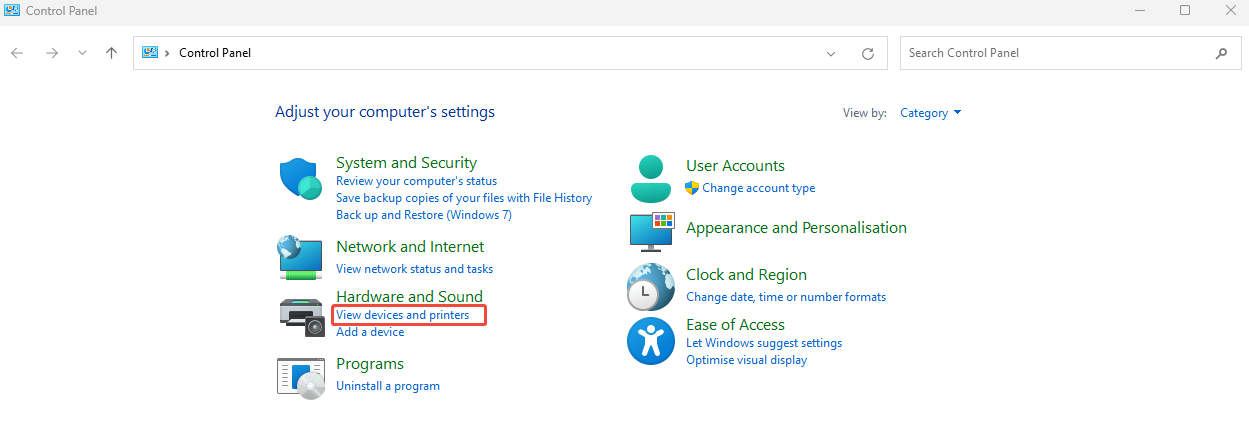
Go to Control Panel, and click on the “View devices and printers”.
Select the “Devices” > “More devices and printer settings” option to check your printer status.
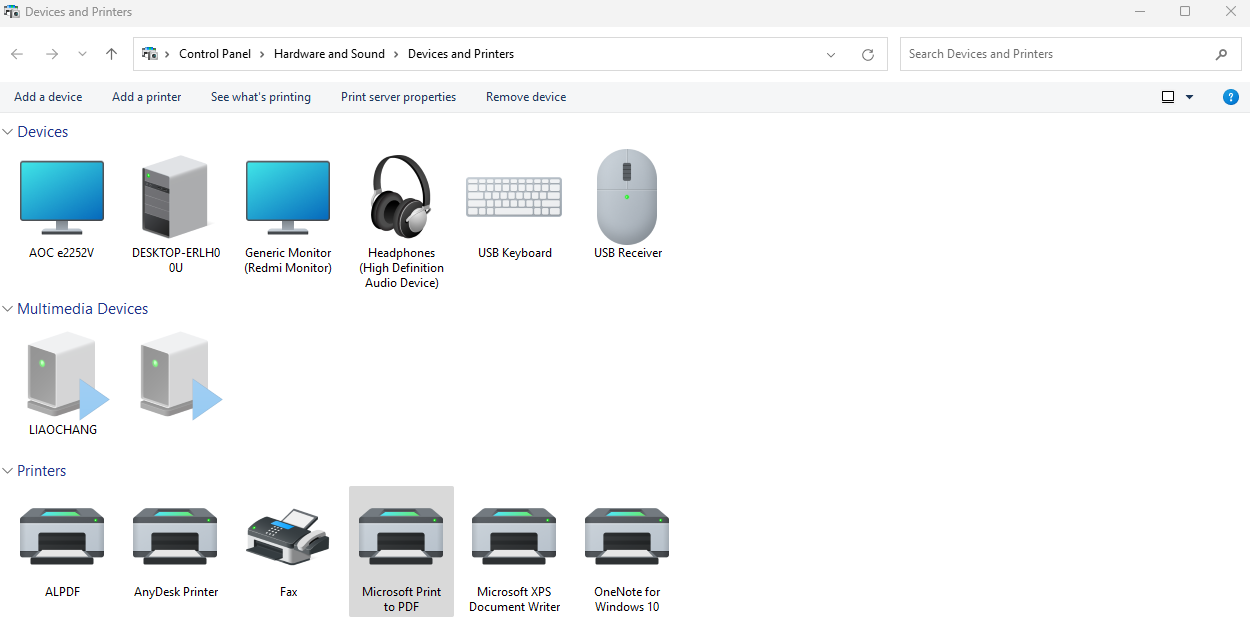
Right-click your printer and select “See what’s printing”.
A window will open, and choose the “Printer” option at the top of the menu bar. Choose“Use Printer Online” to reconnect your printer.
Fix 3. Blank Pages or Extra Pages
Printing blank pages or extra blank pages can be confusing, especially when your document clearly contains content. This usually happens because the paper sheets are sticking together, the printer software misreads the document layout, or incorrect page margins/settings are applied.
How to fix it:
Separate the paper sheets before loading them into the tray.
Check your document for hidden blank pages and ensure the printer settings match the paper size and layout.
Fix 4. Dark or Overprinted Pages
If your printed documents are darker than expected, smudged, or blotchy, this could be caused by clogged nozzles, damaged printheads, incorrect ink type, or even a faulty printer drum in laser printers.
How to fix it:
Inspect the print nozzles for damage and clean if necessary.
Ensure the ink or toner cartridges are compatible with your printer.
Avoid shaking the cartridges excessively, as it can cause leaks and over-inking.
Fix 5. Printer Won’t Print After Ink Replacement
Many users encounter this issue after replacing ink cartridges. It usually occurs when the cartridge is counterfeit, damaged, or not compatible with the printer model. Sometimes the printer cannot detect the cartridge due to installation errors.
How to fix it:
Use genuine ink or toner recommended by the manufacturer.
Reinstall the cartridge carefully, ensuring it clicks into place.
Restart the printer after replacement.
Fix 6. Faded or Unclear Print
When printed text appears faint, uneven, or difficult to read, the problem is often clogged or dried-out printheads. This can happen if the printer is idle for long periods or low-quality ink is used.
How to fix it:
Go to Start -> Settings -> Printers & Scanners.
Right-click your printer, select “Printing Preferences” -> “Maintenance”.
Choose “Clean Printhead” to initiate automatic cleaning.
If cleaning does not solve the problem, consider replacing the printhead.
Fix 7. Document Pending
Sometimes a print job remains “pending” for a long time and doesn’t print. This may be caused by a software glitch, incorrect printer settings, or a disrupted connection between the printer and computer.
How to fix it:
Restart the printer and try printing again.
For USB printers, reconnect the cable. For network printers, check Wi-Fi or Ethernet connectivity.
On Windows 10: Start -> Settings -> Devices -> Printers & Scanners, delete and re-add the printer if necessary.
Fix 8. Yellow Exclamation Point Error Icon on Printer
A yellow exclamation mark indicates a problem that prevents the printer from functioning correctly. It often appears due to outdated drivers, corrupt printer software, or conflicts between multiple printers.
How to fix it:
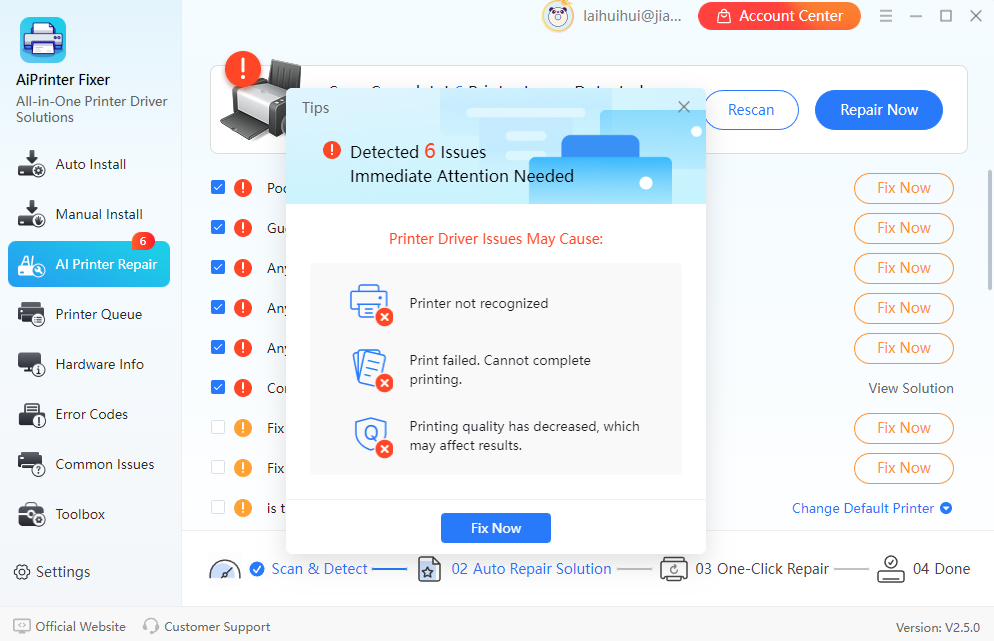
Launch AiPrinter Fixer and scan for driver issues and update to the latest version recommended by the manufacturer automatically.
Fix 9. Uneven Print Quality
When one side of a page prints clearly while the other side appears faded or misaligned, it usually means the printhead is misaligned, or the rollers are uneven. This can happen after long-term use or after a paper jam.
How to fix it:
Adjust the distance between the printhead and rollers until they are parallel.
Print a test page to verify uniform print quality.
To Conclude
Printers can experience a wide range of issues, but the most common problems have simple, effective solutions. By understanding the causes of paper jams, offline errors, unclear prints, and driver issues, you can quickly troubleshoot your printer. If you want to have a one-click solution to fix your printer, AiPrinter Fixer is one of the best solutions.







