










































No Internet After Reinstalling Windows? Fix Now
- Support
- Software Tutorials
- Kate
 844
844- 2026-01-28 17:47:16


If you run into a “Failed to install network adapter driver” message during a Windows reinstall, don’t worry. This issue can happen for several reasons, including missing drivers or hardware not being detected properly. Before you begin any fixes, you’ll need to get your PC online by sharing your phone’s internet connection. Below is the quick guide for both Android and iPhone users.
How to Share Your Phone’s Internet With Your PC
A) For Android
Step 1. Prepare your Android phone and a USB cable. Connect the phone to your PC.
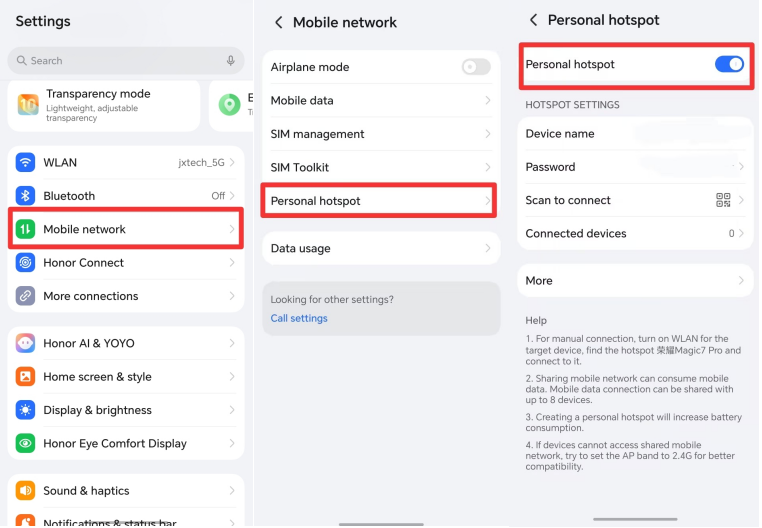
Step 2. Go to “Settings” > “Mobile network”, then find the “Personal hotspot” and turn it on.
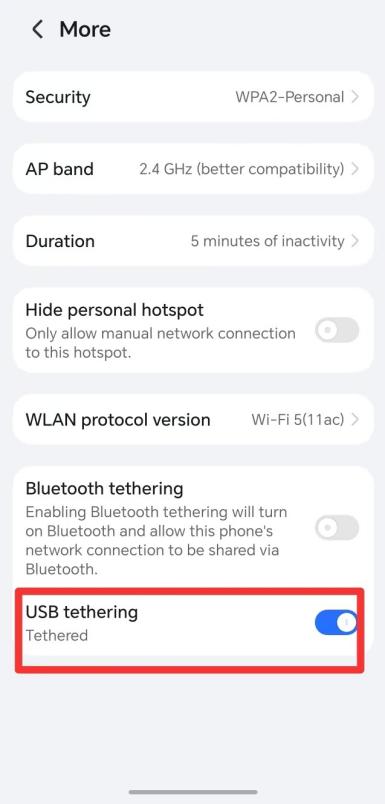
Step 3. Tap on the “More” option, and enable the “USB Tethering”. Now, your PC should automatically detect the shared network and go online.
B) For iPhone
Step 1. Connect your iPhone to your PC using a USB cable, then open “Settings” on your iPhone.
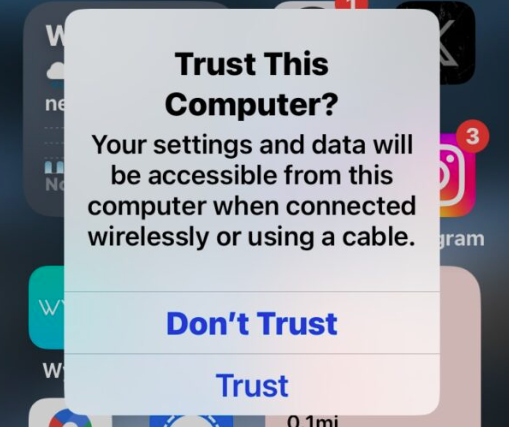
Step 2. Go to “Personal Hotspot” and turn on “Allow Others to Join”. If prompted, tap “Trust This Computer” and confirm on your phone.
Now that your PC is online, you can start troubleshooting the network adapter driver installation failure. Below are the most common solutions you should follow.
Fix 1. Check Driver Compatibility
Match the correct version: Download and install the driver that matches your Windows version and your network adapter model.
Download from the official site: Always get drivers from the network adapter or laptop manufacturer to avoid corrupted or incompatible versions.
Use driver update tools: With third-party driver updaters, you can diagnose missing or faulty network drivers and install the correct ones automatically.
Fix 2. Temporarily Disable Security Software
Turn off antivirus software or firewalls before installing the network driver.
Then, install the network driver again.
Re-enable your antivirus security tools after installation.
Fix 3. Update the Driver Using Device Manager
Device Manager is the quickest built-in tool to update missing or corrupted network drivers.
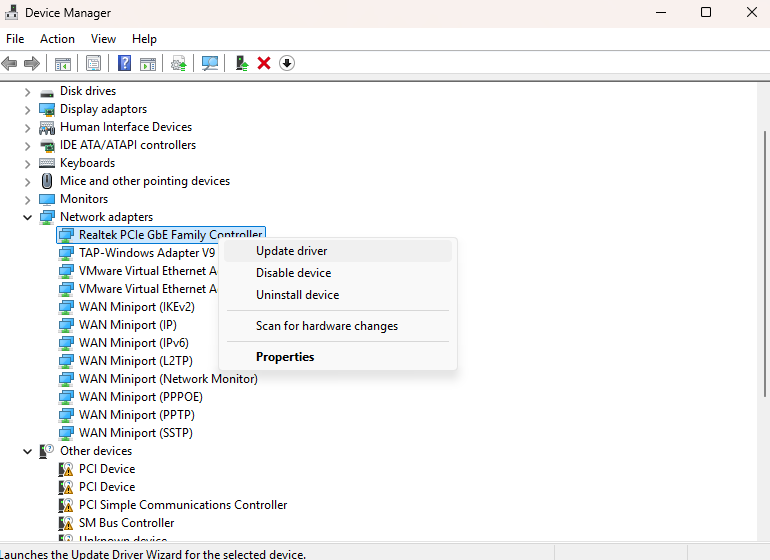
Right-click the Start menu and select “Device Manager”.
Expand “Network adapters” and locate your network device.
Right-click the adapter and select “Update driver”.
Follow the on-screen instructions, and your Windows will search for and install the latest available driver automatically.
Fix 4. Uninstall and Reinstall the Driver
Open Device Manager and uninstall the existing network driver.
Restart your PC or install the new driver manually from the manufacturer’s website.
Fix 5. Install the Latest Windows Updates
System Update: Make sure your operating system is fully up to date. Installing the latest system updates can often resolve issues related to driver compatibility.
Required Patches: Some drivers depend on specific system patches to function properly. Updating Windows may install these missing components and help fix driver installation failures.
Fix 6. Run the Installer as Administrator
Right-click the installer: Find the driver installation file, right-click it, and select “Run as administrator”.
Running the installer as an administrator ensures it has all the required system permissions. This helps prevent installation failures caused by restricted or insufficient privileges.
Fix 7. Manually Install the Driver (For Advanced Users)
Download the correct driver: Go to the network adapter manufacturer’s official website and download the driver that matches your operating system version.
Manual installation: Launch Device Manager, locate your network adapter, right-click it, and select “Update driver”. Choose “Browse my computer for drivers”, then point Windows to the folder where you saved the downloaded driver. Follow the on-screen instructions to complete the installation.
Fix 8. Check for Hardware Issues
Possible hardware failure: If none of the above solutions work, the network adapter itself may be faulty. You may need to replace the adapter or contact the computer manufacturer for further hardware diagnostics.
If you're unsure about any of the steps or encounter unexpected errors, consider reaching out to professional technical support or a local computer repair service.
Fix 9. Official Driver Download Links (For All Other Drivers)
Here are the official driver download pages for major PC brands and chip manufacturers:
Huawei: https://consumer.huawei.com/en/support/driver-list/
Honor: https://www.honor.com/uk/support/downloads/
Acer: https://www.acer.com/us-en/support/drivers-and-manuals
HP: https://support.hp.com/us-en/drivers
Dell: https://www.dell.com/support/home/en-us?app=drivers
Xiaomi: https://www.mi.com/in/service/support/laptop-drivers.html
ASUS: https://www.asus.com/us/support/download-center/
Hasee: http://en.haseecomputer.com/Server/download.html
MSI: https://www.msi.com/support/download
NVIDIA (GeForce): https://www.nvidia.com/en-us/drivers/
AMD (Radeon): https://www.amd.com/en/support/download/drivers.html
Intel (iGPU / NIC / Chipset): https://www.intel.com/content/www/us/en/download-center/home.html
Final Thoughts
If you've reinstalled Windows and run into network driver issues, the fixes above should help you get your connection back up and running. For more practical Windows tips and troubleshooting guides, please pay attention to Kingshiper Software.







