










































How to Access the Boot Options Menu for Windows Reinstallation
- Support
- Software Tutorials
- Kate
 661
661- 2026-01-28 17:46:33


Reinstalling Windows on your PC or laptop often requires accessing the Boot Options menu (also called BIOS or UEFI setup). This menu allows you to select the device to boot from, such as a USB drive or DVD, and is essential for a smooth system reinstallation. In this guide, we’ll show you how to quickly access the boot menu on different devices and start your Windows reinstall.
Why You Need to Access the Boot Menu
When you reinstall Windows, your computer needs to boot from the installation media instead of the existing system. If you don’t select the correct boot device, your PC may try to start from the old system, which can cause errors or prevent the installation from starting. Accessing the boot menu ensures your system recognizes the USB or DVD as the first boot option.
Common Boot Keys by Brand
The key to enter the boot menu can vary depending on your computer’s brand and model. Here are the most common options:
Del (Delete) Key: Used on most desktop PCs. Press during startup to access BIOS/UEFI.
F2 Key: Common on laptops and some desktops. Opens BIOS setup.
Esc Key: Often used on ASUS computers. Opens the boot menu.
F10 or F12 Key: Frequently used on Dell machines to select the boot device directly.
Other Brands: HP, Lenovo, Acer, MSI, and others may use these keys or combinations like Fn + F12. Check your device manual if unsure.
How to Access the Boot Menu During the System Reinstallation?
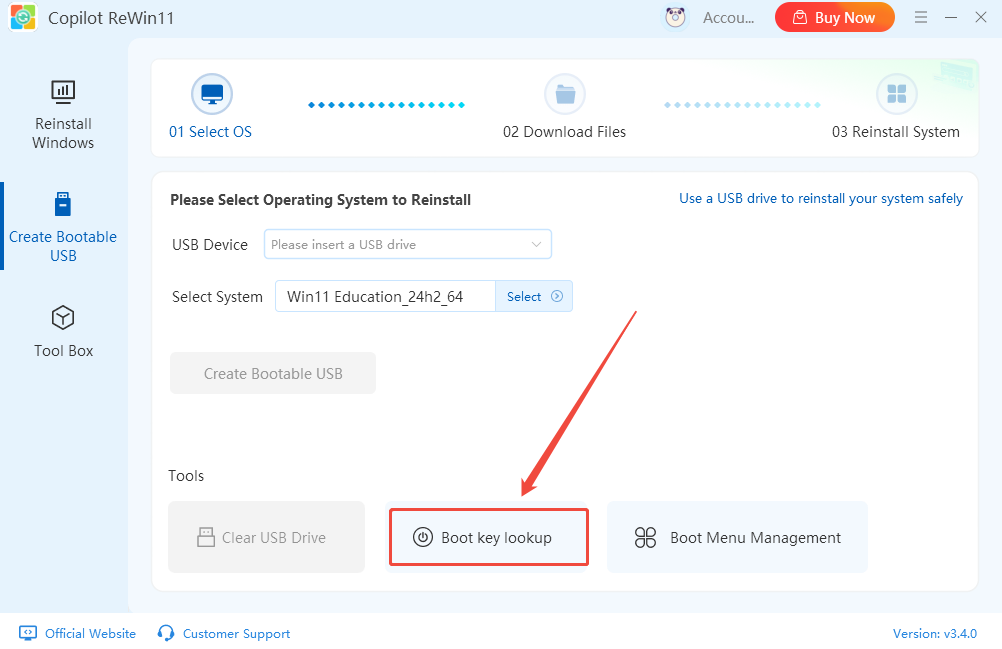
Step 1. Launch Copilot ReWin11 and click the “Boot Key Lookup” to see the keys for your device.
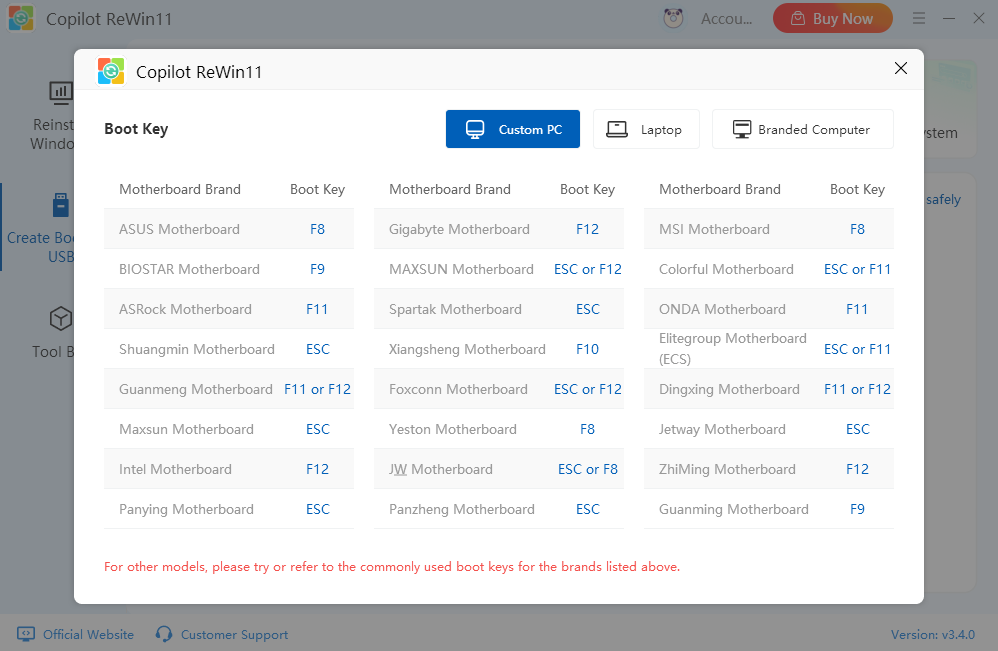
Step 2. In the pop-up window, it lists common keys for popular brands. Find your model and note the corresponding key. If your brand isn’t listed, try the standard keys above.
Step 3. As the computer restarts, press the key for your brand. The screen usually displays a prompt confirming you’ve entered the BIOS/UEFI setup.
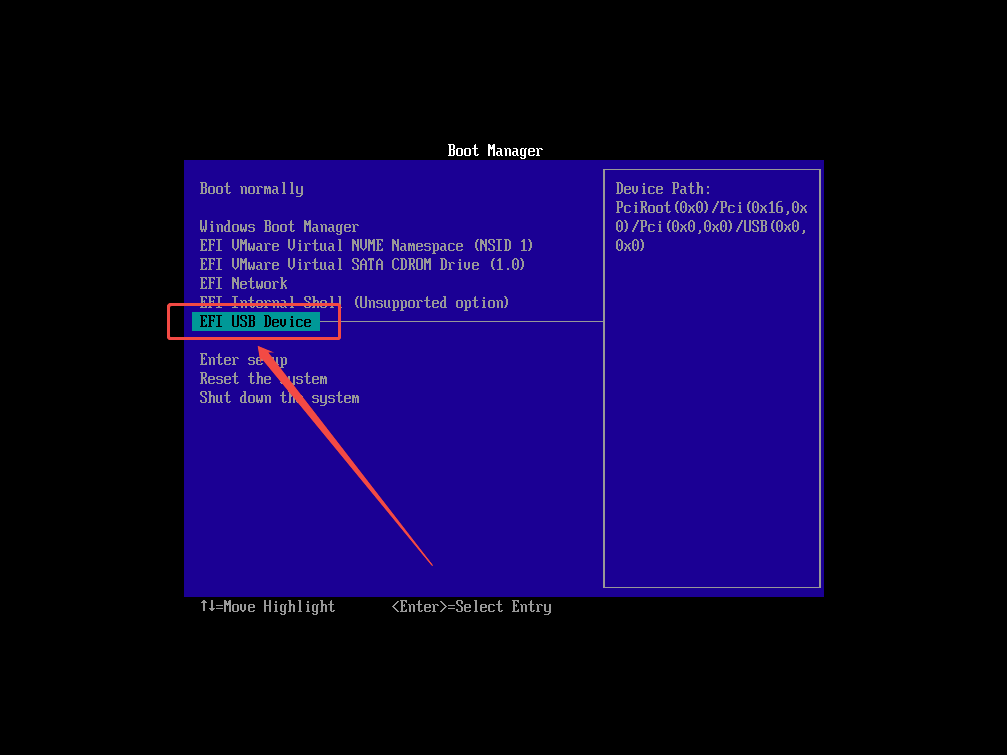
Step 4. Go to the “BOOT” tab or menu. Select the device containing your Windows installation media (usually labeled “USB Device” or “Removable Drive”) and confirm by pressing Enter.
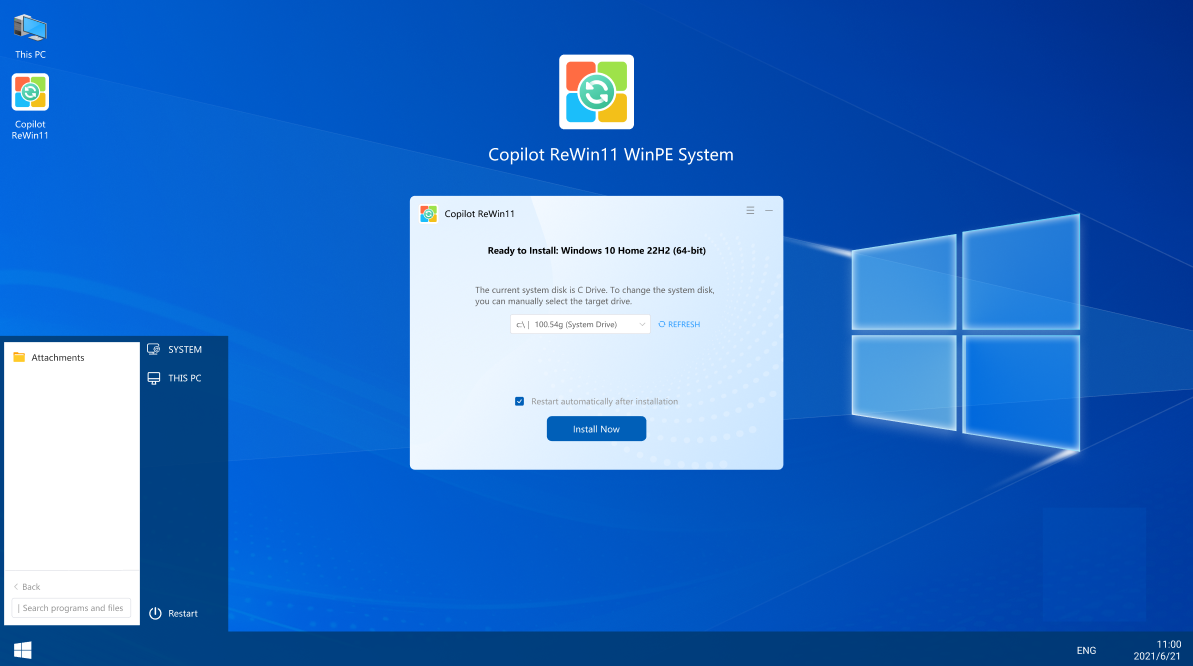
Step 5. Wait a few moments until the system loads the installation interface, then click “Install Now” to begin the reinstallation process.
Conclusion
Accessing the boot menu is the first critical step in reinstalling Windows. Knowing the correct key for your device and following the steps above ensures a smooth installation process.For more guides on Windows installation and troubleshooting, stay updated with Kingshiper Software.







