










































How to Check Hard Drive When Reinstalling Windows from USB
- Support
- Software Tutorials
- Kate
 806
806- 2026-01-28 17:49:19


Reinstalling Windows 10 or Windows 11 using a USB drive is a convenient way to refresh your system, fix errors, or improve performance. However, one common issue is that the installer does not detect the hard drive. This guide explains how to check and troubleshoot your hard drive before performing a Windows installation with a bootable USB drive.
Fix 1. Multiple System Drives on PC
Manually select the target drive for Windows installation. If the drive is not listed, click the “Refresh” button to re-scan available drives.
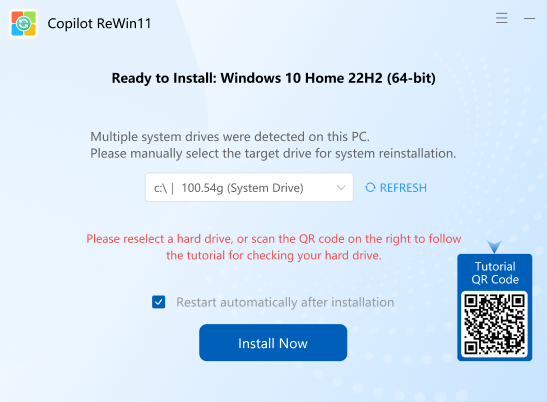
Fix 2. Hard Drive Not Detected
The USB installer does not recognize any available drives. Causes may include connection problems, incorrect BIOS/UEFI settings, or hardware issues.
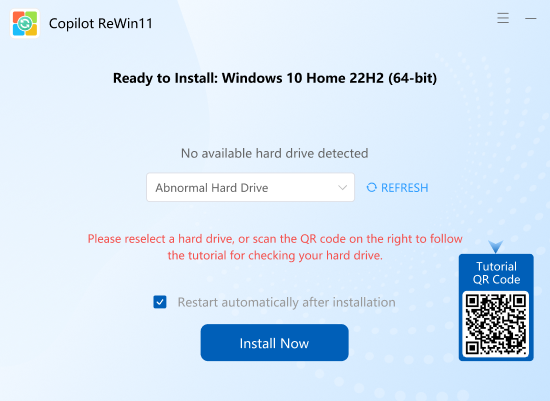
Here are the detailed solutions to solve the problem:
a) Check Physical Connections
Open your PC case and ensure the SATA/Power cables are firmly connected.
Inspect for burnt, bent, or damaged cables and connectors.
Clean dust or debris from ports and connectors.
Test by swapping cables or using another hard drive to isolate the faulty component.
b) Verify BIOS/UEFI Detection
Restart your computer, and when the manufacturer’s logo appears (e.g., Dell logo), press the designated key (commonly F2, F12, or Esc during boot) to enter the BIOS/UEFI setup.
Check the “Storage” or “System Information” section to see if the hard drive is listed.
If the drive is not detected or the parameters are incorrect, further troubleshooting is required.
c) Use Hardware Diagnostics
Run Built-in Hardware Diagnostics: Most computer brands include hardware diagnostic tools. For example, on Dell PCs, press F12 during startup to access the one-time boot menu and select Diagnostics. This will test your hardware components, including the hard drive.
Record Any Error Codes: If errors are detected, write down the error codes and provide them to tech support for further troubleshooting.
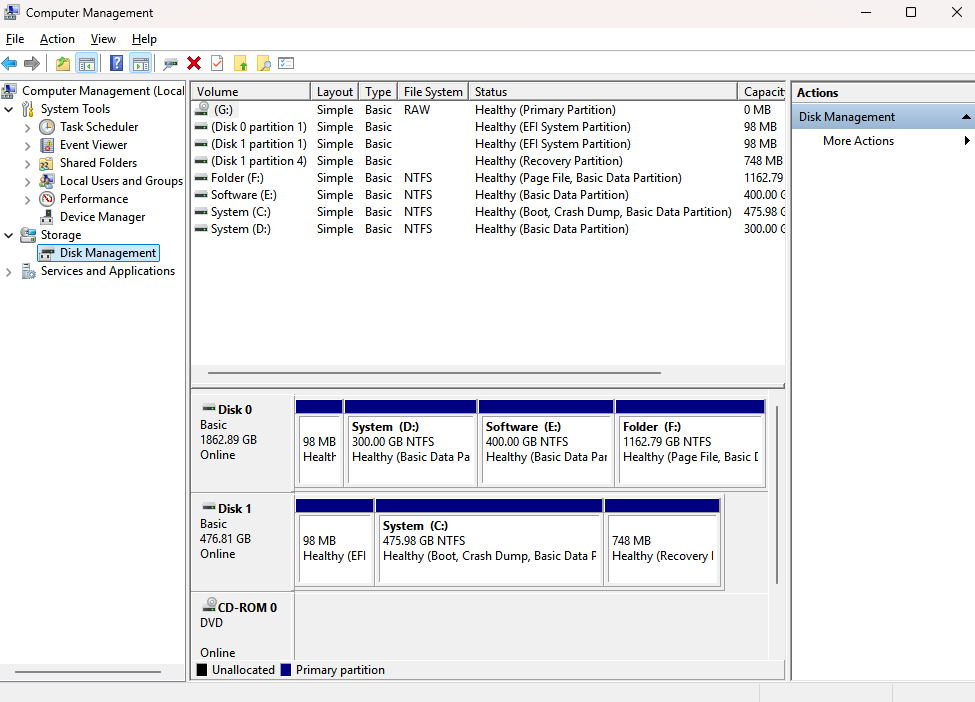
Scan the Hard Drive in Windows: If your system can boot into Windows, use built-in tools like Disk Management to scan and repair your hard drive. This tool can detect and fix logical errors and bad sectors.
Fix 3. System Drive Not Recognized
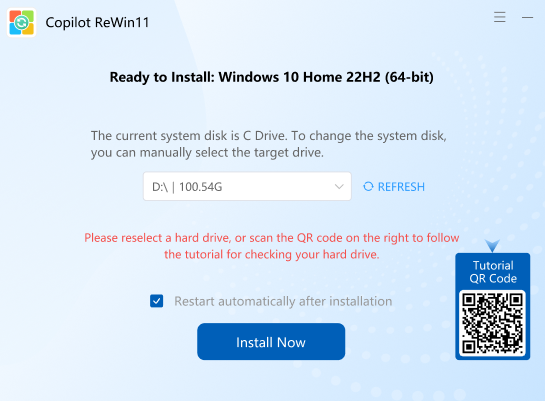
Drive Mode Compatibility: Hard drive mode (AHCI/IDE) may not match the system setup, preventing detection.
Missing Drivers: Older system images may not include drivers for newer hardware, like Intel 11th Gen CPUs or NVMe SSDs.
New Hardware Compatibility: Some new PCs use TPM 2.0 or custom storage protocols, which legacy installers may not support.
The detailed steps to change the hard drive mode in BIOS:
Step 1. Restart your computer. When the manufacturer’s logo appears (e.g., Dell, HP, Lenovo), repeatedly press the BIOS access key, commonly F2, F12, or Esc.
Step 2. Then, use the arrow keys to navigate to Advanced Setup through the BIOS menus.
Step 3. Go to the “Storage” and change the hard drive mode from its default setting to AHCI.
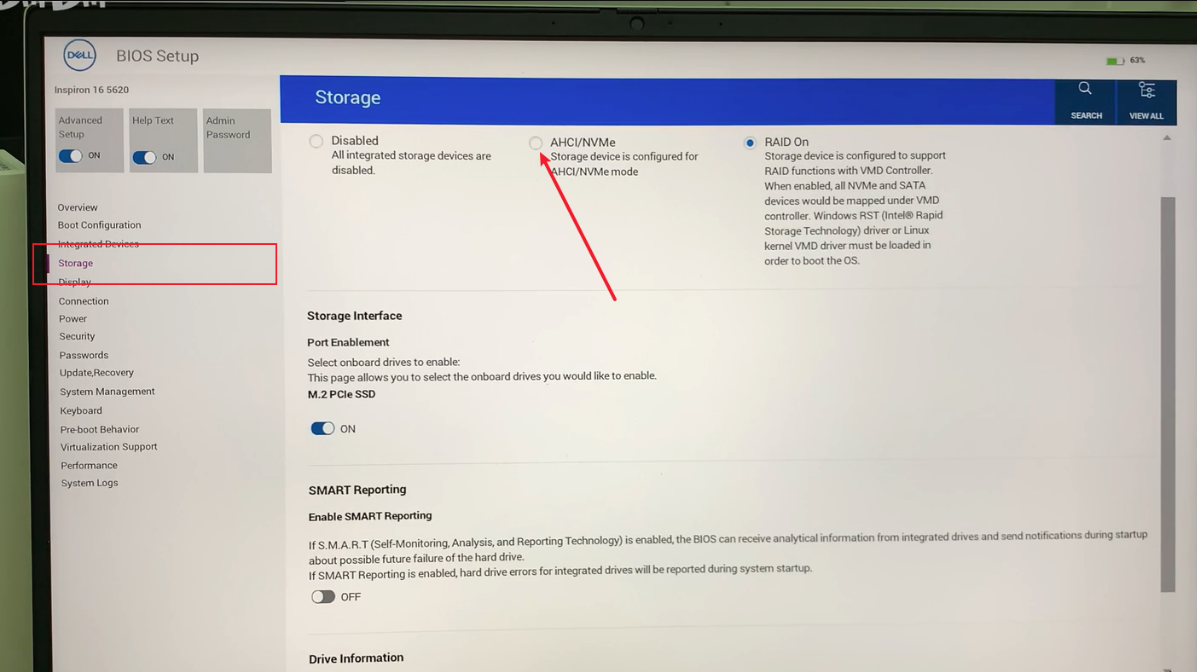
Step 4. Press F10 to save your changes and click on “Yes” to restart your computer.
Step 5. Reinsert your bootable USB drive and boot into the Windows installer. You can check if the system drive is now detected correctly.
Bonus Tips for Checking Your Hard Drive
If your hard drive is still not recognized after checking BIOS and connections, consider the following:
A) Power Supply Issues
Ensure the hard drive is receiving stable power. An unstable or weak power supply can cause the drive to malfunction. Try testing with a higher-quality power supply if possible.
B) Jumper Settings (for IDE Drives)
For IDE hard drives, check that the jumper settings are correct. Incorrect jumper positions can prevent the BIOS from detecting the drive properly.
C) Firmware Problems
If BIOS detects the drive but it still doesn’t function correctly, the hard drive firmware may be outdated or corrupted. In this case, use manufacturer-provided tools to update or re-flash the firmware.
The Bottom Line
Checking the hard drive before reinstalling Windows from a USB is essential. By verifying connections, BIOS/UEFI settings, drive modes, and using diagnostic tools, you can identify and resolve most detection issues, ensuring a smooth system reinstallation process.







