






























PC Cleaner Plus User Guide
- Support
- Software Tutorials
- Kate
 103
103- 2026-09-18 11:44:30


1 Get Started
It is simple to download, install, purchase, and activate the software. Follow the steps below.
1.1 Download & Install
Step 1. Download it on Your PC
If you do not have PC Cleaner Plus yet, click here to download the installer to your PC.
Step 2. Install PC Cleaner Plus
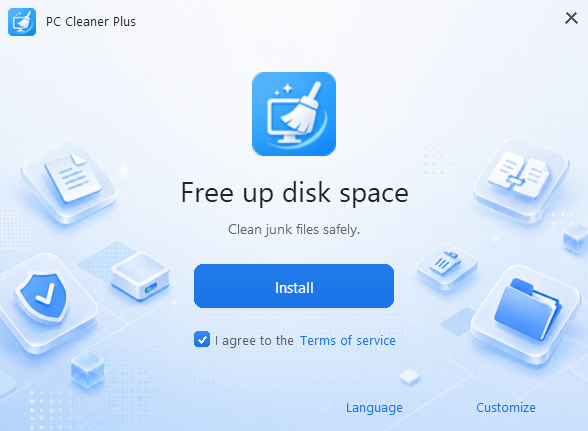
In the installation window, click “Install” to use the default settings. To change the installation path, click “Customize.” You can also click “Language” to select your preferred language. After confirming the settings, click “Install” to continue.
Step 3. Launch PC Cleaner Plus
Installation takes only a short time. When installation is complete, it will automatically launch the PC Cleaner Plus.
1.2.1 What is Kingshiper Account?
Kingshiper Account refers to the account you created from one of the Kingshiper products. It helps you manage your order details and log in to Kingshiper products that support Kingshiper Account.
1.2.2 How to log in to PC Cleaner Plus
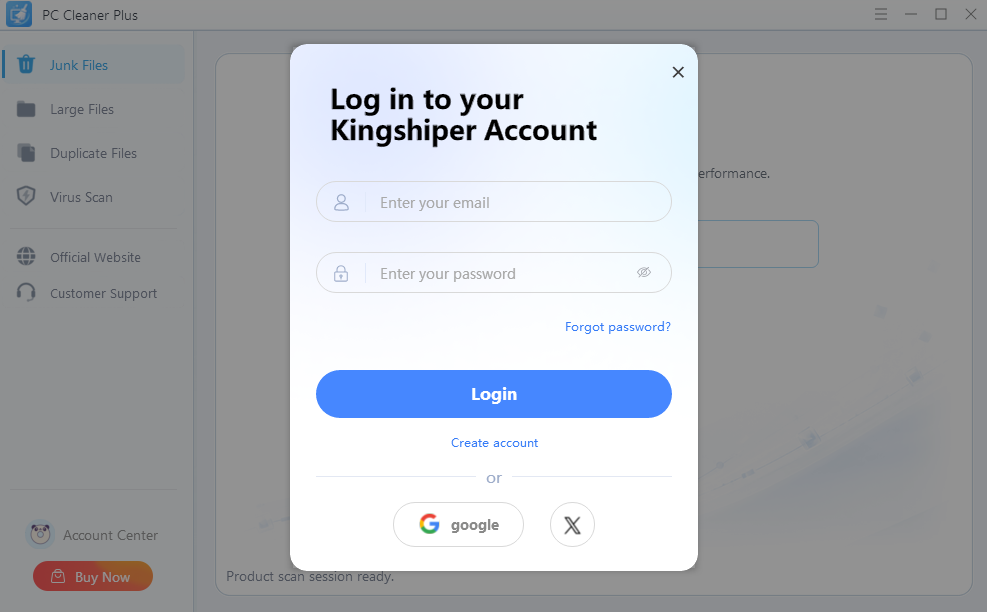
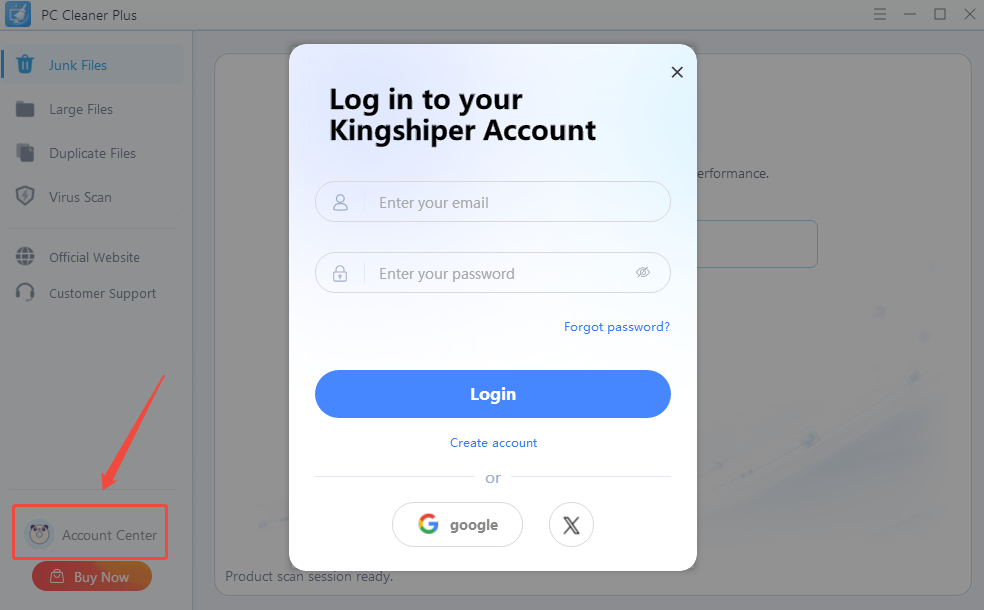
Launch PC Cleaner Plus after installation, then click "Account Center" in the left side bar to open the account sign-in page.
1.2.3 How to sign up for a new Kingshiper Account
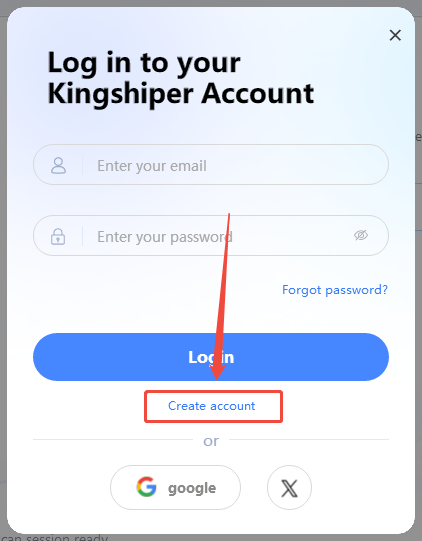
If you don't have a Kingshiper Account, then you need to click the Create account here option on the initial interface and create a new account.
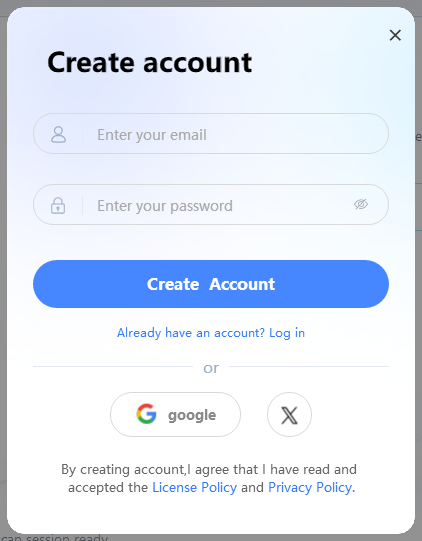
You'll get a new interface to enter your email address and set a password, and then click the “Create Account” button to create the account.
1.2.4 What can you do with Kingshiper Account
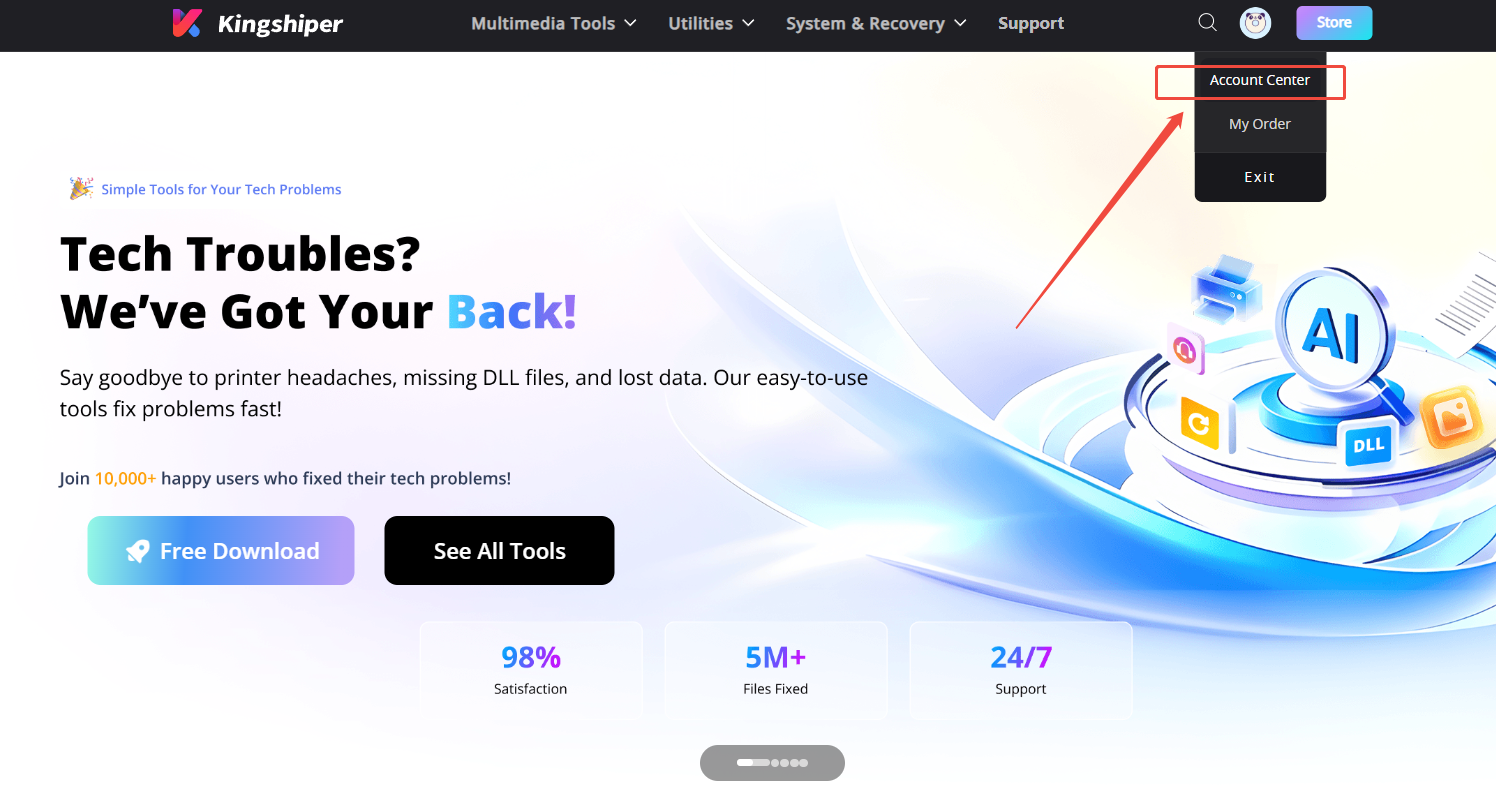
Open "Account Center" from the Kingshiper website. From there, you can review your orders, edit your profile, and update your account security settings.
My order: You can find the Order, Profile, and Security information here.
Profile: You can edit your personal information from this tab.
Security: You can change your password here.
1.2.5 Update
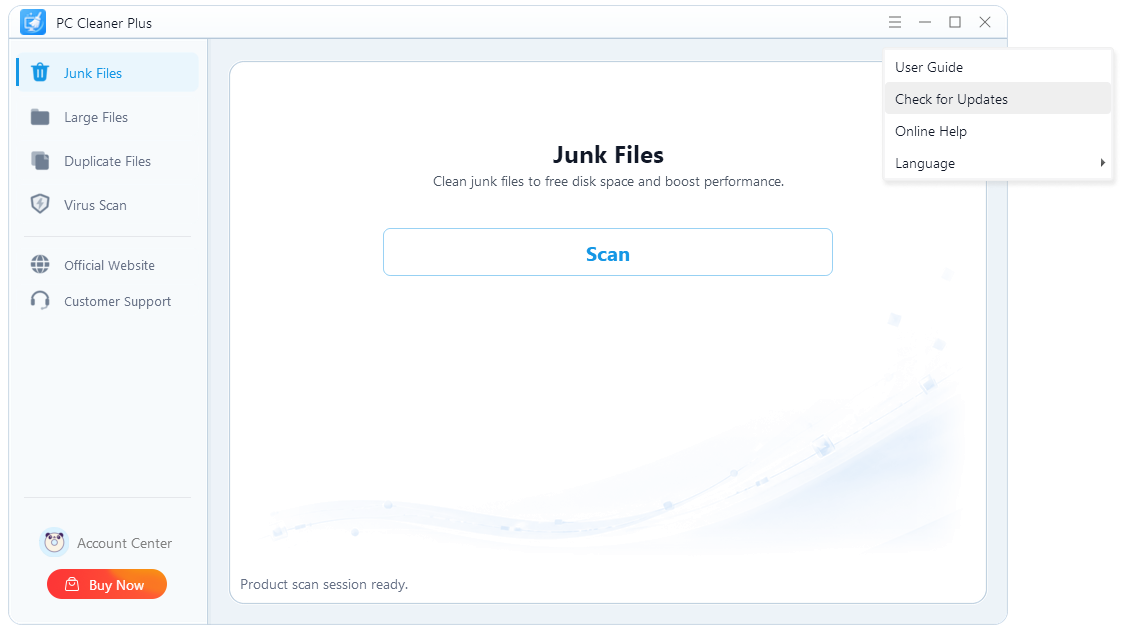
To check whether PC Cleaner Plus is up to date, follow the step below:
Click the Menu icon in the upper-right corner, then select "Check for Updates". Follow the prompts if a newer version is available.
1.2.6 Uninstall
If you no longer want to use PC Cleaner Plus, you can uninstall it as follows:
Go to "Control Panel" > "Programs" > "Programs and Features". Find PC Cleaner Plus, right-click it, and select "Uninstall". Confirm the prompt to remove the program and its components.
1.3 Brief Introduction
Thank you for choosing PC Cleaner Plus. It is a Windows cleanup and security utility that helps you remove junk files, locate large files, find duplicate files, and scan for potential threats. With clear categories and selectable results, you can review files before taking action and manage storage space more efficiently.
2 How to Use PC Cleaner Plus
2.1 Interfaces & Buttons
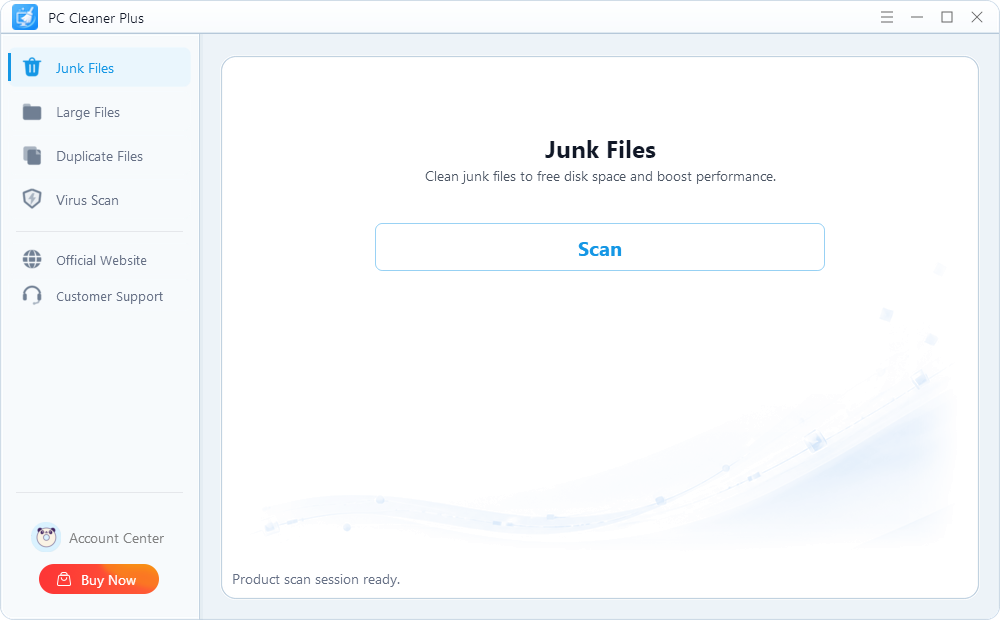
Launch PC Cleaner Plus on your computer to display the main interface. The available controls are described below.
2.1.1 Home
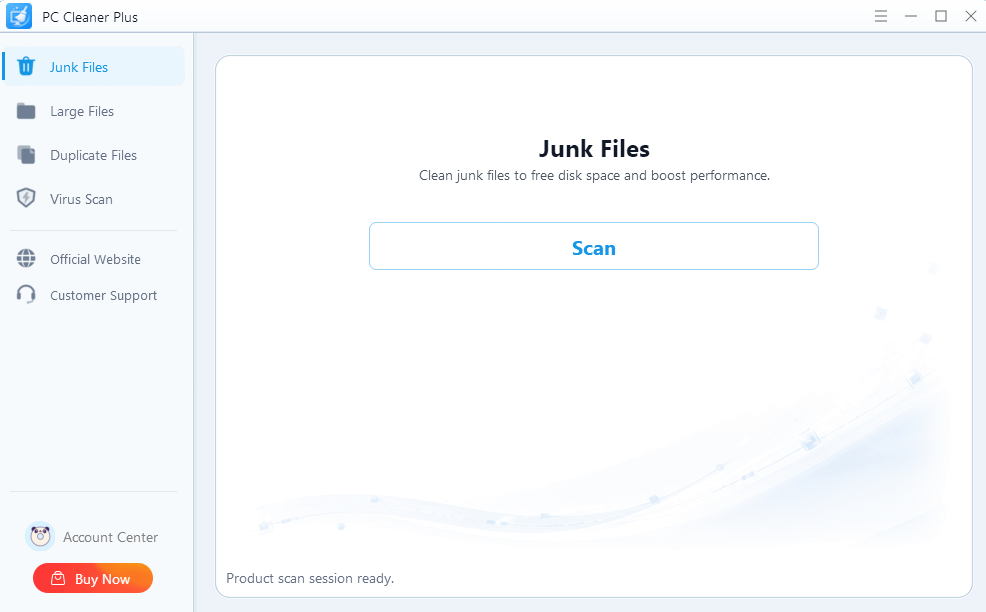
The left navigation panel provides four main tools: Junk Files, Large Files, Duplicate Files, and Virus Scan. It also includes links to the Official Website, Customer Support, Account Center, and the Buy Now page.
2.1.2 Menu
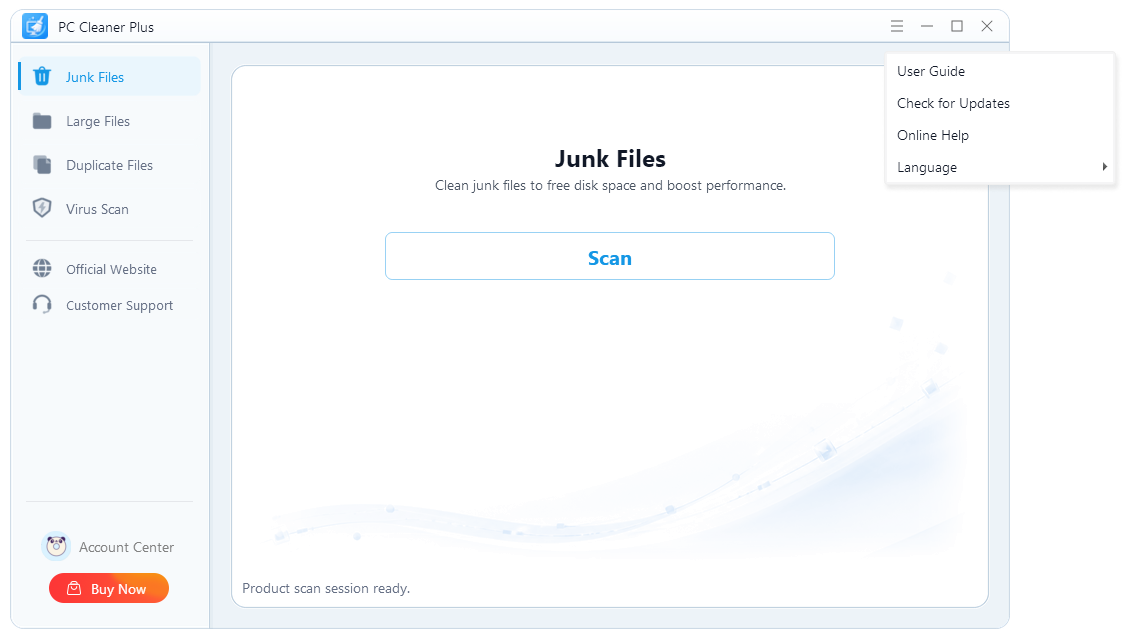
Click the Menu icon in the upper-right corner to access available software options, including settings, update information, and other product controls provided by your version.
2.1.3 Support Center
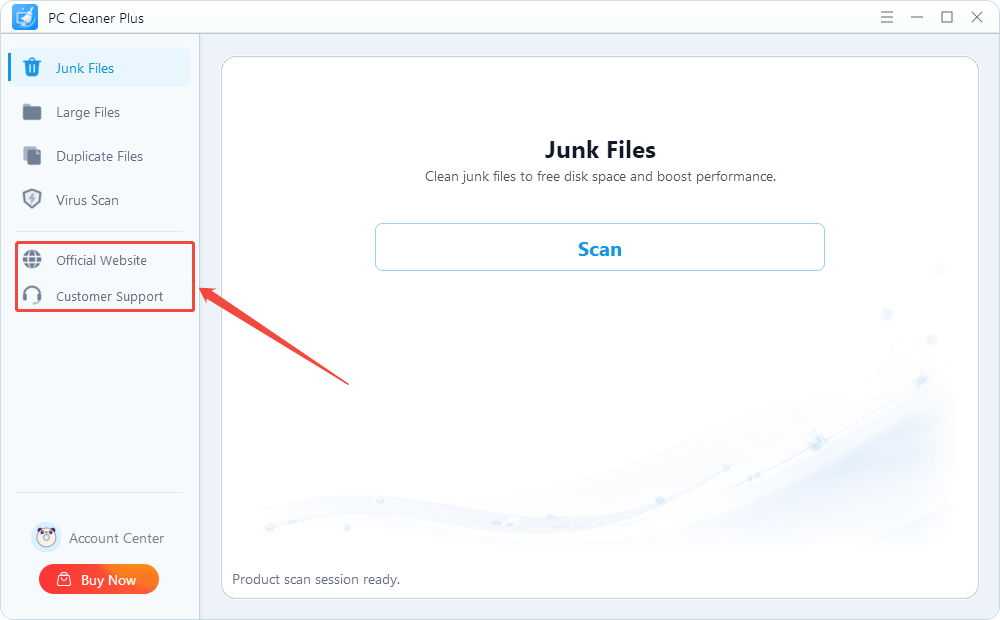
If you need product information or operating instructions, click "Official Website" in the left navigation panel to visit the Kingshiper website. If the available tutorials do not resolve your issue, click "Customer Support" to contact the Kingshiper support team.
2.2 Key Features
2.2.1 Junk Files
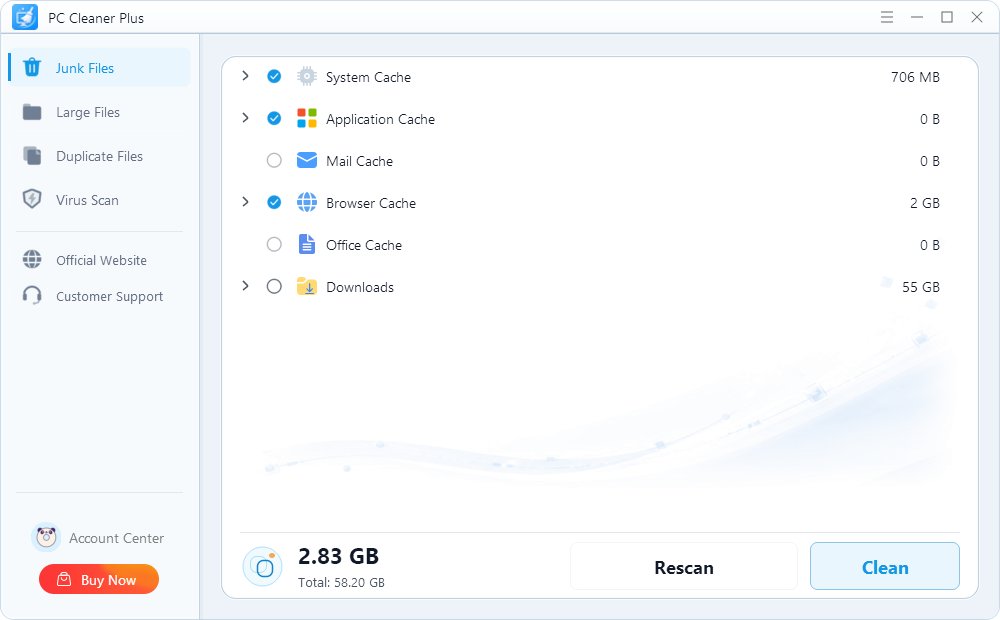
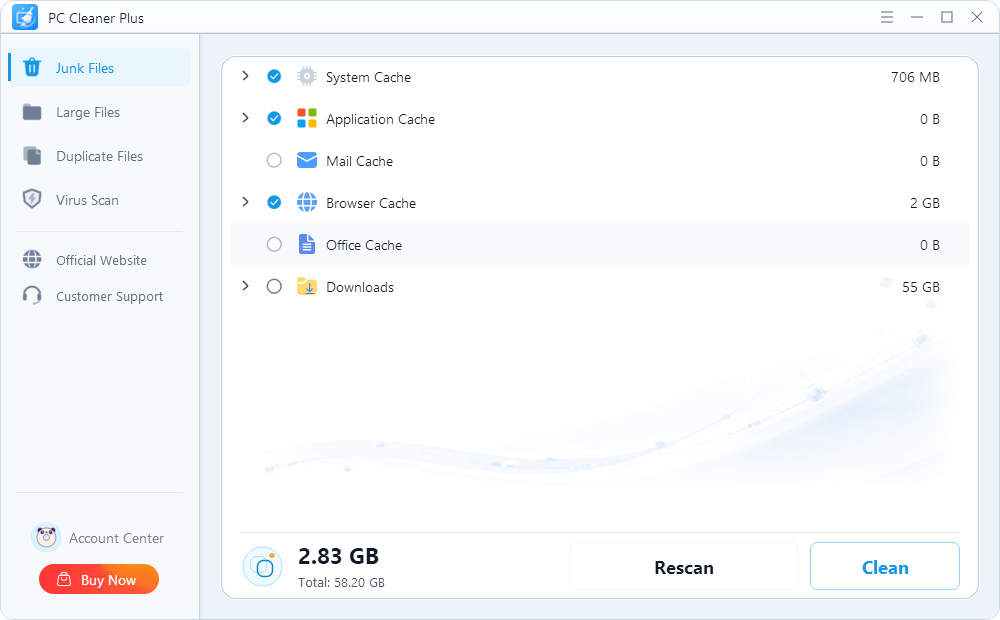
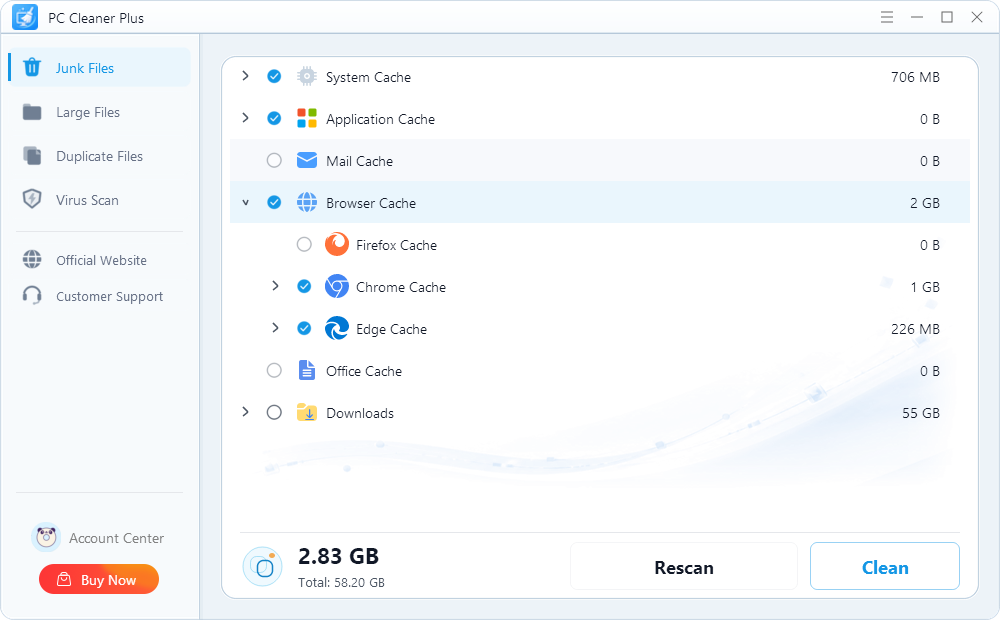
Junk Files scans common categories such as System Cache, Application Cache, Mail Cache, Browser Cache, Office Cache, and Downloads. Review the detected size for each category, select the items you want to remove, and click "Clean".
2.2.2 Large Files
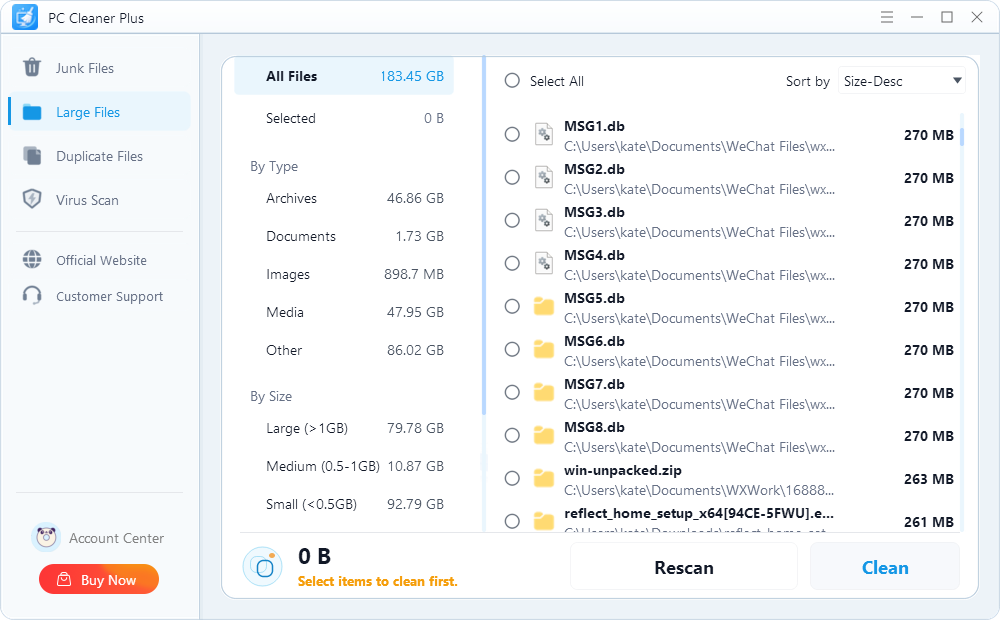
Large Files helps you locate files that occupy significant storage space. Review the file name, size, type, and location before deciding whether to keep, move, or remove an item.
2.2.3 Duplicate Files
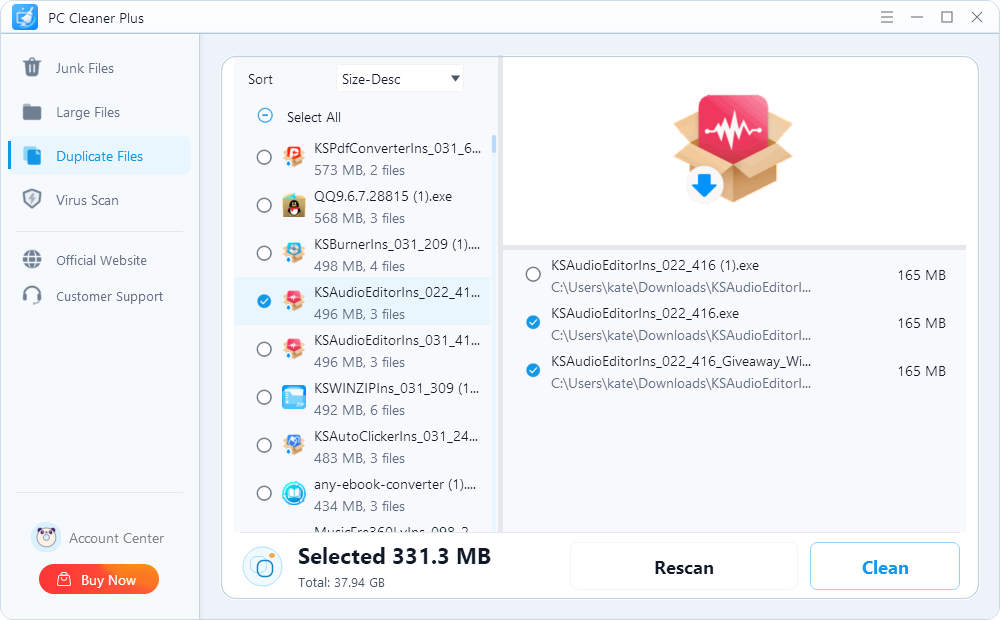
Duplicate Files scans selected locations for matching files. Review each duplicate group carefully, keep at least one required copy, and remove only the unnecessary duplicates.
2.2.4 Virus Scan
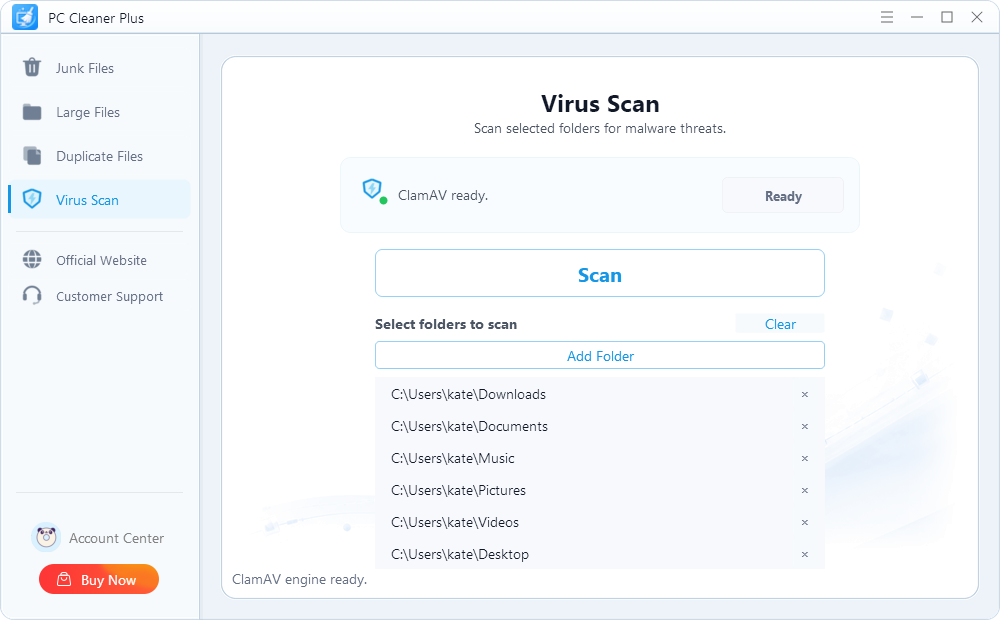
Virus Scan checks the selected area for suspicious or potentially harmful files. Review the scan results and use the available action only after confirming that an item is not a file you need.
3 Easy Steps to Clean Junk Files on Your PC
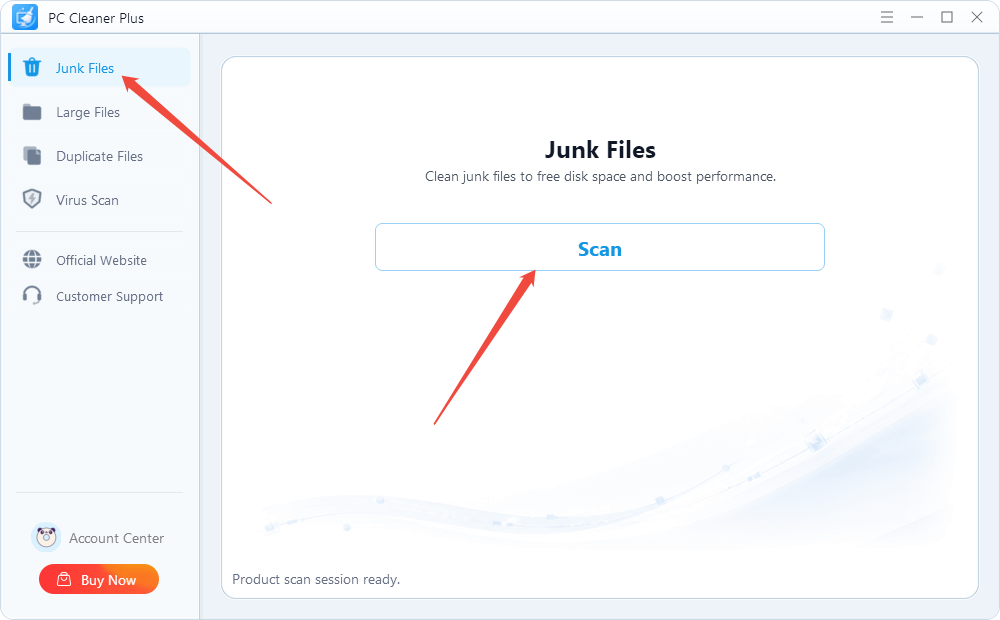
Step 1. Launch PC Cleaner Plus and select "Junk Files" from the left navigation panel. Then, click “Scan” to find the junk files.
Step 2. Wait for the initial scan to finish, or click "Rescan" to scan the computer again.
Step 3. Review the detected categories. Click the arrow beside a category to expand it, then select only the files you want to remove.
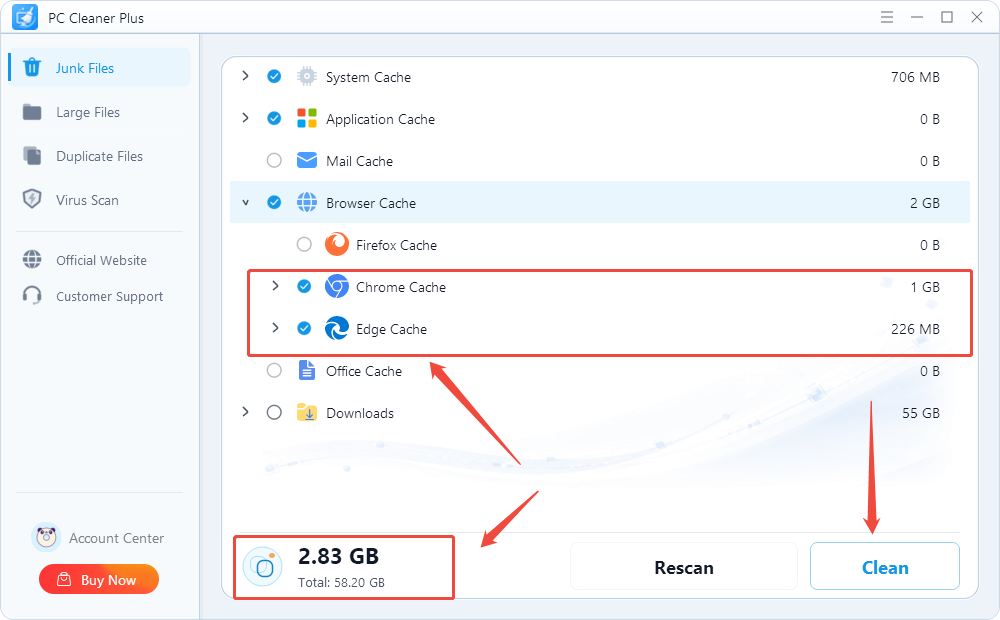
Step 4. Check the selected cleanup size at the bottom of the window, then click "Clean" to begin removing the selected files.
Step 5. When cleaning is complete, review the result. You can run another scan if you want to check for remaining junk files.
4 Support and Help
If you have feedback or questions about PC Cleaner Plus, visit the official support page or contact the Kingshiper support team.
Email: [email protected]
Submit Ticket: https://www.kingshiper.com/support