










































How to Fix Graphics Card Driver Installation Failure on Windows
- Support
- Software Tutorials
- Kate
 591
591- 2026-03-10 18:25:45


If your graphics card driver installation fails, it can prevent your computer from running games, software, or even basic display functions properly. This guide will help you identify, troubleshoot, and fix graphics card driver issues on Windows 7, 8, 10, and 11, including Code 43 errors and unrecognized devices.
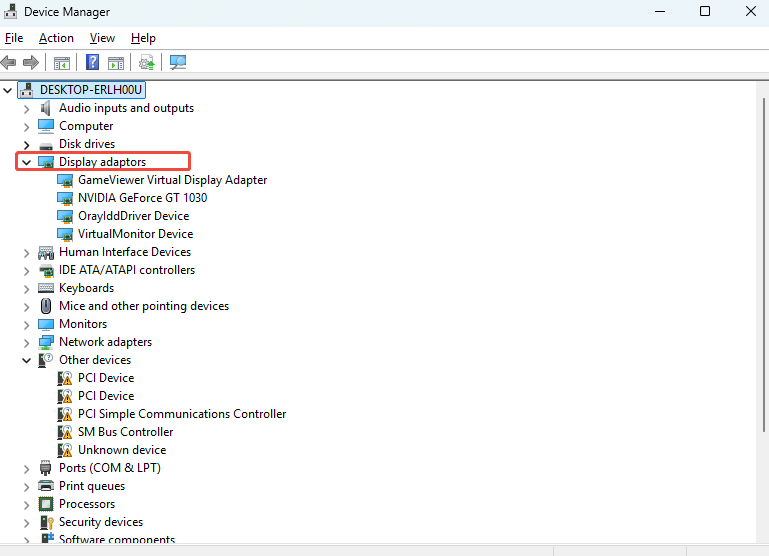
Step 1. Open Device Manager to check if Windows recognizes your graphics card. Press “Win + R”, type “devmgmt.msc”, and press Enter. Look for your graphics card under “Display adaptors”.
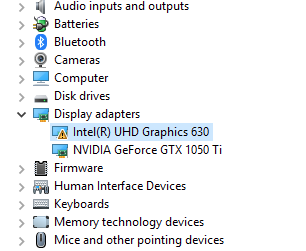
Step 2. Check for Warning Icons. A yellow exclamation mark next to your graphics card indicates there is an issue. Double-click the device to view its status.
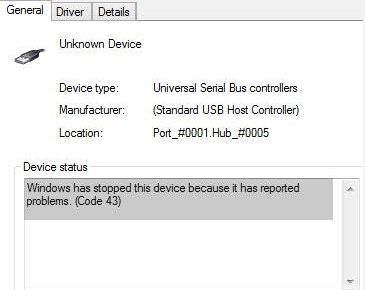
If you see a message such as "This device has been stopped because it has reported problems. (Code 43)", it usually means your graphics card may be physically damaged. In this case, consider taking it to a professional repair shop if the repair is worthwhile.
Step 3. If Display Adaptors is missing entirely, check under “Unknown Devices” or “Other Devices”. This usually happens when the graphics card is not recognized by Windows, caused by either:
Hardware damage
Missing or incorrect drivers
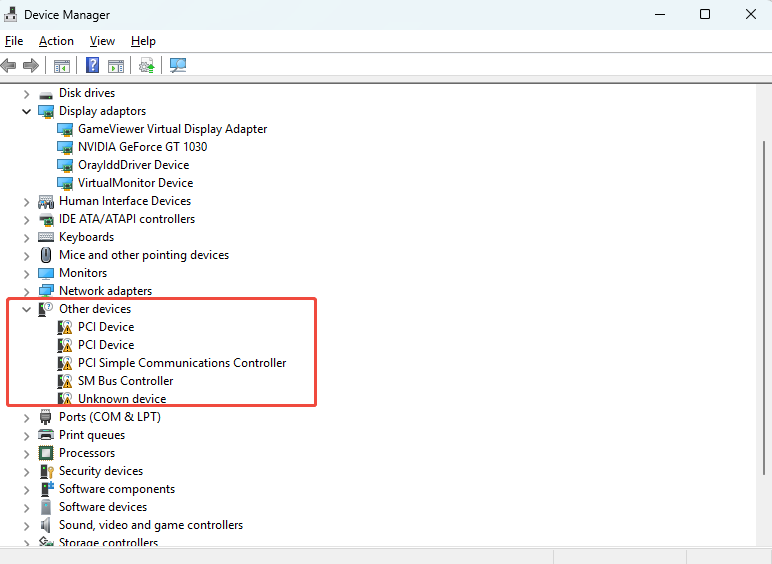
Step 4. If your graphics card appears under “Unknown Devices” or “Other Devices”, you can right-click the device and select “Update Driver”. Then, choose one of the following:
Search automatically for drivers
Browse my computer for drivers
Tip: Always download drivers from the official graphics card website.
Step 5. Sometimes, after installing a driver, you may see an Access Denied error. This usually means your current account does not have sufficient privileges. To fix this, you can follow the steps below:
Download the driver package from the official graphics card website or request it from customer support.
Boot your computer into Safe Mode
Complete the driver installation in Safe Mode.
For instructions on entering Safe Mode, you can view it here: How to Boot into Safe Mode in Windows







