










































How to Fix D3D Acceleration Failed Error on Windows PC
- Support
- Software Tutorials
- Kate
 1442
1442- 2026-03-10 19:31:29


If you encounter a “DX-related error” or “Please confirm whether your graphics card supports D3D acceleration” message while launching Legend-style web games (micro-client or browser-based games), you’re not alone. This issue is common on Windows systems where Direct3D (D3D) acceleration is disabled or misconfigured. In this guide, we’ll explain what causes the D3D acceleration error and show you step-by-step solutions to fix it on Windows PC.
What Is the D3D Acceleration Failed Error?
D3D (Direct3D) is a core component of Microsoft DirectX, responsible for handling 3D graphics rendering. Many web-based and micro-client games rely on D3D acceleration to run properly.
When this feature is unavailable, the game may display errors such as:
“DX-related error”
“Please confirm whether your graphics card supports D3D acceleration.”
Game fails to launch or crashes immediately
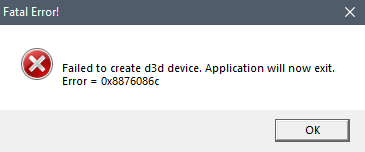
How to Fix D3D Acceleration Error on Windows PC?
Step 1: Confirm Your Graphics Card and Driver
Before making any changes, ensure that your PC has a dedicated graphics card (NVIDIA, AMD, or Intel) and that the driver is installed and functioning properly. Sometimes, Windows uses a generic display adapter if the GPU driver is missing or outdated, which prevents Direct3D acceleration from working. Updating your graphics driver from the official manufacturer’s website can resolve this issue in many cases.
Step 2: Check D3D Acceleration Status Using DxDiag
You can check whether Direct3D acceleration is enabled by using the DirectX Diagnostic Tool:
Press“Win + R”, type“dxdiag”, and hit Enter. In the DxDiag window, go to the “Display” tab.
Check if DirectDraw Acceleration, Direct3D Acceleration, and AGP Texture Acceleration are enabled.
If any of these features are disabled, you will need to enable them either through system settings or the Windows registry.
How to Enable D3D Acceleration on Windows
If D3D acceleration is disabled, you can enable it by editing the Windows registry. The simplest method is to create a registry file that automatically applies the correct settings. Open a new text file, paste the content below, and save it as Enable_D3D_Acceleration.reg. Double-click the file to apply the settings and then restart your computer.
Windows Registry Editor Version 5.00
[HKEY_LOCAL_MACHINE\SOFTWARE\Microsoft\DirectDraw]
"EmulationOnly"=dword:00000000
[HKEY_LOCAL_MACHINE\SOFTWARE\Microsoft\Direct3D\Drivers]
"SoftwareOnly"=dword:00000000
[HKEY_LOCAL_MACHINE\SOFTWARE\Microsoft\DirectDraw]
"DisableAGPsupport"=dword:00000000
[HKEY_LOCAL_MACHINE\SOFTWARE\Wow6432Node\Microsoft\DirectDraw]
"EmulationOnly"=dword:00000000
[HKEY_LOCAL_MACHINE\SOFTWARE\Wow6432Node\Microsoft\Direct3D\Drivers]
"SoftwareOnly"=dword:00000000
[HKEY_LOCAL_MACHINE\SOFTWARE\Wow6432Node\Microsoft\DirectDraw]
"DisableAGPsupport"=dword:00000000
Advanced users can also manually modify these registry keys and ensure the values EmulationOnly, SoftwareOnly, and DisableAGPsupport are all set to 0. Always back up your registry before making manual changes to avoid unexpected system issues.
Final Thoughts
The “D3D Acceleration Failed” error is generally caused by disabled DirectX features or misconfigured system settings, not by unsupported hardware. By ensuring your graphics driver is up to date and enabling D3D acceleration through the registry, most DX-related errors on Windows PCs can be resolved quickly. This method is particularly effective for Legend-style web games, micro-client games, and other 3D-dependent applications.







