










































How to Turn Off BitLocker on a Drive or Partition
- Support
- Software Tutorials
- Kate
 1385
1385- 2026-01-28 17:49:02


BitLocker is a built-in Windows feature that encrypts your hard drive to protect your data from unauthorized access. There are times when you may need to turn off BitLocker - such as when transferring a device, performing system upgrades, or accessing encrypted data. This guide walks you through multiple ways to safely disable BitLocker on a drive or partition.
BitLocker Overview and Key Features
BitLocker is a drive encryption technology integrated with Windows, designed to protect data from theft or unauthorized access. Here are its main features and benefits:
Data Protection: Encrypts the entire drive to secure sensitive information.
Prevents Malicious Attacks: Protects against physical or remote attacks from hackers and malware.
Restricts Unauthorized Access: Only users with the correct password or recovery key can access encrypted data.
Prevents Data Leakage: Even if a computer is lost or stolen, encrypted data remains protected.
Supports Multiple File Systems: Works with NTFS, FAT32, exFAT, and more.
Easy to Manage: Offers flexible encryption options—encrypt the entire drive or select specific files and folders.
Maintains Data Integrity: Performs integrity checks during startup to ensure that no data has been tampered with. If any modifications are detected, BitLocker can prevent the computer from starting, protecting the integrity of your data.
Why You Might Want to Disable BitLocker
Before diving into the steps, it’s important to understand why disabling BitLocker may be necessary:
Device transfer or resale: Decrypt drives to ensure no sensitive data is left encrypted before selling or giving away your PC.
System upgrade or migration: Removing encryption can prevent errors when moving data to a new system or hardware.
Data recovery: Access files that may be locked by BitLocker encryption.
Method 1: Turn Off BitLocker via Control Panel (Recommended)
This is the most common method for Windows 10 and Windows 11 Pro/Enterprise editions.
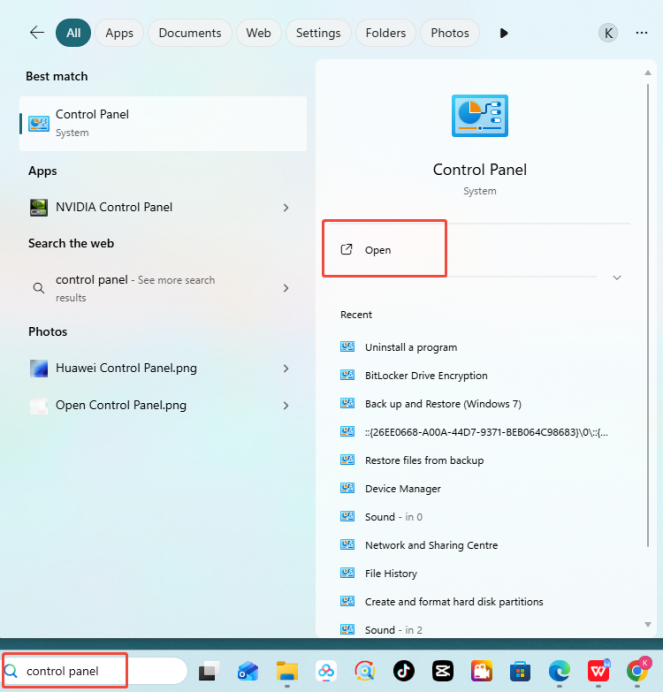
Step 1. Go to the Windows search menu and search for “Control Panel”.
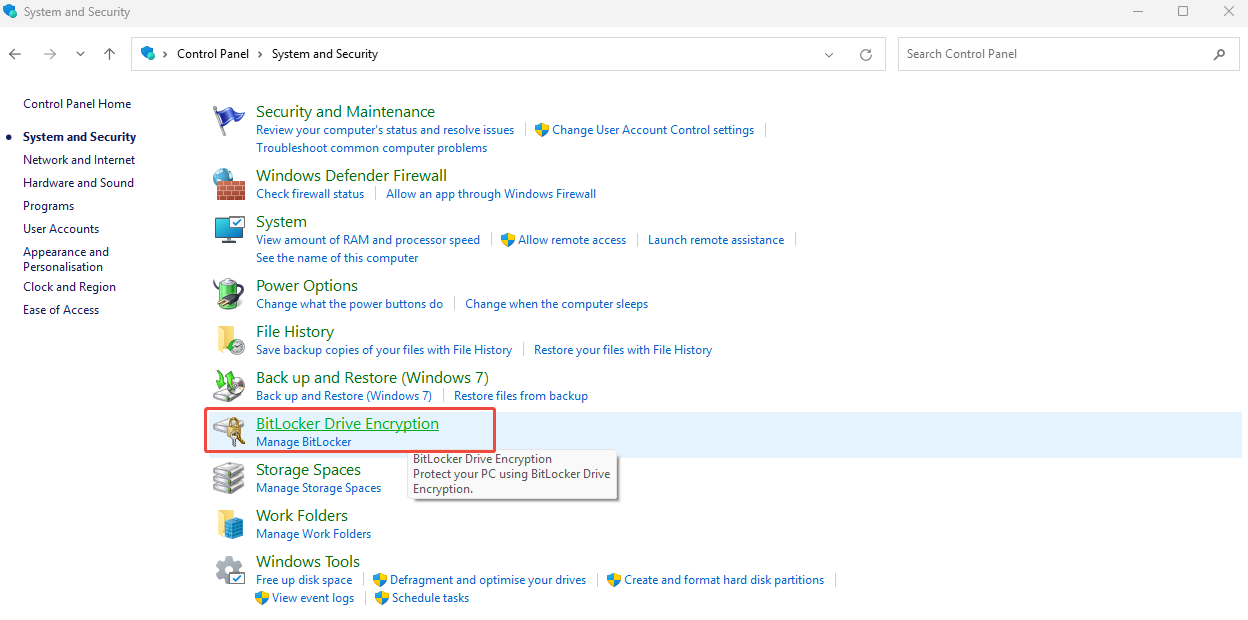
Step 2. Go to System and Security, and then tap on the “BitLocker Drive Encryption”.
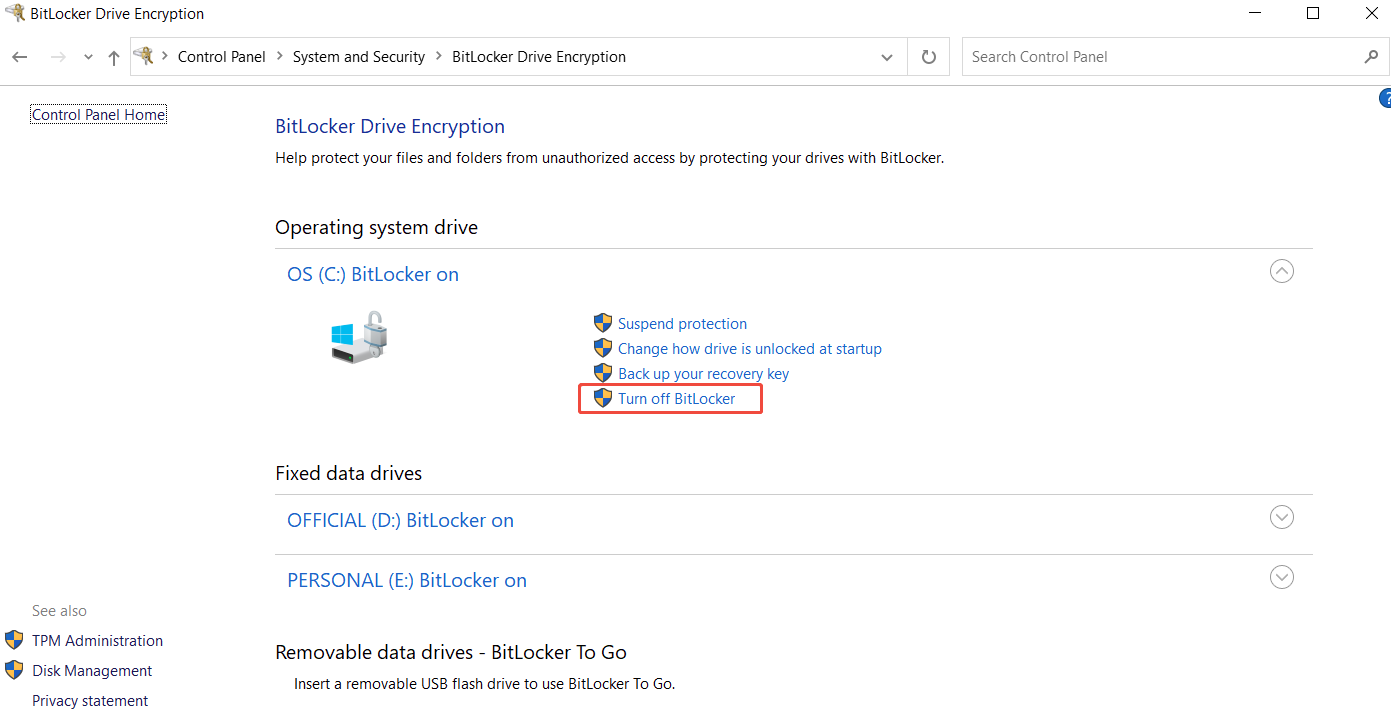
Step 3. Find the encrypted drive (for example, C:) and click “Turn off BitLocker”.
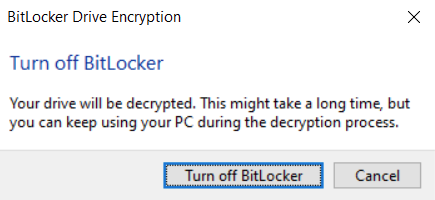
Step 4. In the pop-up window, click the “Turn off BitLocker” button and wait for the decryption process to complete.
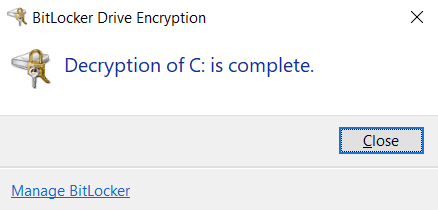
Step 5. Once finished, a message will appear stating “Decryption of C: is complete.” Click “Close” to exit.
Method 2. Turn Off BitLocker via Windows Settings (For Windows 11 Home)
For Windows 11 Home edition, BitLocker is enabled by default, and it cannot be turned off via the Control Panel. You need to disable it through the Windows Settings instead. Here’s how to turn off BitLocker through Settings:
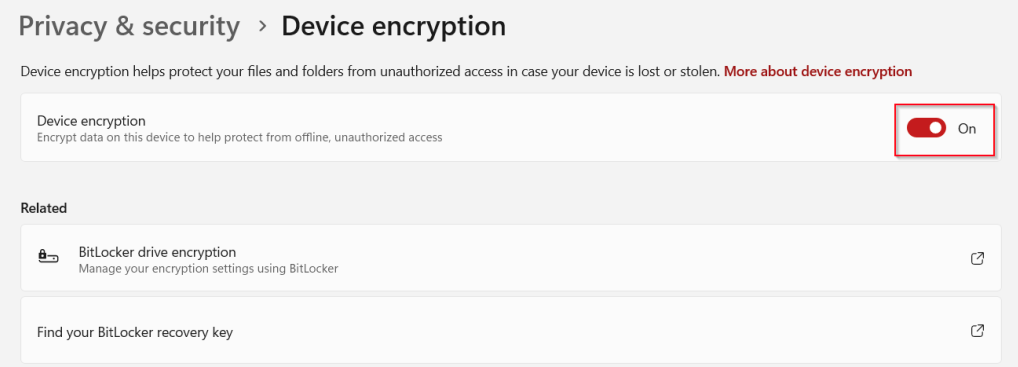
Step 1. Go to Settings and search for “Device Encryption”.
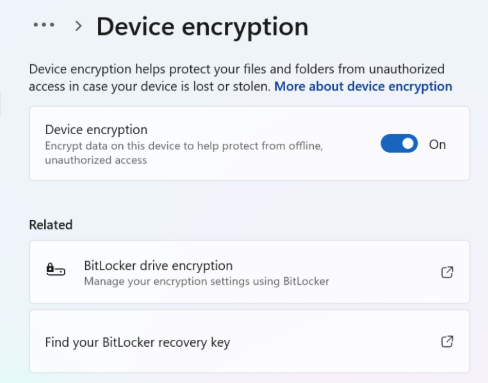
Step 2. Click on the “Turn off” and confirm the action when prompted.
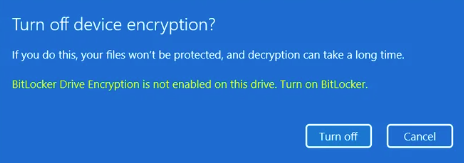
Step 3. Wait for the decryption process to finish. The drive is now decrypted.
Method 3. Turn Off BitLocker via Command Prompt
If the above methods fail or the drive shows “waiting for activation,” you can disable BitLocker via the Command Prompt:
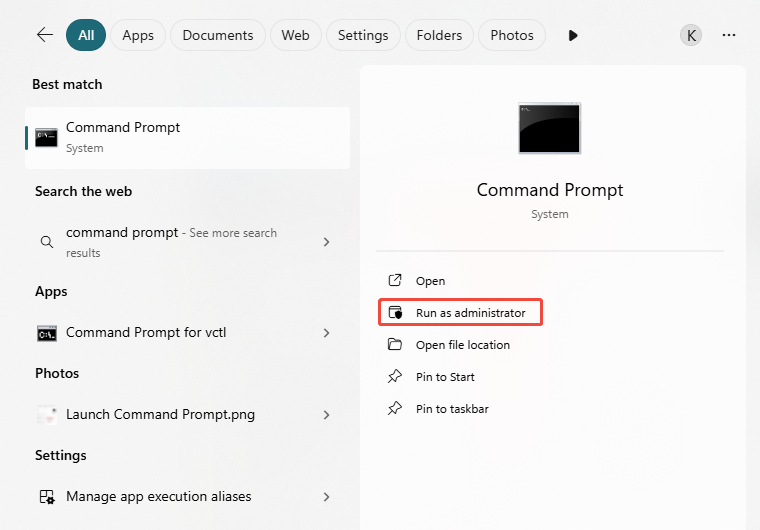
Step 1. Click the Search button on the Start menu, type cmd, then right-click Command Prompt and select Run as administrator.
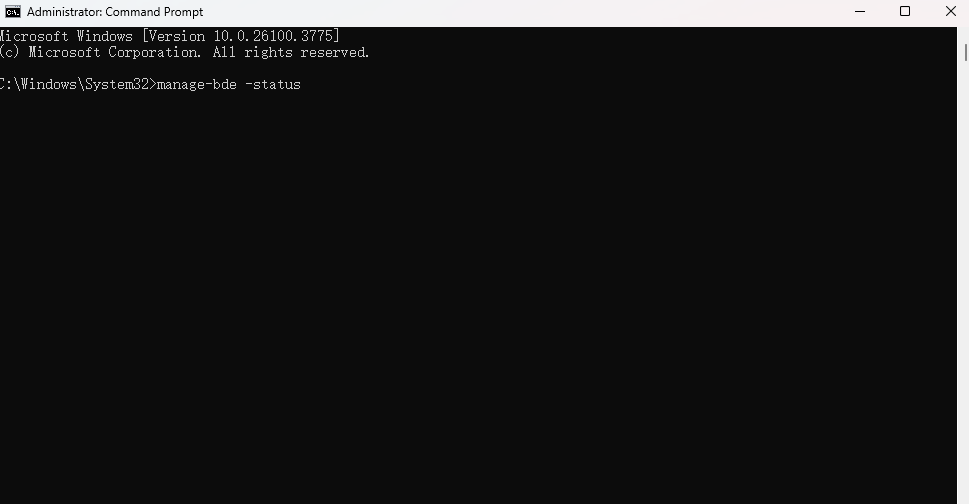
Step 2. In the Command Prompt window, check the encryption status of your drives by typing: manage-bde -status.
Step 3. If the drive is encrypted (for example, C:), disable BitLocker by typing: manage-bde -off C:
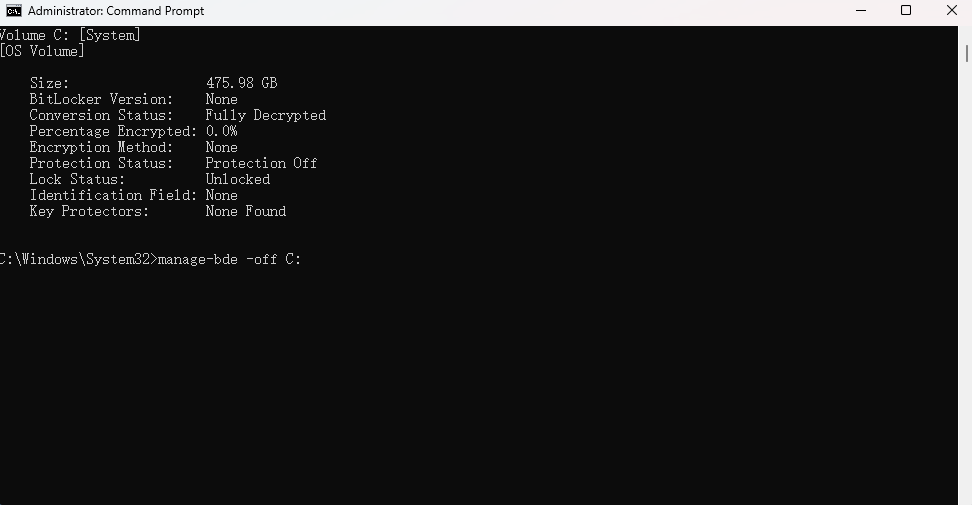
Step 4. Press Enter and wait while Windows decrypts the drive. The process may take some time depending on the drive size and data volume.
Tips for Safely Turning off BitLocker
Turning off BitLocker on a drive or partition is straightforward, but there are a few important points to keep in mind:
Decryption Time: The time required to decrypt a drive depends on the size of the data and the speed of your hard drive. Do not shut down your computer during the process, as interrupting decryption may cause errors or incomplete removal.
Data Backup: Once BitLocker is turned off, previously encrypted data cannot be recovered if lost. Always back up important files before starting decryption.







