










































How to Fix 0xc0000022 Error on Windows
- Support
- Software Tutorials
- Kate
 557
557- 2026-03-10 18:26:58


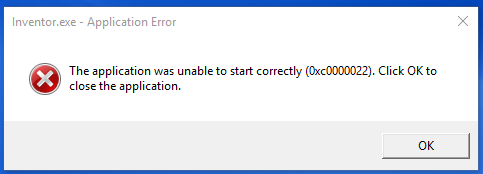
The 0xc0000022 error is a common Windows issue that occurs when an application or game fails to start. You may see the following message: The application failed to start (0xc0000022). This error typically happens due to insufficient application permissions, corrupted or missing system files, or disabled Windows components required by the program. Understanding the root cause is essential to fixing it efficiently.
Fix 1. Check Application Permissions
Applications can fail to start if they don’t have the proper permissions. Follow these steps to fix it:
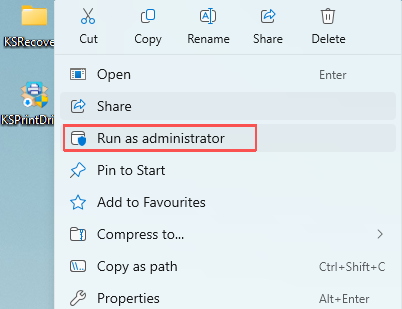
Step 1. Right-click the affected application and select “Run as administrator”.
Step 2. If the error still occurs, adjust the file permissions:
Right-click the application and select“Properties”.
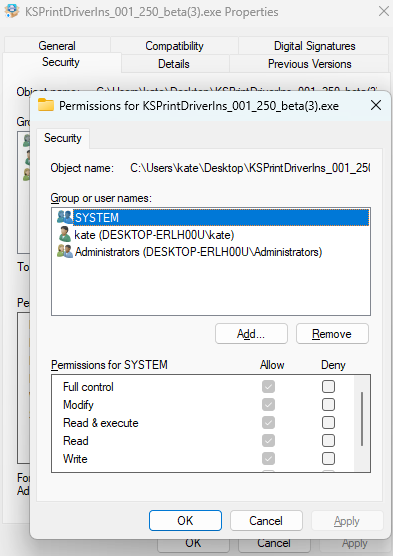
Go to the“Security” tab and click“Edit”.
Make sure “Administrators”, “Users”, and “System” all have “Full Control”.
Click “OK” to save the changes.
Fix 2. Repair Corrupted System Files
Corrupted or missing system files can prevent applications from launching. Follow these steps:
Step 1. Open “Windows PowerShell” on Windows 10, “Terminal” or “Command Prompt” on Windows 11, then run as administrator.
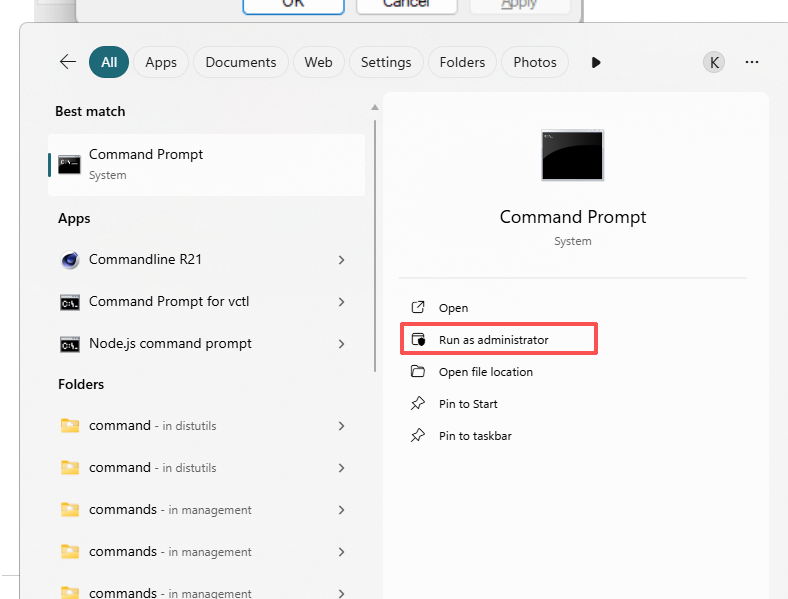
Step 2. Type the following command and press Enter: sfc /scannow.
Step 3. Wait for the System File Checker tool to scan and repair corrupted files.
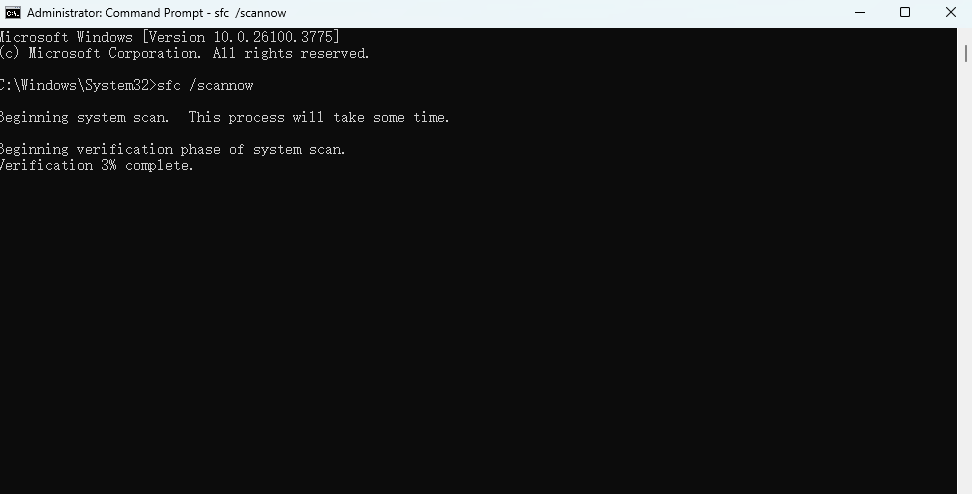
Step 4. Restart your computer and try launching the application again.
Fix 3. Enable Required Windows Components
Some programs, especially older games or legacy applications, require certain Windows features to be enabled, such as DirectPlay. Generally, enabling the required Windows components through Windows Features can restore compatibility and allow the application to launch normally.
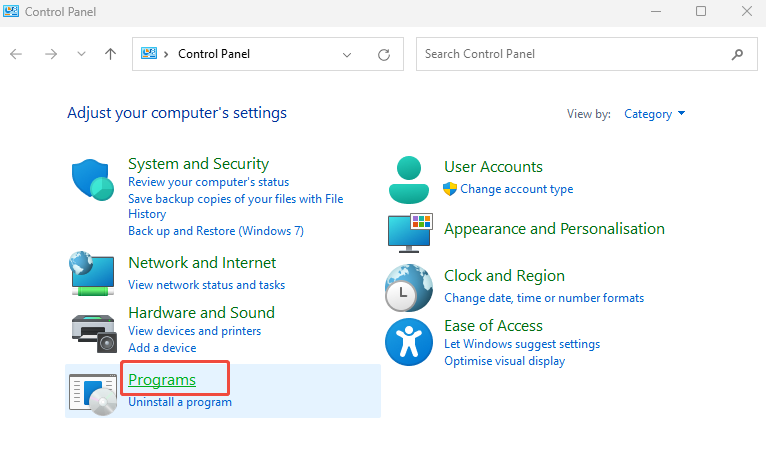
Step 1. Go to “Control Panel”, and click on the “Programs”. Press on the “Turn Windows features on or off”.
Step 2. Scroll down and expand “Legacy Components”. Check “DirectPlay” and click “OK”.
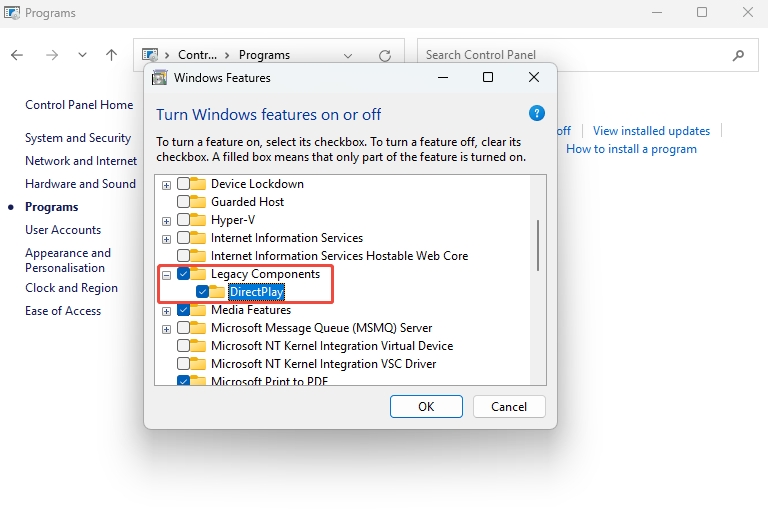
Step 3. Wait for Windows to enable the component, then try running the application again.
Summary
Now, you must know the steps to fix “The application failed to start (0xc0000022)” error on Windows in this post. With these methods, you can restore normal application behavior and ensure your programs or games launch correctly. For more tips to fix DLL errors, please pay attention to Kingshiper Software.







