Multimedia Tools
Video Tools
Audio Tools

Image tools
Record and Edit Porfessional Videos on Mac
Windows Desktop Screen Recording Software
Easy and Fast Way to Compress Video and GIF
Screen Mirroring App for iPhone/Android/PC/Pad
All-in-one video toolkit that supports converting over 1000+ formats
Portable audio format converter, which supports common audio format conversion, multiple audio merging, audio compression, audio segmentation, and one click batch conversion of audio formats
Cut, copy, paste, insert audio, add effects and other editing functions, which can easily re edit the recorded audio files and make ringtones, adding a unique personality to your life.
Karaoke Maker and Vocal Extractor on Mac
Extract vocals and instrumentals from any audio and video track with the latest AI technology.
Best Voice Recording Software for All Windows Users
Convert Audio/Video to MP3/WAV/FLAC/OGG

Utilities
Office Utilities
Simple and powerful office solution for file compression, extraction, transferring, and sharing. Easily to process multiple files in seconds!
Burn music, video, and data discs in one-click
A powerful, simple and easy to operate PDF to word converter, which supports the conversion between PDF documents and multiple formats such as doc, ppt, pictures and txt documents; The software has the functions of fast conversion, batch conversion, high-quality identification, etc
Fast Way to Reduce Your File Size
The best and perfect tool to convert various ebook files with ease.
Convert Videos, Audios, Images, PDFs, and Word with Ease
Seamless Conversion for PDF to JPG & JPG to PDF
Shrink size of PDFs, images, and videos without losing quality
Extract & Manage & Compress Files in Seconds
System & Recovery
Data Solutions
System Tools
Windows Data Recovery Software
Kingshiper NTFS for Mac allows users to write, edit, copy, move and delete NTFS disks on Mac.
An AI-powered, all-in-one system reinstallation solution to reinstall Windows 7, 10, or 11 with one click.
AiPrinter Fixer is an all-in-one printer repair and update software that automatically detects your printer brand and model, and integrates driver installation, error detection, and repair.
Best PC Cleaner and System Cleaner for Windows
Windows Duplicate File Finder and Cleaner
Auto Clicking Software and Macro Recorder for Windows
{{ postData.top_advertising_product.g_name }}
Whether you’re dealing with a printer stuck offline, garbled print output, or issues after a Windows 10 update, reinstalling printer drivers is a fundamental task every computer user needs. Doing it the wrong way can cause driver conflicts, “Driver unavailable” errors, or hours of frustration with failed installations. As a Reddit user once asked:
"What’s the best way to completely reinstall a printer driver?
I bought a new laptop running Windows 11. I have a Brother MFC-L3780CDW. I’m trying to install the printer driver, but the installation keeps failing. I downloaded the full software package from the Brother support website, and it still won’t install." — from Reddit
This guide covers 4 proven methods to reinstall printer drivers on Windows 10 safely and effectively.
| Method | Supported Printers | Tools Needed | Speed | Best for |
| 1️⃣Third-Party Printer Repair Software | All brands | AiPrinter Fixer | Fast | Automatic repair and bulk updates |
| 2️⃣Official Driver Installation | Brother / Canon / HP | Manufacturer’s official driver | Fast | Clean install or full driver reinstall |
| 3️⃣Device Manager | All brands | Windows built-in tools | Slow | Fixing driver errors |
| 4️⃣Remove & Re-add Printer | All brands | Control Panel / Settings | Medium | Resolving driver conflicts |
You May Also Like: How to Download Canon LBP2900B Printer Driver
Best for: Fixing stubborn printer driver issues, printer offline/not responding errors, and corrupted or incompatible drivers (Brother / HP / Canon)
✅Pros: Automatically detects and matches the correct driver; one-click repair for driver conflicts; no need to manually search printer models; reduces the risk of installing the wrong driver version
❌Cons: Download printer repair software; needs an internet connection to fetch drivers
Using a third-party printer driver repair tool is an efficient and intelligent way to reinstall printer drivers while minimizing user effort. This method scans your system for driver-related issues and reinstalls the official driver that perfectly matches your printer model, ensuring stability and compatibility. It is often used when encountering “Printer driver unavailable” errors, printers stuck offline, repeated installation failures, or situations where drivers stop working after a Windows update. Instead of manually uninstalling drivers and guessing which version to download, the software automates the entire process.
However, Windows does not always retrieve the latest manufacturer-specific drivers through Device Manager or Windows Update. As a result, using a dedicated repair tool becomes necessary for accurate and complete driver reinstallation. Several software options are available for reinstalling printer drivers, including AiPrinter Fixer.
If your computer repeatedly fails to recognize the printer or the driver keeps crashing, this method is often the most reliable solution. Just install a powerful repair tool and use it to fix your printer issues!
Step 1. Connect your printer. Make sure the printer is connected to your computer via USB or network, then launch AiPrinter Fixer.
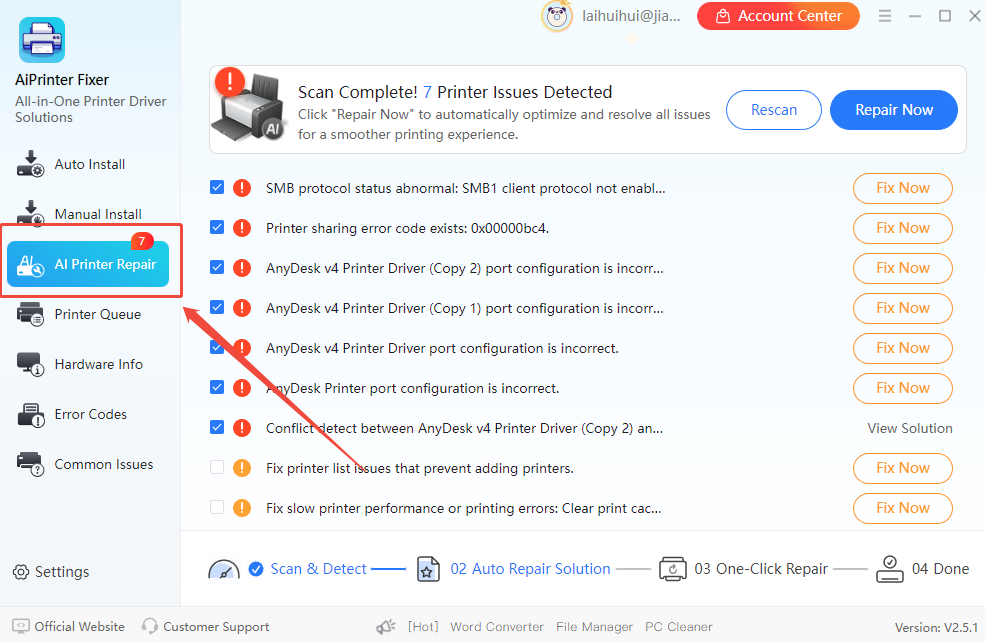
Step 2. Scan for driver issues. Click “AI Printer Repair” to scan the system for missing, corrupted, or incompatible printer drivers.

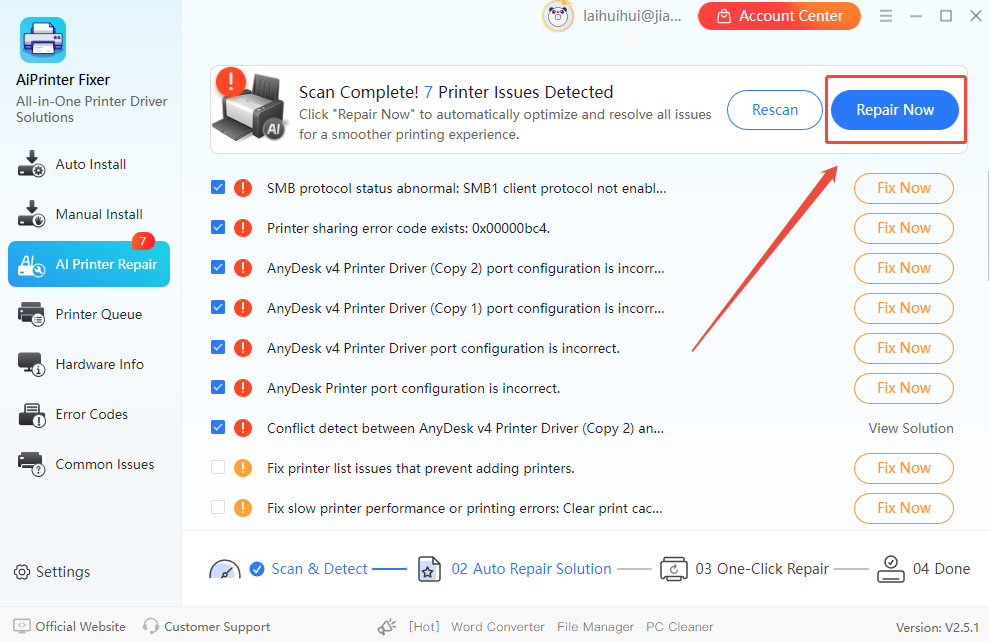
Step 3. Repair printer drivers. Once the scan is complete, review the detected issues and click “Repair Now” to fix all the problems automatically.

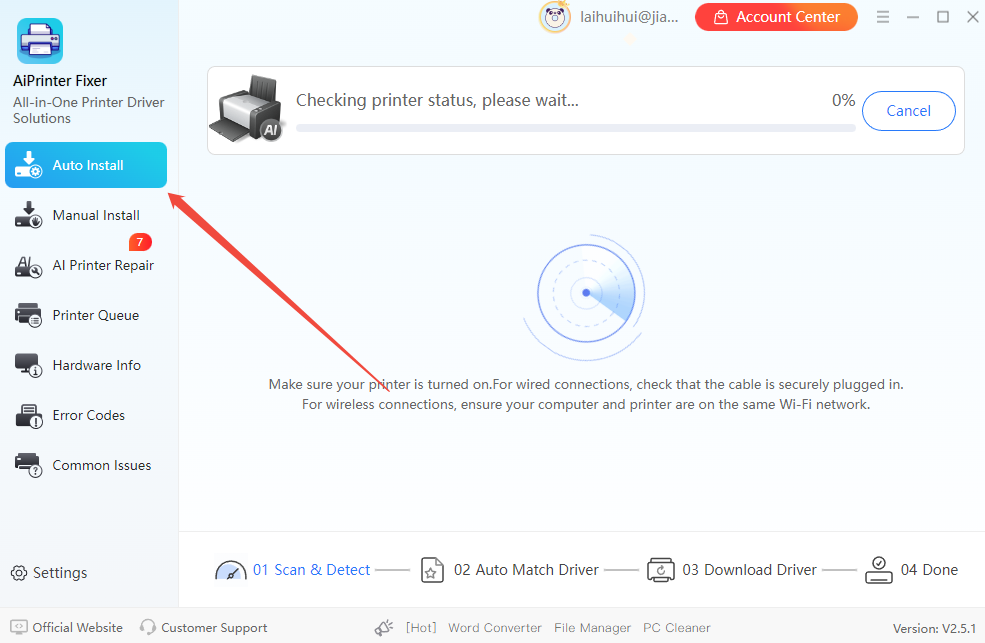
Step 4. Test the printer. After the repair finishes, go to “Settings” -> “Print Test Page” to confirm the printer works properly. If it still can not work, use the “Auto Install” module to install any remaining missing drivers in one single click.

Best for: Users who need full functionality (printing & scanning), model-specific installation, and maximum official security
✅Pros: 100% compatibility; includes full software suites (such as HP Smart or Brother Utilities)
❌Cons: Manual model search required; download speed depends on the official website; beginners may select the wrong OS version
Downloading from the manufacturer’s website is the most standard and reliable way to reinstall printer drivers. Simply visit the official support pages of Brother, Canon, or HP, search for your exact printer model, and download the installer. As long as your internet connection is stable, you can usually obtain the latest driver version.
However, because printer product lines include many similar models, it’s essential to accurately confirm your printer’s exact model name and Windows system version (32-bit or 64-bit) before downloading. This method avoids the limitations of generic drivers, such as missing scanning features, but requires some attention during the selection process.
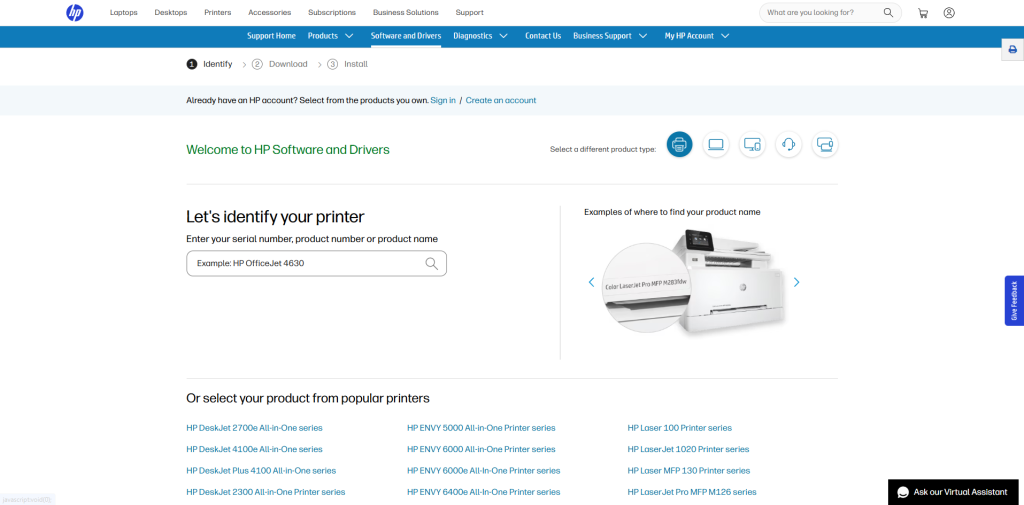
Step 1. Open your browser and go to the printer manufacturer’s driver download page.
Step 2. Enter your exact printer model (for example, Brother HL-L2350DW or HP LaserJet Pro M404n) into the search box and click “Search”.
Step 3. Verify that the detected operating system is correct (Windows 7 / 10 / 11). Choose “Full Driver & Software Package”, then click “Download”.
Step 4. Double-click the downloaded .exe file to launch the installation wizard. Follow the on-screen instructions (such as accepting the license agreement, connecting the printer via USB, or configuring Wi-Fi) until the installation is complete.

Best for: Resolving device conflicts, removing yellow exclamation marks, and unrecognized printers
✅Pros: Built-in Windows tool; no additional software required; quickly fixes basic connection issues
❌Cons: Usually installs only Microsoft generic drivers; advanced features may not be restored
Using Device Manager is a quick way to reinstall printer drivers and fix recognition errors. It does not require an internet connection. The process involves uninstalling the old or corrupted printer driver, then letting Windows automatically detect and reinstall the appropriate driver.
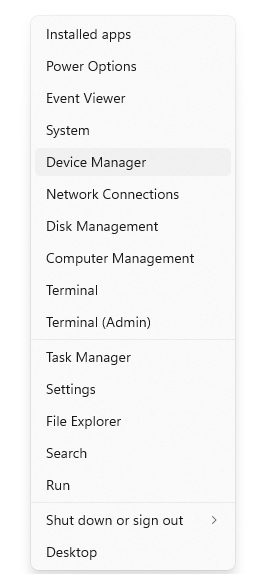
Step 1. Press “Win + X” and select “Device Manager”.

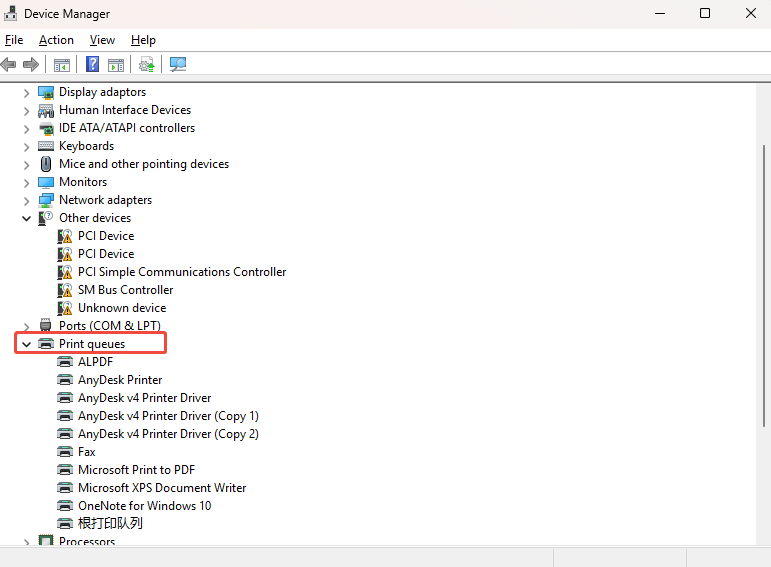
Step 2. Locate your “print queues” category and find the malfunctioning Brother, Canon, or HP printer.

Step 3. Right-click the printer name, select “Uninstall device”, and check “Delete the driver software for this device” if prompted.
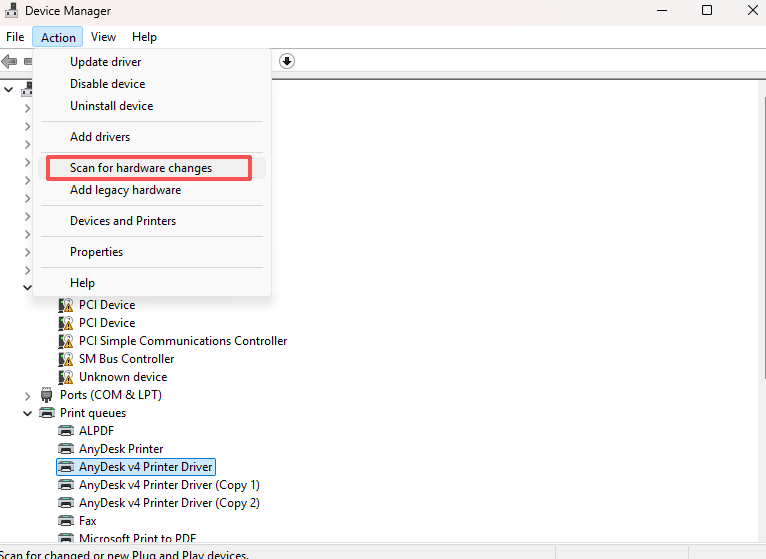
Step 4. Click “Action” -> “Scan for hardware changes” from the top menu. Windows will automatically detect the printer and install the basic driver.

Best for: Basic connection issues, unresponsive printers, quick reset for non-driver core problems
✅Pros: No additional software needed; simple and intuitive; built-in Windows functionality
❌Cons: Does not restore full brand-specific features; manual reconnection required
If your printer is unresponsive, showing errors, or having driver conflicts, removing and re-adding it in Windows is a quick way to reset the connection. This method removes the existing printer from your system and re-registers it, restoring the basic driver and connection. Note that if the driver files themselves are corrupted, this may not fully resolve the issue.
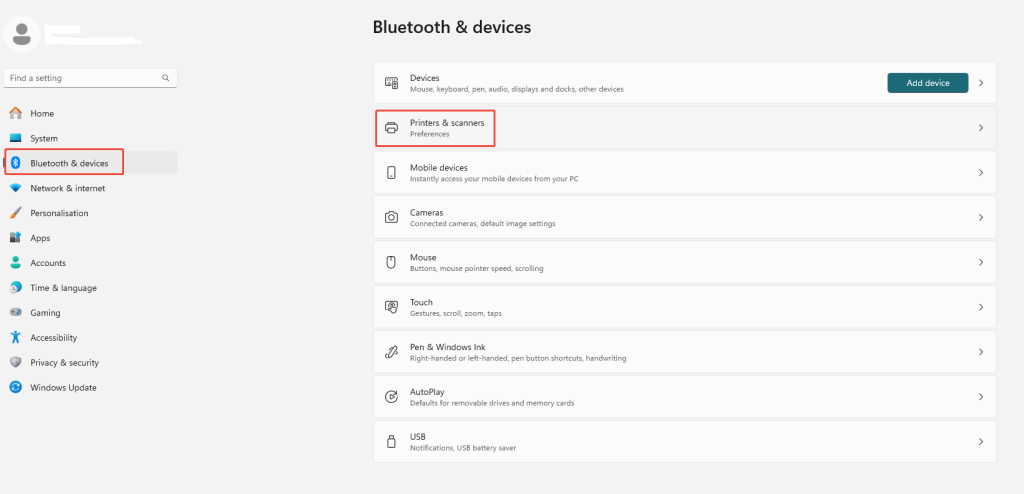
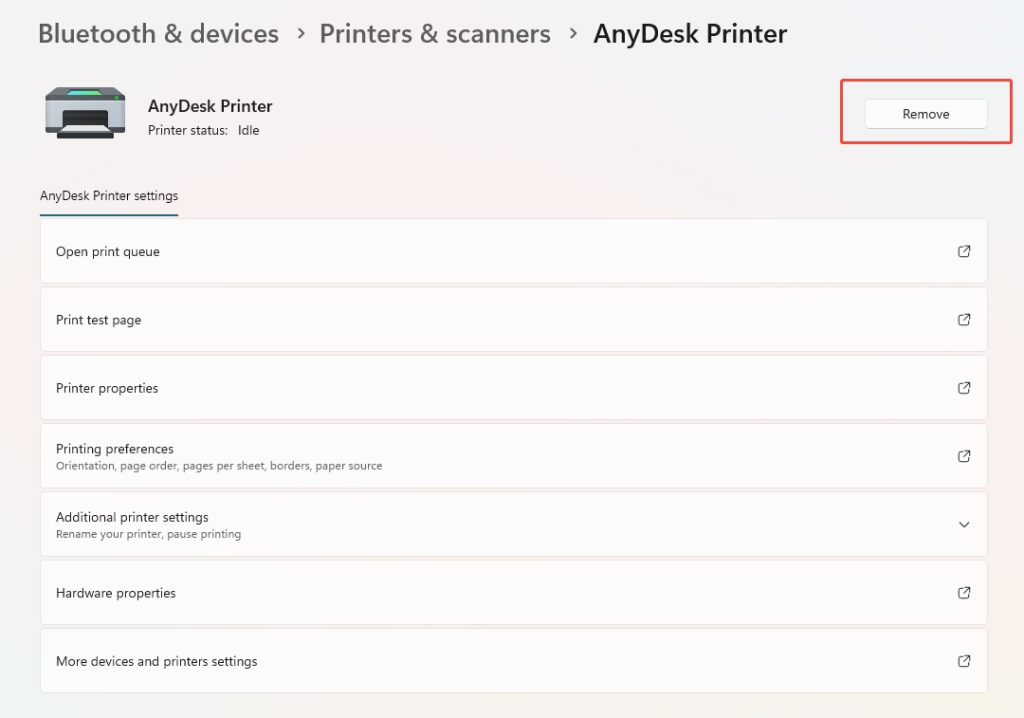
Step 1. Press “Win + I” to open “Settings”, then go to “Bluetooth & devices”, click “Printers & scanners” in the left-hand menu.

Step 2. Select the malfunctioning Brother, Canon, or HP printer from the list, and click on it. Then, press the “Remove” button.

Step 3. Click “Add device” to select your printer from the list. If it does not appear, click “Add a new device manually” and follow the prompts to manually add it via network or IP address.

Step 4. After you’ve added the new printer. Print a test page to confirm that the printer is now working properly.
Reinstalling printer drivers on Windows 10 isn’t complicated with the right method. This article tells you 4 ways to reinstall drivers:
If you want to resolve driver conflicts, including “Driver Unavailable” errors, printing glitches, or scanning problems, AiPrinter Fixer is the most efficient choice. Just install the software, scan your printer, and update the drivers with one click. So easy and simple! Download and try this software to reinstall printer drivers on your Windows computer.
If you use Official Driver Download or AiPrinter Fixer, you’ll need an internet connection to download the latest drivers. Using Device Manager or Remove & Re-add Printer can sometimes work offline, but it may only install the basic driver.
For resolving driver conflicts, including unrecognized printers, printing glitches, or scanning problems, AiPrinter Fixer is the most practical choice. Install the software, scan your printer, and update the driver with a single click.
Yes. Using Device Manager or Remove & Re-add Printer only reinstalls the basic driver and does not affect existing brand-specific software or settings.
Yes, it is generally recommended to remove the old driver first. Manual reinstallation usually requires uninstalling the device via “Device Manager” or “Control Panel”, while tools like AiPrinter Fixer handle this automatically and clear conflicting files.