Got it

{{ postData.top_advertising_product.g_name }}

Windows
Buy Now

How to Download Canon LBP2900B Printer Driver for Windows PC

Downloading and installing the Canon LBP2900B printer driver on Windows 11 or Windows 10 can involve several scenarios:

  • Upgrading to a newer Windows version, where the printer is no longer automatically recognized
  • Searching the official Canon website, but failing to find a driver that matches the current system
  • Dealing with driver conflicts or installation errors that prevent the printer from working properly

Each situation presents its own challenges, and a common question arises: should you rely on Windows to automatically find a compatible driver, or manually download and install a specific version? Users often want a quick and simple setup that keeps this reliable printer in use, while also avoiding compatibility issues and installation failures on modern systems. Based on real-world feedback from users, this guide provides verified download options and instructions to help you install the Canon LBP2900B on your Windows PC correctly.

Is Canon LBP2900B Compatible with Windows 11 or Windows 10?

Yes, the Canon LBP2900B can work on both Windows 10 and Windows 11, but official support is limited.

On Windows 10, the printer works normally with Canon’s official driver. On Windows 11, Canon has not released a dedicated driver, but the printer can still operate using the Windows 10 driver in compatibility mode.

Since the release of the Canon LBP2900B, the model has been on the market for many years. As Windows continues to evolve, Canon has gradually reduced driver support for older printers. To date, there is no official statement or documentation from Canon confirming full Windows 11 support for this model. This is mainly because the printer is considered end-of-life, not because of hardware or functionality issues.

As of now, here’s how Canon handles LBP2900B compatibility:

  • Windows 10 (32-bit / 64-bit): Fully supported. You can download and install the official driver directly, and the system will recognize the printer without any extra steps.
  • Windows 11: No dedicated driver is provided. However, the Windows 10 CAPT Printer Driver works in Windows 11 without issues. There is currently no new Windows 11 installer, which leads some users to mistakenly think the printer is incompatible.

Why There Is No Official Windows 11 Driver?

To sum up, you can safely use the Windows 10 driver for the LBP2900B on Windows 11, and it will work reliably. While Microsoft may continue to adjust device management policies, it is very unlikely that basic USB printing support will be restricted.

How to Install Canon LBP2900B Driver on Windows 11 / 10

Are you looking to install the Canon LBP2900B driver on Windows 11/10 but aren’t sure how? You have come to the right place! This section will tell you the three best ways that will help you successfully detect and configure your printer with simple and easy-to-follow steps. Let us dig into it.

Method 1Download Canon LBP2900B Driver through Official Website

Canon has officially provided a reliable way to download the LBP2900B printer driver. This isn’t just a standard download; it is the official method optimized by Canon engineers. It ensures full driver integrity and system compatibility while offering the best support for Windows 10. This method is particularly effective for users running Windows 10.

Step-by-Step Setup:

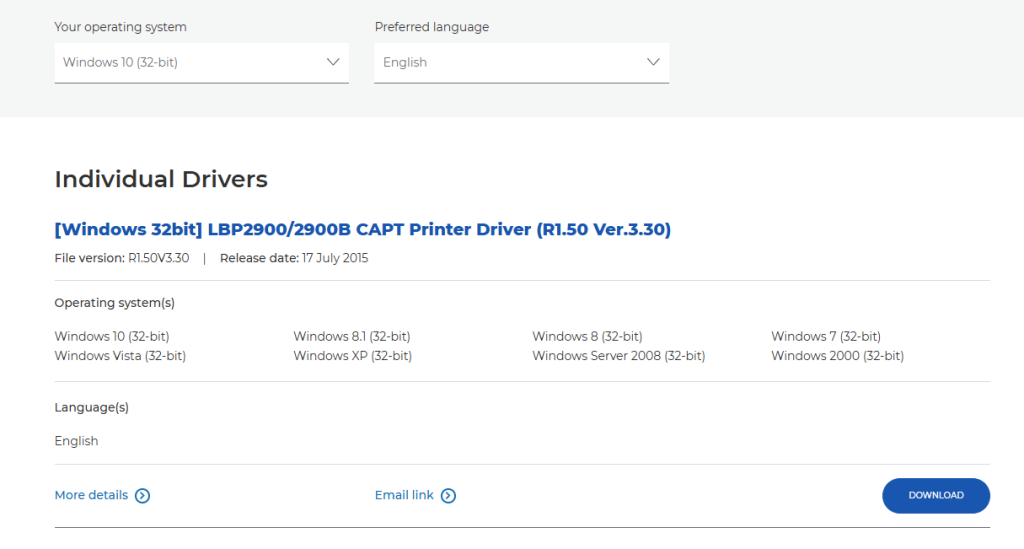
Step 1. Open the Canon official driver download page in your browser, and select the driver that matches your Windows system version and language from the dropdown menu.

Step 2. Click the “Download” button, and then click “Download” again to confirm.

Step 3. Once the download is complete, double-click the downloaded .exe file to extract it. Open the generated folder, locate “Setup.exe”, and run it to start the installation. If the installation wizard prompts you, connect your printer to the computer via USB at this time, and the driver will automatically detect the printer.

official-way-to-download-lbp2900b-printer-driver

Method 2Download Canon LBP2900B Driver through Windows Update

Looking for another method to get your Canon LBP2900B recognized on Windows 11/10? Let us help you! This method uses Windows Update to automatically fetch and install the official driver from Microsoft’s driver library. Following simple steps, you can ensure your printer is installed correctly and ready to use. Here’s how to do it:

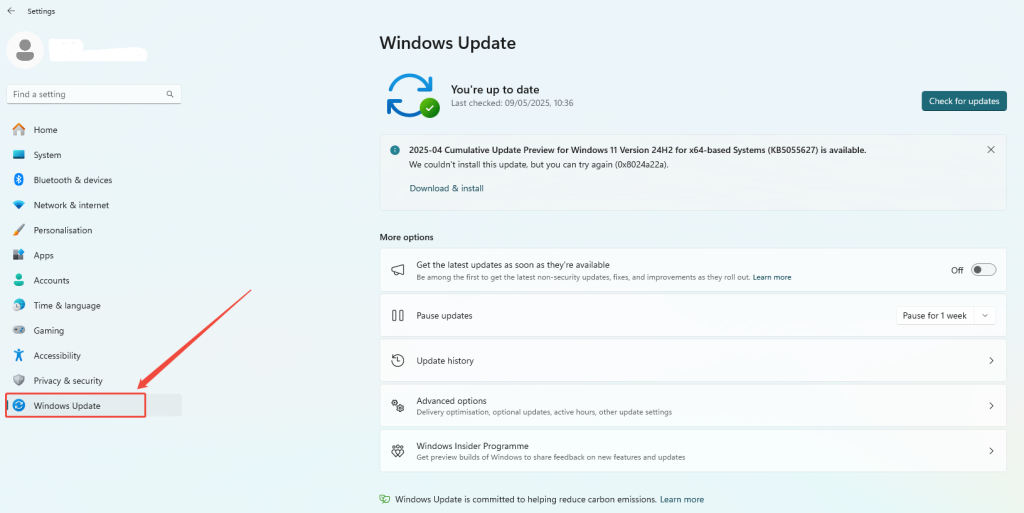
Step 1. Press “Win + I” to open Settings, then click “Windows Update”.

Step 2. On the Windows Update page, click “Check for updates”. Windows will automatically search for available printer drivers.

Step 3. Wait for Windows to download and install the Canon LBP2900B driver. Make sure your printer is connected to the computer via USB or network during this process.

Step 4. Once the installation is complete, the system will automatically recognize the printer.

windows-update-to-download-lbp2900b-printer-driver

Method 3Download Canon LBP2900B Driver in One Click (Recommended)

Looking for a tool that can automatically install your Canon LBP2900B printer driver? Here is the answer! If your printer isn’t working properly on Windows 11/10, you can try a driver update software to locate and install any missing system files. AiPrinter Fixer is a handy tool that can scan your PC for outdated or missing printer drivers, even if your device isn’t showing correctly in Device Manager. This software has several features that make it reliable for driver installation:

  • Installs missing printer drivers, scanner drivers, copier software, and other peripheral files.
  • Scans outdated system files and updates them to ensure compatibility.
  • Fixes connection issues caused by system upgrades, driver conflicts, port errors, or missing files.
  • Offers a simple, user-friendly interface, making it easy for beginners to complete installation quickly.

AiPrinter Fixer is a trusted printer driver management tool that helps users install Canon LBP2900B in the shortest time without complicated steps. Simply download and run the software, and it will automatically resolve driver issues.

Step 1: Download and Run AiPrinter Fixer

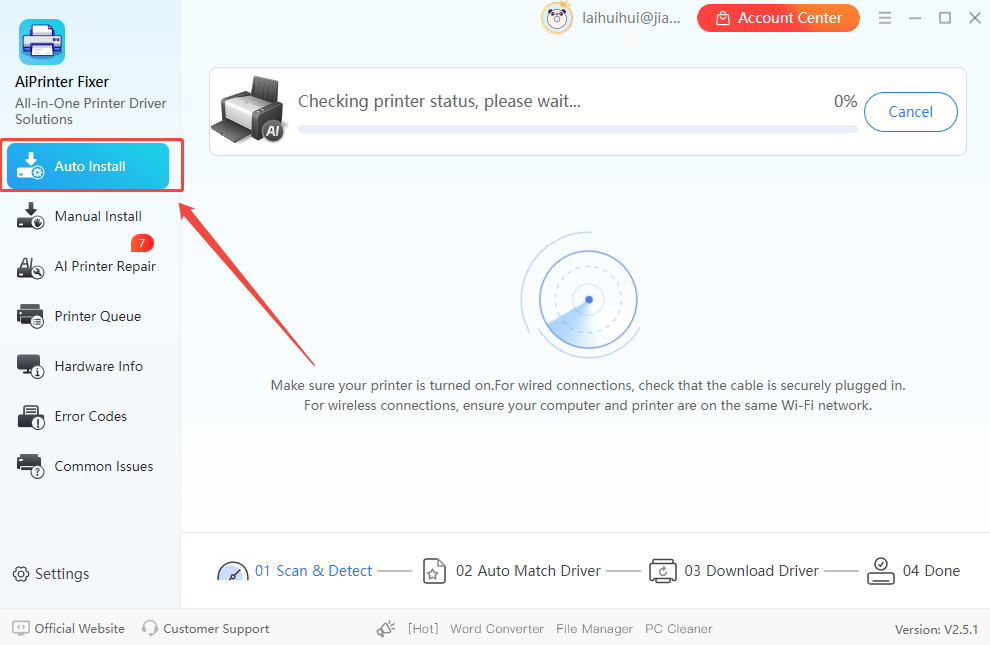
Download AiPrinter Fixer on your Windows PC and double-click to run it. The software will automatically detect your system and connected printer devices.

Note: For older LBP2900B models, it’s recommended to connect the USB cable first so the software can read the hardware ID and avoid selecting the wrong model.

AiPrinter Fixer

Official

Step 2: Auto or Manual Driver Installation

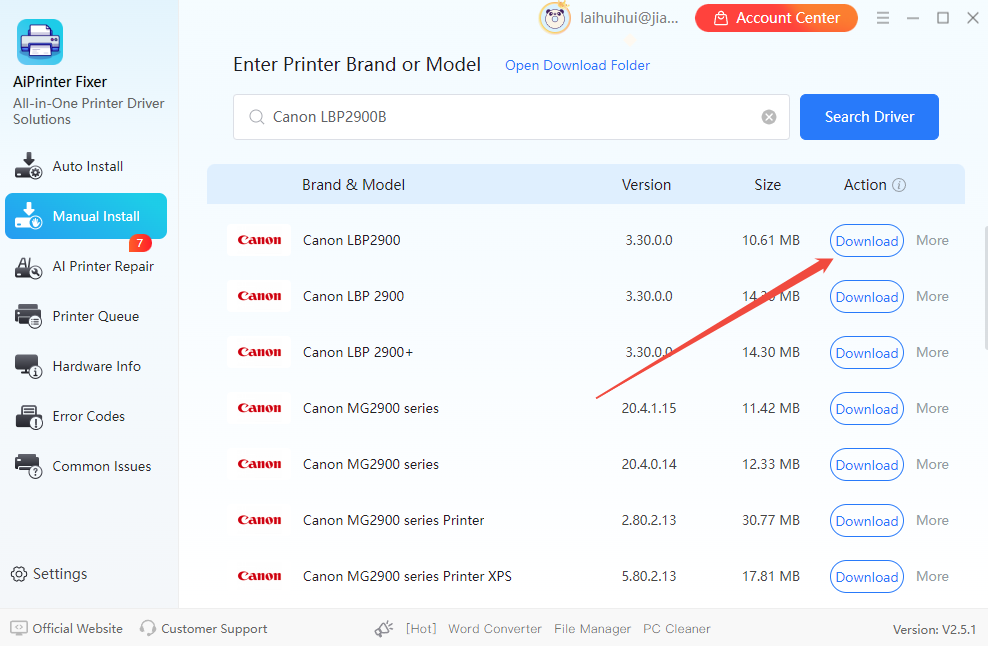
The software will search for matching drivers in “Auto Install” mode. If no match is found, you can switch to “Manual Install”, search for “Canon LBP2900B”, and select the latest compatible driver from the database.

printer-updater-to-auto-download-lbp2900b-printer-driver

Step 3: Download and Install the Driver

After scanning, click the “Download” button to save the driver to your PC. Follow the prompts to complete installation. Once finished, your system will automatically recognize the printer, and you can start using your Canon printer immediately.

printer-updater-to-manual-download-lbp2900b-printer-driver

Canon LBP2900B Driver Not Working? Try These Fixes

Unresponsive clicks, taskbar errors, blinking status lights, and “Not Connected” messages even after installing the driver… sometimes the Canon LBP2900B doesn’t behave as expected. Here’s a step-by-step guide to help you troubleshoot some of the most common LBP2900B driver issues.

Step 1: Printer Installed but Not Printing

  • Check if the print queue is blocked by previous error jobs and confirm whether there are any pending documents in the taskbar.
  • Verify that the Print Spooler service is running: press “Win + R”, type “services.msc”, find “Print Spooler”, and select “Restart.”
  • Clear all queued documents and restart your PC. This is a last-resort step since it can be time-consuming. The old “power off and on again” trick actually works sometimes, so if all else fails, restart all devices involved.

Step 2: Driver Installed but Printer Not Detected

  • If Windows shows “Installation Successful” but the device manager doesn’t respond after connecting the USB, the communication port may be misaligned. Try plugging the USB cable into a rear USB 2.0 port (black), avoiding USB 3.0 ports (blue).
  • Manually assign the port: go to “Printer Properties” > “Ports” tab and check “USB001 (Virtual printer port for USB)”.
  • If the printer still isn’t recognized, try a new USB cable to ensure the hardware connection is intact.

Step 3: Canon LBP2900B Shows Offline

  • Ensure the printer is powered on and the USB or network connection is active, but Windows shows “Offline.”
  • Check port settings and uncheck SNMP Status Enabled to prevent the system from mistakenly marking the old model as offline.
  • Check USB hub power management: in Device Manager, disable “Allow the computer to turn off this device to save power” to prevent the port from disconnecting.

Step 4: Driver Installation Fails on Windows 11

  • If the installer crashes or shows errors saying the system is unsupported, this is usually due to compatibility restrictions with the new OS.
  • Right-click Setup.exe, select “Properties” > “Compatibility”, check “Run this program in compatibility mode,” and choose Windows 10 or Windows 7.
  • Run the installer again to complete the driver installation.

Recommendation: Troubleshooting printer driver issues can be tedious and frustrating. If you’ve tried all the above steps and the LBP2900B still doesn’t work, or if you want to skip manual port and service configuration, AiPrinter Fixer is your most practical solution.

FAQs About Canon LBP2900B Driver

Q1. Is it safe to download the canon LBP2900B driver?

Yes! Drivers from the official Canon website or trusted printer update tools like AiPrinter Fixer are completely safe and free from viruses or malware. Avoid downloading from unknown sources to prevent system risks.

Q2. Can I share this USB printer over Wi-Fi?

Officially, the Canon LBP2900B is designed for direct USB connections. However, if you use a device like a Print Server, you can manually map the USB signal to a network port on your router.

Q3. Why does my driver installation fail?

This is usually caused by the Print Spooler service being stopped or a USB port conflict. Reconnect your printer to the power and make sure the Print Spooler service is enabled in Windows Services.

Latest Articles