Got it

{{ postData.top_advertising_product.g_name }}

Windows
Buy Now

Brother DCP L2540DW Scanner Driver Download for Windows (32/64bit)

Have you ever tried to scan an important document with your Brother DCP-L2540DW, only to be met with the frustrating “Device not recognized” error because the driver wasn’t installed?

This article will dive into the world of Brother DCP-L2540DW scanner drivers for Windows 7/8/10/11. But don’t worry. We won’t leave you hanging with just the problem. We’ll give you multiple solutions to download and install the driver, so you can get your scanner up and running in no time. Buckle up and get ready to become a scanner setup pro!

What Does a Missing Brother DCP-L2540DW Scanner Driver Mean

This issue typically occurs when your scanner driver is missing, outdated, or corrupted. However, it can also happen if your Brother DCP-L2540DW isn’t properly connected to your computer. The effects of this problem vary, but it often results in the scanner not working at all or functioning improperly.

  • If you’re experiencing this issue while trying to scan documents or images, you won’t be able to convert your physical files into digital format.
  • Advanced scanning features, like image capture or OCR text recognition, may fail to work correctly.
  • The worst-case scenario is having your workflow completely stalled because the scanner cannot operate due to driver issues.

So, to avoid this frustrating problem and keep your office tasks on track, keep reading for our 100% practical guide to downloading and installing the Brother DCP-L2540DW scanner driver.

How to Download and Install Brother DCP L2540DW Scanner Driver

If you’re having trouble downloading or installing the Brother DCP-L2540DW scanner driver, don’t panic. There are two easy solutions to fix this issue instantly. Move to the methods to get your scanner working again.

Method 1Download Your Brother Driver with Automatic Printer Fixer

If your Brother DCP-L2540DW scanner isn’t connecting, downloading the correct driver is the most effective solution. Outdated or missing drivers can cause scanning failures, device recognition errors, or workflow interruptions. That’s where AiPrinter Fixer comes in. With a massive driver database supporting thousands of printer and scanner models, it quickly scans and identifies missing or incompatible drivers and provides intelligent installation to keep your device in good shape.

Follow the steps of AiPrinter Fixer to download and install your Brother DCP-L2540DW driver.

AiPrinter Fixer

Official

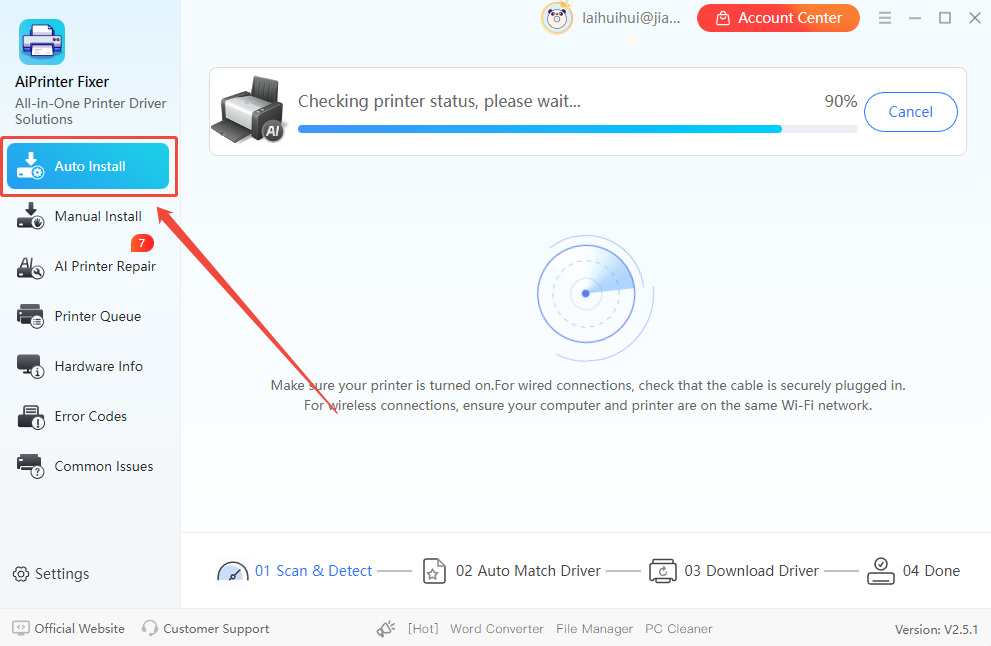
Step 1. Launch AiPrinter Fixer on your PC and click the “Auto Install” button. Then select the recommended driver from the scan results, click “Download,” and follow the prompts to complete the installation.

auto-download-brother-dcp-l2540dw-driver-via-aiprinter-fixer

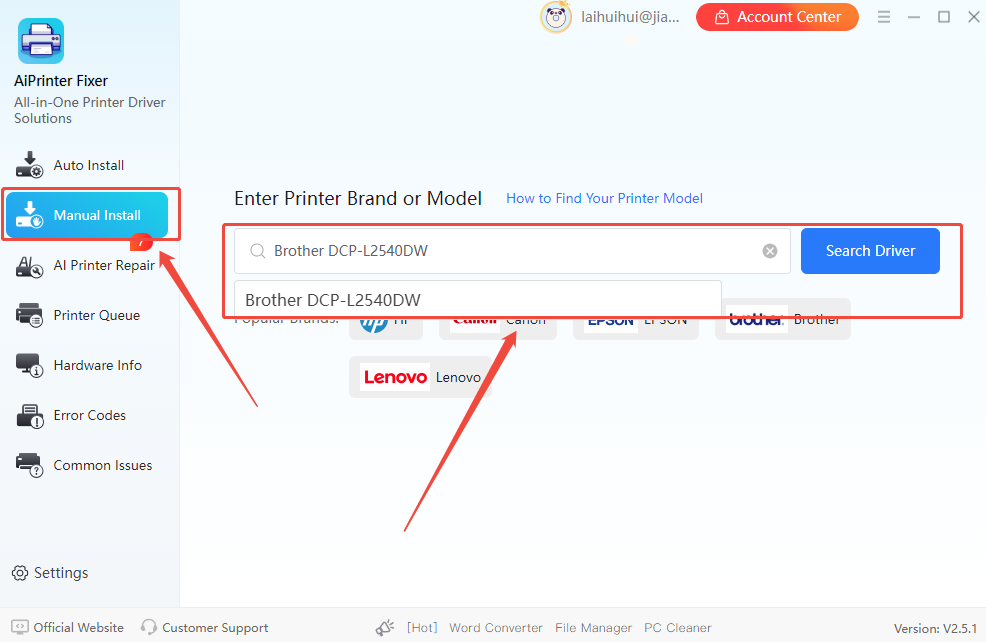
Step 2. If your device isn’t detected automatically, click “Manual Install” and enter “Brother DCP-L2540DW” in the search box.

manual-download-brother-dcp-l2540dw-driver-via-aiprinter-fixer

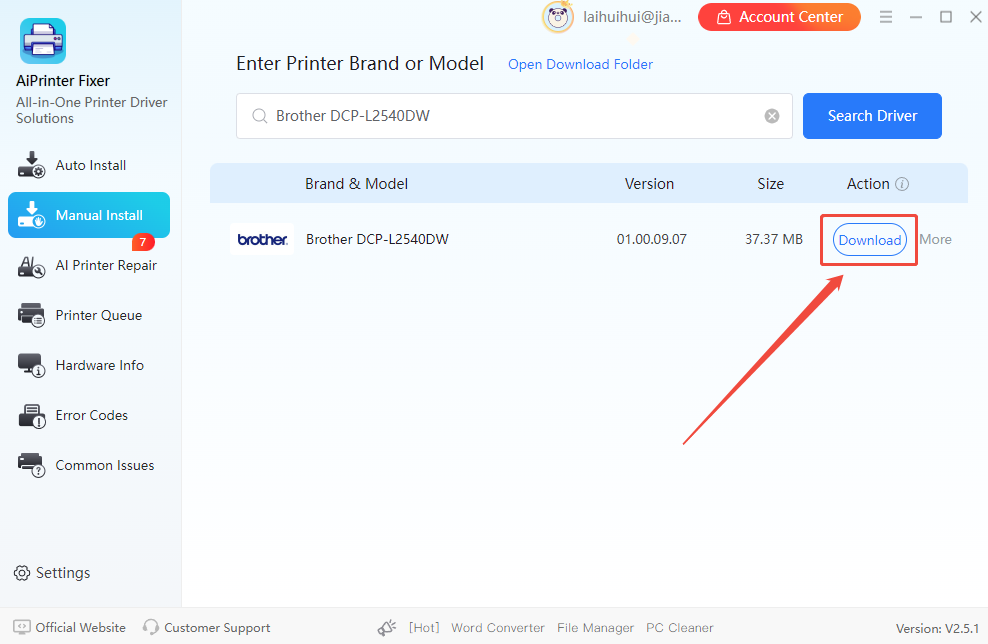
Step 3. Click the “Download” button. AiPrinter Fixer will automatically configure and install the latest scanner driver. Once done, go to “Settings” and print a test page to confirm the scanner works correctly.

download-brother-dcp-l2540dw-driver-via-aiprinter-fixer

Other Key Features of AiPrinter Fixer:

  • Intelligent driver matching
  • Printer and scanner error diagnosis
  • Connection status check
  • Automated driver update system

These features make it a one-stop solution for all your printer and scanner driver needs. Why not restore your scanner functionality, optimize device responsiveness, and enjoy the features of AiPrinter Fixer today?

If you meet other printer or scanner issues, such as downloading drivers for Canon LBP2900B or fixing external device errors on Windows 10, you can also use this powerful tool to improve overall device performance.

Method 2Download the Latest Brother Driver from the Official Website

To download the driver from the manufacturer’s website, you need to visit Brother’s official support page. For this guide, the model is DCP-L2540DW, so we’ll use the Brother Solutions Center. If your printer or scanner model is different, you may see different options, but the installation process is similar to installing any other software or driver on your PC, so keep that in mind.

Here’s how:

Step 1. Go to the Brother Downloads Center.

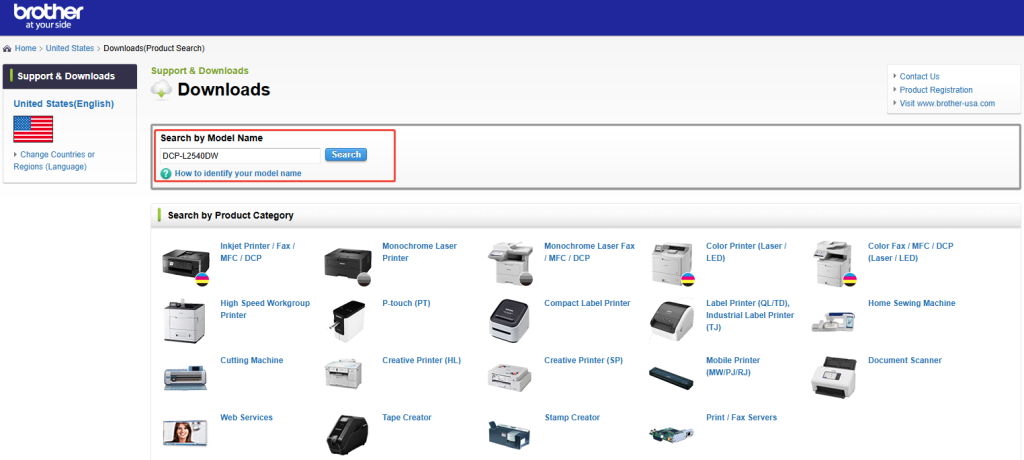
Step 2. Enter “DCP-L2540DW” in the product search box and click “Search”.

official-search-brother-dcp-l2540dw-driver

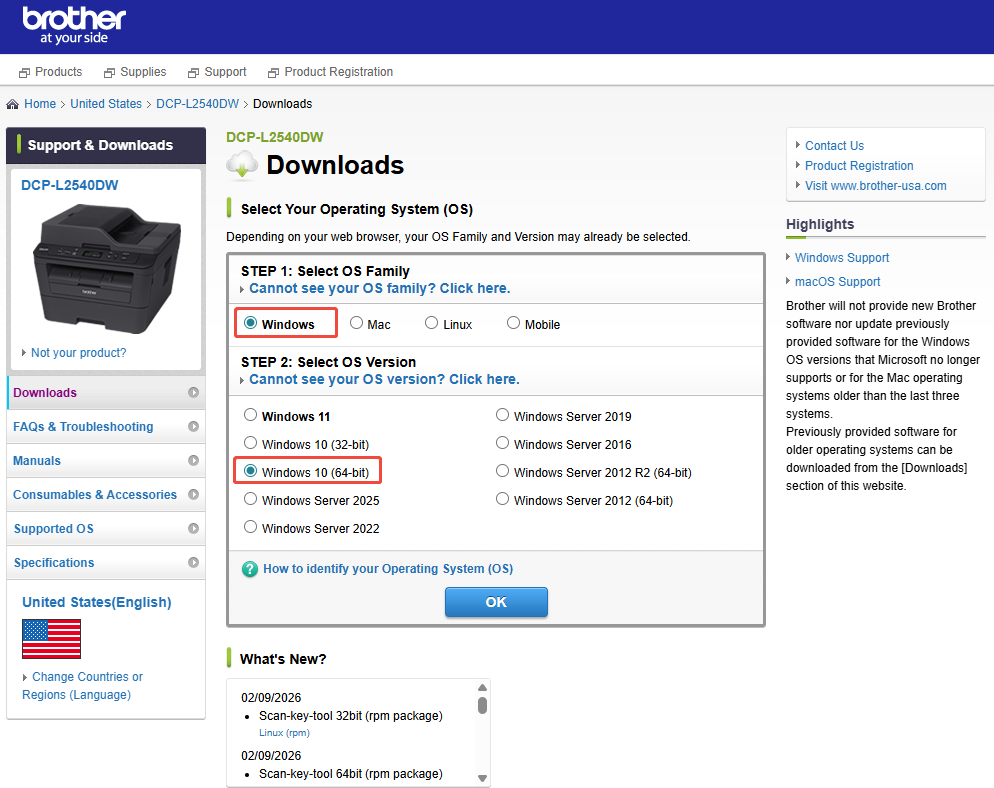
Step 3. On the next page, under “Downloads,” confirm the detected “OS Family,” and select your system version under “OS Version,” such as Windows 10 64-bit.

official-select-brother-dcp-l2540dw-driver

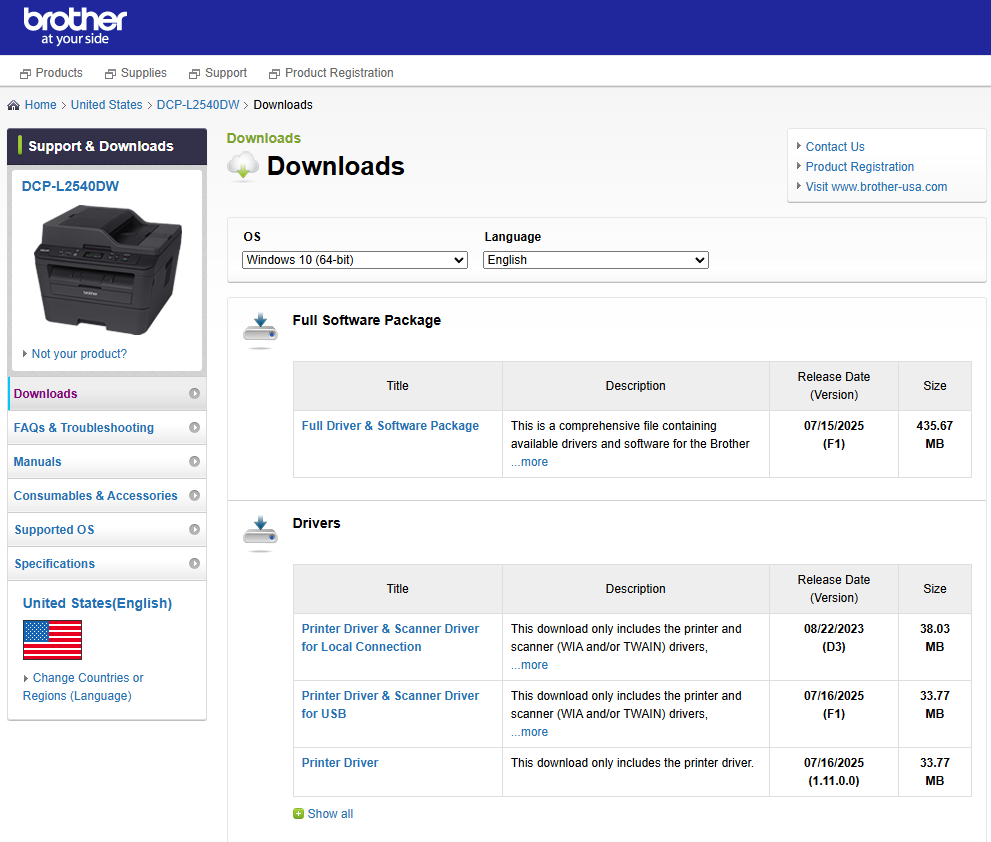
Step 4. A list of available drivers will be displayed. Click the driver you want to download, either the “Full Driver & Software Package” or the standalone scanner driver.

official-download-brother-dcp-l2540dw-driver

Step 5. Once the download is complete, go to the folder where you saved the file. Double-click the downloaded file and follow the on-screen prompts to complete the installation.

Step 6. After the installation is complete, restart your PC.

If the Brother DCP-L2540DW is now recognized correctly, the issue is resolved, and you can safely use all scanning functions. If the problem persists, the issue may not be with the driver, and you may need to further check the USB cable or hardware ports.

Last Tips for Maintaining Your Brother DCP-L2540DW Printer

Keeping your Brother DCP-L2540DW clean and well-maintained is essential because it ensures high-quality printing and scanning while extending the device’s lifespan.

If you want to maintain your scanner in optimal condition, you can follow these steps:

  • Regularly clean the scanner glass with a lint-free soft cloth to prevent black spots or smudges on scanned documents.
  • Remove the drum unit and gently slide the blue slider several times to clean the corona wire.
  • Avoid using damp or low-quality paper to reduce wear on internal components and prevent paper jams.
  • When the device won’t be used for an extended period, turn it off properly using the power button instead of unplugging it directly.

Conclusion

Downloading the Brother DCP-L2540DW driver from the official website can be a great starting point, but we understand that not everyone is tech-savvy. We recommend using AiPrinter Fixer, a user-friendly tool that can update and fix all your scanner and printer drivers with just one click. Download AiPrinter Fixer now and start enjoying hassle-free office device usage!

We hope you found this guide helpful in downloading Brother, HP, or other printer drivers. But if you still have questions or concerns, visit our FAQ section.

FAQs About Downloading Brother DCP L2540DW Scanner Driver

Still have questions about downloading the Brother DCP-L2540DW scanner driver? Don’t worry; we’ve compiled a list of frequently asked questions to help you better understand the process and complete the installation with ease.

Q1. Can I manually download the Brother scanner driver, or do I need to use a driver updater tool?

It doesn’t really matter whether you download the Brother DCP-L2540DW driver manually or use a driver updater. The key is to install the correct version so your scanner works properly. If you have enough technical knowledge, you can do it manually. But if you’re not confident or want to avoid a lengthy setup process, using a reliable driver updater like AiPrinter Fixer is the easier option. So, it’s up to you whether to install the driver manually or automatically.

Q2. Is it safe to use third-party software to download the Brother scanner driver?

Yes, it’s generally safe as long as you choose a reputable tool. High-quality driver management software simply helps you get the correct Brother DCP-L2540DW driver from the official database, reducing the risk of installing the wrong version.

Q3. How often should I update the Brother scanner driver?

There’s no fixed schedule for updating the scanner driver. It’s recommended to check for updates whenever your operating system is upgraded or if you notice scanning issues, and install the latest version as needed to ensure compatibility and optimal performance.

Latest Articles