Got it

Auto DLL Fixer

Auto DLL Fixer User Guide

1  Get Started

It is simple to download, install, purchase, and activate the software. Follow the steps below.

1.1  Download & Install

Step 1. Download it on Your PC

If you don't have Auto DLL Fixer yet, click the button below to download it. Or visit here to download it.

Step 2. Install Auto DLL Fixer

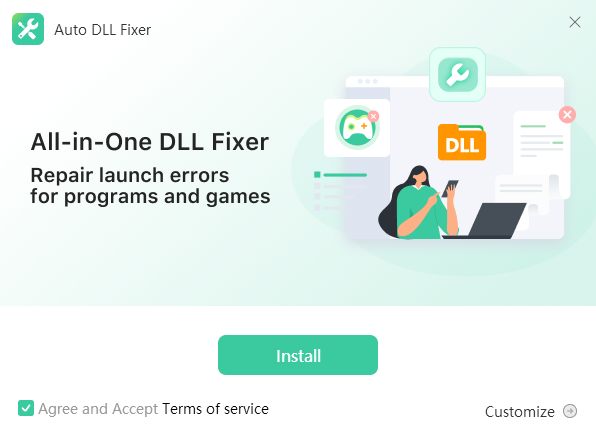
From the pop-up window, you can click the “Install” button to install our product as the default, or you can choose the  “Customize” option. 

Step 3. Launch Auto DLL Fixer

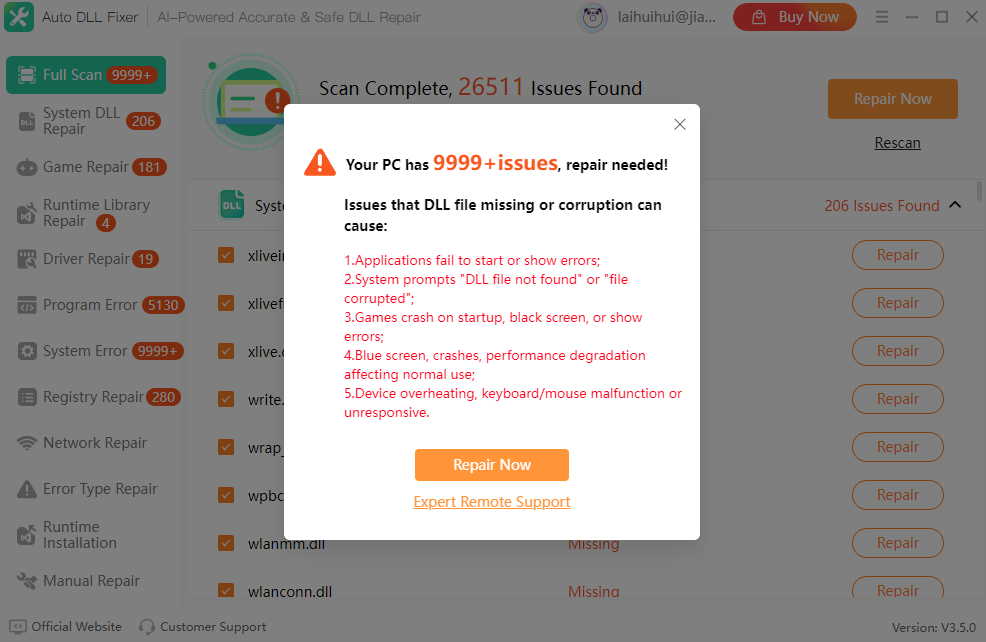
It will take seconds to install Auto DLL Fixer successfully. Once the installation is complete, it will immediately scan your computer for issues.

1.2  Login with Kingshiper Account(Register) & Update & Uninstall

1.2.1  What is Kingshiper Account? 

Kingshiper Account refers to the account you created from one of the Kingshiper products. It helps you manage your order details and log in to Kingshiper products that support the Kingshiper Account.

1.2.2  How to log in to Auto DLL Fixer?

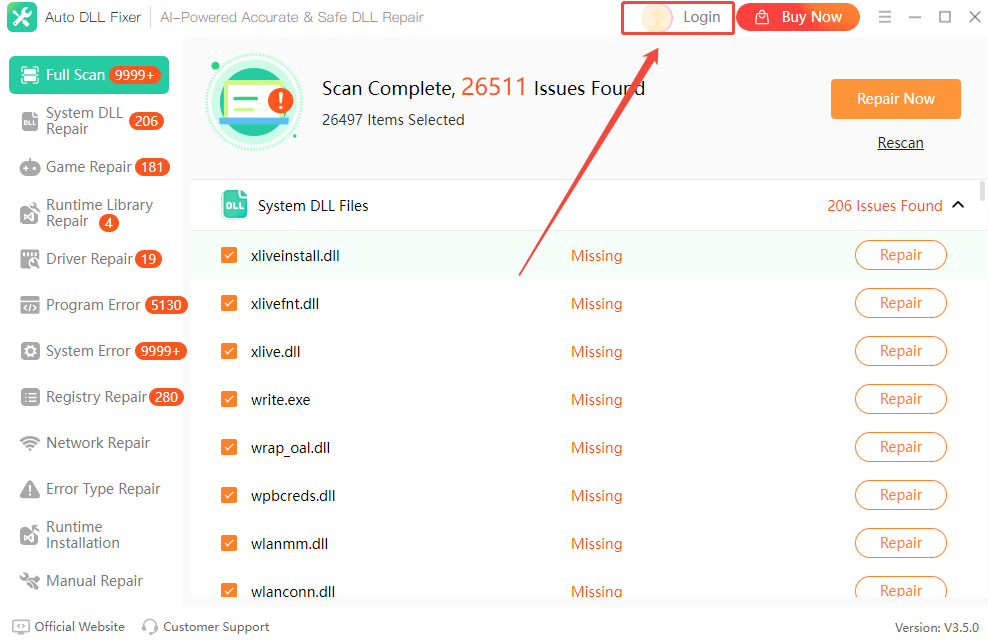
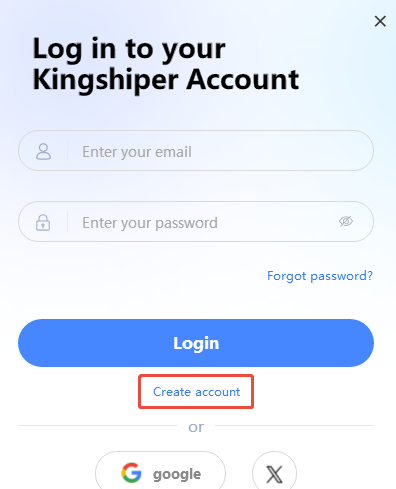
Launch Auto DLL Fixer after installation, and click the “Login” button in the upper right corner to get a login window.

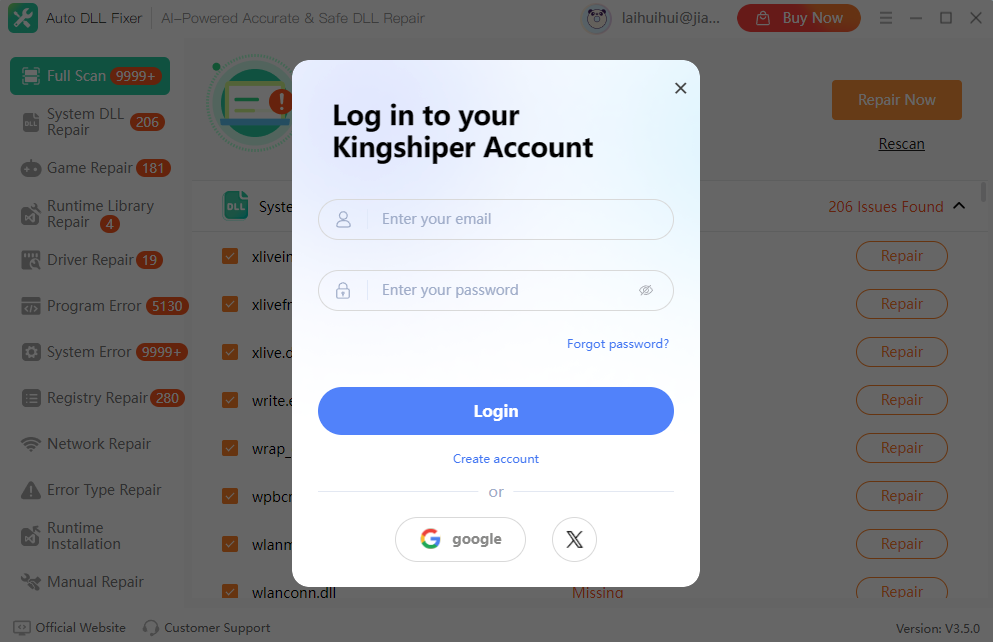
Then, log in to the program with your Kingshiper Account.

1.2.3  How to sign up for a new Kingshiper Account.

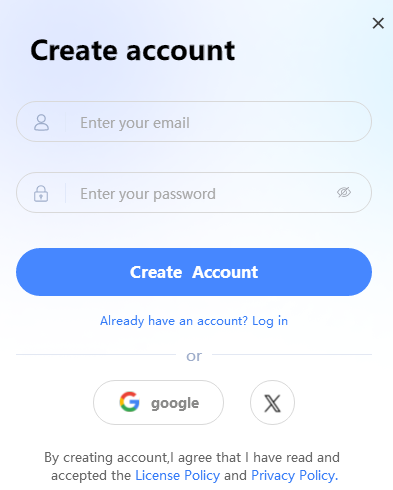
If you don't have a Kingshiper Account, then you need to click the Create account here option on the initial interface and create a new account.

You'll get a new interface to enter your email address and set a password, and then click the “Create Account” button to create the account.

1.2.5  What can you do with the Kingshiper Account?

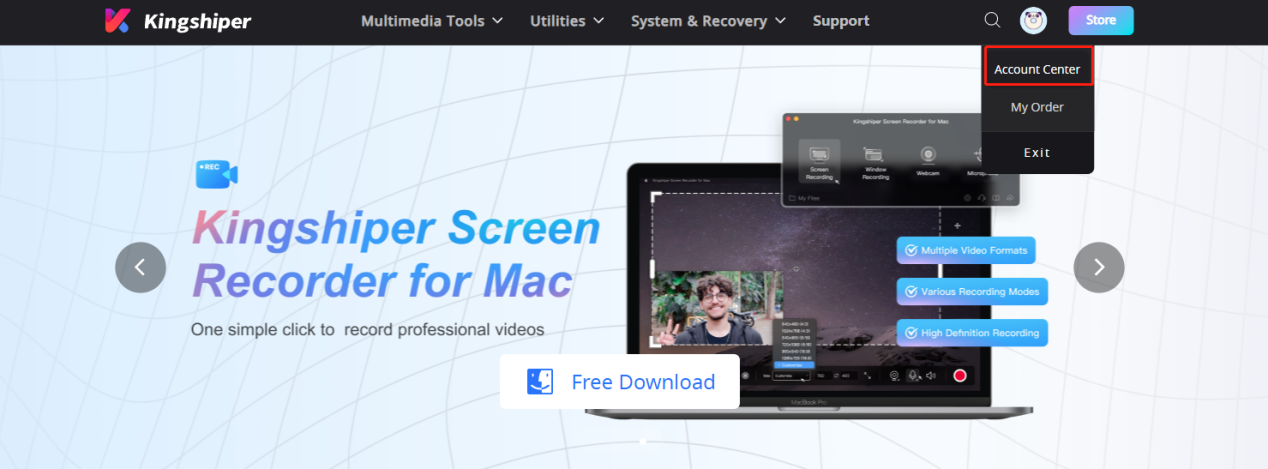
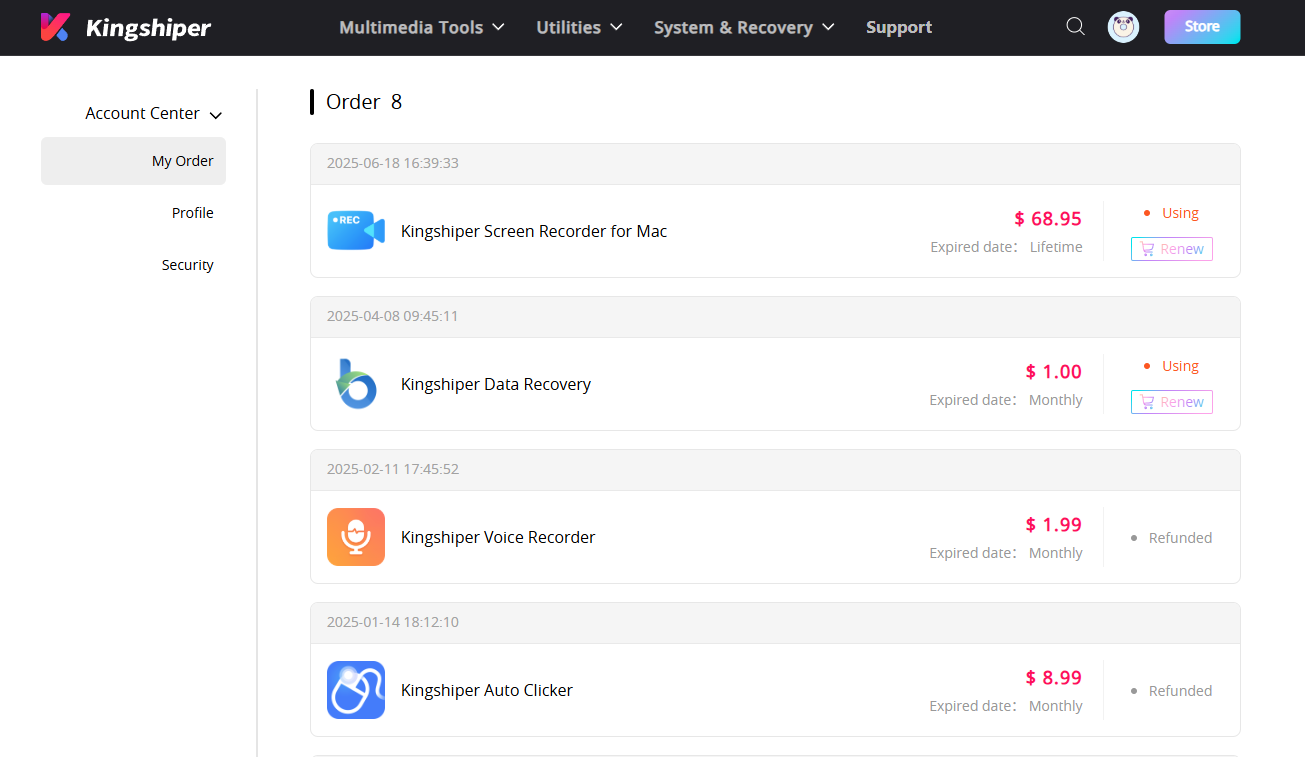
Go to the Kingshiper official website and log in. Click on the Person icon, then choose “Account Center”. You can edit your profile, change your password, and check your order on this page.

My order: You can find the Order, Profile, and Security information here.

Profile: You can edit your personal information from this tab.

Security: You can change your password here.

1.2.6  Update

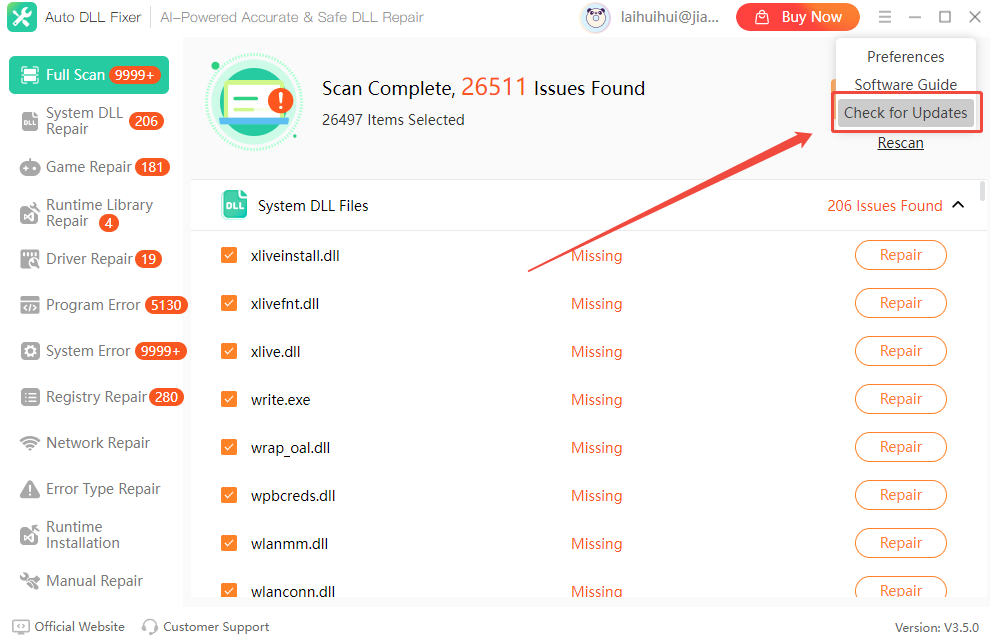
If you want to check if your Auto DLL Fixeris the latest version and update it, you can follow the steps below to update automatically.

Step 1. Check for Updates.

Go to the “Menu” icon, and click the “Check for Updates”. It will pop up a Live Update window. Please press “Go to Update” to download the package.

Step 2. Update the package.

After downloading the latest version, please press “OK” to terminate the program and install the new version from the pop-up window. You can also click "Cancel” to install it next time.


1.2.7  Uninstall

If you think Auto DLL Fixerhasn't met your expectations or you don't want to use it now, you can uninstall it as follows:

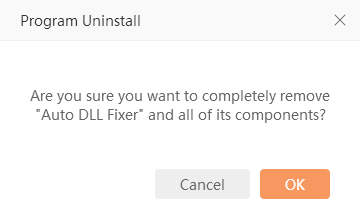
Go to “Control Panel” > “Programs” > “Programs and Features” > “Uninstall” and then right-click the icon of Auto DLL Fixerand select Uninstall. Click “OK” when asked, "Are you sure you want to completely remove Auto DLL Fixer and all of its components?"

1.3  Brief Introduction

Thank you for your interest in Auto DLL Fixer. Auto DLL Fixer is an intelligent Windows repair tool designed to detect and fix missing, corrupted, or incompatible DLL files automatically. By scanning your system registry, runtime libraries, and program dependencies, it quickly identifies errors that cause software crashes, game launch failures, and system instability. With its AI-powered repair engine, Auto DLL Fixer can automatically locate the correct DLL versions and restore them safely, helping your applications run smoothly again.

2  Key Features of Auto DLL Fixer

2.1  Full Scan

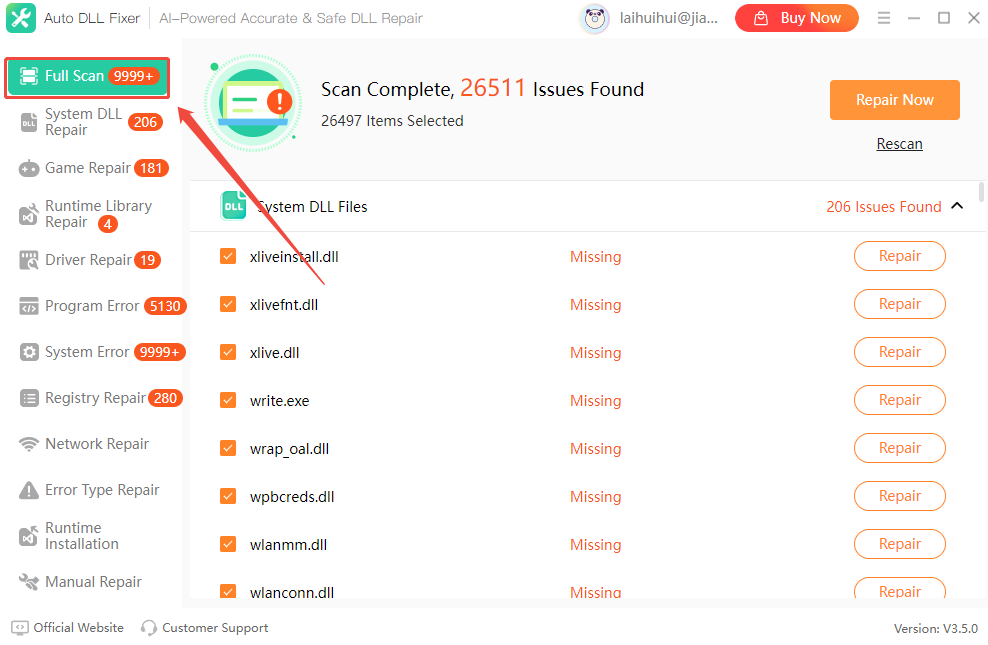
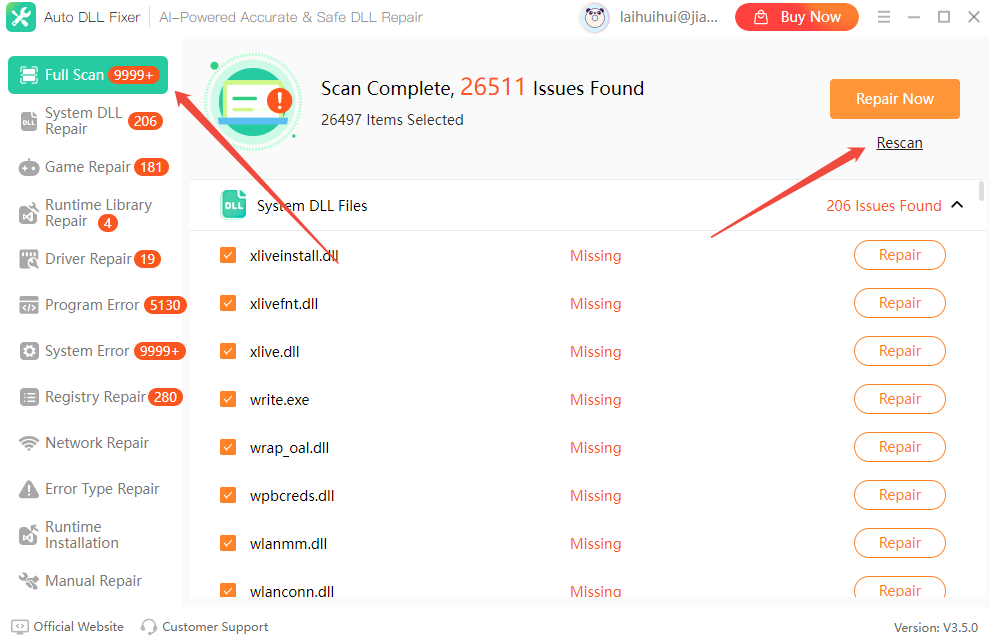
Auto DLL Fixer performs a comprehensive scan of your computer, checking system DLL files, registry entries, program dependencies, and runtime libraries. It quickly detects missing or damaged DLL files that may prevent applications from launching.

2.2  System DLL Repair

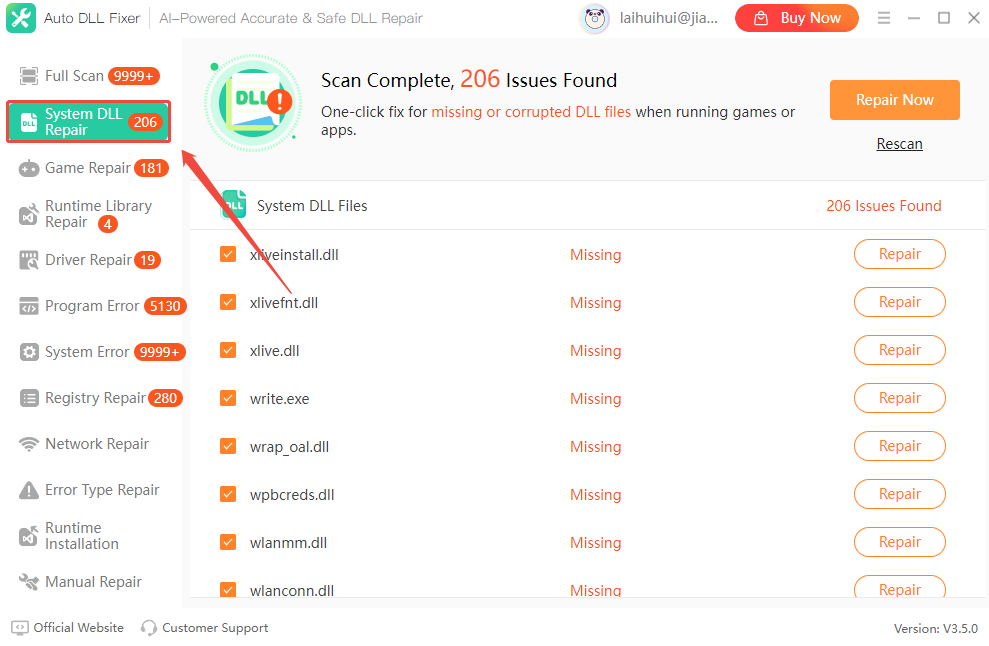
This feature scans and repairs missing, corrupted, or incompatible system DLL files in Windows. Restoring essential DLL components, it helps resolve application launch failures, system crashes, and DLL-related errors.

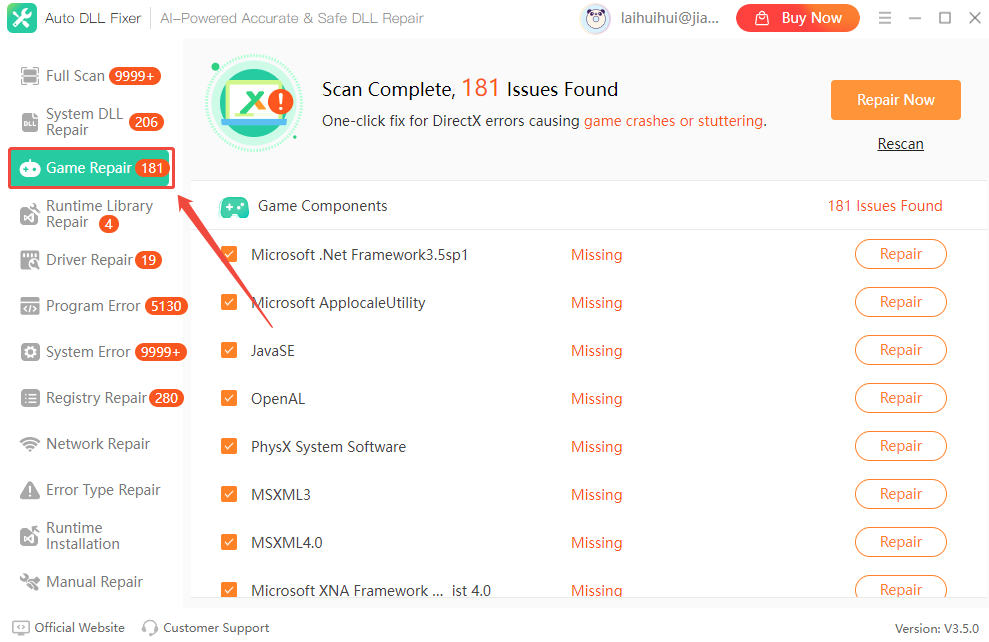
2.3  Game Repair

Game Repair detects missing game-related DLL files and runtime components required by PC games. It helps fix common issues such as game launch failures, DirectX errors, and missing dependency files.

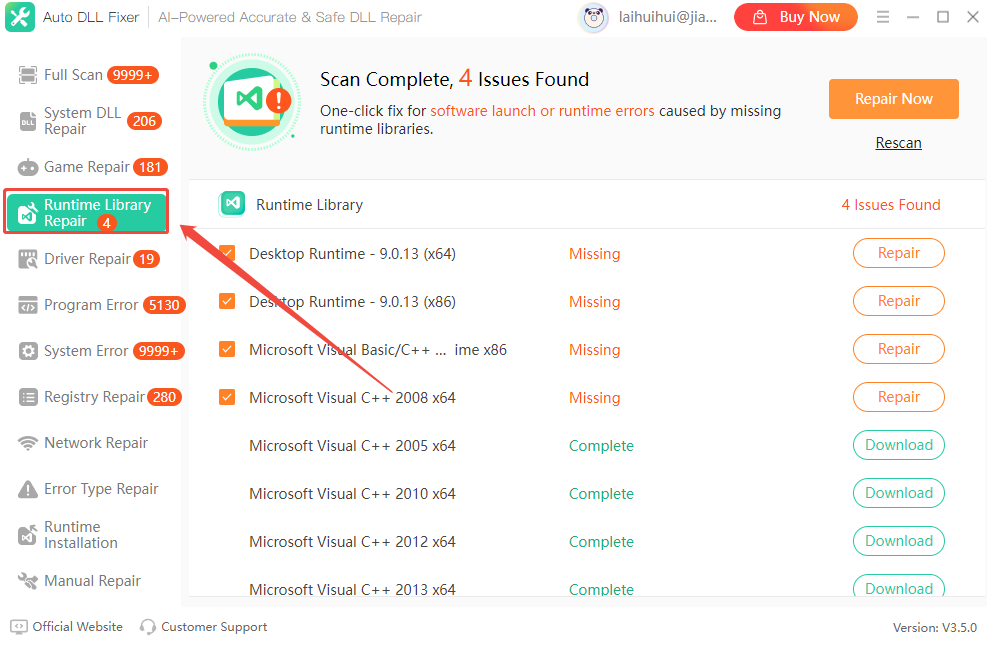
2.4  Runtime Library Repair

This module scans and repairs missing or damaged runtime libraries, including Microsoft Visual C++ Runtime, .NET Framework, and DirectX components. Repairing these libraries can resolve many program compatibility and execution errors.

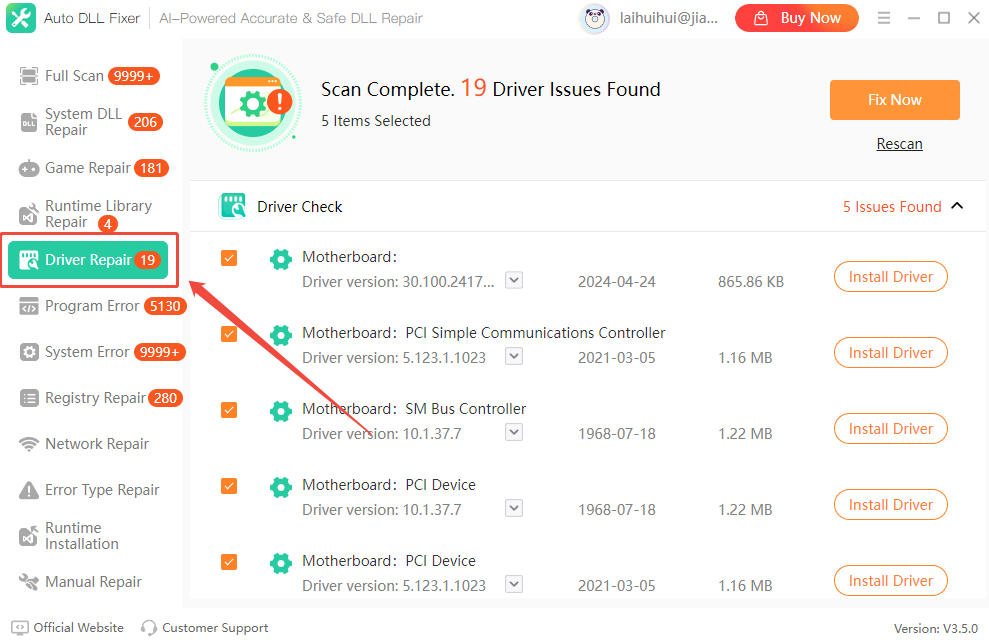
2.5  Driver Repair

Driver Repair identifies outdated, missing, or malfunctioning device drivers on your computer. It helps restore proper hardware functionality and improves system stability by fixing driver-related issues.

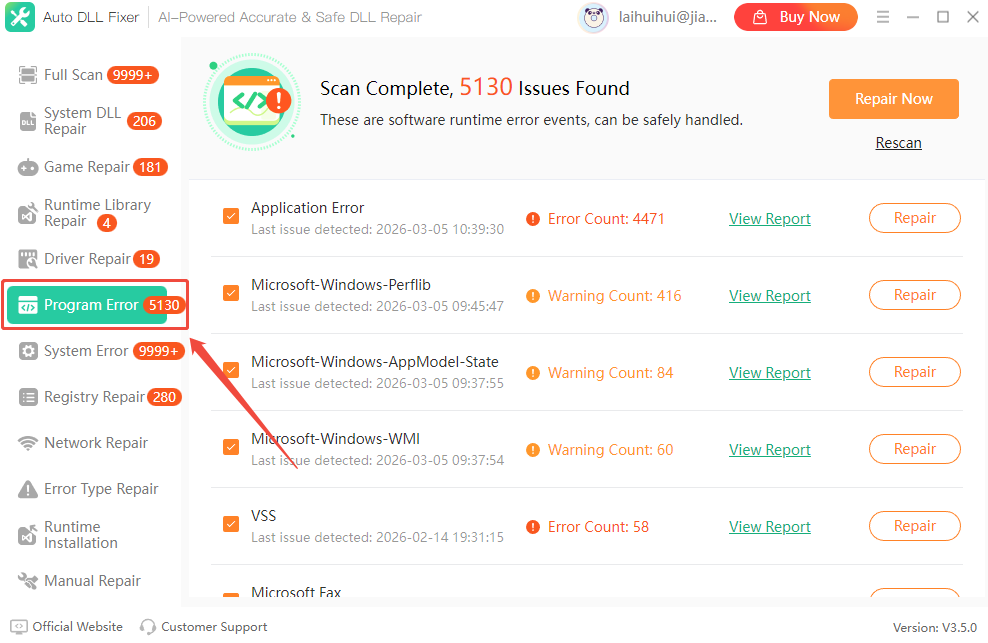
2.6  Program Error

This feature detects common software errors caused by missing dependencies, incorrect configurations, or corrupted program files. It provides targeted solutions to repair affected applications.

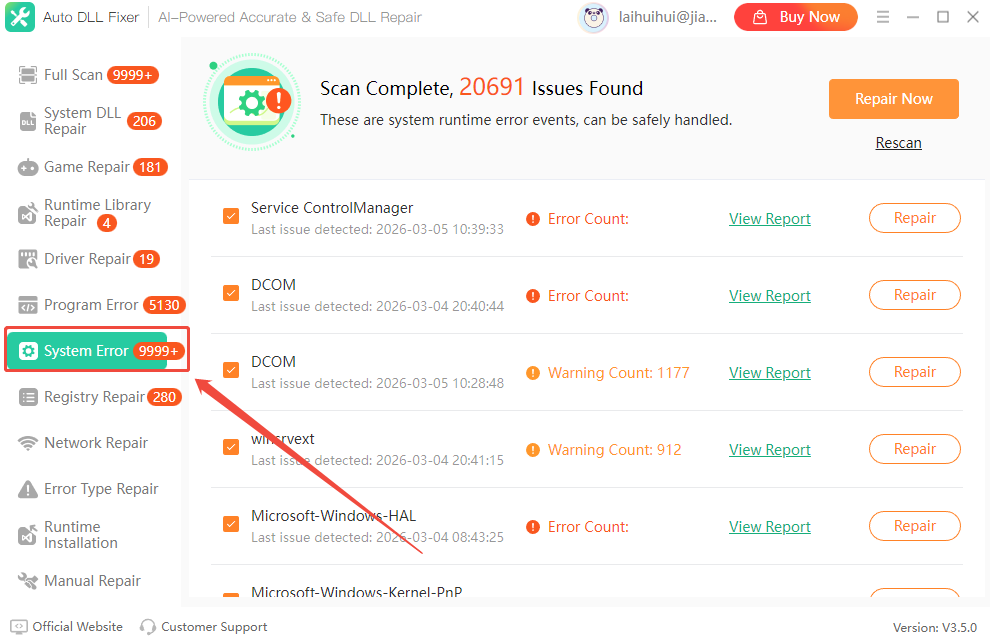
2.7  System Error

System Error Repair scans the operating system for common Windows errors and system instability issues. It helps restore normal system operation and improve overall performance.

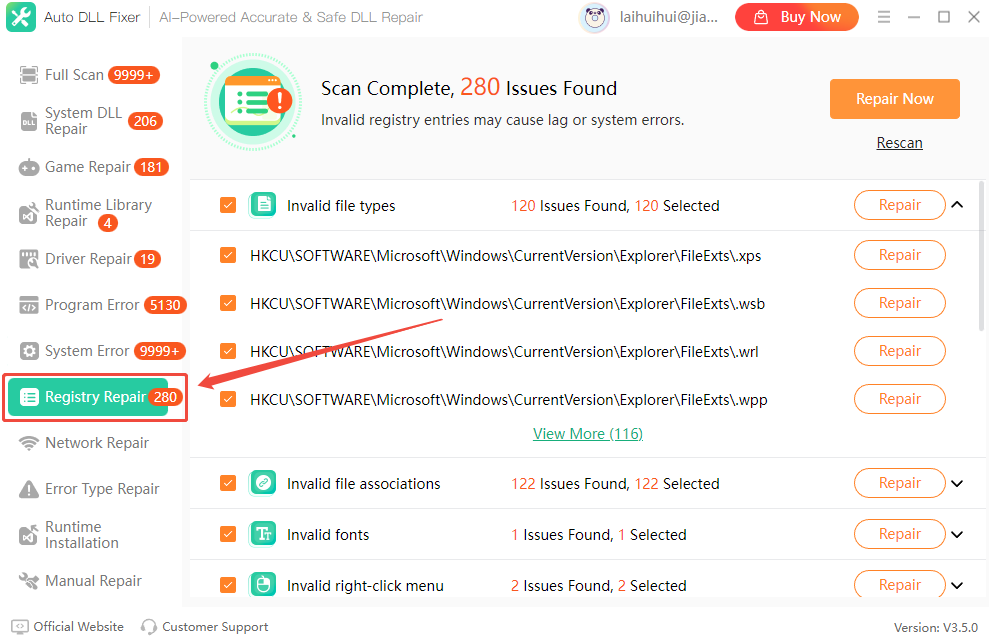
2.8  Registry Repair

The Windows registry is a core database that stores configuration information for the system and installed applications. Incorrect or corrupted registry entries may cause system instability or prevent programs from running. This feature can repair registry issues to resolve system errors, program crashes, and startup problems.

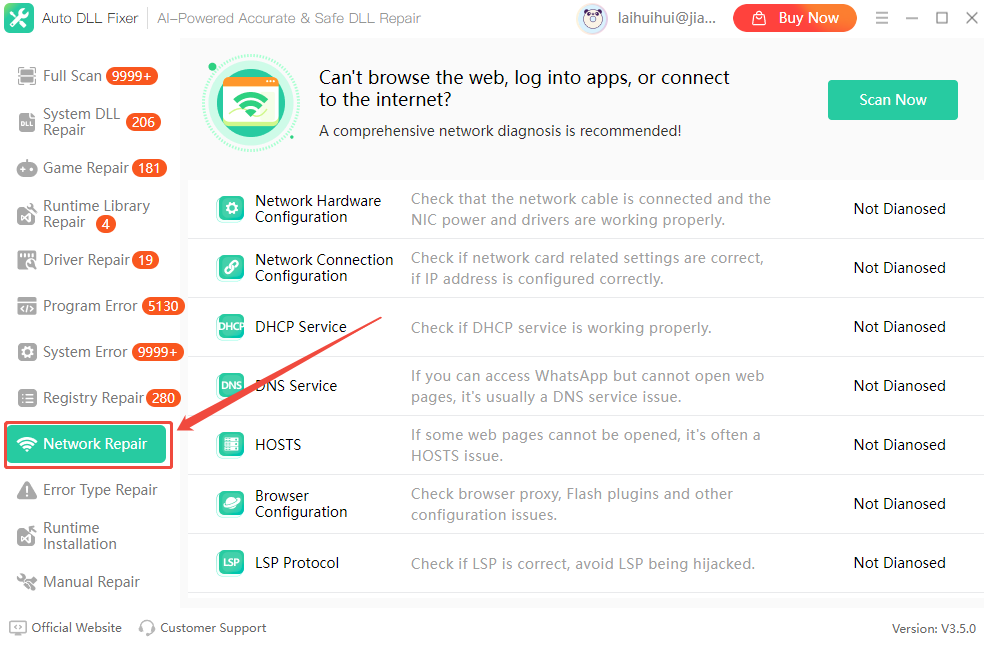
2.9  Network Repair

Network Repair diagnoses and fixes common network problems such as connection failures, incorrect network configurations, and DNS-related issues, helping restore stable internet connectivity.

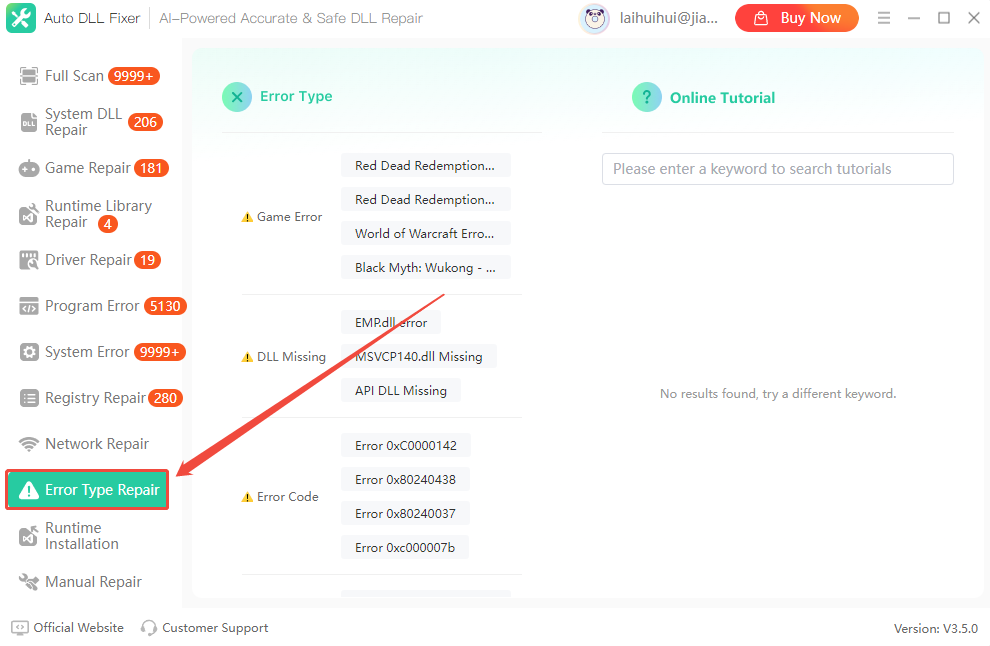
2.10  Error Type Repair

Missing, corrupted, or conflicting DLL files can often cause programs or games to malfunction. Error Type Repair categorizes these issues and applies targeted fixes to restore normal operation and improve system stability.

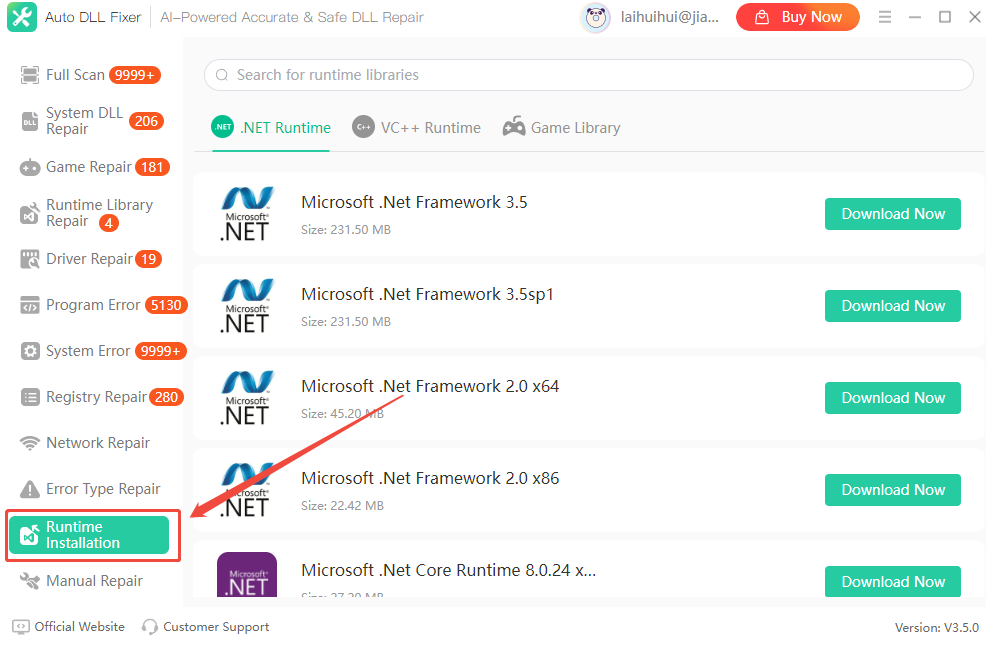
2.11  Runtime Installation

This module allows users to install essential runtime environments required by many applications and games, ensuring that programs run properly on the system. It includes .NET library installation, C++ library installation, and game library installation.

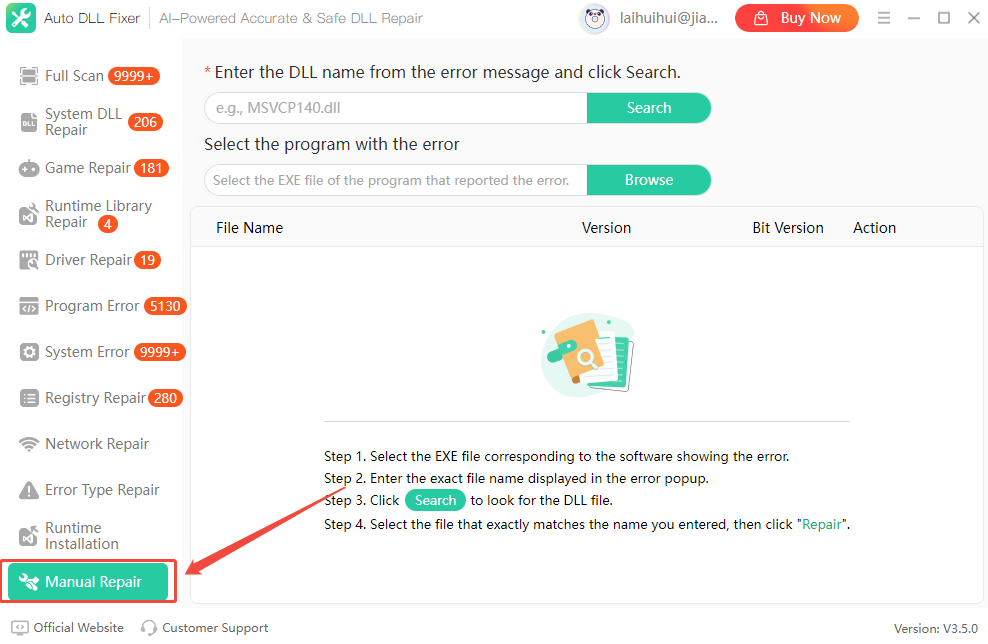
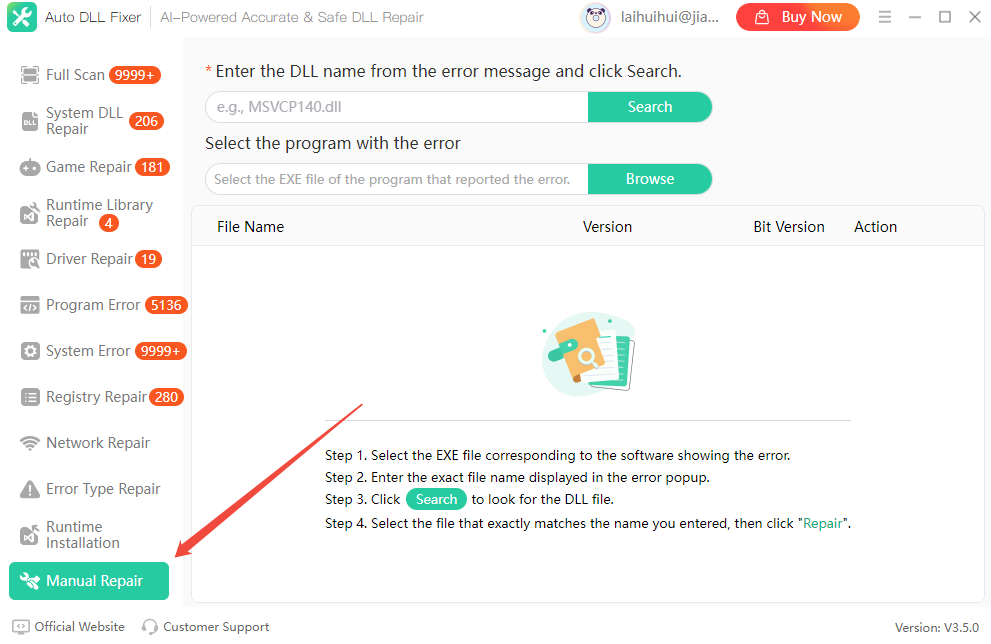
2.12  Manual Repair

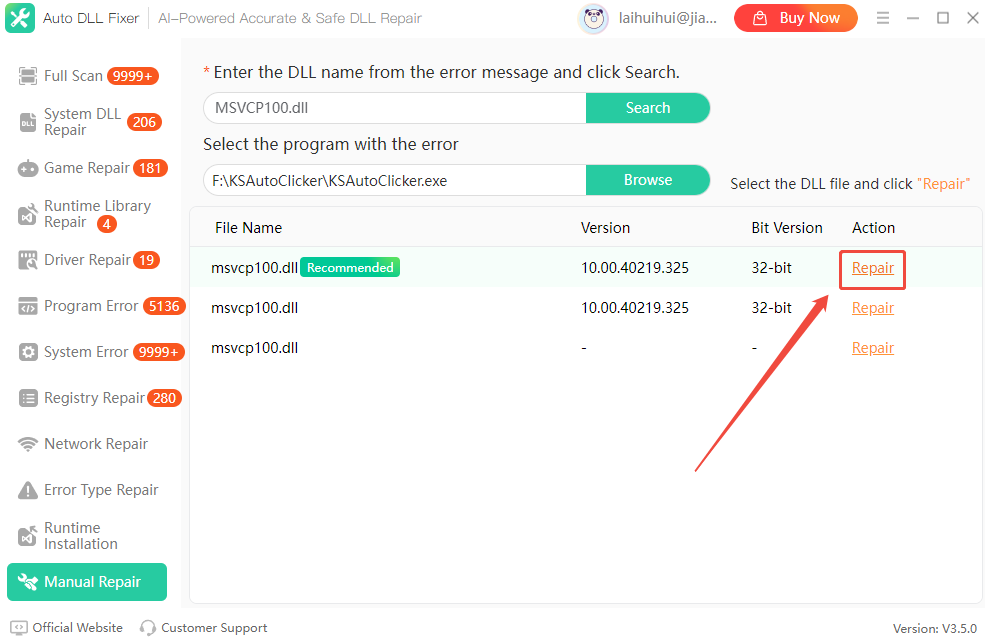
Select Manual Repair to fix specific DLL errors manually. After choosing the program, enter the DLL file name shown in the error message and click Search to locate and repair it. This method skips the full scan process and allows for faster, more precise troubleshooting.

3  How to Use Auto DLL Fixer

3.1  How to Repair Missing DLL Files in Windows

If your computer shows errors such as missing, corrupted, or damaged DLL files, programs, or games may fail to start. In this case, you can use the Auto DLL Fixer to scan and fix the problem by following the steps below.

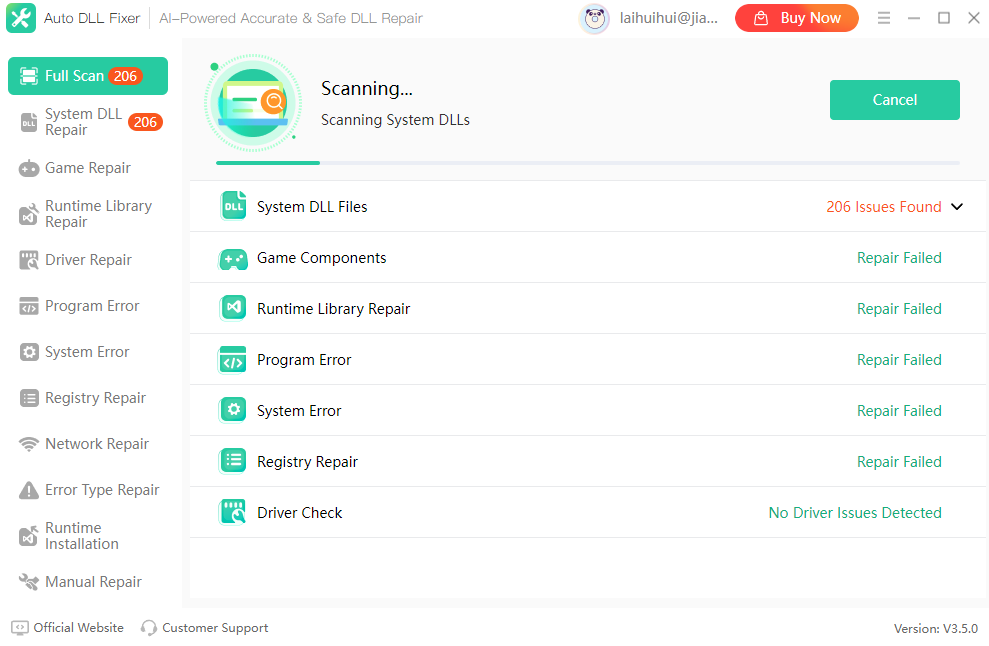
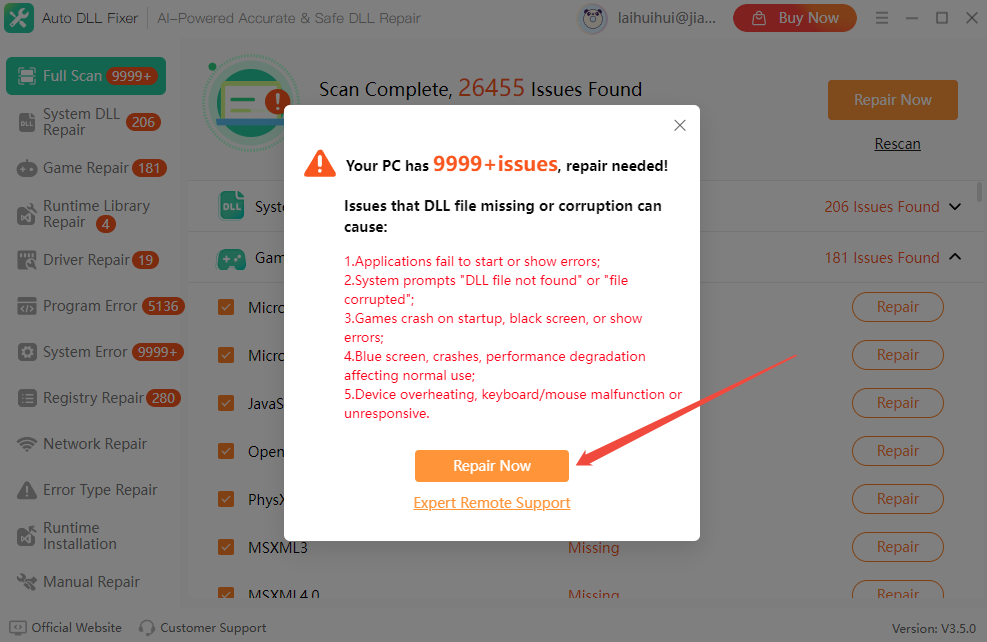
Step 1. Launch the software. In the left panel, select “Full Scan”, it will automatically scan your Windows system. Also, you can click on the “Rescan” option to recheck your computer.

Step 2. Wait while the software performs a full system scan. It will check system DLL files, runtime libraries, program errors, and registry issues.

Step 3. After the scan is completed, all detected DLL errors will appear in the results list. Click “Repair Now”.

Step 4. Wait a few minutes for the repair process to finish. The detected DLL and runtime issues will then be fixed.

3.2  Fix DLL Errors When Launching Games

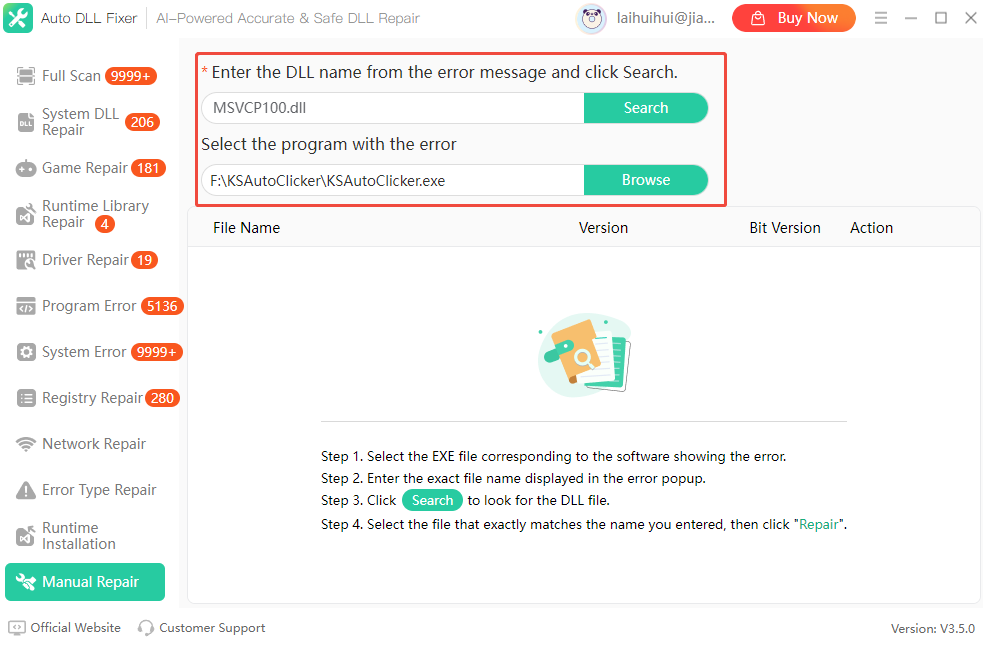
When you try to launch a program, you may see an error message like: "The program cannot start because MSVCP100.dll is missing from your computer." This error prevents the program from running normally. To resolve it, follow the steps below.

Step 1. Launch Auto DLL Fixer and select "Manual Repair".

Step 2. Choose the executable (EXE) file of the program that generated the error, and enter the name of the missing DLL file as shown in the error message.

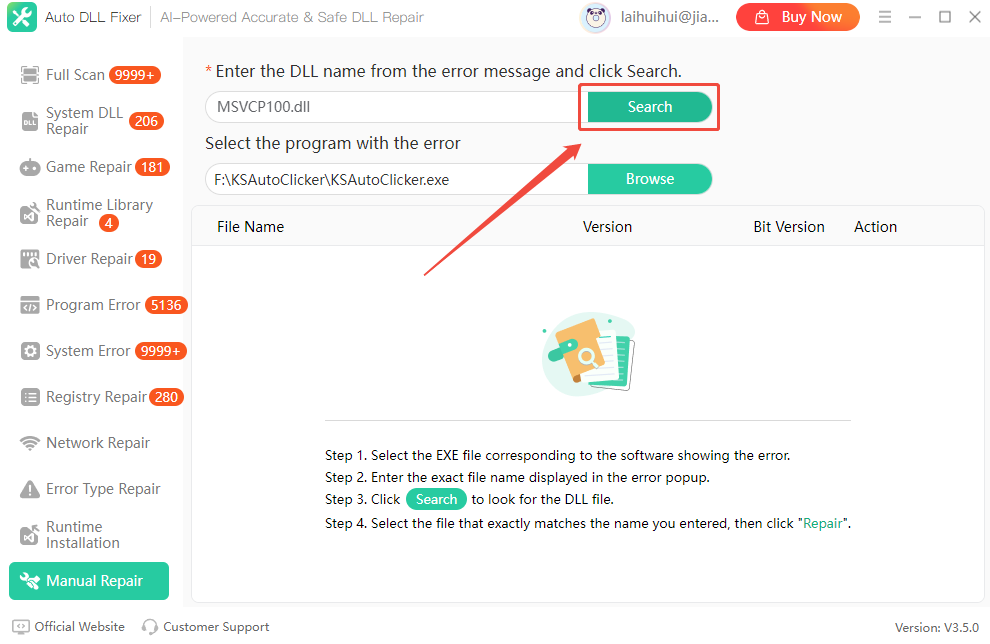
Step 3. Click "Search" to locate the missing DLL file.

Step 4. Once the scan completes, it will list the missing DLL files. Click "Repair" to restore them.

Step 5. After repair, copy the restored DLL file(s) to the program directory or the appropriate system directory as required.

4  Support and Help

If you have any feedback or suggestions on Auto DLL Fixer, please do not hesitate to let us know. We are also enthusiastic about replying to all your questions about using it. Please feel free to contact us, and we'll help you right away.

Submit Ticket: https://www.kingshiper.com/contact

Email: [email protected]