Got it

{{ postData.top_advertising_product.g_name }}

Windows
Buy Now

How to Install Epson L3210 Printer Driver (2026 NEW)

Many users search for “Epson L3210 driver installation failed” or “Epson printer not connecting” when trying to restore printing functionality on their own. Concerns may include download safety, Windows 7/8/10/11 compatibility errors, and whether a simple one-click driver update actually works. This guide explores safe and efficient methods to install Epson printers, including the L3250 and L3210, on your PC or laptop.

Preparation for Installing Epson L3210 Printer Driver

Before you begin the installation, completing the following steps helps ensure smoother printer issue resolution and long-term, stable printing performance:

Check Operating System Version:

If you would like to use a printer repair software, make sure it fully supports your current operating system to avoid launch failures or unexpected errors caused by system incompatibility.

Check USB Connection Requirements:

A USB cable is not always required during driver detection and repair. However, for first-time printer recognition or when fixing connection issues, connecting the printer via USB is recommended to improve detection success.

Check Existing Driver Status:

In most cases, uninstalling existing printer drivers is not necessary. Repair tools such as AiPrinter Fixer automatically detect driver conditions and perform repairs or updates when needed, prompting manual action only if the driver is severely corrupted.

How to Install Epson L3210 Printer Driver on Windows

Here, we will introduce 2 most effective and reliable ways to download and install driver for the Epson printer on your Windows computer.

Way 1Official Epson Download Center (Most Reliable Option)

Best for: Users who prioritize security, official support, and clean, manufacturer-verified drivers.

Epson L3210 official driver provided directly by Epson is widely considered the safest and most reliable way to install and configure the printer on a Windows PC.

Unlike third-party driver installers or “driver updater” tools, the official Epson driver is built on Epson’s native printing framework and is deeply optimized for Epson hardware. It allows Windows to communicate with the printer using manufacturer-level print instructions, instead of relying on generic driver translation layers. As a result, it offers better compatibility, fewer installation errors, and more stable performance when handling high-resolution documents and images.

Many Epson L3210 users rely on a single printer for important work or office tasks. For them, the primary concern is not download speed—it’s failed print jobs, missing drivers after system updates, or security risks introduced by third-party software. The official Epson driver completely avoids third-party packaging and runs directly within the Windows printing system, ensuring maximum stability and long-term reliability.

This solution specifically addresses:

● Print failures or garbled output during critical tasks.
● Printer not detected after Windows updates.
● Security risks and bundled ads from third-party driver tools.

However, the official Epson Download Center does come with certain limitations. The navigation path can be less straightforward, and download speeds may vary depending on regional servers. As a result, it may feel less convenient for users who expect a one-click, instant installation experience.

How to Download and Install the Epson L3210 Official Driver:

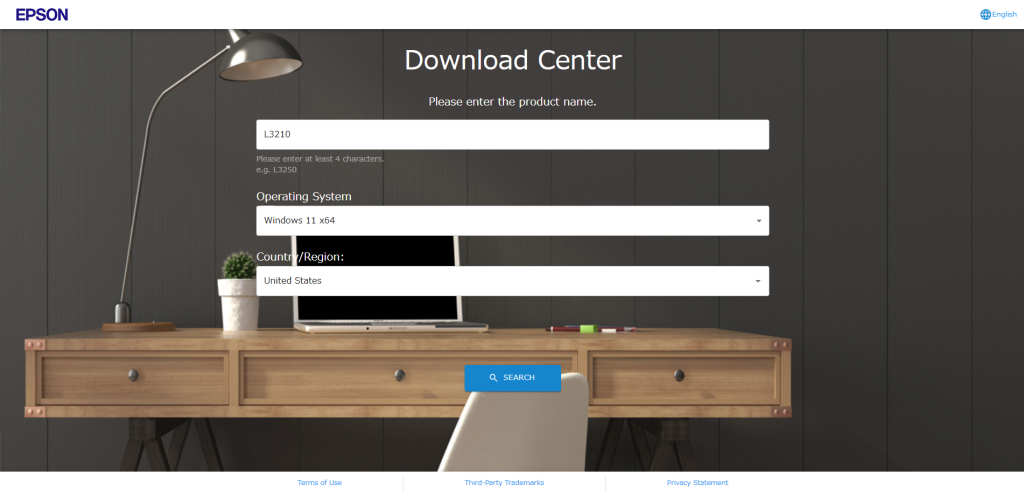
Step 1. Go to the Epson official support website, search for L3210, select your Windows operating system, and choose your country. Make sure you choose the correct system version (Windows 11 / 10, 32-bit or 64-bit) to avoid installing an incompatible driver.

go-to-epson-official-download-website

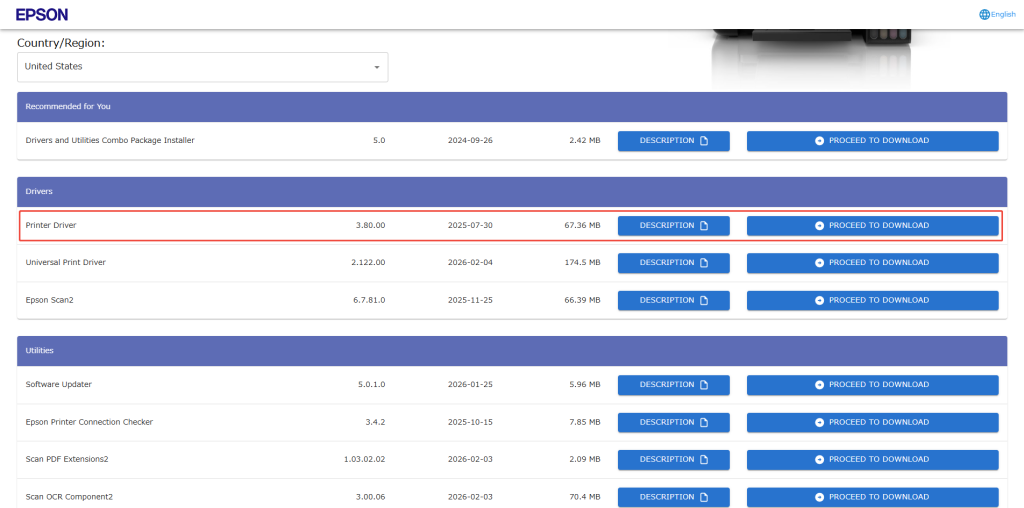
Step 2. Click on the “SEARCH” button and find the “Printer Driver” option. Click “PROCEED TO DOWNLOAD”.

search-epson-l3210-driver

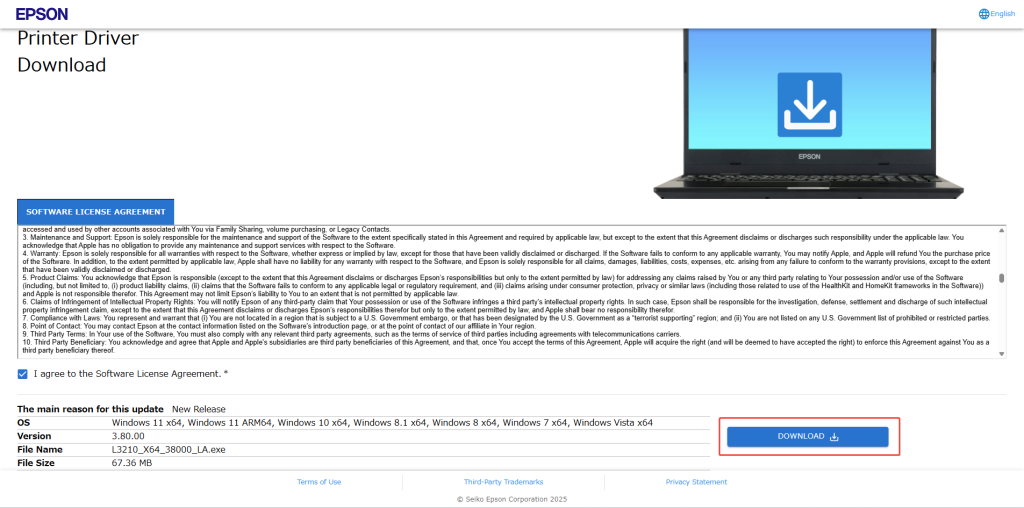
Step 3. Tick “I agree to the Software License Agreement.*”, and download the printer driver. During installation, the system may prompt you to connect the printer at a specific step.

download-epson-l3210-driver

Step 4. When prompted, turn on the printer and connect it to your PC via USB (or ensure both devices are on the same Wi-Fi network). Wait for the installer to automatically detect the Epson L3210. Do not connect the printer before starting the installation, as Windows may register it as an “Unknown Device.”

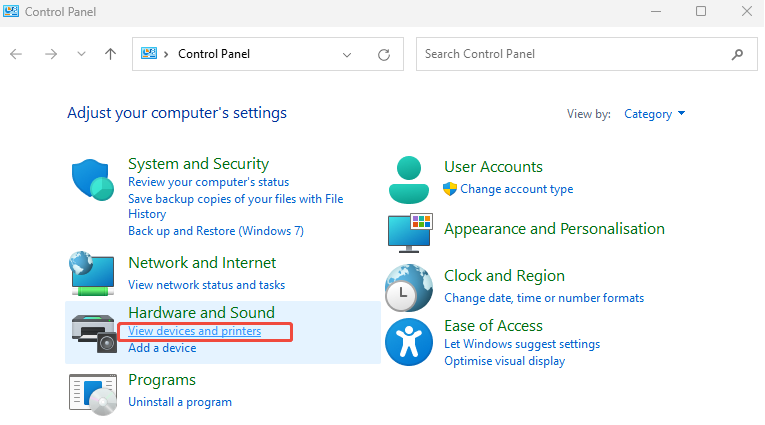
Step 5. Once installation is complete, go to “Control Panel” -> “View devices and printers” and confirm the printer shows as “Ready.” Print a test page to make sure the driver is working correctly.

test-epson-l3210-printer

Way 2Using AiPrinter Fixer (Easiest Alternative)

Since Windows does not provide automated driver conflict repair, you may encounter frequent errors when installing the Epson L3210 driver. AiPrinter Fixer is a dedicated printer repairing software designed for beginners and advanced users. It supports Epson L3210, L-Series, EcoTank, as well as various inkjet and laser printers.

AiPrinter Fixer allows you to auto-install the most stable driver version, resolve printer offline issues, and fix print queue jams. Even if previous drivers were not fully uninstalled, causing registry conflicts, AiPrinter Fixer can automatically repair these issues to ensure your printer works properly.

Free download this printer repair software to your PC and quickly set up the Epson L3210 driver on Windows 11/10/8/7!

AiPrinter Fixer

Official

Here is how to install the Epson L3210 driver using AiPrinter Fixer:

Note: Before starting, make sure your printer is powered on and connected via USB or the same Wi-Fi network as your PC.

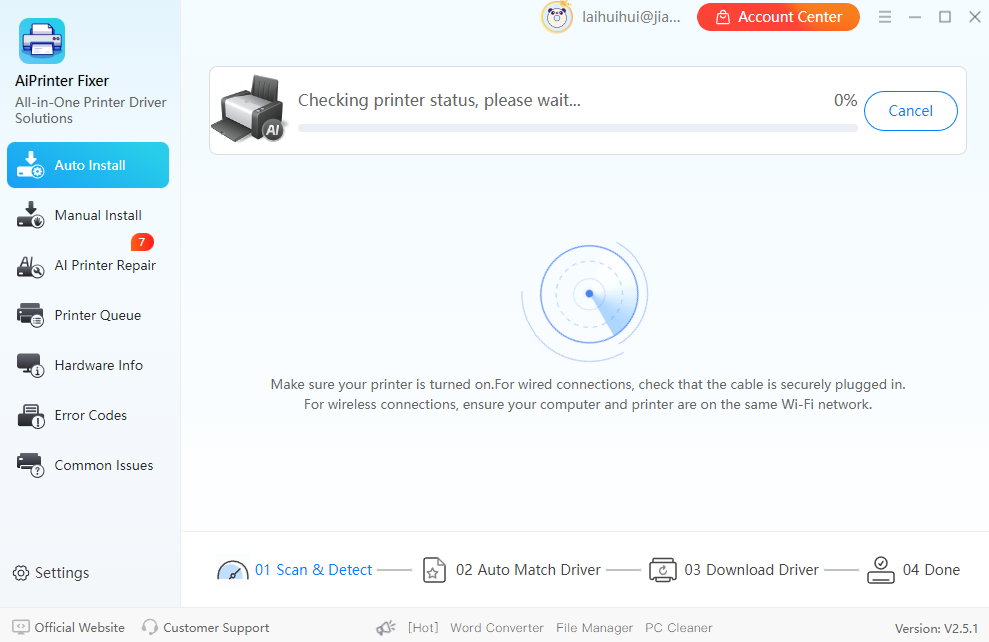
Step 1. Download, install, and run AiPrinter Fixer on your PC. Select “Auto Install” mode. It will automatically scan for missing printer drivers. If your driver is not found, you can click “Manual Install” from the left menu.

aiprinter-fixer-auto-install-epson-l3210-driver

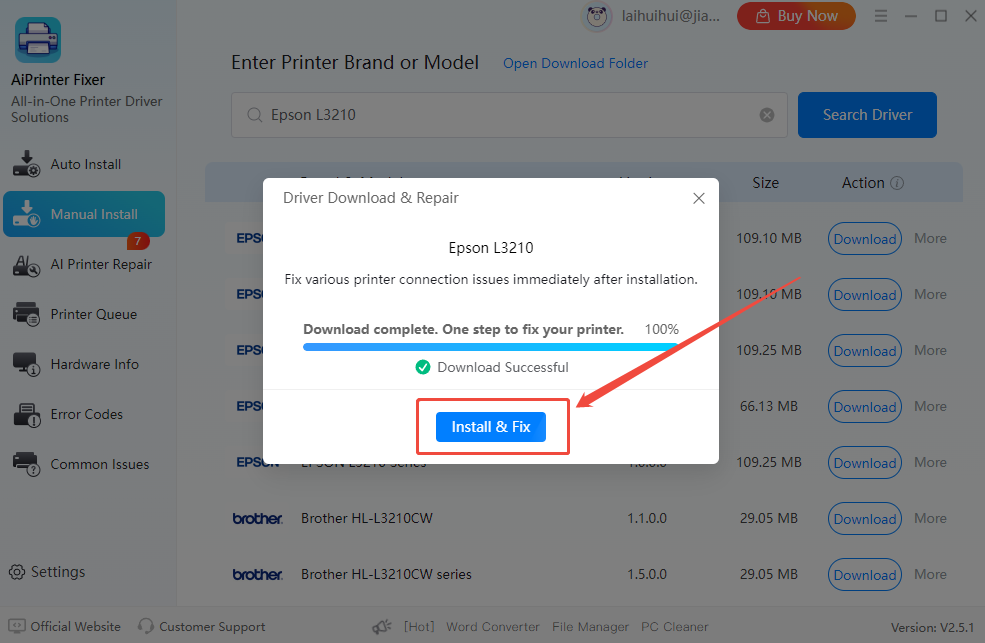
Step 2. Type “Epson L3210” in the search box and click “Search Driver”. When the correct driver appears, click “Download”, and after it finishes, click “Install & Fix”.

aiprinter-fixer-search-epson-l3210-driver

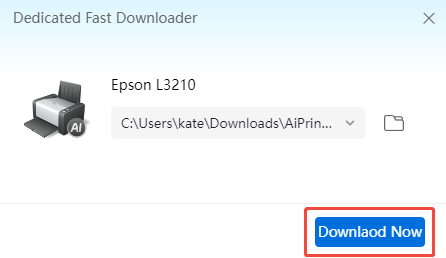
Step 3. Click “Download Now”, wait for the download to complete, then click “Install Now” to start installing the driver.

aiprinter-fixer-download-epson-l3210-driver

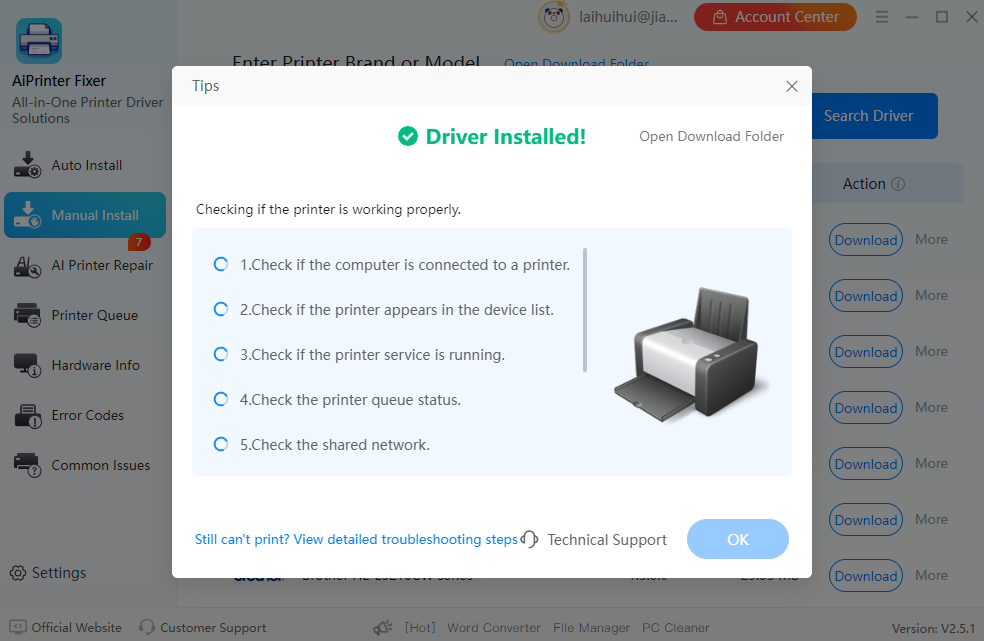
Step 4. The software will automatically install the driver and repair any conflicts. Keep the printer connected and powered on during this process. Once completed, it will check the driver's status.

aiprinter-fixer-finish-epson-l3210-driver

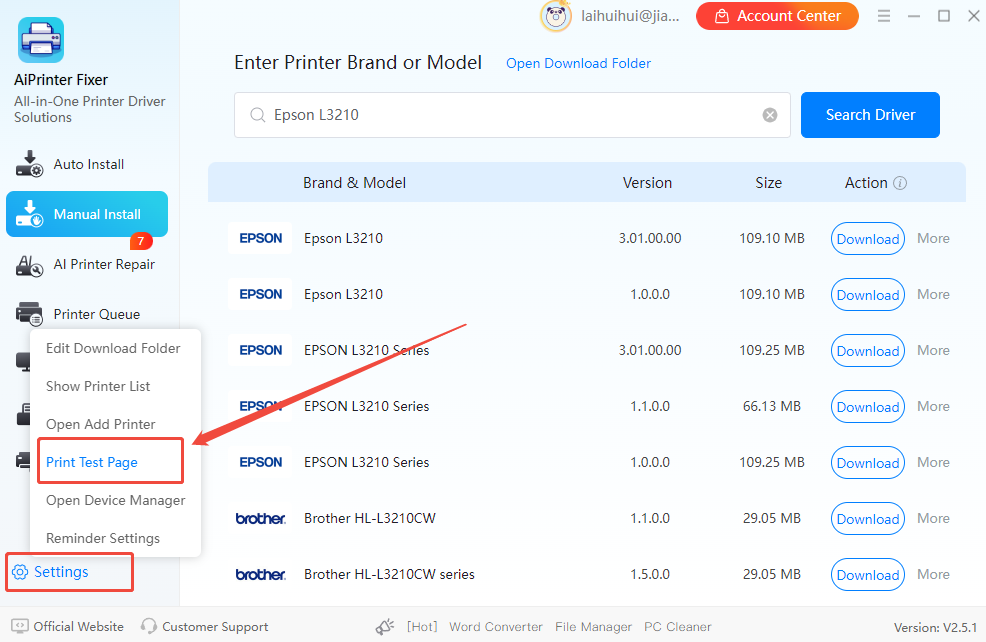
Step 5. Now, you can print a test page to check if the driver is installed correctly.

aiprinter-fixer-test-epson-l3210-print-function

To Wrap Things Up

Installing the Epson L3210 driver is the perfect solution for printer setup, maintenance, and troubleshooting, with AiPrinter Fixer delivering professional-grade performance. This powerful driver management software not only handles L3210 driver installation efficiently but also excels at fixing printer offline issues and resolving print spooler errors. At the same time, the official Epson Download Center provides reliable manufacturer-supported drivers for standard installation and firmware updates.

Whether you're installing the driver for the first time, repairing installation errors, or updating firmware, these tools ensure the Epson L3210 driver is installed correctly, and your printer operates smoothly. Explore their full potential to meet all your printer driver installation and maintenance needs.

FAQs on How to Install Epson L3210 Printer Driver

1. Why does my printer show "Offline" or fail to print after installation?

This usually happens due to incorrect port settings or driver conflicts. Using AiPrinter Fixer, you can automatically detect and fix driver issues. Also, make sure the USB or Wi-Fi connection is stable and that your printer and PC are on the same network.

2. Can I fix a failed or corrupted driver installation?

Yes. Before the system print service completely fails, you can perform an overwrite installation to restore functionality. Professional driver repair tools can create a clean driver path even if old files weren’t fully removed, allowing you to reconnect the printer without further registry damage

3. What should I do if errors or conflicts occur during installation?

If installation errors or conflicts appear, use AiPrinter Fixer’s AI Printer Repair function. It removes leftover drivers, fixes registry conflicts, and ensures a stable installation so your printer works properly.

Latest Articles