Got it

{{ postData.top_advertising_product.g_name }}

Windows
Buy Now

How to Install Kyocera Printer Driver on Windows PC (100% Work)

This page provides a complete and easy guide on installing the Kyocera printer driver on Windows 10/11 to get your printer up and running smoothly for home or office use. Follow and take a quick view of everything you need to successfully complete this task here:

ItemDetails
Goal:Guide beginners to install the Kyocera printer driver on Windows 10 or 11
Duration:5–10 minutes
Tools:1️⃣Driver update software
2️⃣Manually download and install the official Kyocera printer driver
Who Needs It:Windows beginners, non-tech PC owners

You May Also Like: How to Install Epson Printer Driver

What You Need to Do Before Installing Kyocera Printer Driver?

Most users usually check their basic settings only when the installer reports an error or the device is not recognized. While sometimes a direct installation works, success largely depends on your connection environment, especially for printers that require specific port or network settings.

If you want the installation process to proceed without interruption, it’s often a good idea to perform a quick pre-check. Preparing in advance is an important step to ensure the driver is successfully installed on your system. Key points to pay attention to include:

  • Confirm the printer model: Different Kyocera printer models require different drivers
  • Check your Windows version: Windows 10 / 11 / 64-bit
  • Prepare the connection method: USB or network IP address
  • Uninstall old drivers (if any): Avoid conflicts with the new driver

Method 1. Install Kyocera Printer Driver on Windows 10/11 via AiPrinter Fixer (Recommended)

Many websites offer solutions to install printer drivers. AiPrinter Fixer is an all-in-one printer management tool that provides official drivers directly from the hardware manufacturer to help your Kyocera printer and PC run smoothly.

It has the following main attractive features:

✅Automatically scans for missing or outdated printer drivers

✅Automatically finds the correct Kyocera driver

✅Drivers are officially sourced and certified by Windows

✅Simple operation for all users

AiPrinter Fixer supports Windows 11/10/8/7. Here is a step-by-step guide to installing your Kyocera printer driver using the powerful tool.

AiPrinter Fixer

Official

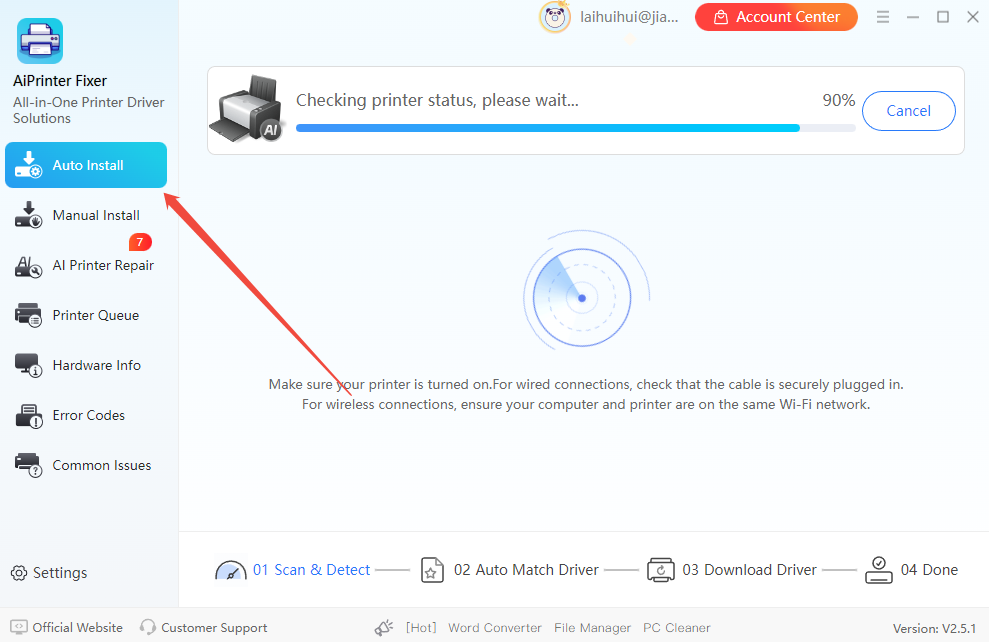
Step 1. Launch AiPrinter Fixer on your PC and click the “Auto Install” button. It will automatically scan your system and detect the drivers needed for your connected printer.

auto-install-kyocera-printer-driver

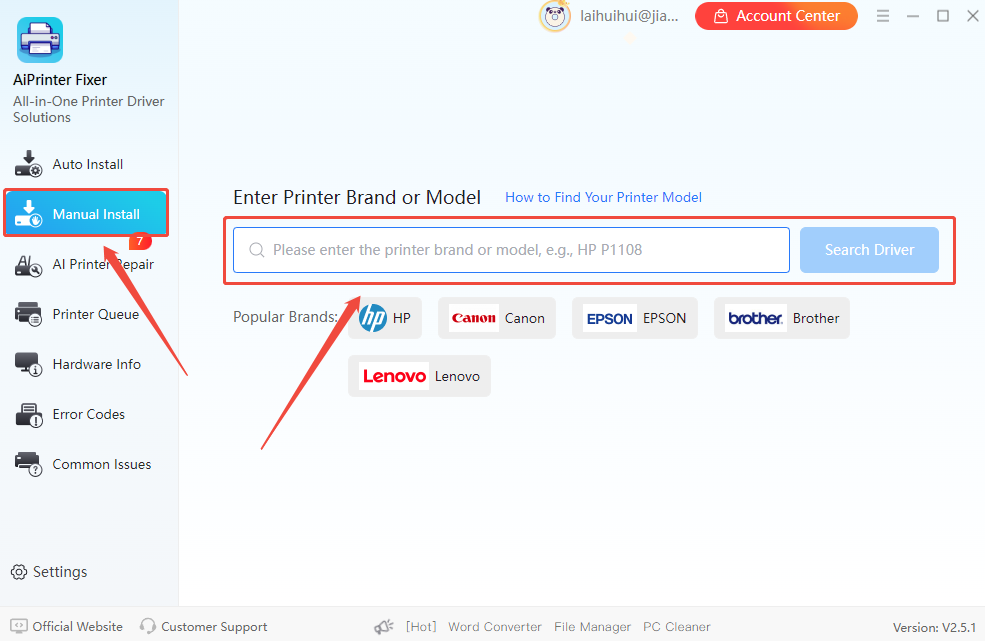
Step 2. If your printer driver is not listed, click “Manual Install”, enter your printer model, and click “Search Driver”.

manual-install-kyocera-printer-driver

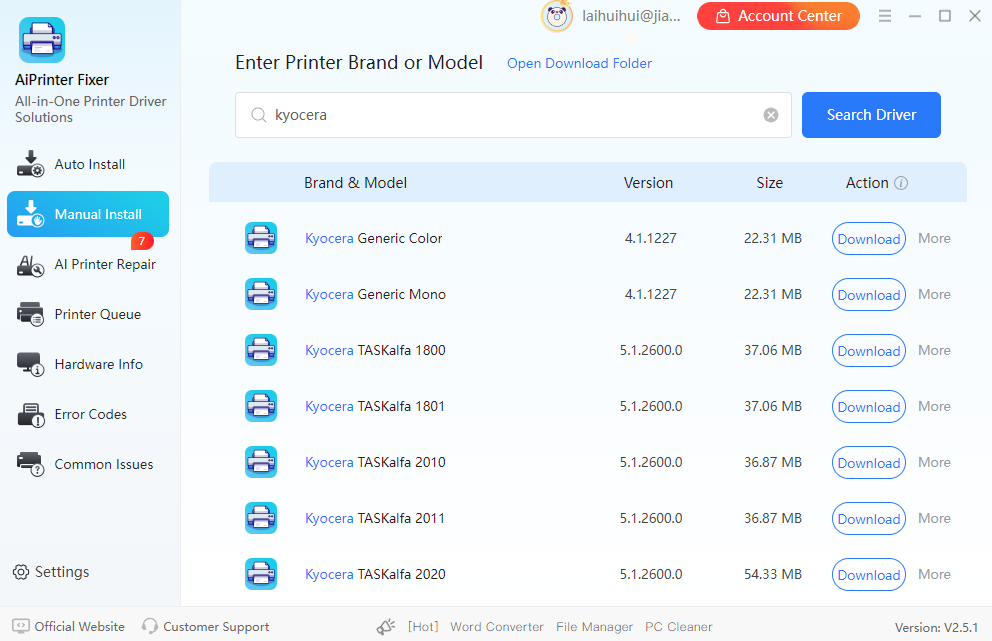
Step 3. Once you find your printer driver, click “Download” and install the corresponding driver.

download-install-kyocera-printer-driver

In addition, if your Kyocera printer is not working properly, AiPrinter Fixer can also help detect and fix errors. It can also fix the following errors.

  • Fix printer spooler service errors
  • Fix USB printers not recognized by the computer
  • Fix printers that always show as “Offline”
  • Fix Windows 7/8/10/11 network printers that cannot connect

AiPrinter Fixer is one of the best free printer repair software. If you have any driver or printer issues, you can use this tool to fix them.

Method 2. Install Kyocera Printer Driver via official Site

The manual way is to download the latest Kyocera printer driver from the official website. Before you start, make sure you know your printer model and Windows system version. The website provides multiple options to download Kyocera drivers. Here’s how to install the latest driver from the official Kyocera support site:

Step 1. Visit the Kyocera official download center: https://www.kyoceradocumentsolutions.com/global/en/support-and-download.html

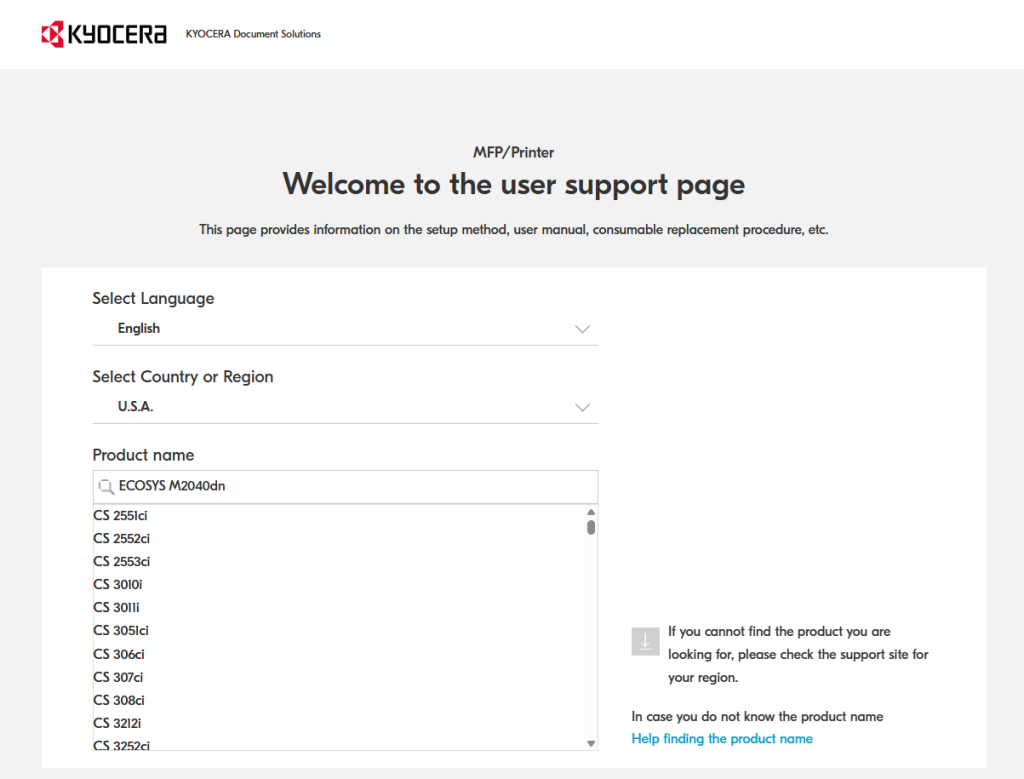
Step 2. Enter your printer name in the search bar (for example, ECOSYS M2040dn) or browse the product categories to find your device.

search-kyocera-printer-driver-official-site

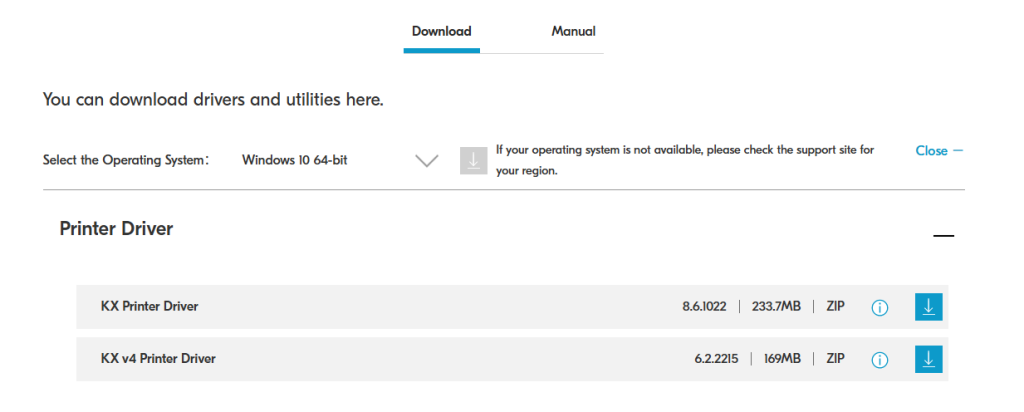
Step 3. Confirm your Windows system version and click “Download” to get the driver.

download-kyocera-printer-driver-official-site

Step 4. Extract and run the downloaded installation package on your Windows 10 or 11 PC.

Step 5. Follow the installation wizard to select the connection type (USB or network). After completing the installation, restart your computer, and your printer will be ready to use.

Bonus Tips for Keeping Your Kyocera Printer in Top Shape

Some helpful hints for keeping your Kyocera printer stable and efficient are provided below:

  • Regularly check and update your printer driver to ensure optimal print quality and support for new features
  • If a print job gets stuck or the printer fails to connect, try restarting your computer and printer first
  • Back up the driver installation package for easy reinstallation when upgrading your system or switching to a new computer

Final Verdict

In this article, two methods for installing Kyocera printer drivers on Windows 11/10/7 have been covered. In short, AiPrinter Fixer is a reliable tool that will get the job done quickly and easily. At the same time, the steps mentioned earlier allow you to manually download and install the official Kyocera printer driver on your PC.

FAQs About Kyocera Printer Driver Download & Update

If you still have questions after reading this section, you'll find the answers below:

1How do I install a Kyocera printer

Connect your printer to the PC via USB cable, or to your router via Ethernet for network printers. Make sure the printer is powered on. For network printers, ensure your PC and printer are on the same local network, then run the driver installation program to detect and add the printer.

2How do I check the Kyocera printer driver status

Open “Device Manager” from the Windows search bar.

Click on the “Print queues”. If the driver is installed correctly, you will see an entry with “Kyocera” and your printer model. A yellow warning icon indicates a driver or device problem.

If the driver is not installed, the printer model will not appear or may show as “Unknown device.”

To update the driver, you can manually download it from the official Kyocera website or use a driver update software to install it automatically.

3Why can't Windows find a Kyocera printer driver

Windows may not automatically locate the driver because it’s not included in the default driver database. You need to download and install the official Kyocera driver manually, or use a tool like AiPrinter Fixer to automatically find a compatible driver.

4What to do if the printer shows offline after installing the driver

This usually happens when your PC and printer are not communicating properly. Try the following:

  • Check USB or network connections and restart the printer.
  • Press “Win + R”, type “services.msc”, find “Print Spooler”, right-click, and select Restart.
  • For network printers, check the printer port IP in “Printer Properties” and switch to the “Ports” tab. Ensure it matches the printer’s IP. Unchecking “Enable bidirectional support” may also fix false offline status.

Latest Articles