Got it

{{ postData.top_advertising_product.g_name }}

Windows
Buy Now

2026 Tips | How To Fix HP Laser Printer

HP Laser Printers have become an essential tool for modern, efficient office environments. Whether you are dealing with frequent paper jams, struggling with stubborn wireless connectivity issues, or aiming to restore sharp, professional-quality prints, knowing how to troubleshoot your printer is often unavoidable.

This guide explains how to fix an HP Laser Printer in a clear and practical way. You will learn the common causes of printer problems, how to diagnose issues step by step, and how to safely resolve problems without damaging your device, restoring normal printing in the process.

What Causes HP Laser Printer Malfunctions?

HP Laser Printer malfunctions occur when the printer’s normal operation is interrupted, preventing documents from being printed correctly. During a print job, the printer monitors the paper path, toner or drum condition, and data transmission, stopping any operation that could fail due to hardware or consumable issues.

Common causes of HP Laser Printer malfunctions include:

  • Using the wrong type of paper, or paper that is damp or damaged, can easily cause paper jams or print errors.
  • Empty, improperly installed, or low-quality toner cartridges and imaging drums can affect print quality or prevent printing altogether.
  • Aging or damaged sensors, rollers, or other internal components can cause malfunctions.
  • Missing, outdated, or incompatible drivers may prevent the printer from being recognized or cause printing failures.
  • Loose USB cables, power issues, or unstable wireless connections
  • can interrupt communication between the printer and your device.

Understanding these common causes helps you identify the source of the problem and take the right steps to restore your printer to normal operation.

Check the Status of Your HP Laser Printer

Before attempting any fixes, you should confirm the current status of your printer. Here are two methods for you to diagnose HP Laser Printer issues.

Method 1Use the Printer Control Panel

Open the printer’s control panel or display screen.

Look for status messages or warning indicators:

  • Ready -> Printer is functioning normally
  • Paper Jam / Low Consumables -> Printer has detected a paper or toner issue
  • Error Code Displayed -> Record the code for reference in the manual or official support

Method 2Use Computer Diagnostic Tools

Open HP printer software or Windows printer settings.

Run Printer Diagnostics or Print a Test Page:

  • Test Page Prints Successfully -> Printer hardware and connection are normal
  • Test Page Fails / Shows Error -> Issue may be related to drivers, network, or internal components

After confirming the printer’s status, you can proceed with the steps below to safely troubleshoot and fix the issue. Don’t forget to share this guide to help more users.

Download the Best HP Laser Printer Fixer

For older HP Laser printer drivers that Windows Update fails to recognize, or for recurring Print Spooler freezes, we’ve tested multiple repair paths and found that AiPrinter Fixer is currently the only tool that consistently replaces manual registry-level fixes.

When repairing HP printers on Windows 7/8/10/11, we’ve observed that many users fall into the same loop:

Remove the printer → reboot → reinstall → the issue returns.

To break this cycle, we tested three different repair approaches across three PCs with different hardware and system states, rather than relying on vendor documentation.

What We Tested (January 2026)

Test CaseWindows Built-in TroubleshooterHP Print and Scan DoctorAiPrinter Fixer (Our Pick)
Driver conflicts❌ Not detected⚠️ Reinstall suggested (15+ minutes)✅ Auto-resolved (1 min 13 sec)
Spooler service freeze✅ Service restart (frequent relapse)✅ Service restart✅ Queue fully cleaned (no relapse observed)
Virtual port mismatch❌ Not fixable❌ Non-HP ports not detected✅ Port auto-remapped

What We Found (Key Difference)

During testing, we found that most “printer fix” tools simply re-run Windows commands, such as restarting the Print Spooler service. This explains why the problem often comes back after a reboot.

AiPrinter Fixer behaved differently in our tests.

Instead of stopping at a service restart, it first scans and removes corrupted .SHD and .SPL files located in: C:\Windows\System32\spool\PRINTERS

We confirmed that these corrupted spool cache files were the real trigger in repeated failure cases.

Before this test, resolving the issue required booting into Safe Mode and deleting the files manually. In our tests, AiPrinter Fixer completed this process automatically and without system instability.

If you’re tired of endlessly reinstalling drivers with no results, AiPrinter Fixer is the fastest path to a permanent fix.

Best suited for:

  • Stubborn driver conflicts
  • Undeletable print queues
  • Incorrect or broken port mappings

AiPrinter Fixer

Official

Download

How to Repair HP Laser Printer on Windows 7/8/10/11

Here is how to use AiPrinter Fixer to diagnose and repair HP Laser Printer issues automatically.

Before repairing:

  • Connect the HP Laser Printer to your computer via USB or network, and ensure it is powered on and not in sleep mode
  • Confirm that the Windows Print Spooler service is not completely disabled (the service should be running or stuck, not disabled)

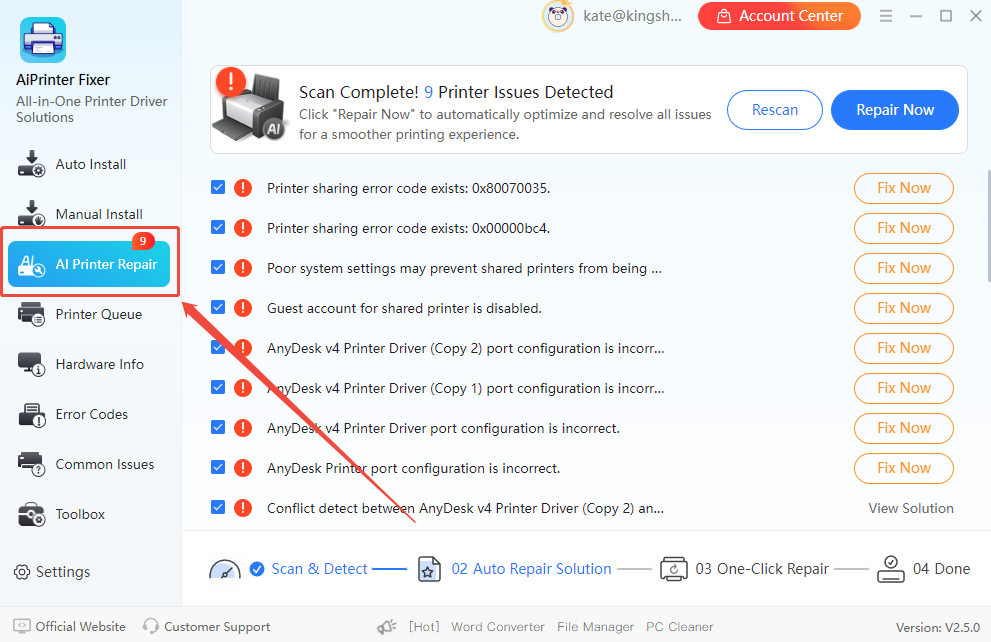
Step 1. Launch AiPrinter Fixer and choose AI Printer Repair

Install AiPrinter Fixer on your computer and launch the program. From the main interface, select “AI Printer Repair”. It will automatically scan your system for printer-related problems, including HP Laser Printer driver conflicts, spooler errors, and port configuration issues.

fix-hp-laser-printer-issue-aiprinter-fixer

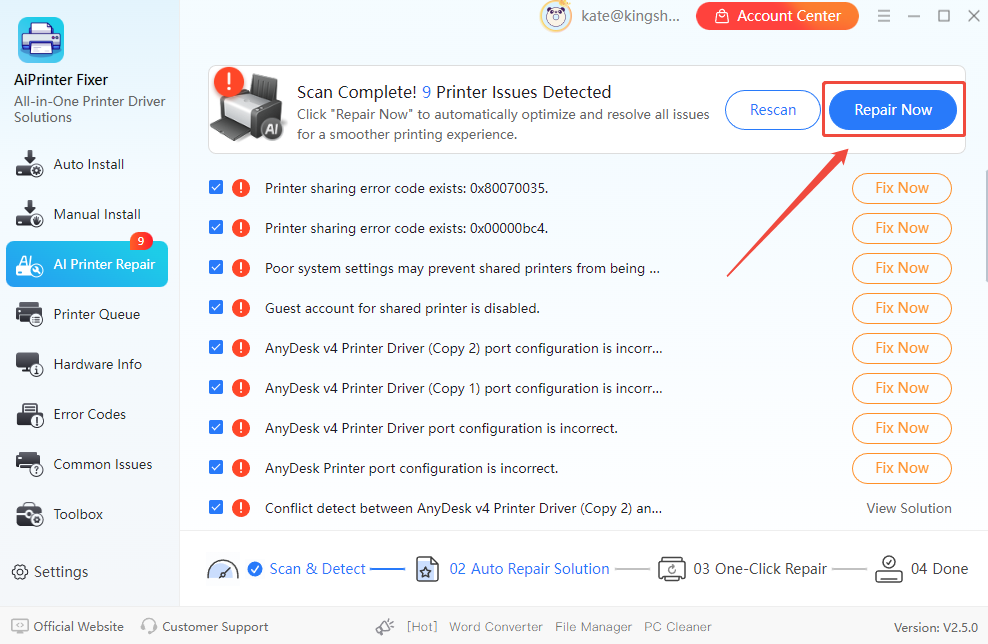
Step 2. Start repairing printer issues

After the scan completes, click “Repair Now”. AiPrinter Fixer will repair all detected printer problems automatically, including driver inconsistencies, stuck print services, and incorrect virtual port mappings.

repair-hp-laser-printer-issue-aiprinter-fixer

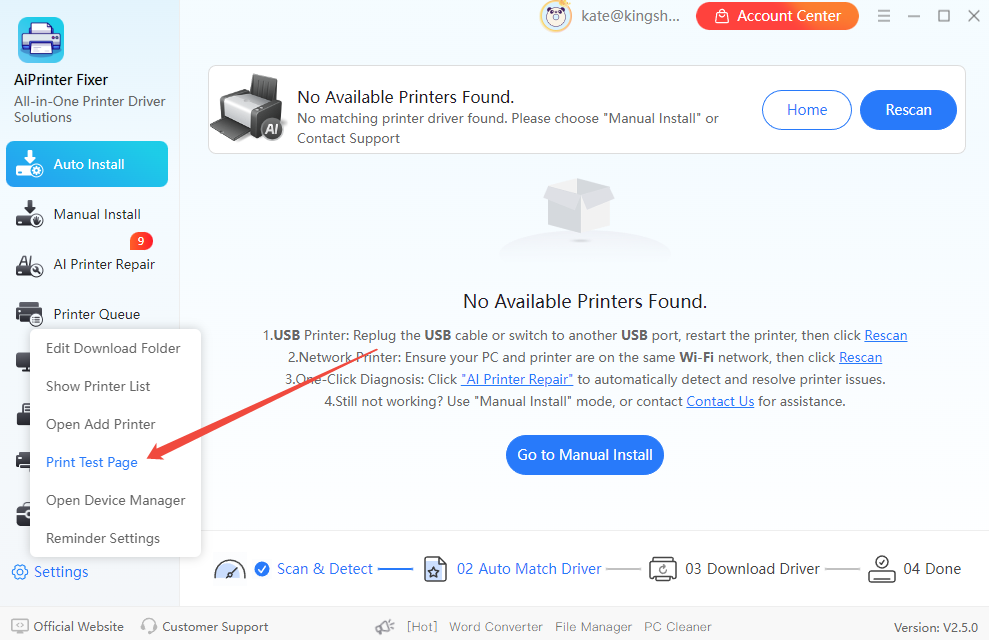
Step 3. Test the printer

Once the repair process finishes, go to “Settings” and print a test page. If the test page prints successfully, your HP Laser Printer has been repaired and is ready to use.

print-test-page-hp-laser-printer-aiprinter-fixer

To Wrap Things Up

Laser printer troubleshooting software is a core maintenance tool that goes beyond simple fixes. Unlike just clearing the print queue, it rebuilds background service dependencies, cleans corrupted spool files, and repairs registry keys, ensuring your system can fully repair HP Laser Printer connectivity and restore high-speed printing.

If you want an easy and reliable automated repair solution, AiPrinter Fixer will not disappoint. It is a powerful Windows printer repair tool designed to quickly and effectively resolve driver conflicts, stuck services, or missing ports. Just download it on your PC and start fixing your HP Laser Printer!

AiPrinter Fixer

Official

Download

FAQs on HP Laser Printer Repair

Q1. Is AiPrinter Fixer free?

No. Although AiPrinter Fixer can be downloaded for free and perform basic scans, it is an all-in-one printer repair software. To unlock advanced features, like repairing corrupted driver registry entries or resolving stubborn spooler errors, you need to upgrade to the paid version.

Q2. What is the difference between Printer Reset and Driver Reinstall?

Printer Reset clears the printer’s memory cache and error states, creating a clean print queue. It is ideal for resolving temporary laser printer issues quickly. Driver Reinstall, however, removes and rebuilds the entire software environment, including port settings, color profiles, and spooler service dependencies, creating a fully refreshed system connection. Printer Reset is for quick fixes, while Driver Reinstall is for thorough repair of persistent issues.

Q3. Can AiPrinter Fixer repair HP printers that Windows doesn’t recognize?

Yes. AiPrinter Fixer can repair HP printers showing as unspecified or driver unavailable in Windows. It can restore print preferences, network settings, and scanning functions without requiring a new printer. Other tools, such as HP Print and Scan Doctor or Windows Troubleshooter, can also help, but AiPrinter Fixer provides the fastest all-in-one solution.

Latest Articles