Multimedia Tools
Video Tools
Audio Tools

Image tools
Record and Edit Porfessional Videos on Mac
Windows Desktop Screen Recording Software
Easy and Fast Way to Compress Video and GIF
Screen Mirroring App for iPhone/Android/PC/Pad
All-in-one video toolkit that supports converting over 1000+ formats
Portable audio format converter, which supports common audio format conversion, multiple audio merging, audio compression, audio segmentation, and one click batch conversion of audio formats
Cut, copy, paste, insert audio, add effects and other editing functions, which can easily re edit the recorded audio files and make ringtones, adding a unique personality to your life.
Karaoke Maker and Vocal Extractor on Mac
Extract vocals and instrumentals from any audio and video track with the latest AI technology.
Best Voice Recording Software for All Windows Users
Convert Audio/Video to MP3/WAV/FLAC/OGG

Utilities
Office Utilities
Simple and powerful office solution for file compression, extraction, transferring, and sharing. Easily to process multiple files in seconds!
A powerful, simple and easy to operate PDF to word converter, which supports the conversion between PDF documents and multiple formats such as doc, ppt, pictures and txt documents; The software has the functions of fast conversion, batch conversion, high-quality identification, etc
Burn music, video, and data discs in one-click
Fast Way to Reduce Your File Size
The best and perfect tool to convert various ebook files with ease.
Convert Videos, Audios, Images, PDFs, and Word with Ease
Seamless Conversion for PDF to JPG & JPG to PDF
Shrink size of PDFs, images, and videos without losing quality
Extract & Manage & Compress Files in Seconds
System & Recovery
{{ postData.top_advertising_product.g_name }}
VOB is a common DVD media container format used to store high-quality video, audio, and subtitle streams. Whether it’s a classic movie DVD, a home video disc, or raw footage you want to edit, you may want to convert VOB files to MOV format for smooth playback and editing on Mac, QuickTime Player, or iPhone. This guide will walk you through simple and effective ways to convert VOB to MOV on Windows or Mac.
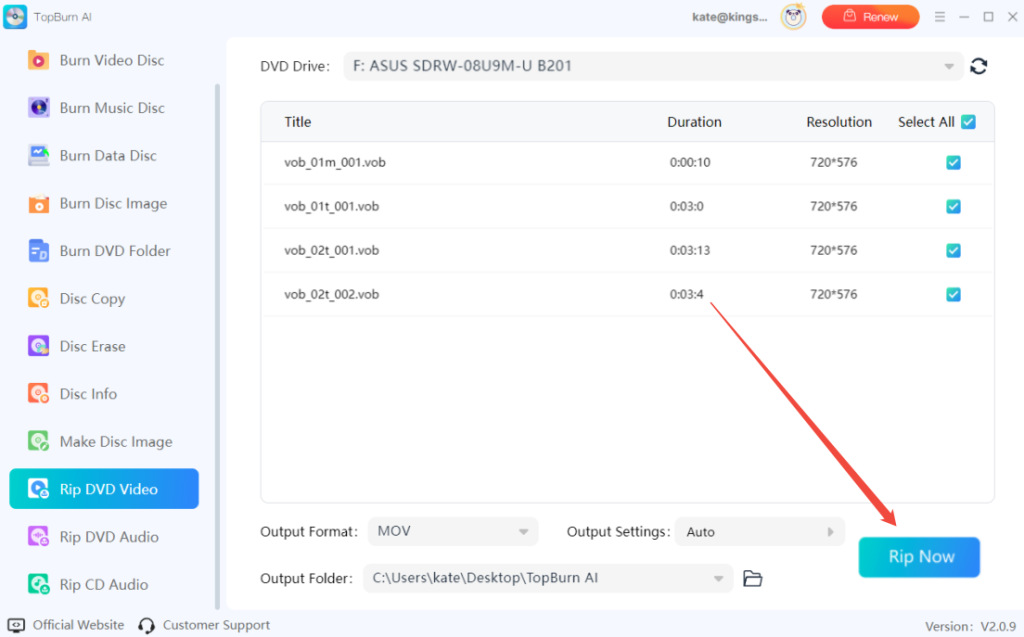
To fix compatibility issues or convert multiple VOB files at once, you can use a third-party DVD ripper like TopBurn AI. Just import your VOB files, choose MOV as the output format, and complete the conversion quickly.
Before converting VOB files to MOV format, it’s important to keep a few key points in mind. Understanding how these formats work, checking device compatibility, and choosing the right settings can help you avoid conversion issues and ensure smooth playback and editing after the process.
There are five main ways to convert VOB to MOV on PC or Mac. We'll break them down, starting with the most recommended, easiest method.
On a Windows PC, VOB files are typically stored as raw media data within a DVD’s file structure, rather than in a format that can be easily shared or edited like regular online videos. Because these files are not always recognized by all media players or editing software, converting them usually requires a great desktop DVD ripping software.
Convert VOB to MOV on Windows with TopBurn AI:
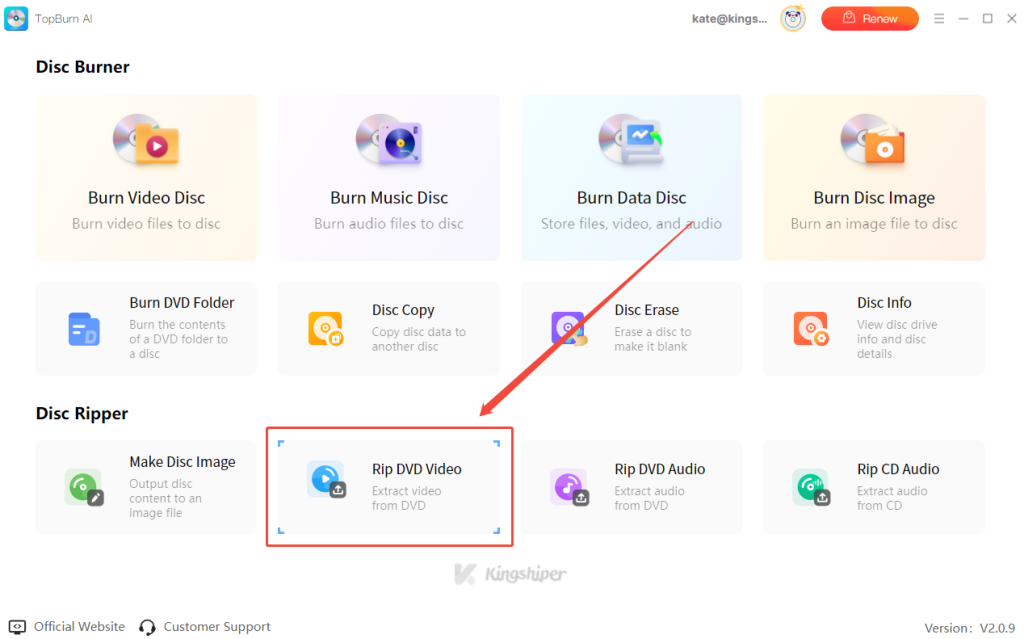
Step 1. Connect your DVD drive, then download and install TopBurn AI. Launch the software and select the “Rip DVD Video” module from the main interface.

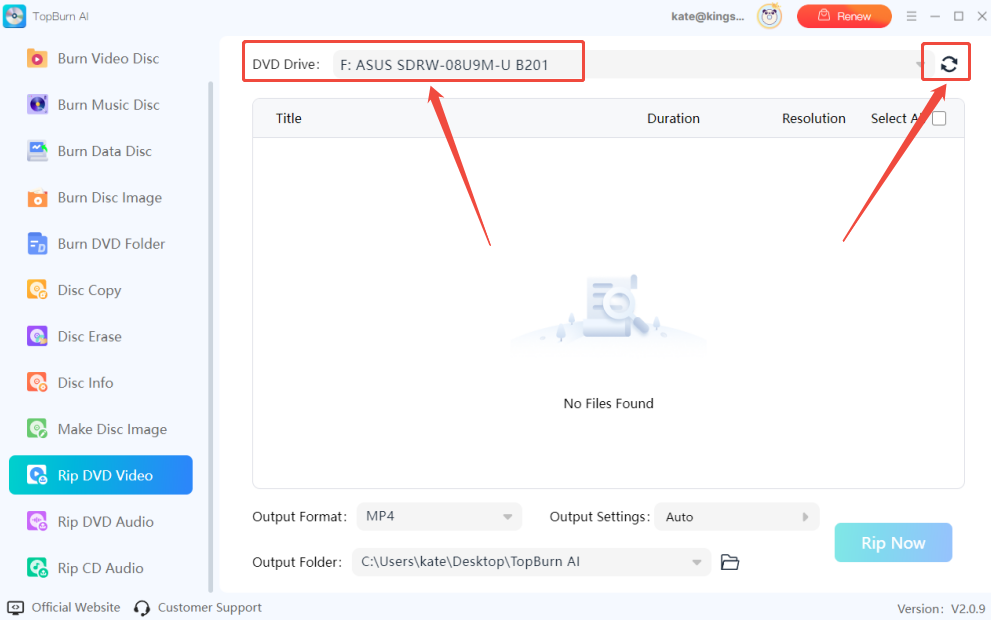
Step 2. Then, it will automatically detect your DVD disc. Choose the recognized drive under DVD Drive. If the drive isn’t detected, click “Refresh” to rescan.

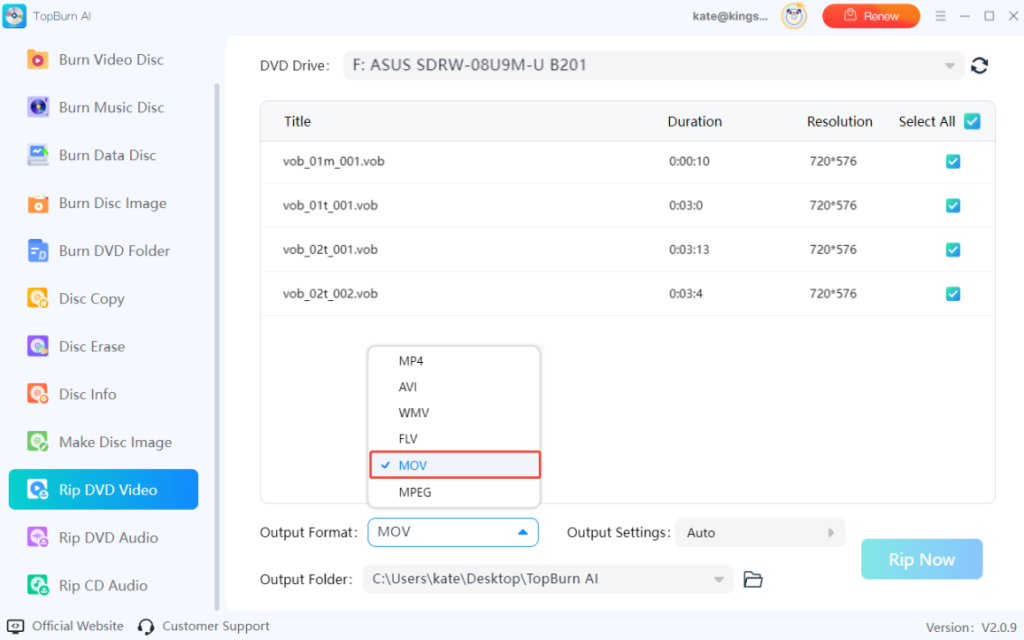
Step 3. Once the files are loaded, click “Output Format” at the bottom of the software and select MOV from the dropdown menu as the target format.

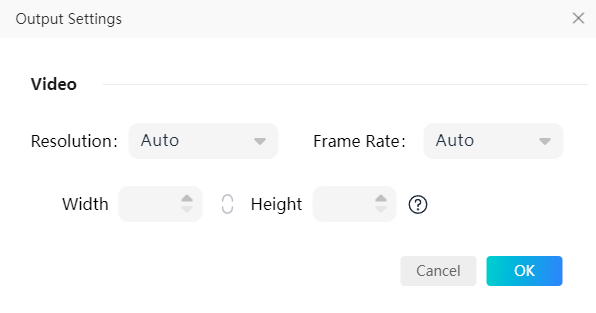
Step 4. In Output Settings, confirm the video resolution and quality to make sure the output meets your expectations.

Step 5. Click “Rip Now”. Now, TopBurn AI will quickly process the VOB files and export them as MOV videos. Once the conversion is complete, you can play the files directly or use them for further editing.

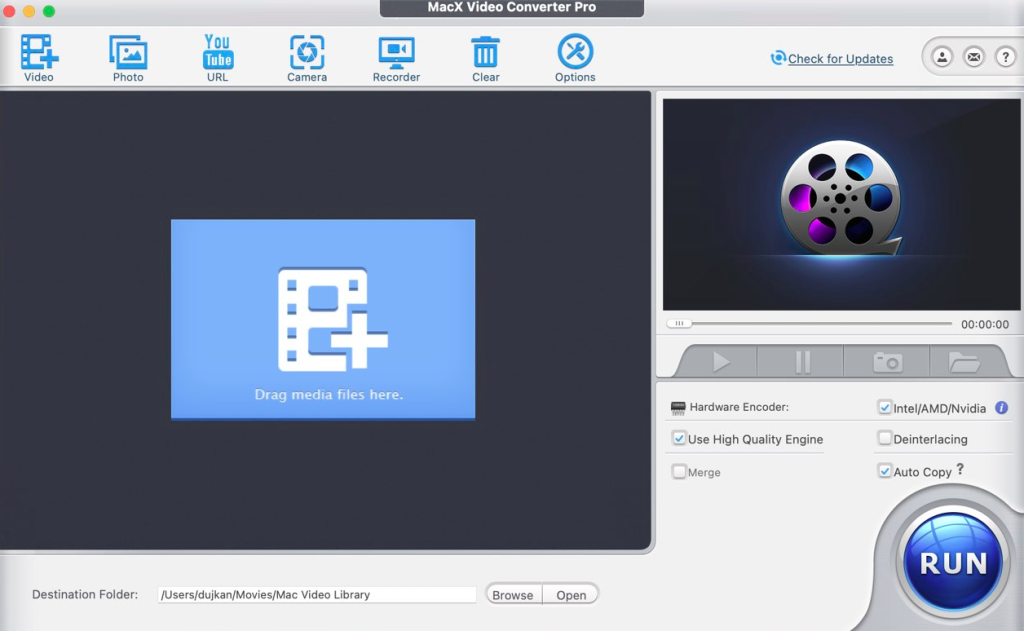
If your VOB videos are already stored on your Mac, converting them to MOV is easy and can be done entirely within macOS for free. Follow the steps below to turn your VOB files into the widely compatible MOV format. MacX Video Converter Free makes it simple to convert VOB files on your Mac without any complicated setup. Want to know how? Let me guide you through the process.
Step 1. Launch MacX Video Converter Free, then click the “Add File” icon in the top-left corner. Browse your Mac to locate the VOB file you want to convert.
Step 2. Choose the output format. In the output preset window, select MOV Video as your target format.
Step 3. Click the “RUN” button at the bottom-right corner. The software will start converting your VOB file to MOV and save it directly to your Mac.

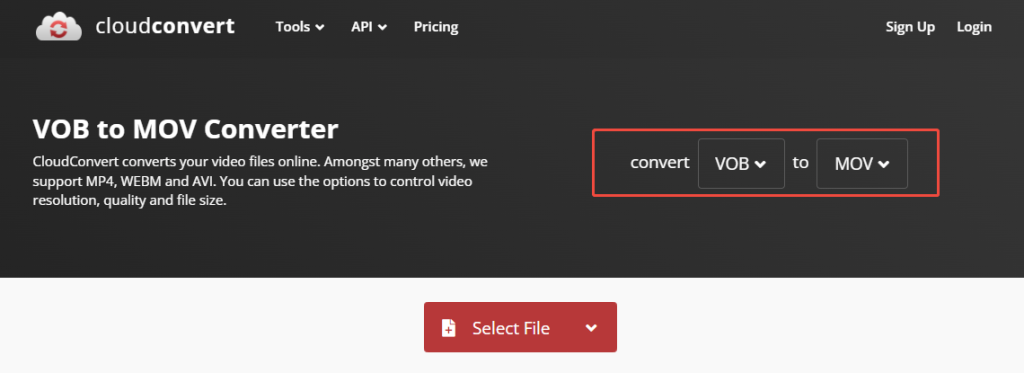
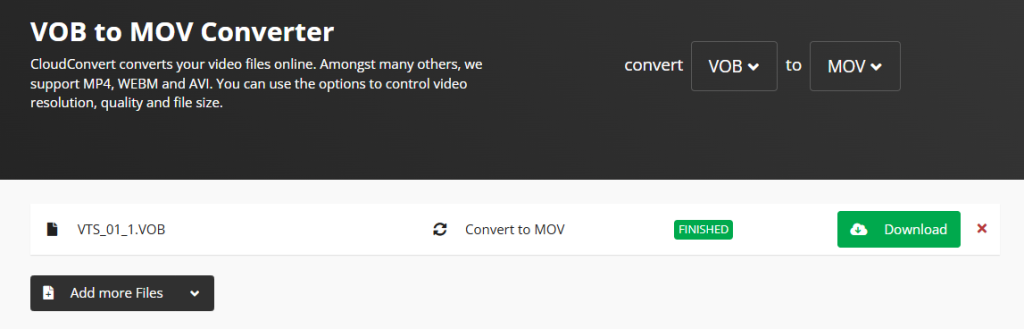
With CloudConvert, you can convert VOB files to MOV directly in the cloud, supporting high-quality output without installing any software. You can also adjust the video codec or trim the video before conversion if needed. Now, follow the steps below to use this online VOB to MOV converter:
Step 1. Open your browser on your computer and go to the CloudConvert website.
Step 2. In the conversion settings at the top of the page, set the input format to VOB and the output format to MOV using the dropdown menus. Then, click the red “Select File” button.

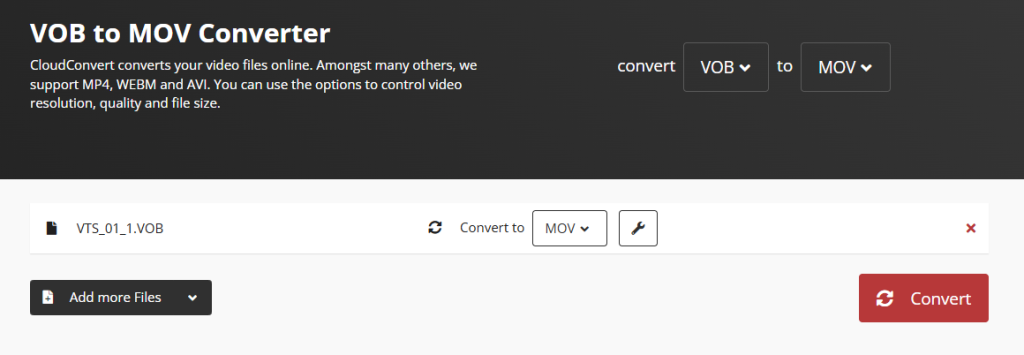
Step 3. In the file browser window, locate and select the VOB file you want to convert.
Step 4. Wait for the file to finish uploading and click the red “Convert” button to start the conversion process.

Step 5. When the conversion is finished, and the page shows “Finished”, click the green “Download” button to save your MOV video to your PC or Mac computer.

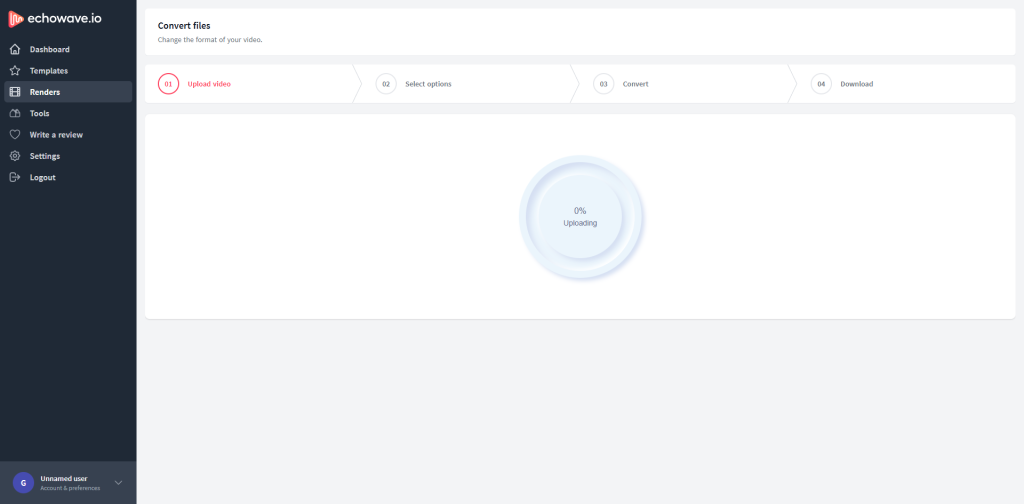
Apart from CloudConvert, you can also use EchoWave to convert VOB videos directly in your browser. Similar to CloudConvert, EchoWave is a convenient online VOB converter that lets you edit and convert media files without installing any software.
To convert VOB to MOV using EchoWave, follow these steps:
Step 1. Open your browser on your computer and prepare the VOB file you want to convert.
Step 2. Go to the EchoWave website and sign up or log in to your account.
Step 3. Click “Create New Video” or “Upload” on the main page.
Step 4. In the file selection window, locate your VOB file and upload it, then drag it onto the timeline at the bottom of the editor.
Step 5. Click the “Export” button at the top-right corner of the interface.
Step 6. Follow the on-screen instructions, select “MOV” as the output format, confirm the resolution, and click “Export Video.”
Step 7. Once rendering is complete, a download option will appear, and you can save the MOV video directly to your computer.

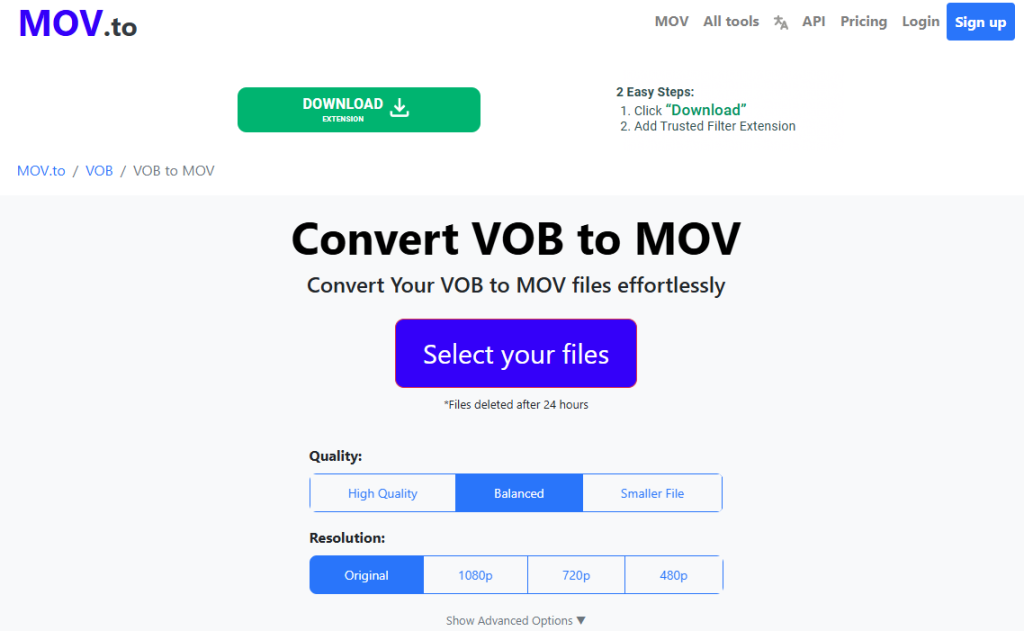
In this section, we’ll introduce another online video conversion tool - Mov.to. To be honest, most of these online VOB to MOV converters work in a very similar way, so you can just pick the one that suits you best.
Here’s how to convert VOB to MOV using Mov.to:
Step 1. Browse your computer and locate the VOB video you want to convert.
Step 2. Make sure the file path is correct and that the video is complete and readable.
Step 3. Go to the Mov.to website and click “Select your files” in the center of the page and upload your VOB file.
Step 4. Once the conversion is complete, click the “Download” button to save the MOV video to your computer.

If you failed to convert VOB to MOV, or the resulting video has poor quality or audio-video sync issues, here are some steps you can take:
Generally speaking, we recommend TopBurn AI because it strikes an excellent balance between conversion speed and video quality. Compared to TopBurn AI, the other online tools or free software are often limited by file size or network conditions. Choose the method that best fits your needs. I sincerely hope this guide is helpful and makes your VOB to MOV conversion much easier. You are welcome to reach out through the official support channels if you have any further questions or concerns about this guide.
Conversion may slightly affect quality depending on settings, but using high-quality converters and proper parameters minimizes loss.
Most reputable online converters are generally safe, but you still need to be cautious. Uploading files means your data goes through third-party servers, so avoid converting sensitive or confidential videos online. Also, be careful of misleading ads or pop-ups that may contain malware.
If you have many VOB files to convert, online VOB converters are usually inefficient and have limitations. I recommend using desktop software that supports batch conversion, such as TopBurn AI. Simply select all your files, insert your DVD drive, and start the batch conversion with one click to save time.