Multimedia Tools
Video Tools
Audio Tools

Image tools
Record and Edit Porfessional Videos on Mac
Windows Desktop Screen Recording Software
Easy and Fast Way to Compress Video and GIF
Screen Mirroring App for iPhone/Android/PC/Pad
All-in-one video toolkit that supports converting over 1000+ formats
Portable audio format converter, which supports common audio format conversion, multiple audio merging, audio compression, audio segmentation, and one click batch conversion of audio formats
Cut, copy, paste, insert audio, add effects and other editing functions, which can easily re edit the recorded audio files and make ringtones, adding a unique personality to your life.
Karaoke Maker and Vocal Extractor on Mac
Extract vocals and instrumentals from any audio and video track with the latest AI technology.
Best Voice Recording Software for All Windows Users
Convert Audio/Video to MP3/WAV/FLAC/OGG

Utilities
Office Utilities
Simple and powerful office solution for file compression, extraction, transferring, and sharing. Easily to process multiple files in seconds!
A powerful, simple and easy to operate PDF to word converter, which supports the conversion between PDF documents and multiple formats such as doc, ppt, pictures and txt documents; The software has the functions of fast conversion, batch conversion, high-quality identification, etc
Burn music, video, and data discs in one-click
Fast Way to Reduce Your File Size
The best and perfect tool to convert various ebook files with ease.
Convert Videos, Audios, Images, PDFs, and Word with Ease
Seamless Conversion for PDF to JPG & JPG to PDF
Shrink size of PDFs, images, and videos without losing quality
Extract & Manage & Compress Files in Seconds
System & Recovery
{{ postData.top_advertising_product.g_name }}
When it comes to converting MP4 videos to ISO files, I guess you’re aiming for a high-quality, disc-ready result that can be burned directly. That’s easy to achieve, and there are plenty of MP4 to ISO tools available on the market.
In addition to using standard video converters to turn MP4 into ISO, you can also rely on some DVD burning software, which is as easy to use as common conversion tools. Let’s dive in!
You May Also Like: How to Make a Bootable DVD from ISO
If you only want to play videos on your computer or mobile device, a standard MP4 file may be enough. But when it comes to simulating a disc playback experience, creating a burnable DVD image, or preserving a full menu structure, regular video formats often fall short. Most don’t support complex navigation menus, or can’t be used directly for burning to a physical disc.
This is where an ISO image file or disc image format comes in. Whether you’re a home video enthusiast organizing your MP4s into a DVD image with menus, or a data archivist backing up large amounts of data as a single file for easy disc burning, a reliable ISO file can preserve the original disc structure and simplify storage and distribution.
Using professional DVD burning software is a clever choice if you want to convert MP4 to ISO files safely and efficiently, especially when you need a bootable or disc image.
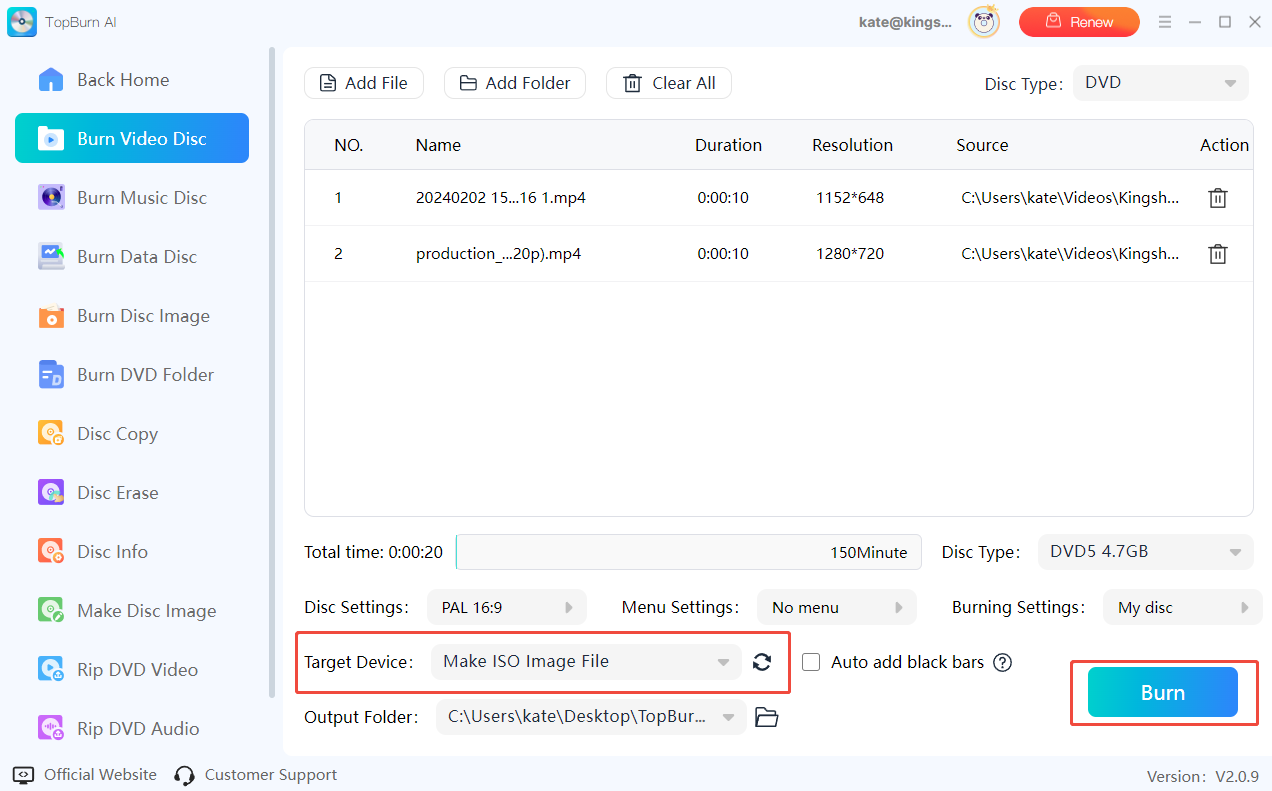
We highly recommend you download TopBurn AI; it’s a reliable MP4 to ISO converter that can quickly package your videos into a standard ISO image while preserving original quality.
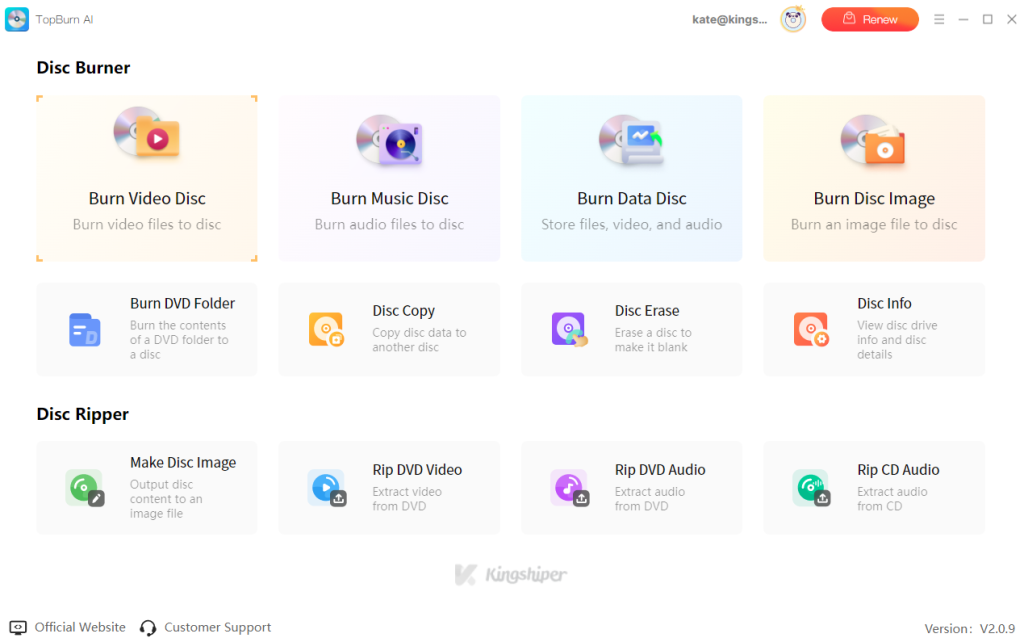
No matter whether your videos are MP4, MKV, AVI, or other formats, TopBurn AI can help you convert them to ISO easily. It also supports creating DVD folders and other disc formats.
More importantly, its advanced AI processing technology quickly analyzes and converts video files, ensuring the ISO image maintains the original video quality. It’s designed for home theaters, data backup, and disc production, creating ISO files with excellent compatibility.
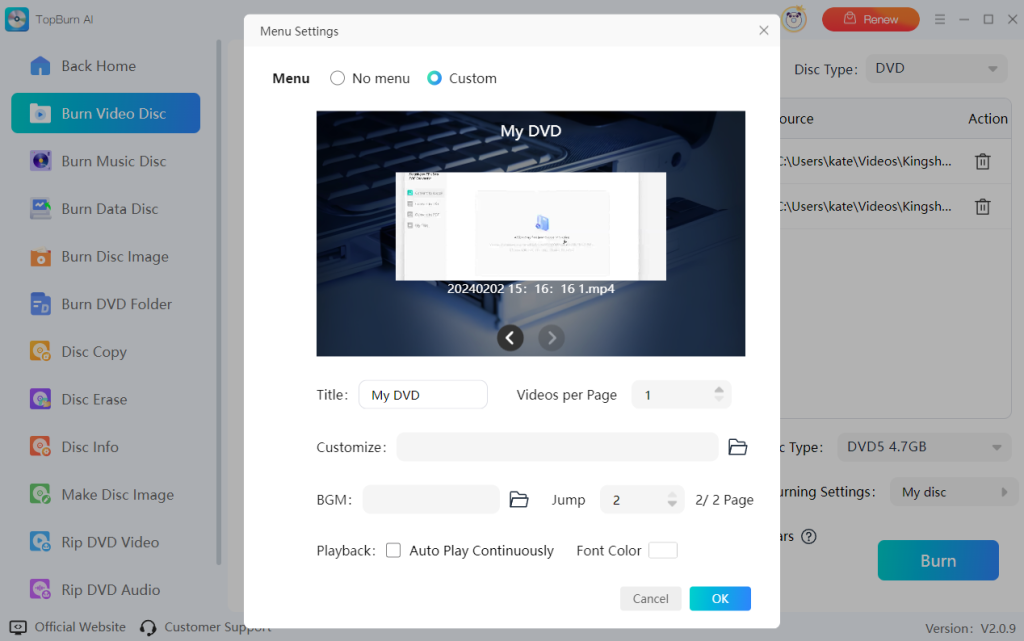
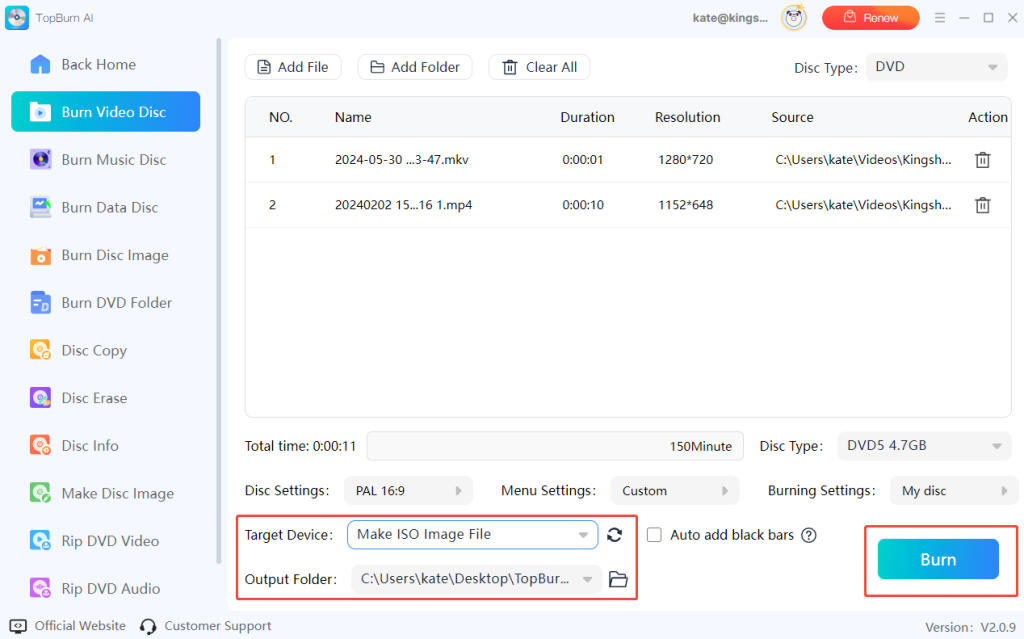
TopBurn AI uses intelligent AI algorithms to optimize video conversion and maintain high-quality output, making it perfect for personal or professional disc creation. Now, check the following guide to convert MP4 to ISO:


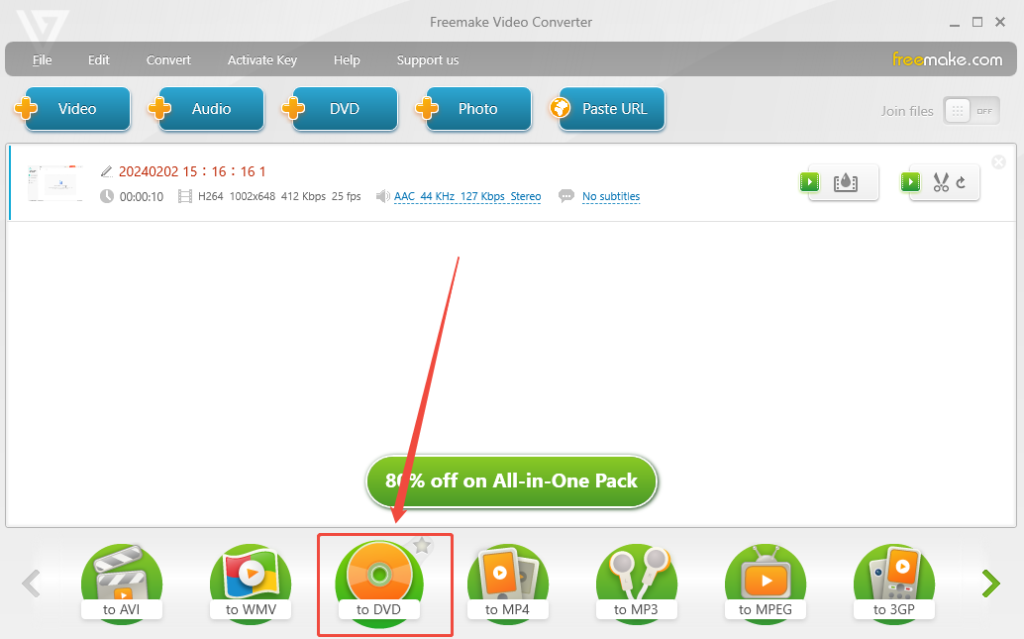
The second way to convert MP4 to ISO without using professional DVD burning software is to use the “to DVD” option in Freemake Video Converter. This feature allows you to create a DVD disc structure from an MP4 video and then save it as an ISO image file on your computer.
Here’s how to convert MP4 to ISO on your Windows PC:
Step 1. Download and open Freemake Video Converter on your PC.
Step 2. Find the MP4 video you want to convert. Click the “+ Video” button in the top-left corner of the interface and import the file into the program.

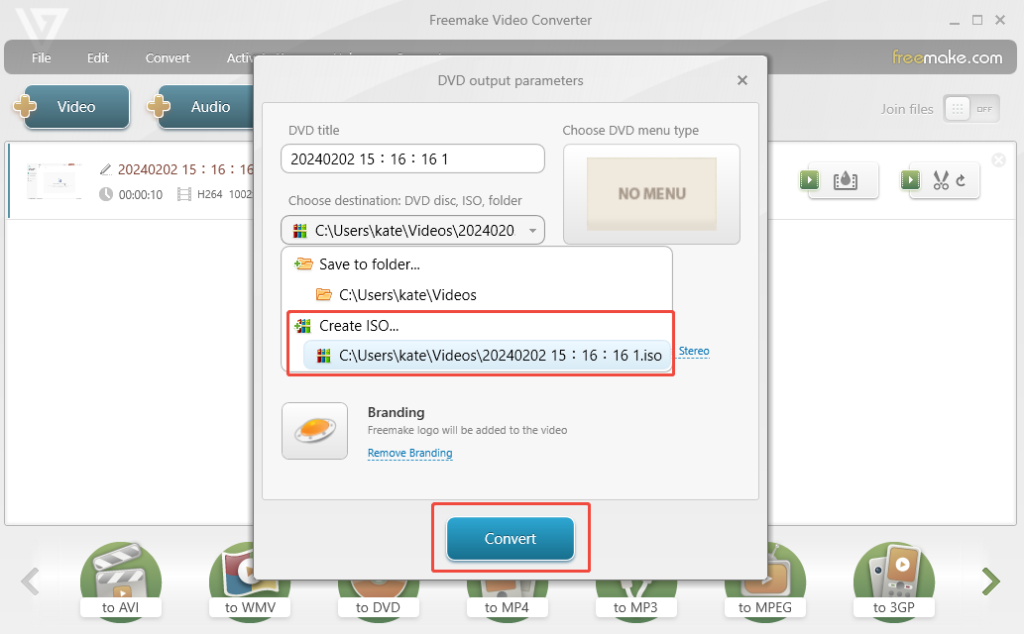
Step 3. In the format bar at the bottom, click the “to DVD” icon. In the pop-up output settings window, open the drop-down menu and change the Destination to “Create ISO.”

Step 4. Confirm the save location for the ISO file, then click “Convert.” Then, it will start processing the video. Once the progress bar finishes, the ISO image file will be saved to your computer.

Apart from desktop software, there are many online file converters you can choose from. Online tools are convenient since they don’t require downloading or installing any software. You can convert MP4 to ISO files directly in a web browser and save them to your PC or laptop with ease.
However, online MP4 converters have their own drawbacks compared to desktop applications, for example:
Therefore, if you still prefer to convert MP4 to ISO online via Chrome, you should carefully pick an online converter that is trustworthy.
Let me take Converter365 as an example:
To convert MP4 to ISO online:
Step 1. On your computer, open a browser and go to the Converter365 website.
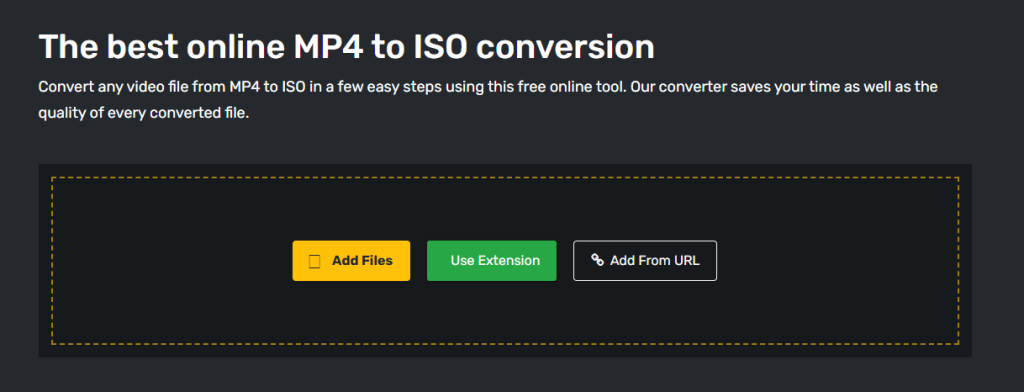
Step 2. Click “Add Files” to upload the MP4 video you want to convert, or drag and drop the file onto the page.

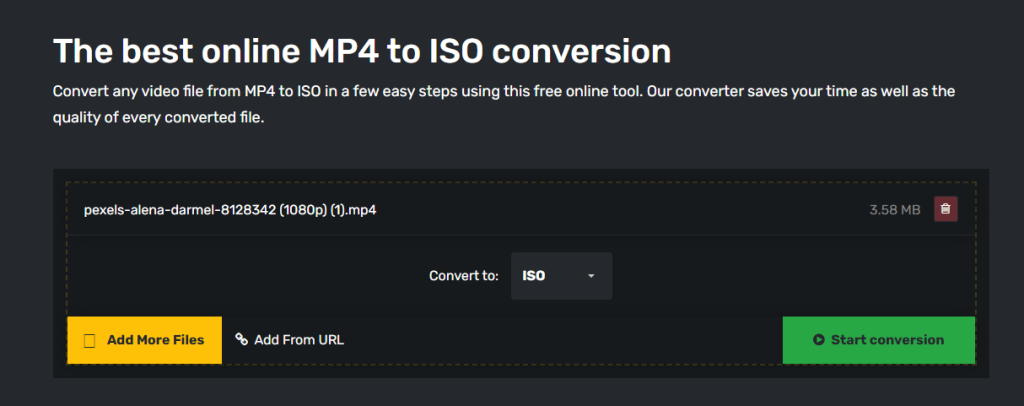
Step 3. Select “ISO” as the output format, then click “Start conversion.”

Step 4. Once the conversion is complete, click the “Download” button to save the ISO file to your computer.
Taking a careful and proactive approach to your source videos and conversion settings can help you avoid conversion failures or quality loss. Here are some tips you can follow to improve the success rate and output quality when converting MP4 to ISO:
Make Sure There Is Enough Disk Space. Before starting the conversion, always check the available free space on your target drive. ISO image files, especially high-quality DVD ISOs with menus, can be quite large, and the conversion process also requires temporary cache space. Ensuring sufficient disk space can prevent errors caused by a “disk full” issue midway through the process.
Choose the Correct TV Standard (NTSC or PAL). Select the TV standard based on the playback devices in your region (for example, NTSC for North America and Japan, PAL for Europe and China). This helps ensure the generated ISO plays smoothly after being burned to a DVD, avoiding issues like black-and-white playback or screen flickering.
Preview the Menu and Video Before Converting. The safest practice is to use the software’s preview feature. Before starting conversion, carefully review the DVD menu and video aspect ratio. Even if the source MP4 file is fine, previewing can help you catch issues such as missing subtitles or audio sync problems early, saving you time on redoing the conversion.
There are three ways in this article to convert MP4 videos to ISO files. Choosing an online converter or desktop software depends on your personal needs. Online converters are suitable for quick and simple conversions. DVD burning software, like TopBurn AI, is better for users who need more stability, custom DVD menus, or efficient handling of large files.
These are the most frequently asked questions about converting MP4 to ISO on PC.
The size of an ISO image depends on the type of disc and video quality. A standard DVD (DVD-5) ISO is limited to 4.7 GB, while a dual-layer DVD (DVD-9) ISO can reach up to 8.5 GB.
Yes, tools like TopBurn AI let you design personalized navigation menus and add background music. However, some simple online converters may produce ISO files without menus, which is fine if you just need a quick backup.
No, the video quality cannot be altered after the ISO is created. The only way is to delete the original ISO, adjust the bitrate of the source MP4, and convert it again to generate a new ISO file.
There are plenty of ways to do it. You can mount the ISO using a virtual drive. Built-in features in Windows 10/11 allow direct opening of ISO files. You can also use third-party players like VLC or PotPlayer to play the ISO image directly.