Got it

{{ postData.top_advertising_product.g_name }}

Windows
Buy Now

Top 3 Ways to Convert DVD to MPEG in 2026 (Updated)

Preface: This is an UPDATE on all the DVD ripping software mentioned in our articles, including free DVD rippers and professional MPEG conversion tools.

When talking about converting DVDs to digital formats, you might list some classic, well-known software. For most users, ripping DVDs is still a practical choice for archiving or playback, making it easy to watch disc content anytime on a computer or TV. Here is the thing: by 2026, as physical disc drives continue to fade out and streaming fully takes over, many once-reliable DVD converters will have stopped updating or no longer work with the latest operating systems.

We honestly did not expect a high-quality DVD to MPEG converter to survive. However, up to now, there are still three survivors; let’s see!

✅ Our Selection:
● TopBurn AI: An intelligent DVD and CD burning and ripping software that not only converts formats but also uses AI to enhance the quality of old discs. It also supports disc erasing, copying, and other handy functions.
● ConvertFiles: A free online DVD to MPEG converter, perfect for quickly converting small VOB files without installing any software, ideal for temporary needs.
● 4Easysoft DVD Ripper: A professional desktop program that can bypass copy protection and convert commercial DVDs to high-quality MPEG files with ease.

TopBurn AI

Official

Download

What is MPEG Digital Video Format

MPEG, or Moving Picture Experts Group, is a set of standards for audio and video compression widely used for digital video files. The most common MPEG variants are MPEG-1, MPEG-2, and MPEG-4, each offering different balances of quality and file size. MPEG-2 is the format used for DVD video, making it a natural choice for conversion, while MPEG-4 offers better compression and compatibility with modern devices.

MPEG formats are popular due to their efficient compression algorithms that maintain high video quality while reducing file size. Compared to other formats like AVI or WMV, MPEG files are more universally supported and easier to stream or edit. Recent advancements in MPEG standards continue to improve video quality and compression efficiency, making MPEG an excellent format for digital preservation and playback.

Method 1. Use TopBurn AI to Convert DVD to MPEG

✅ Pros: AI-powered video enhancement, automated, and beginner-friendly

❌ Cons: Supports Windows 7/8/10/11 only

One of the easiest ways to convert old DVDs with low video quality into clear MPEG files is to use a tool with built-in AI enhancement. Instead of just changing the format, this method also improves the overall image quality, making your DVD videos look sharper and more modern. Don’t worry, you don’t need to deal with complex settings. A smart DVD digitization tool like TopBurn AI can handle everything from disc detection to final conversion with minimal effort.

TopBurn AI

Official

Download

To convert your DVD to MPEG, follow these steps:

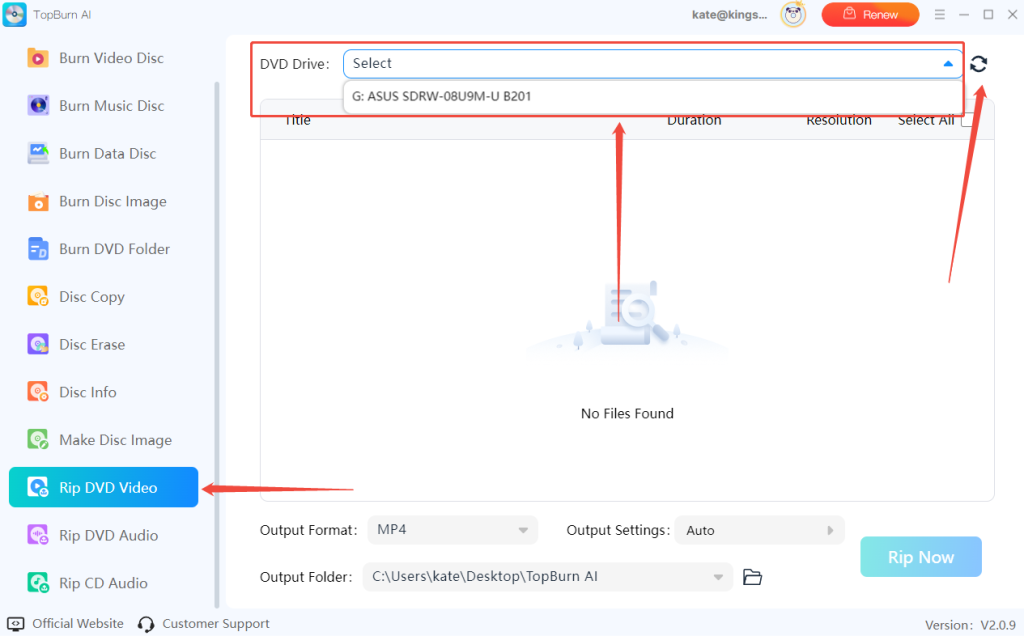
Step 1. Launch TopBurn AI and select “Rip DVD Video”. And then it will automatically detect your DVD disc. If it doesn’t appear, click the “Refresh” button on the far right of the DVD Drive section at the top.

select-dvd-drive

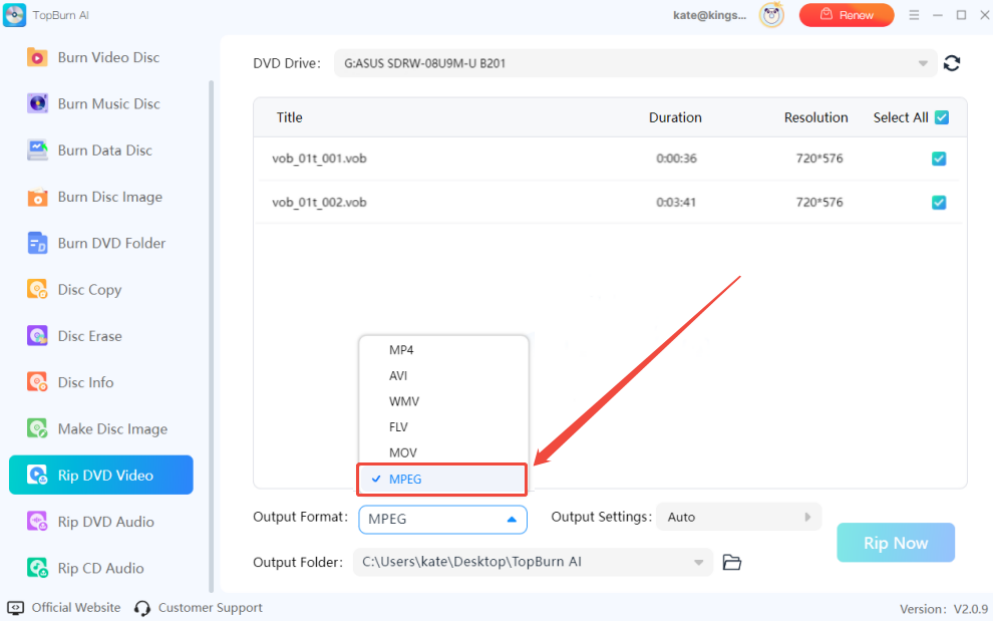
Step 2. In the “Output Format” section at the bottom, choose “MPEG” from the drop-down menu. You can also adjust settings such as “Resolution” and “Frame Rate” under “Output Settings” if needed.

select-convert-dvd-to-mpeg-topburn

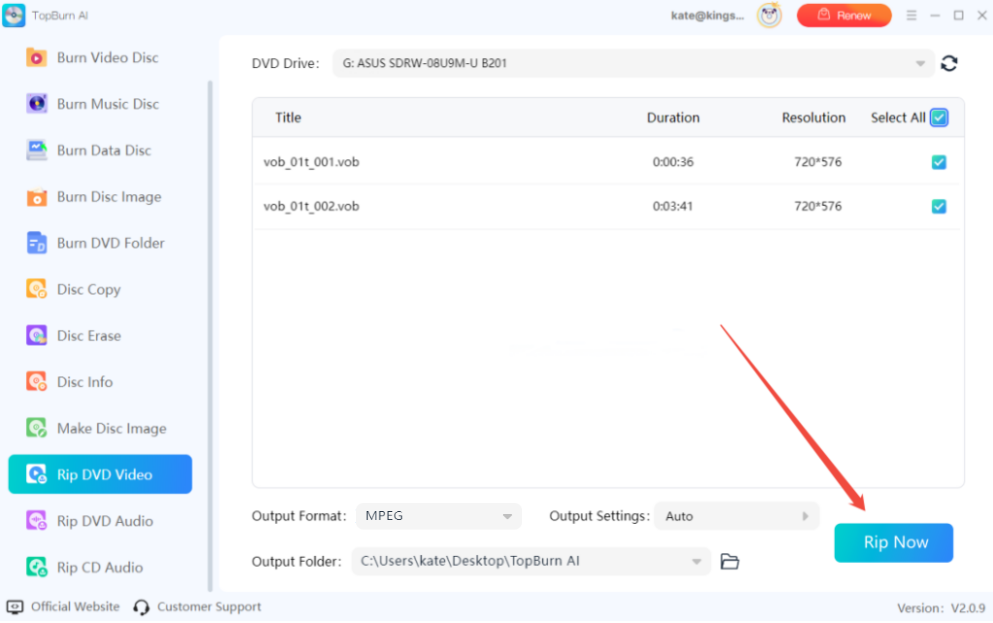
Step 3. Set the save location in the Output Folder, then click “Rip Now” and wait for the progress bar to finish. Once completed, click “Output Folder” to view the converted file.

rip-dvd-topburn

Step 4. Play the converted MPEG video on your preferred device or media player and enjoy.

Method 2. Use Free Online VOB to MPEG Converter

When to use: occasional or urgent conversions, don’t want to install software, stable internet connection

If you don’t want to install a large desktop program just to convert one or two VOB files, there’s a quick and convenient workaround: use an online tool like ConvertFiles. This method handles all the conversions on cloud servers, saving your hard drive space and letting you get MPEG files anytime, anywhere.

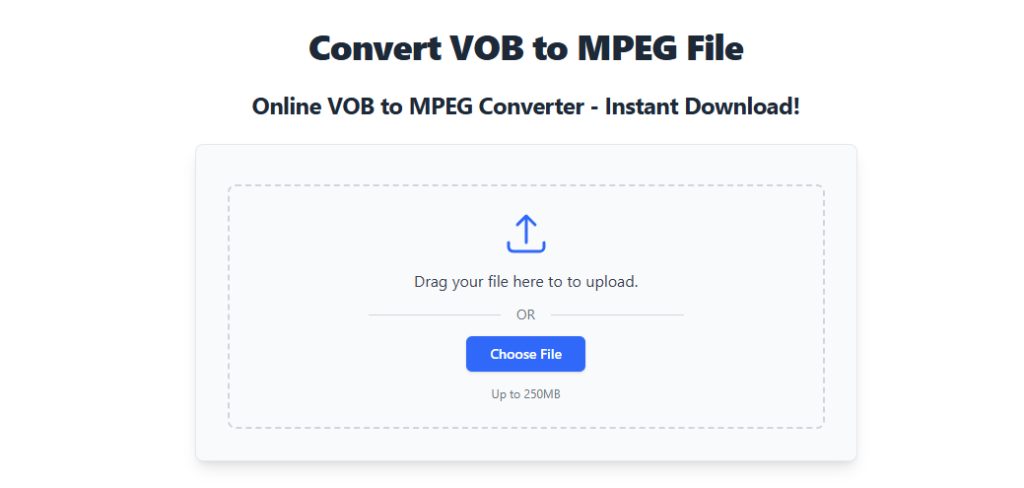
Step 1. Open the ConvertFiles VOB to MPEG page in your browser, click the blue “Choose File” button, and select your VOB file from your computer.

convert-vob-to-mpeg-online

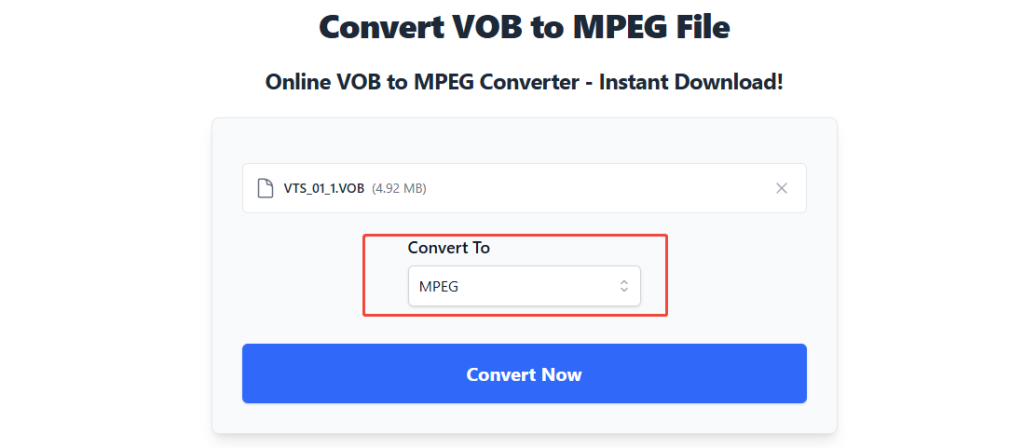
Step 2. Make sure “Convert To” is set to MPEG, then click the blue “Convert Now” button.

convert-vob-to-mpeg-online-2

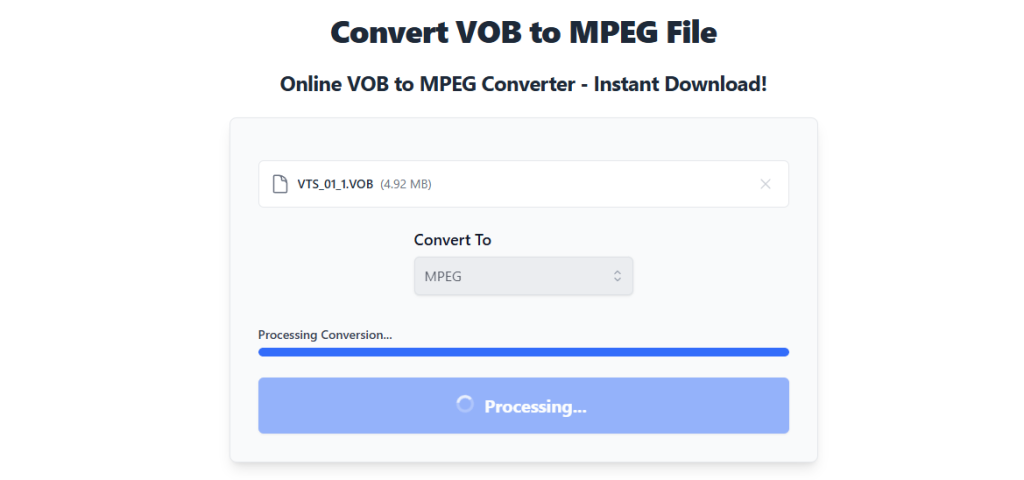
Step 3. Wait for the upload and conversion to finish. Once the page refreshes, click the download link to save the MPEG file to your device.

convert-vob-to-mpeg-online-3

Notice:

● Make sure your VOB file is within the website’s size limit (usually under 250MB)
● Keep the webpage open until the conversion is complete
● Use Wi-Fi to avoid consuming mobile data
● Avoid uploading sensitive or private videos to online tools

Method 3. Use 4Easysoft DVD Ripper to Convert DVD

Common issues: CSS encryption, region code restrictions, disc read errors

If you need to convert commercial DVDs that are copy-protected, using a tool like 4Easysoft DVD Ripper is the most reliable solution. It can easily bypass DVD protections and convert your discs into high-quality MPEG files without hassle.

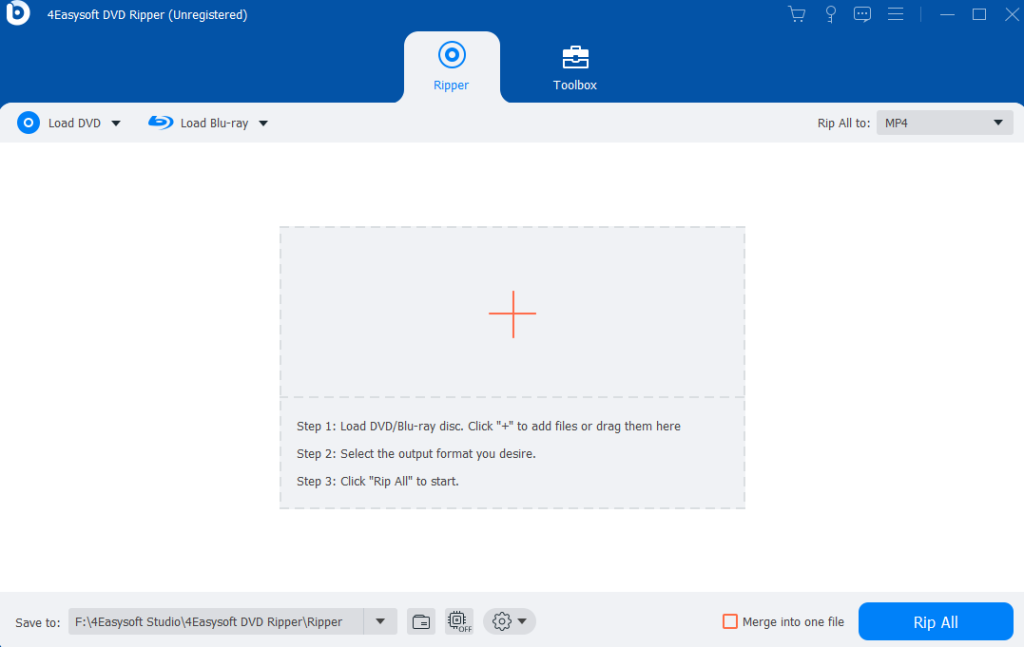
Step 1. Launch 4Easysoft DVD Ripper and click “Load Disc” to import your DVD source.

Step 2. Click the Format Icon on the right to open the output configuration menu.

Step 3. Select “MPEG” from the video list and adjust settings as needed, such as keeping the original quality or cropping the video.

Step 4. Click “Rip All” to start the conversion. Once finished, your MPEG video will be ready to use.

4easysoft-convert-dvd-to-mpeg

Legal and Ethical Considerations When Ripping DVDs

Ripping DVDs involves legal considerations, especially regarding copyright protection. Many commercial DVDs include copy protection mechanisms that restrict unauthorized copying. It is important to adhere to copyright laws and use DVD to MPEG conversion for personal use, such as backing up legally owned DVDs.

Fair use policies vary by region, so users should familiarize themselves with local laws before converting protected DVDs. Avoid distributing converted content to respect intellectual property rights.

Bonus: What to Do After DVD to MPEG Conversion

After converting DVDs to MPEG, you can:

  • Edit videos using video editing software.
  • Upload content to streaming platforms or share with friends.
  • Store digital backups to prevent data loss from DVD damage.
  • Play MPEG files on various devices, including smartphones, tablets, and smart TVs.
  • Organizing your digital library with clear file names and metadata improves accessibility and management.

Final Words

Converting DVDs to MPEG is straightforward but requires some skill to perfectly preserve video quality. With the tools outlined in this article, you can quickly get clear MPEG videos from any DVD. Each tool has its own advantages and limitations, so choose the one that best fits your needs.

Among them, TopBurn AI stands out for its intelligent AI enhancement and automated workflow, which is good for restoring old discs. Get started with it now!

FAQs about DVD to MPEG Converter

If you have further questions or queries, this section will help. Here are some frequently asked questions about converting DVDs to MPEG format.

Q1: Can I convert DVDs to MPEG for free?

In many cases, yes. You can use ConvertFiles, which lets you convert DVDs to MPEG at no cost. However, keep in mind some caveats, including file size limits, slow upload speeds, and occasional conversion failures reported by users.

Q2: How long does it take to convert a DVD to MPEG?

It depends on the tool you use. TopBurn AI is an advanced program that supports GPU hardware acceleration. In real tests, converting a standard-length movie usually takes 5 to 10 minutes. Using older devices or online conversion tools, however, can take an hour or more, and the process is heavily influenced by internet speed.

Q3: Is converting DVDs to MPEG legal?

It depends on the laws in your country or region. Generally, converting DVDs you legally own for personal backup purposes is tolerated in many places. However, you must comply with copyright laws and avoid bypassing DRM protections for commercial gain or online distribution.

Latest Articles