Got it

{{ postData.top_advertising_product.g_name }}

Windows
Buy Now

Convert CD to WAV in 3 Free Ways (2025)

There are multiple ways to help convert a CD to WAV, with audio quality ranging from standard MP3 to lossless WAV.
This article shares ways to extract CD audio to a PC or a laptop.
The best way to convert a CD to WAV is by using a versatile CD ripping and extraction program:
Step 1. Download and open TopBurn AI, select the “Rip CD Audio” feature, and set the output format to WAV.
Step 2. Insert the CD into your computer’s drive, and it will automatically read the disc contents.
Step 3. Click “Rip Now” to begin the conversion.
TopBurn-AI-CD-to-WAV-Screenshot

Method 1. How to Convert CD to WAV with TopBurn AI

In order to obtain the purest audio quality and avoid compression loss when converting CDs to digital files, we highly recommend extracting CD audio with TopBurn AI within 3 simple steps.

This versatile audio processing program enables you to accurately extract WAV audio files from physical CDs for various purposes, such as backing up music collections, building a lossless audio library, digitizing discs, creating car music playlists, or rescuing audio from old or damaged CDs.

Key Features of TopBurn AI:

  • Support converting CDs to multiple audio formats, such as CD to WAV, CD to MP3, and CD to FLAC.
  • Support CD/DVD reading and burning on Windows 7/8/10/11 systems.
  • Handle audio processing in multiple scenarios, including batch ripping, automatic metadata matching, volume normalization, and seamless track merging.

TopBurn AI

Official

Download

Take the steps below to convert a CD to WAV format:

Step 1Load the CD and select the source drive

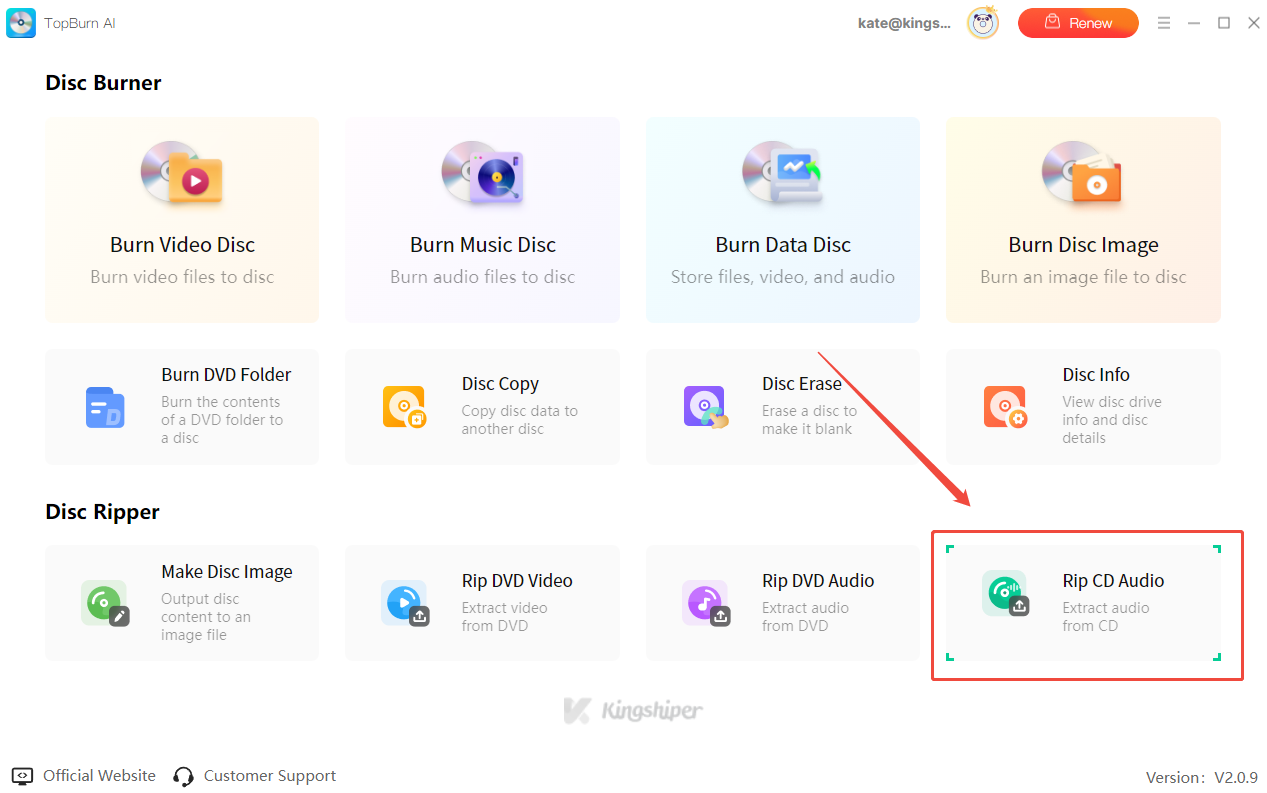
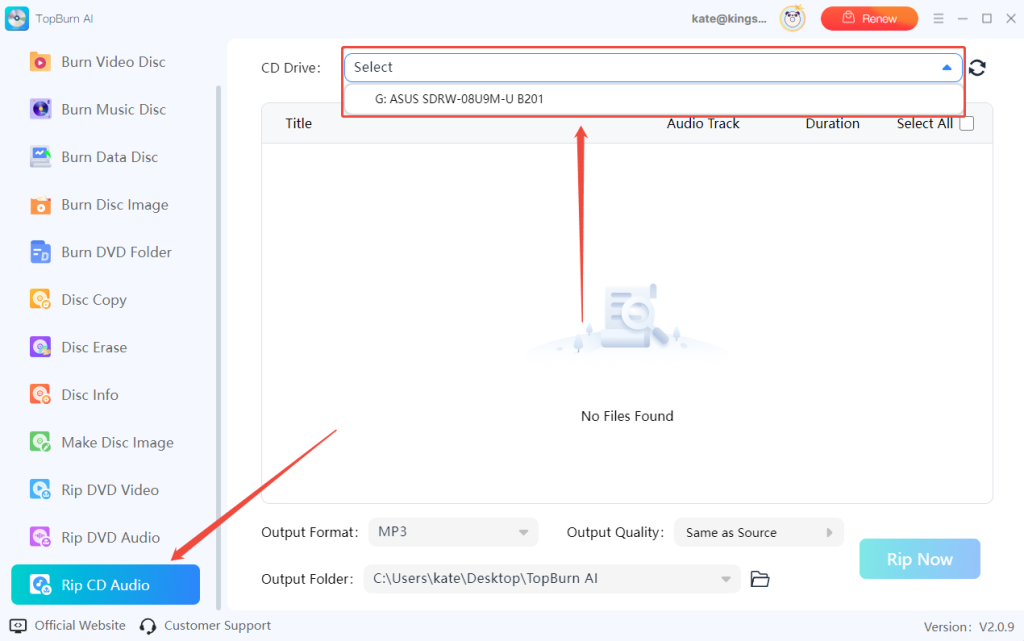
Make sure the CD is inserted into your computer’s disc drive. Launch TopBurn AI and click “Rip CD Audio”. The software will automatically detect the disc and display it under CD Drive.

If the disc drive is not shown, click the “Refresh” icon on the right side of the CD Drive, select the correct drive letter from the drop-down list, and wait for the disc to load.

rip-cd-audio-topburn-ai

Step 2Set the output format and preview audio tracks

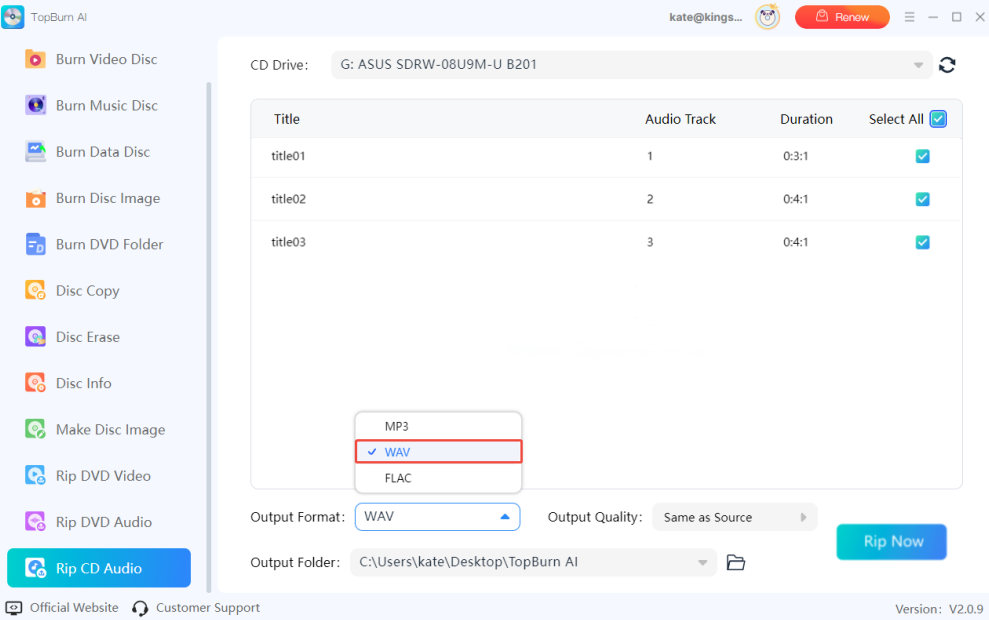
After the disc is successfully read, all available audio tracks on the CD will be displayed. Click “Output Format” at the bottom of the interface and select “WAV” format to ensure lossless audio quality.

set-wav-output-format-topburn-ai

Step 3Convert CD to WAV

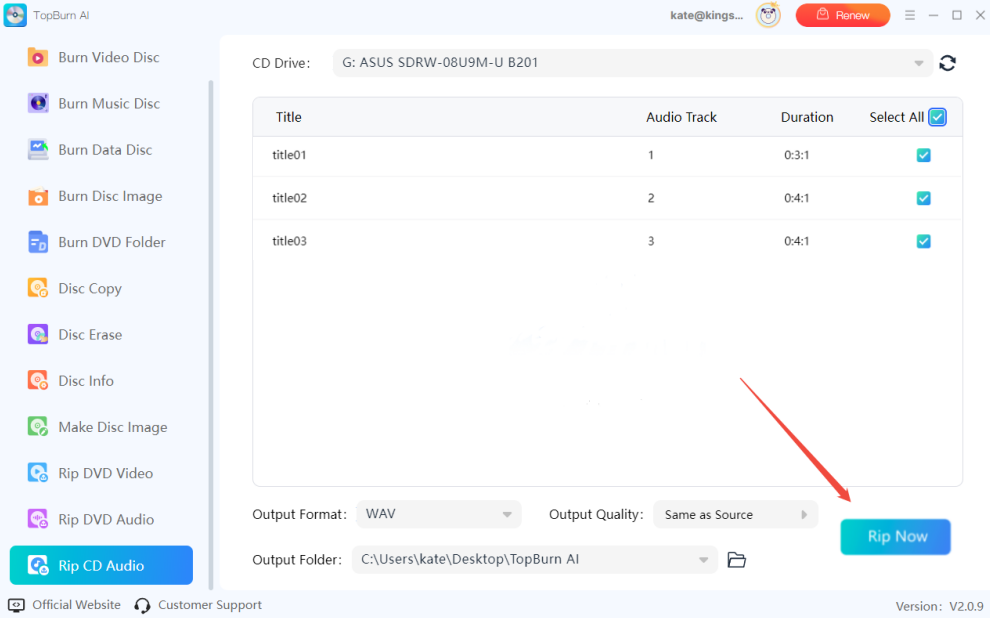
Select the audio tracks you want to extract and click “Rip Now” to start the conversion process.

convert-cd-to-wav-topburn-ai

Method 2. How to Convert CD to WAV with Windows Media Player

If you don’t want to install extra software, you can convert a CD to WAV using Windows Media Player. To extract audio from a CD and save it as WAV files, follow the steps below.

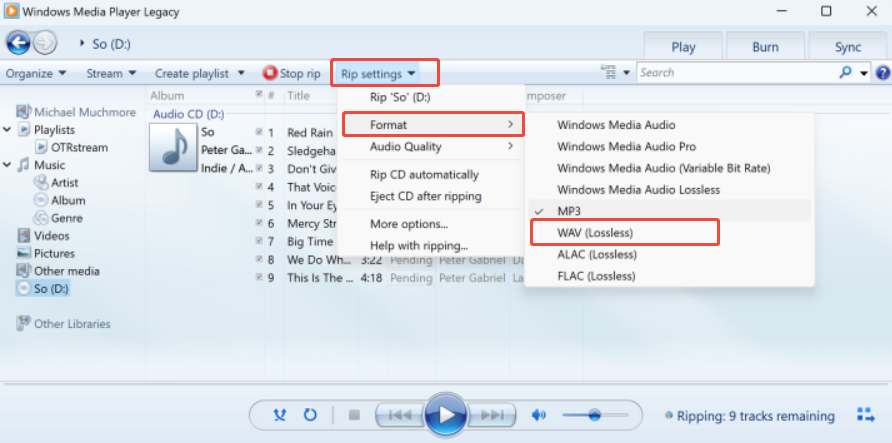
Step 1. Open Windows Media Player, click “Rip settings”, select “Format”, and choose “WAV (Lossless)”.

windows-media-player

Step 2. Make sure the CD is detected, then select the tracks you want to extract. By default, all tracks are selected. Click “Rip CD” to start the process.

Step 3. After the conversion is complete, you can find and use the WAV audio files in the default Music folder as normal.

Method 3. How to Convert CD to WAV with FFmpeg

Another way to convert a CD to WAV is by using FFmpeg. This command-line multimedia tool allows you to transcode CD audio tracks to WAV with precision. What's more, you can adjust parameters freely before pressing Enter, making the process more flexible and professional. FFmpeg also offers many powerful features that can greatly improve audio and video processing.

  • Convert between various audio and video formats losslessly
  • Record or capture media on Windows, macOS, and Linux
  • Extract audio from video streams using simple commands
  • Batch process media files or adjust sample rates

How to Convert CD to WAV with FFmpeg:

Step 1. Insert the CD into your drive, open CMD (Windows) or Terminal (macOS/Linux), and confirm the CD drive letter or device path.

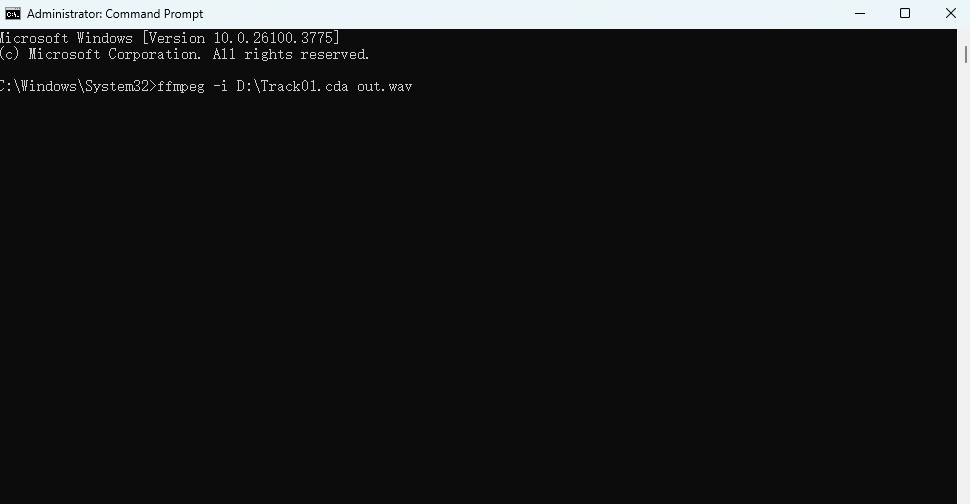
Step 2. Enter the FFmpeg command with the input source, for example: “ffmpeg -i D:\Track01.cda out.wav”. Set the output format to WAV and adjust the sample rate if needed.

ffmpeg-convert-cd-to-wav

Step 3. Check the command-line feedback to ensure the program can read the CD drive and prepare to transcode the audio to WAV.

Step 4. Press “Enter” to start the conversion. Monitor the progress in the command-line log until FFmpeg completes converting the CD tracks to WAV files.

Have you tried the above methods to convert a CD to WAV? If this post is helpful, feel free to share it on Twitter, Facebook, Instagram, etc.

Alternatives to WAV: When and Why to Consider Other Formats

WAV files typically refer to uncompressed audio files where every sample retains the original audio data. This format is known for its high fidelity and is commonly used in professional recording, audio editing, and production scenarios. However, depending on storage space, compatibility, or intended use, you may want to consider other audio formats, such as MP3, FLAC, ALAC, and AAC.

In other words, choosing an audio format depends on the scenario and purpose. Different formats have different characteristics:

  • MP3: Lossy compression, smaller file size, widely compatible, suitable for everyday playback and online sharing.
  • FLAC: Lossless compression, preserves full audio quality, smaller than WAV, ideal for music collection and high-fidelity playback.
  • ALAC: Apple’s lossless audio format, suitable for Apple ecosystem users, balancing quality and storage.
  • AAC: Lossy compression, better sound quality than MP3 at the same bitrate, commonly used for streaming and mobile devices.

You may consider these alternative formats when you want to save storage space while preserving audio quality, or need to play audio across multiple devices and platforms. Understanding the advantages and limitations of each format can help you make the best choice for your needs.

Legal and Ethical Considerations of CD Ripping

Ripping CDs for personal use is generally legal under fair use in many regions, but distributing ripped content may violate copyright laws. Always ensure compliance with local regulations and respect intellectual property rights.

The Bottom Line

This article has provided you with multiple solutions to extract audio from a CD and convert it to WAV. Try them according to your needs. If you still have any issues, never hesitate to contact us.

TopBurn AI

Official

Download

How to Convert CD to WAV FAQs

Here are some hot topics and questions that most people ask. You can get extra tips through these questions and answers. Read on to get additional help.

Q1. Does converting CD to WAV lose quality?

No. Converting a CD to WAV does not reduce audio quality or remove any details. WAV is a lossless format, so the extracted audio is identical to the original CD.

The only exception is when the CD is physically damaged (for example, scratches, heavy wear, or disc rot). In those cases, read errors may cause skips or noise in the output file. Under normal conditions, the quality remains 100% intact.

Q2. What is the best free CD to WAV converter?

The best option depends on your needs:

TopBurn AI - Best if you want fast ripping speed and a modern, easy-to-use interface.

Windows Media Player - A good choice if you don’t want to install extra software and just need basic CD ripping.

FFmpeg - Ideal for advanced users who need batch processing or custom audio parameters.

Q3. Can I convert CDA files to WAV without the original CD?

No. CDA files do not contain actual audio data. They only store index or track reference information.

To convert CD audio to WAV, you must insert the original CD into a disc drive so the software can read the audio tracks and extract them properly.

Latest Articles