Multimedia Tools
Video Tools
Audio Tools

Image tools
Record and Edit Porfessional Videos on Mac
Windows Desktop Screen Recording Software
Easy and Fast Way to Compress Video and GIF
Screen Mirroring App for iPhone/Android/PC/Pad
All-in-one video toolkit that supports converting over 1000+ formats
Portable audio format converter, which supports common audio format conversion, multiple audio merging, audio compression, audio segmentation, and one click batch conversion of audio formats
Karaoke Maker and Vocal Extractor on Mac
Cut, copy, paste, insert audio, add effects and other editing functions, which can easily re edit the recorded audio files and make ringtones, adding a unique personality to your life.
Extract vocals and instrumentals from any audio and video track with the latest AI technology.
Best Voice Recording Software for All Windows Users
Convert Audio/Video to MP3/WAV/FLAC/OGG

Utilities
Office Utilities
Simple and powerful office solution for file compression, extraction, transferring, and sharing. Easily to process multiple files in seconds!
Burn music, video, and data discs in one-click
A powerful, simple and easy to operate PDF to word converter, which supports the conversion between PDF documents and multiple formats such as doc, ppt, pictures and txt documents; The software has the functions of fast conversion, batch conversion, high-quality identification, etc
Fast Way to Reduce Your File Size
The best and perfect tool to convert various ebook files with ease.
Convert Videos, Audios, Images, PDFs, and Word with Ease
Seamless Conversion for PDF to JPG & JPG to PDF
Shrink size of PDFs, images, and videos without losing quality
Extract & Manage & Compress Files in Seconds
System & Recovery
{{ postData.top_advertising_product.g_name }}
Converting a CD to FLAC losslessly is a great way to preserve the original audio quality, share high-quality music with others, or create audio backups. If you have a CD and a computer, you can rip it using the built-in media player software or a third-party CD FLAC converter. However, different software and settings can affect the final result, and sometimes you may need extra steps to ensure a truly lossless conversion. In this guide, you'll learn how to convert CDs to FLAC losslessly on Windows and Mac, including official and practical methods.
Like many digital audio formats, FLAC (Free Lossless Audio Codec) is a way to store and play music while keeping the original audio quality.
Before exploring ways to "rip CDs to FLAC," let’s go through the main advantages of using the FLAC format. Here is a table showing FLAC’s key features and the value they bring:
| Feature & Benefit | Description | Value |
| Lossless Audio Quality | FLAC compresses audio without losing any data, perfectly preserving the original CD sound. | Enjoy a listening experience identical to the original CD, ideal for audiophiles and music enthusiasts. |
| Space Efficiency | Although lossless, FLAC reduces file sizes to about 50-60% of the original CD data. | Save hard drive space while maintaining high-quality music. |
| Wide Compatibility | FLAC is an open-source format supported by most modern devices, players, and streaming services. | Play music seamlessly on smartphones, computers, Hi-Fi systems, and more without format restrictions. |
| Full Metadata Support | FLAC files can embed album, artist, genre, cover art, and other metadata. | Organize and browse large music collections easily, with all information clearly visible. |
| Permanent Music Archive | Ripping CDs to FLAC creates a digital master copy, preserving your music even if the CD gets scratched or damaged. | Safely back up your music collection for long-term storage and enjoyment. |
Insert your CD into your computer’s optical drive and use a ripping software. This kind of software will read the CD tracks and encode them into FLAC files while automatically fetching album information from online databases.
The quality of the ripped FLAC files depends on several factors. Scratched CDs or low-quality optical drives may introduce errors during ripping. To ensure the best results, clean your CDs before ripping and use software and drives that support “secure mode” and C2 error correction.
If you want to convert your favorite audio CDs into high-quality FLAC files, you need a professional CD ripping software, TopBurn AI, to rip them. This tool provides precise ripping with support for all major lossless formats, including FLAC, MP3, and WAV. It comes with an advanced AI engine that can intelligently repair audio errors caused by scratched CDs, ensuring clean, flawless audio files and a 100% safe processing experience. You can also use its batch ripping feature to convert entire CD collections at once.
Tracks lost or degraded due to scratches, old recordings, or minor CD damage can be restored to perfect quality using its AI-enhanced ripping algorithms. Additionally, if you want complete metadata management, TopBurn AI can automatically detect and embed album covers, artist info, and track details, keeping your digital music library perfectly organized. It is highly compatible, working with the latest external drives as well as older internal CD drives.
Key Features:
Once you decide to use this audio CD ripping software, follow the steps below to safely convert your CDs into FLAC files:
Step 1. Load Your CD and Launch TopBurn AI
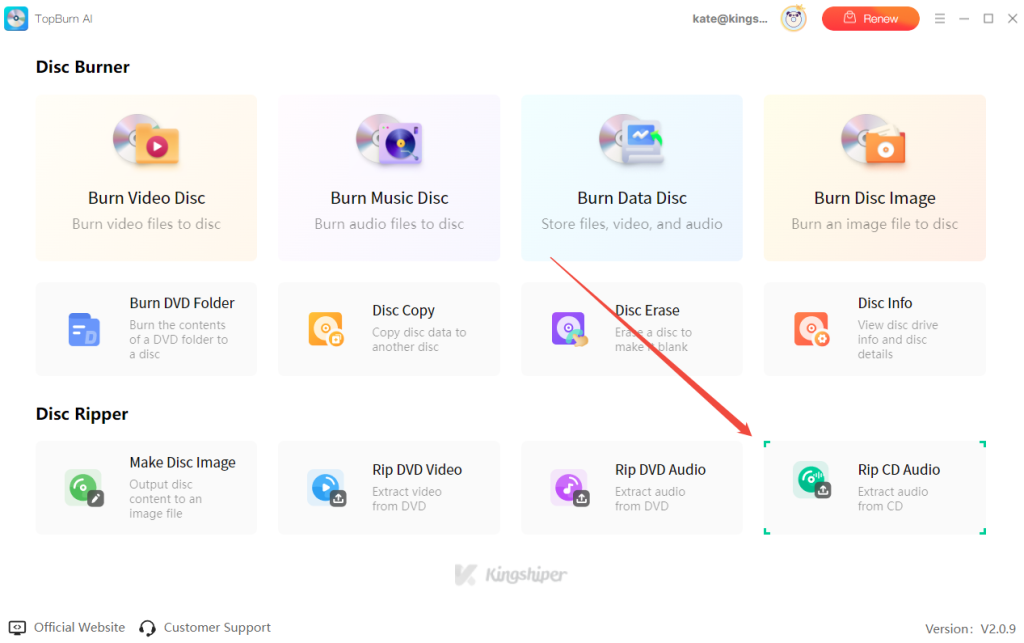
Insert the audio CD into your computer’s drive and open TopBurn AI. On the main interface, select the “Rip CD Audio” option.

Step 2. Select FLAC Format and Start Ripping
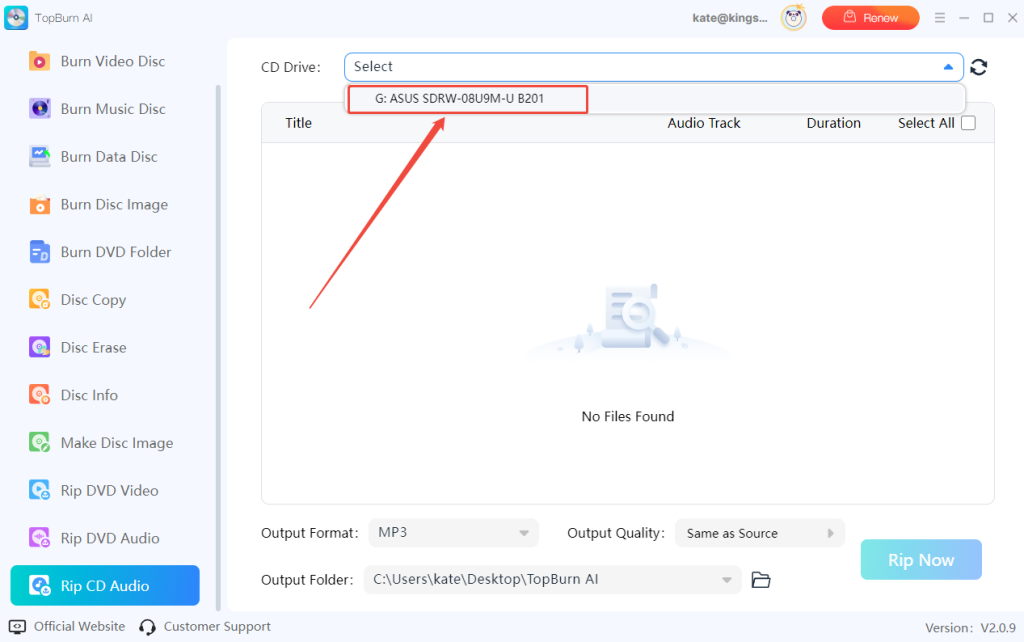
Choose your CD drive at the top of the interface. It will automatically detect the tracks on your CD. Set the output format to “FLAC” and adjust the audio quality in the “Output Quality” according to your need. Then click the “Rip Now” button to start reading and processing the tracks.

Step 3. Access the Files
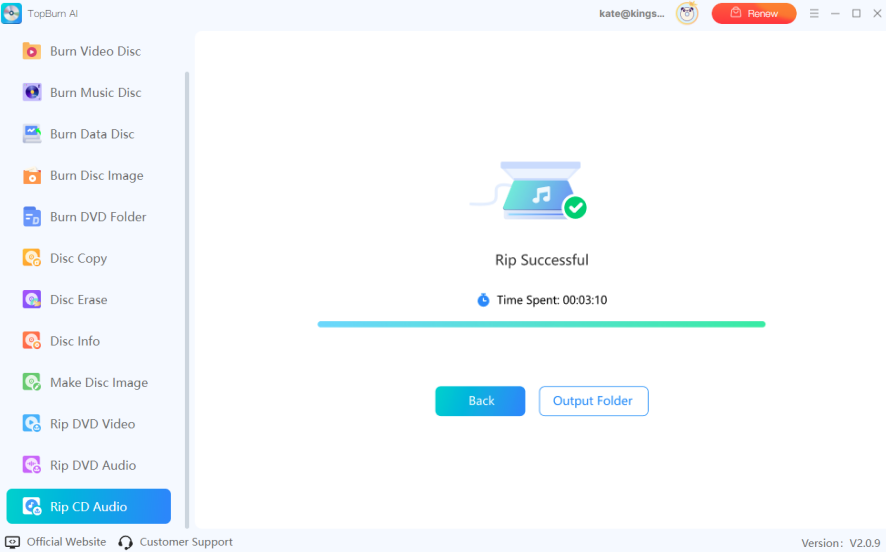
After ripping completes, it will display a success message. Click “Output Folder” to view and access your FLAC files.

While TopBurn AI remains the most reliable and user-friendly choice for converting CD to FLAC, there are some other free tools you can use for basic CD ripping. Below, you’ll find 4 freeware programs that can convert Audio CD to FLAC.
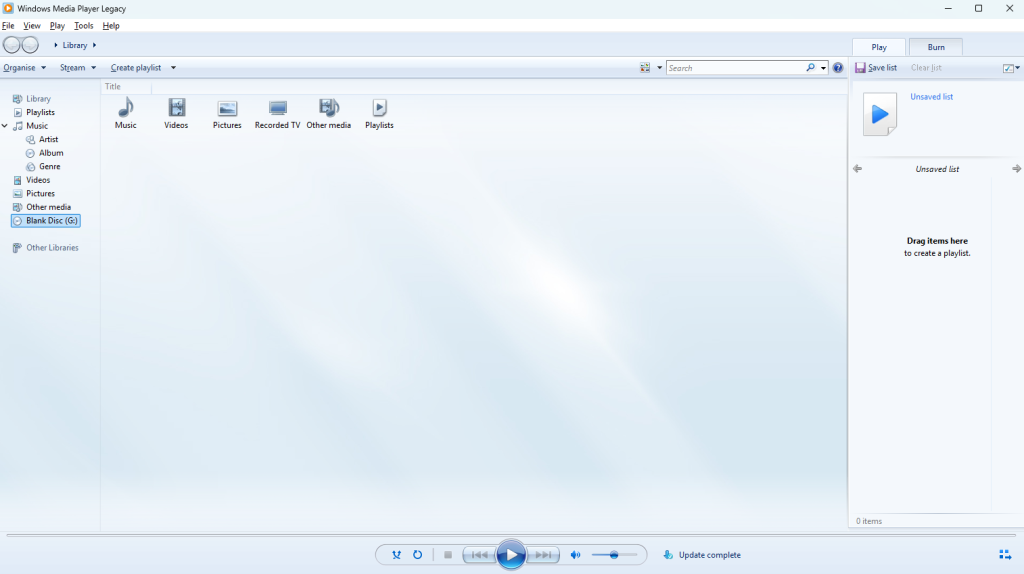
As a built-in multimedia utility in Windows, Windows Media Player also offers a basic CD-ripping function. Since it comes pre-installed with the operating system, you can use it right away without downloading other program. While its advanced options are limited compared to professional ripping software, it still supports extracting audio tracks into various formats and can handle standard CD-to-FLAC conversions.
Key Features

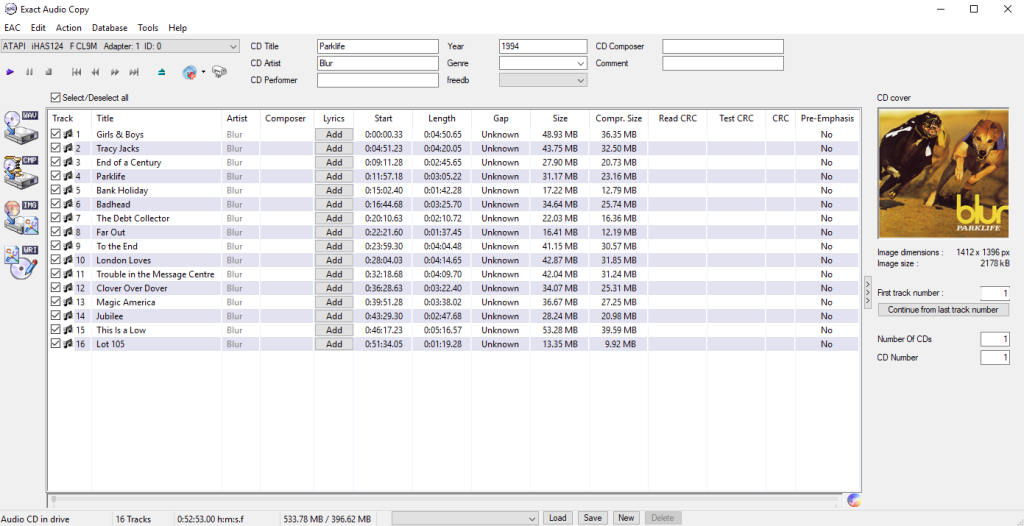
This CD FLAC ripping software performs high-precision CD audio extraction on Windows systems. It supports multiple external encoders, allowing you to convert CDs to FLAC and other formats. Designed for audiophiles, it includes advanced error-correction capabilities to handle lightly scratched or imperfect CDs. You can also configure and compare different CD drives to achieve the most accurate ripping results.
Key Features

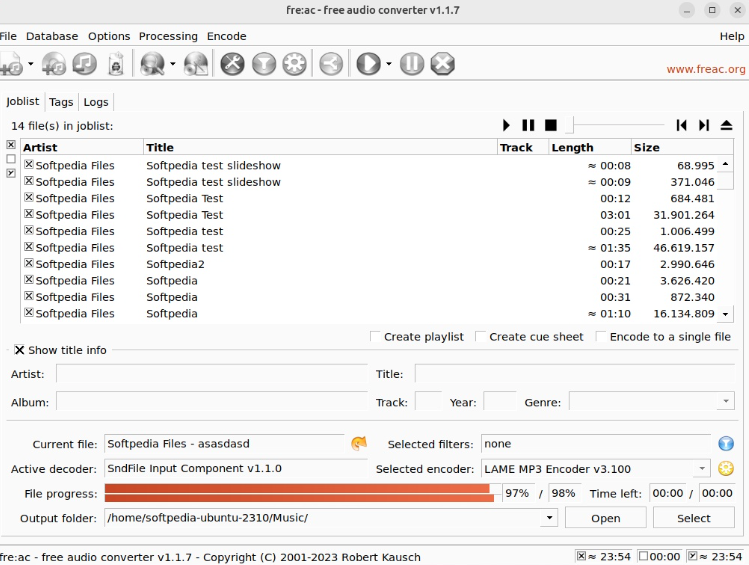
Fre:ac is another outstanding CD ripping software that enables efficient conversion of audio CDs to FLAC and other formats using its built-in audio encoders. It offers a portable version that runs directly from a USB drive without installation, making it highly convenient for on-the-go use. The software is designed for users who want a fast and reliable way to rip multiple CDs with accurate metadata.
Key Features

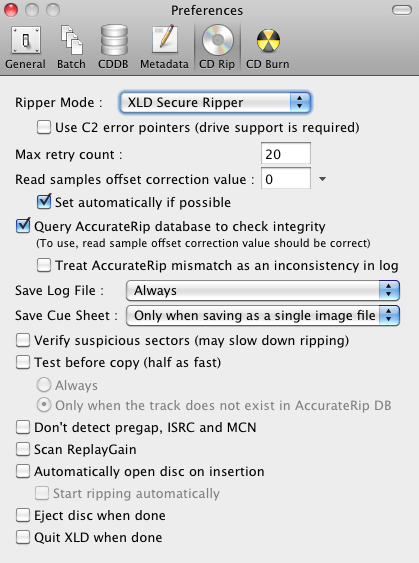
X Lossless Decoder (XLD) is a macOS tool built for precise audio ripping and format conversion. During decoding, it can split audio files into multiple tracks using a Cue Sheet, making the conversion process fast, efficient, and fully secure.
Key Features

To help you decide on the CD ripping software that best suits your needs, here is a side-by-side comparison of these popular programs:
| Feature | TopBurn AI | Windows Media Player | Exact Audio Copy | Fre:ac | X Lossless Decoder (XLD) |
| Metadata Support | ✅ | ✅ | ✅ | ✅ | ✅ |
| Accuracy Verification | ✅ | ❌ | ✅ | ❌ | ✅ |
| Platform | Windows 7/8/10/11 | Windows | Windows XP, Visata, 7, 8, 10, 11 | Windows, macOS, Linux, FreeBSD, Haiku | macOS X10.4 and later |
| Technical Skill Requirement | Low | Medium | High | Low | Medium |
| Best For | Users who need advanced customization and fast, convenient ripping | Users who prefer no third-party installation | Audiophiles who demand perfect audio quality | General users looking for a free cross-platform solution | Mac users pursuing high fidelity and a clean ripping experience |
To sum up, converting CDs to FLAC losslessly can be a crucial step for anyone looking to build a high-quality digital music library. In this article, we have explored 5 CD ripping tools that can accomplish this task. Among them, we recommend TopBurn AI, which reigns supreme with its advanced AI processing and user-friendly interface.
Yes. With an advanced CD ripping software, you can easily convert CDs to FLAC with no quality loss, making them convenient to play on various devices.
Converting a CD to FLAC may take some time, depending on the length of the disc, the number of tracks, and your computer’s processing speed; you can check the output folder once the process is complete.
No. FLAC is a lossless compression audio format, and using the right CD ripping software ensures that the audio files remain identical in quality to the original CD.