Got it

{{ postData.top_advertising_product.g_name }}

Windows
Buy Now

2 Ways to Burn APE to CD (Step-by-Step Guide)

APE files surprise many audiophiles by preserving true lossless audio quality while being far less “friendly” than MP3s when it comes to burning them to a CD. In this guide, we'll break down two ways to burn APE files to CD, how each method works, how to perform them step by step, their format limitations, and when you might want to use a professional third-party burning software instead.

Why Burn APE to CD?

On popular forums like Reddit, users often ask questions such as “What’s the best way to burn APE files to a CD without losing quality?”, especially for use with car stereos and traditional home CD players. These users aren’t just trying to store music - they’re aiming to preserve true lossless audio, including full dynamic range, fine detail, and the original listening experience. When their APE collections grow larger, or they want to create a physical compilation disc, starting over with compressed formats often means sacrificing the very qualities that made lossless audio worth collecting in the first place.

This reveals a crucial truth: physical CDs remain a relevant and irreplaceable medium in many modern listening scenarios. From high-end home Hi-Fi systems and legacy car audio units to music collecting, gifting, and nostalgic listening experiences, CDs often represent more than simple playback. They serve as a stable, universally compatible format for enjoying high-quality audio where modern digital files aren’t always supported.

Burning APE to CD matters because it creates a faithful, playback-ready version of your music that standard CD players can handle. Unlike casually converting files or burning compressed MP3 data discs, a proper APE-to-CD workflow preserves:

  • Original audio fidelity and dynamic range
  • Accurate track structure (especially with CUE files)
  • Smooth, gapless playback between tracks
  • Compatibility with legacy CD players
  • A reliable, offline physical backup

The benefits are clear: better sound quality, broader device compatibility, and long-term preservation. Whether you’re upgrading your car audio experience, archiving a prized lossless collection, or creating a physical disc that works anywhere, burning APE to CD saves time, avoids repeated reconfiguration, and ensures your music stays consistent, accessible, and true to the original recording.

Is It Possible to Directly Convert APE to CD

Many users may have the same question as above: Can I burn APE files directly to a CD without any format conversion?

The answer is a resounding YES, it depends on how you plan to use the disc. Burning an APE to CD is not only possible, but a common practice in certain scenarios. In particular, direct burning as a Data CD is appropriate when:

  • You only need the disc for file storage, long-term backup, or computer playback.
  • You want to preserve the original APE data, resolution, and metadata without modification.
  • Playback on traditional CD players or older car stereos is not required.

However, if your goal is to play the CD on standard CD players, car audio systems, or home Hi-Fi equipment, the situation is different. While many tools allow drag-and-drop burning, APE is not a standard Audio CD-compatible format, and such devices typically cannot recognize or play it.

While most tutorials focus on converting APE files before burning, the core distinction lies in the target format of the disc. Audio CDs follow strict PCM audio specifications, which means the audio must be decoded and converted during the process - either automatically by the software or manually beforehand. Understanding this difference is key, as it explains why APE to CD conversions are generally divided into two approaches: Convert and Burn (Audio CD) and Direct Burn (Data CD).

Method 1. Burn APE to Audio CD (Best for CD Players & Car Stereos)

Burning APE files to an Audio CD is the most reliable way to enjoy lossless music on traditional CD players and car stereos. Since APE is not a natively supported Audio CD format, the files must first be converted into a common audio format (such as MP3) and then burned as a standard music disc.

This method converts your digital APE collection into a universally playable Audio CD, ensuring smooth playback across legacy and modern CD-based audio devices.

However, Windows does not provide a built-in solution to directly burn APE files as an Audio CD. You’ll need:

  • an audio converter (to decode APE files), and

Kingshiper MP3 Converter

Official

Download
  • a dedicated CD burning software such as TopBurn AI to create a compliant Audio CD.

TopBurn AI

Official

Download

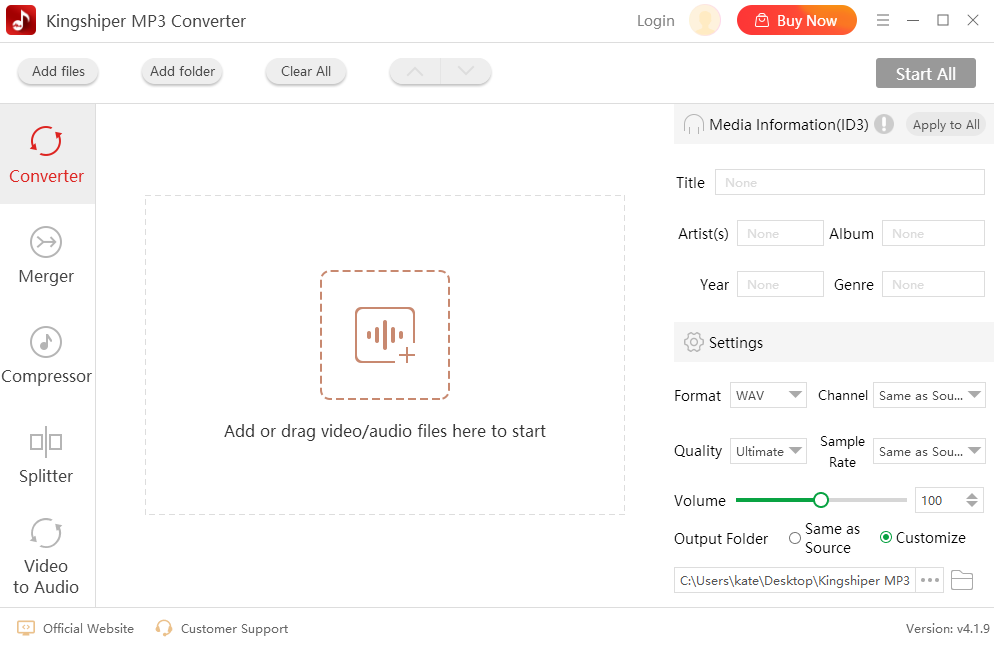
Step 1. Use Kingshiper MP3 Converter to convert your APE files into MP3 or other formats.

convert-ape-to-mp3

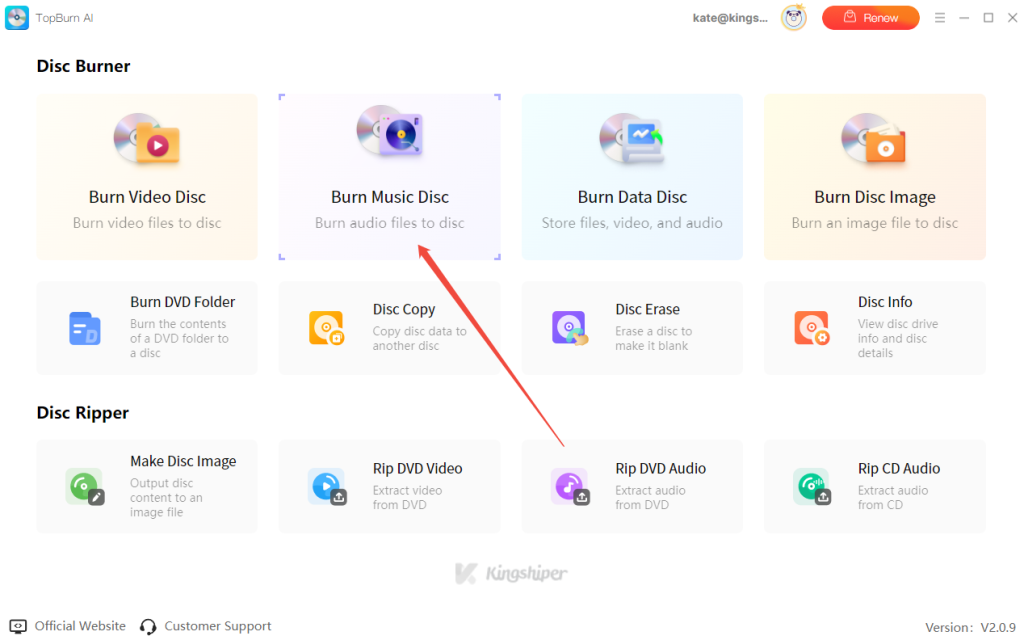
Step 2. Launch TopBurn AI and choose “Burn Music Disc”.

burn-music-disc

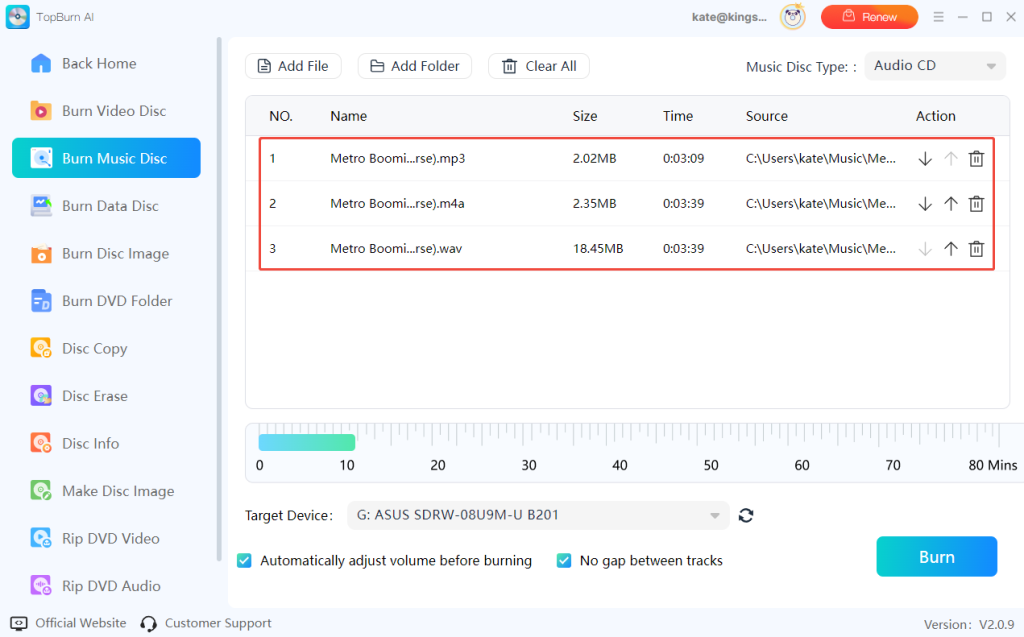
Step 3. Drag and drop the audio files to the burn list. Adjust the track order if needed to match your preferred playback sequence.

upload-ape-files

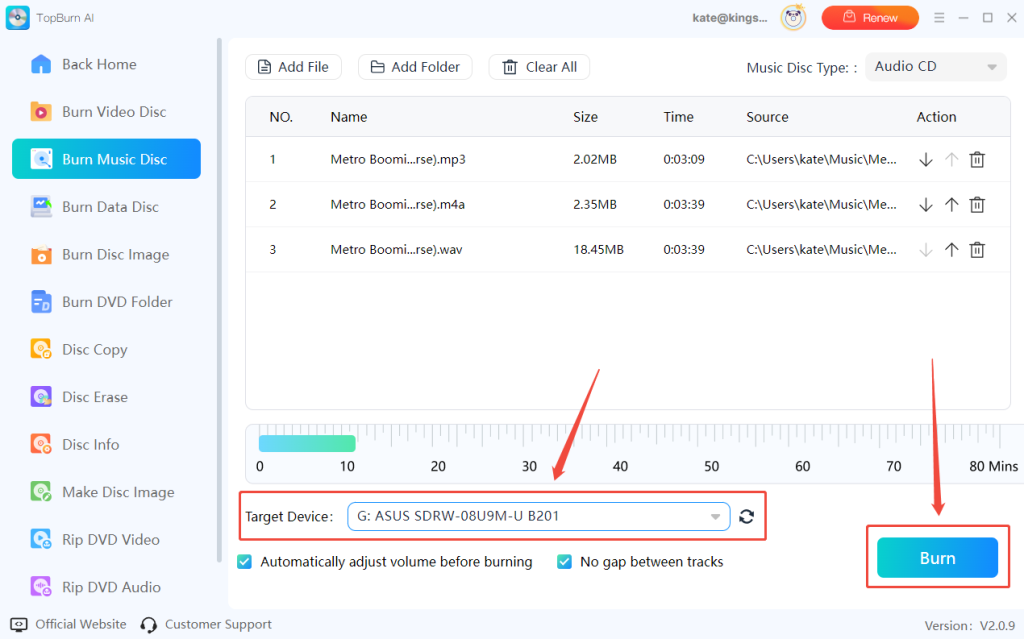
Step 4. Insert a blank CD and confirm the correct optical drive is selected under Target Device. Click “Burn” to begin. TopBurn AI will automatically decode the MP3 files into standard PCM audio and write them to an Audio CD that works seamlessly with CD players and car stereos.

burn-audio-cd

Method 2. Burn APE to Data CD (Best for Backup & PC Storage)

Burning APE files to a Data CD is also a convenient and straightforward solution, especially for file backup and PC-based storage. With TopBurn AI, you can store APE files on a CD just like regular data files, without converting or decoding them.

This method works by writing APE files directly to the disc as data, keeping the original files exactly as they are. It’s ideal if you only need to archive the files or play them on a computer that supports APE playback.

TopBurn AI

Official

Download

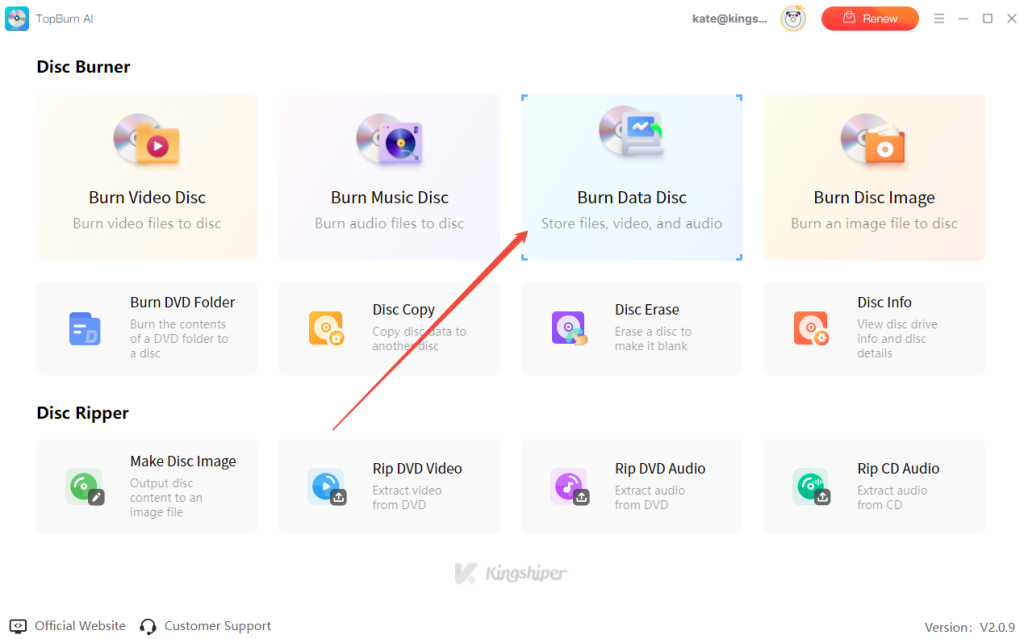
Step 1. Launch TopBurn AI and choose “Burn Data Disc” in the burning mode options to make sure you are creating a data CD rather than an audio CD.

burn-data-disc

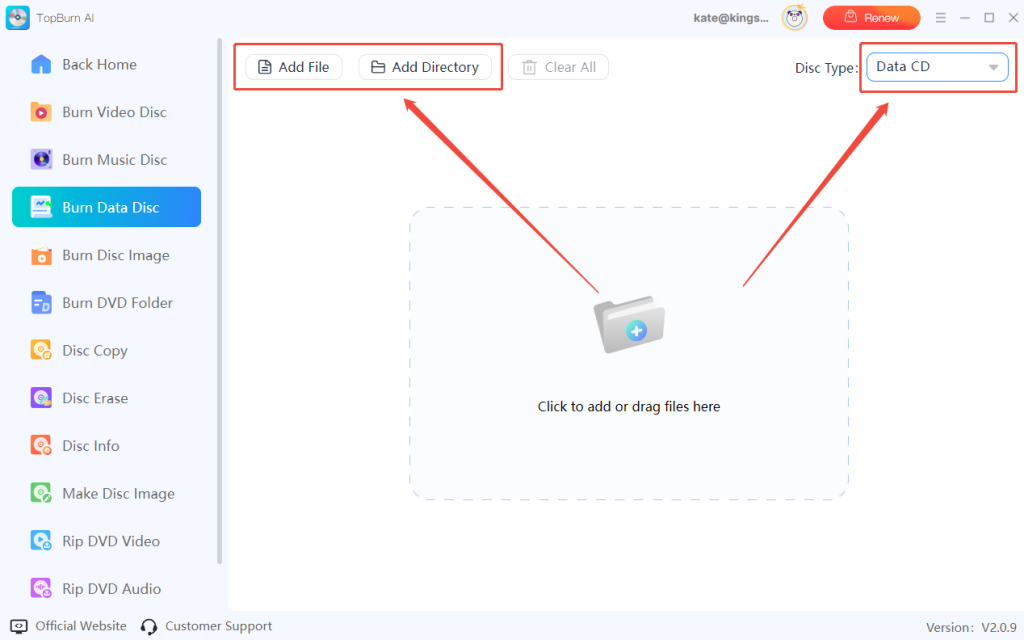
Step 2. Drag and drop the APE audio files you want to back up into the burn list. You can add multiple files or entire folders at once. The original audio quality, file structure, and tag information will be fully preserved.

add-files-and-select-data-cd

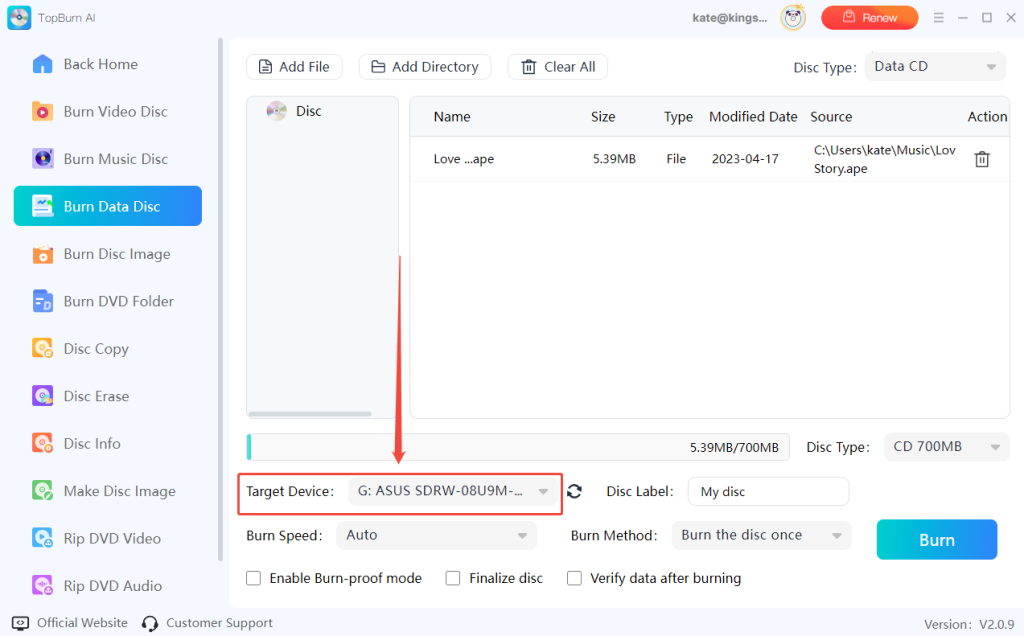
Step 3. Insert a blank disc, make sure the Target Device shows your current optical drive, and check that the disc capacity is sufficient for the selected files.

choose-target-device

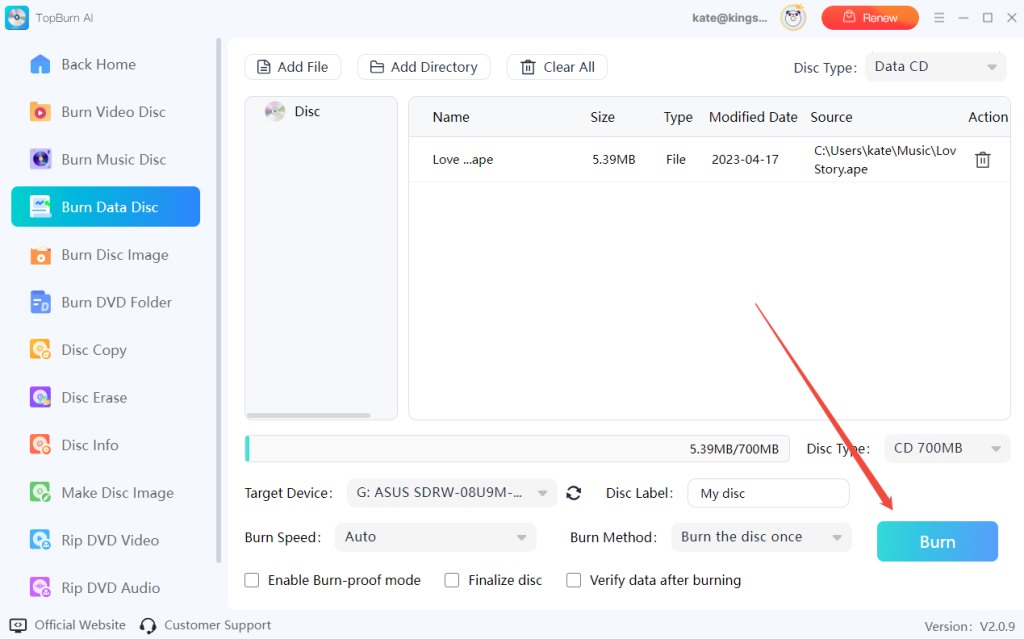
Step 4. Click the “Burn” button. TopBurn AI will write the APE files to the CD as data. Once completed, the disc can be used for long-term storage or read and played directly on a computer (with APE decoding support).

start-burning-process

To Wrap Things Up

Using TopBurn AI makes burning APE files to CD simple, efficient, and fully controllable. Whether you convert APE to create an Audio CD that plays on standard CD players and car stereos, or burn APE in its original format as a Data CD for backup and PC storage, you can flexibly choose the method that best fits your needs.

Through this seamless burning process, you can easily preserve the original lossless quality, file structure, and tags of your APE collection, or maximize compatibility for playback on traditional audio devices. Just download and try TopBurn AI to burn your APE files to CD in a safe and stable way.

Latest Articles