Got it

{{ postData.top_advertising_product.g_name }}

Windows
Buy Now

5 Helpful Methods to Record Instagram Videos (Step-by-Step)

Takeaways

  • ● There are multiple ways to help you record Instagram videos on Windows, Mac, Android, or iPhone.
  • ● This article shares four practical methods to capture Instagram videos on different devices.

The best way to record Instagram videos on a Windows PC is by using a versatile screen recorder:

Step 1. Download and open Kingshiper Screen Recorder, then go to Prefs in the bottom-left corner to set the video quality, resolution, and frame rate.
Step 2. Select Window Recording under the recording mode and point it to your Instagram window.
Step 3. Choose the video you want to capture and press Record to start recording.

“How to Record Instagram Story Videos on My Phone/PC?”

Although Instagram Stories make it very convenient to share and view moments instantly, it’s not the same when you want to save these short-lived Story videos to your phone or computer for another purpose. That’s why so many users are asking the question above.

Luckily, even though Instagram doesn’t officially allow downloading other users’ Story videos, you can still record and save the Stories you want using built-in tools or reliable third-party Instagram video recording software.

Read on and learn how to record Instagram videos on your iPhone, Android, Windows, and Mac effortlessly.

Part 1. How to Record Instagram Videos on Windows PC with a Screen Recorder Program

Kingshiper Screen Recorder is a 100% safe screen recorder for Windows. It will allow you to easily capture online videos from Instagram, YouTube, Facebook, Twitter, and many other sites by recording your screen, with no ads and no plugins.

The screen recorder also lets you capture system audio or microphone voice separately while recording. You can save recordings in multiple formats such as MP4, MOV, or GIF. For example, you can record Instagram videos, Stories, or live streams. In addition, it provides practical features like scheduled recording, keystrokes, and watermark tools to meet different recording needs.

Follow the steps below to see how to record Instagram videos on your Windows PC with this all-in-one screen recorder within minutes.

To download the screen recorder program:

Kingshiper Screen Recorder

Official

Kingshiper Screen Recorder for Mac

Official

To record Instagram videos on Windows:

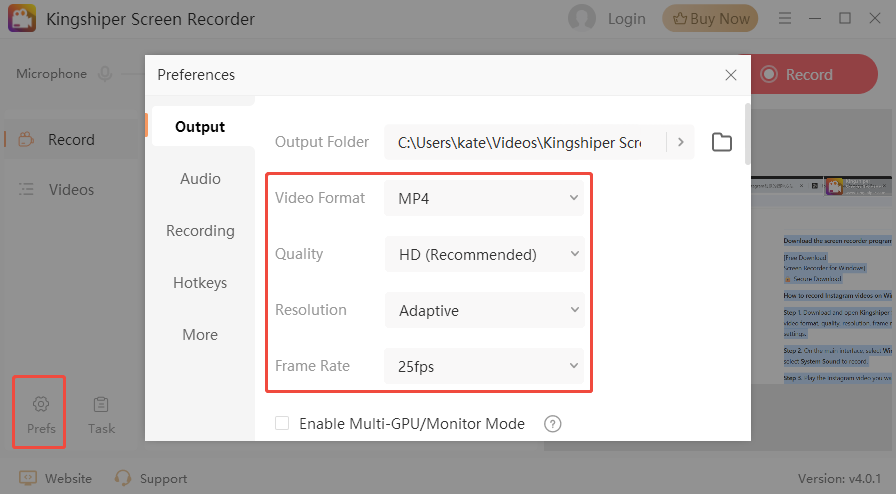
Step 1. Download and launch Kingshiper Screen Recorder. Click “Prefs” in the bottom-left corner to set your video format, quality, resolution, frame rate, and other options. Once finished, click “X” to exit and save your settings.

kingshiper-record-instagram-video-settings

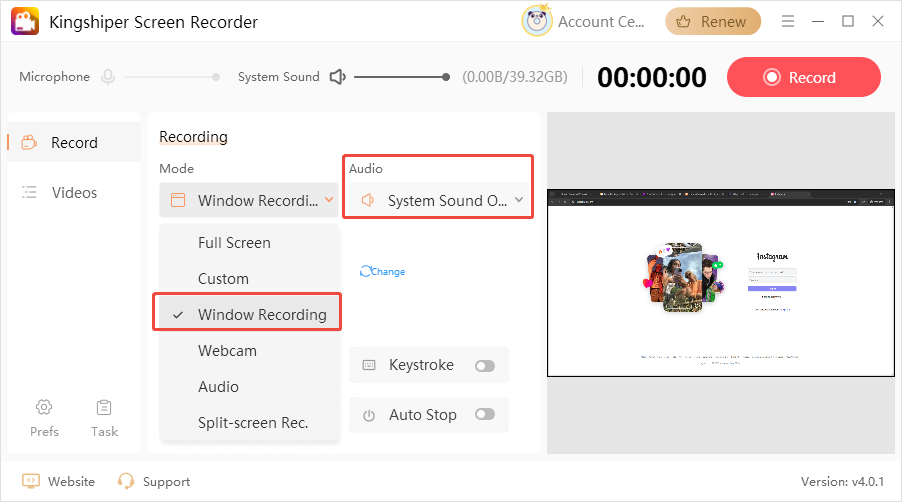
Step 2. On the main interface, select “Window Recording” mode and choose the Instagram window. In Audio, select “System Sound” to record.

kingshiper-record-instagram-video-window-recording

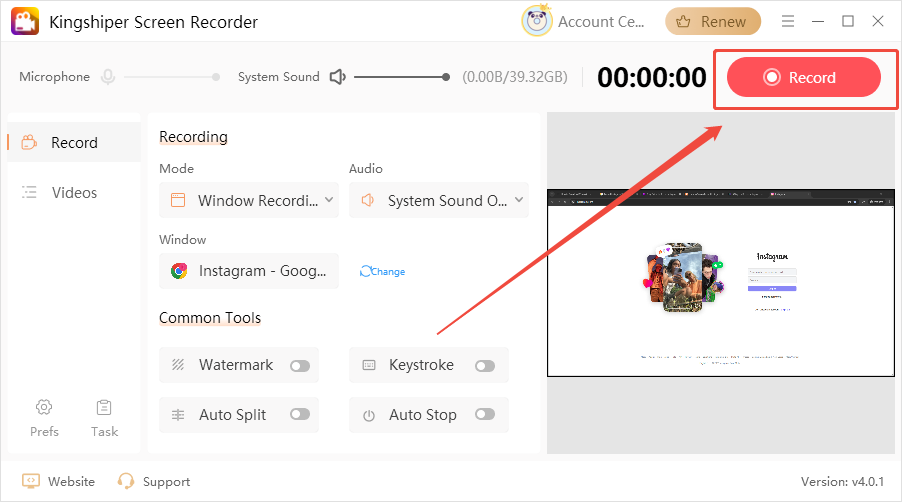
Step 3. Play the Instagram video you want to record. Click the “Record” button in the top-right corner to start recording. Once finished, click the “Stop recording” button on the floating toolbar to save the video to your target folder. You can check your recording in the “Videos” tab.

kingshiper-record-instagram-video-start-recording

Disclaimer: Recording and sharing copyrighted content without permission for commercial or improper purposes may constitute infringement. This guide is demonstrated for personal and legal use only.

Part 2. How to Record Instagram Videos on Mac with QuickTime Player

Apart from third-party screen recording software, Mac also offers a built-in recording tool you can use. The built-in tool is convenient since it saves you from downloading and installing any additional applications. You can record your screen and save Instagram videos to your Mac using QuickTime Player.

However, QuickTime Player has its own limitations compared to professional screen recorders, e.g.

  • It cannot record system audio separately; capturing the original video sound usually requires adjusting audio input settings or using extra tools.
  • Its features are relatively basic, lacking advanced options such as scheduled recording, mouse highlighting, or real-time annotations.
  • The available output formats and video quality options are limited.

Thus, if you still prefer to record Instagram videos on a Mac without installing other desktop software, please follow the steps below:

Step 1. Open QuickTime Player on your Mac.

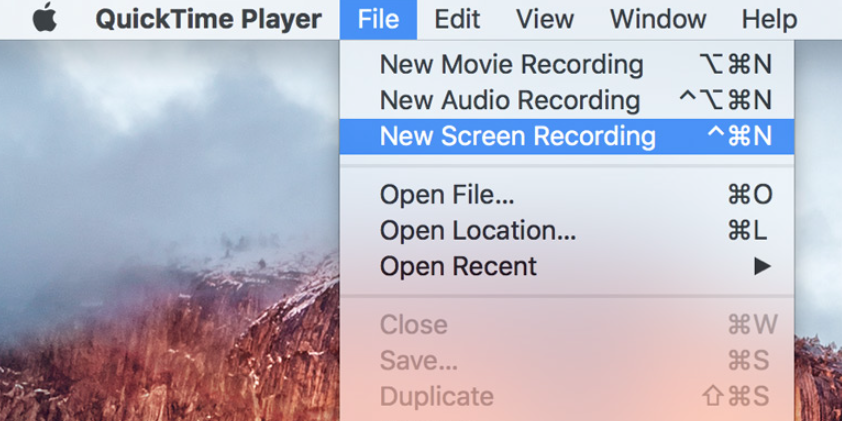
Step 2. In the top menu bar, click “File” and select “New Screen Recording”.

Step 3. Open Instagram in your browser and play the video you want to record. Click the “Record” button, drag to select the screen area you want to capture.

Step 4. When the recording is finished, click the “Stop Recording” button in the top menu bar, then save the video file to your Mac.

quicktime-player-record-instagram-video

Part 3. How to Record Instagram Videos on iPhone

The way to get Instagram videos on your iPhone without installing any third-party apps is to use the built-in screen recording feature as well. Screen recording on iOS is even simpler compared with searching for download tools. You don’t need to copy and paste video links or open extra apps. All you need to do is enable screen recording in the Control Center, play the Instagram video you want to save, and it will be captured directly to your Photos.

To record Instagram videos on an iPhone using the built-in screen recording feature:

Step 1. Open Instagram and navigate to the video or Story you want to record. Make sure it is ready to play.

Step 2. Swipe down from the top to open the Control Center. Tap the “Screen Recording” button. A 3-second countdown will begin before recording starts.

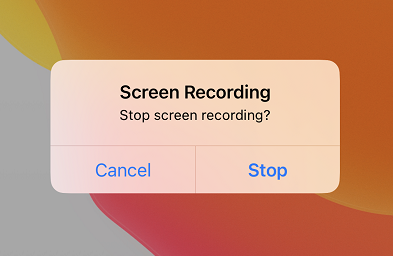
Step 3. Go back to Instagram and play the video. When you’ve finished, tap the red button at the top left of the screen and tap “Stop” to confirm stopping recording. The recorded video will automatically be saved to your Photos app.

record-instagram-video-iphone

If you can’t record the video, make sure your iPhone has enough storage space, and check whether other apps using the microphone or audio are interfering. Some copyrighted videos may also restrict capturing original audio.

Part 4. How to Record Instagram Videos on Android

For Android users, you can also record Instagram videos without using other third-party screen recording apps. Many users don’t realize that most Android phones come with a built-in screen recorder, but the exact steps may vary depending on the brand and system version. Once enabled, the screen recorder will capture everything on your screen, including video playback and any gestures.

Check the following detailed steps to record Instagram videos on your Android:

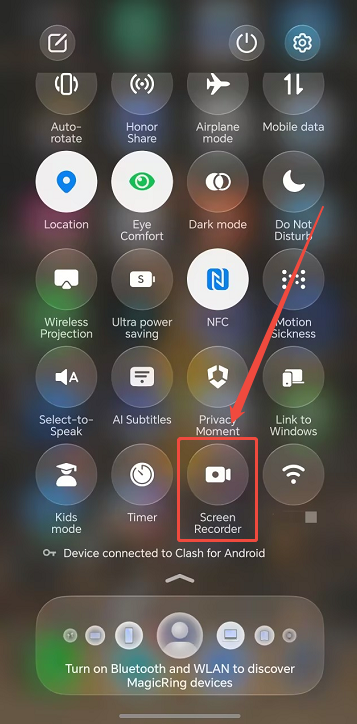
Step 1. Swipe down from the top of the screen to open the Quick Settings panel, then tap the “Screen Recorder” icon. You can choose whether to record audio from the system or the microphone.

record-instagram-video-android

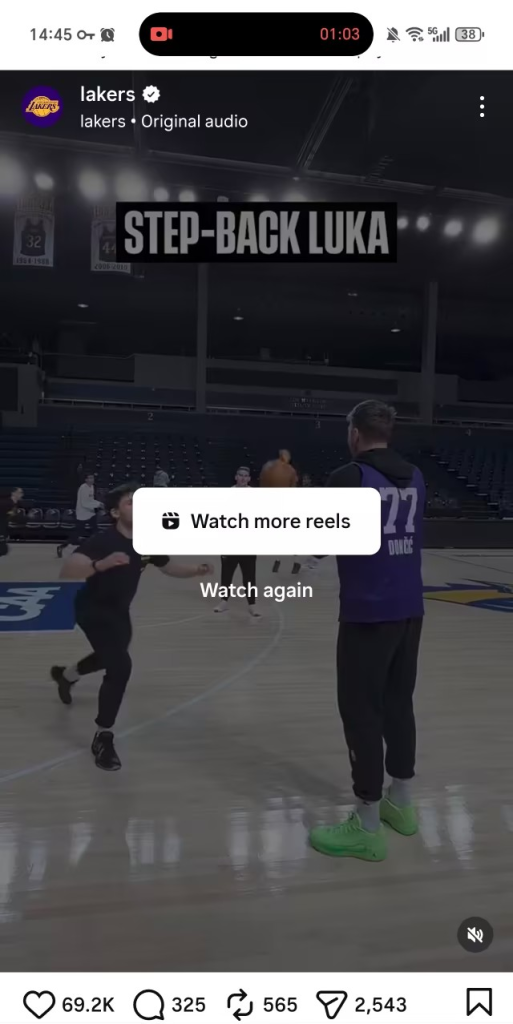
Step 2. Open the Instagram app and play the video you want to record, such as a Story, Reel, or regular post.

record-instagram-video-android-now

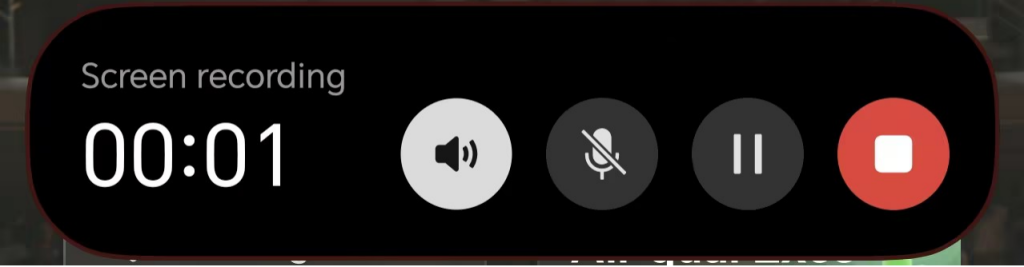
Step 3. Now, your videos have been recorded. When it finishes, tap the red recording feature at the top and press the “red” button to end recording. The captured video will automatically be saved to your Gallery or the Videos folder.

stop-record-instagram-video-android

Part 5. Best Practices for Recording High-Quality Instagram Videos

This part will share tips that can help you record higher-quality Instagram videos. Check and follow these tips:

  • Before recording, make sure your network connection is stable and close unnecessary background apps to keep your device running smoothly.
  • Set your video resolution to the highest option available (such as HD or 1080p) and adjust your audio levels for clear and loud sound.
  • On a computer, hide unrelated windows; on a phone, turn on Do Not Disturb to avoid pop-ups and interruptions during recording.
  • Keep your recording environment tidy and distraction-free so your key content stays in focus.
  • When capturing or sharing others’ videos, always get permission, give proper credit, and follow Instagram’s Terms of Service.

Conclusion

If you often need to record Instagram videos across different devices, having a reliable method will make things much smoother. The five solutions shared in this guide work on Windows, Mac, iPhone, and Android, allowing you to capture and save videos easily in various scenarios.

For Windows users, Kingshiper Screen Recorder is the best choice for you. It delivers stable performance, captures both screen and system audio in high quality, and provides flexible output settings for clean, fast recordings. Try any of the methods above, and you’ll be able to save the Instagram videos you like with just a few simple steps.

Kingshiper Screen Recorder

Official

FAQs about Recording Instagram Videos

Now, find more information from the following questions and answers about the Instagram recorders:

Q1. Does Instagram notify users when I screen record?

No. Instagram does not send any notifications when you screen record Stories, Reels, posts, or other content. You can record freely without alerting the creator.

Q2. Can I save others’ Instagram videos without screen recording?

Instagram only allows you to save your own content. For others’ videos, you can add them to Saved (this only saves a link, not the actual file) or share them to your Story if the creator permits. Third-party download tools may work but carry risks such as privacy issues, account security concerns, and copyright violations.

Q3. Is it legal to screen record Instagram videos?

It depends on your purpose, copyright rules, privacy laws, and Instagram’s Terms of Service. Recording for personal viewing is usually fine. However, reposting, sharing publicly, or using the video for commercial purposes may violate copyright or privacy laws. Always try to get the creator’s permission before using their content.

Latest Articles