Multimedia Tools
Video Tools
Audio Tools

Image tools
Record and Edit Porfessional Videos on Mac
Windows Desktop Screen Recording Software
Easy and Fast Way to Compress Video and GIF
Screen Mirroring App for iPhone/Android/PC/Pad
All-in-one video toolkit that supports converting over 1000+ formats
Portable audio format converter, which supports common audio format conversion, multiple audio merging, audio compression, audio segmentation, and one click batch conversion of audio formats
Cut, copy, paste, insert audio, add effects and other editing functions, which can easily re edit the recorded audio files and make ringtones, adding a unique personality to your life.
Karaoke Maker and Vocal Extractor on Mac
Extract vocals and instrumentals from any audio and video track with the latest AI technology.
Best Voice Recording Software for All Windows Users
Convert Audio/Video to MP3/WAV/FLAC/OGG

Utilities
Office Utilities
Simple and powerful office solution for file compression, extraction, transferring, and sharing. Easily to process multiple files in seconds!
A powerful, simple and easy to operate PDF to word converter, which supports the conversion between PDF documents and multiple formats such as doc, ppt, pictures and txt documents; The software has the functions of fast conversion, batch conversion, high-quality identification, etc
Burn music, video, and data discs in one-click
Fast Way to Reduce Your File Size
The best and perfect tool to convert various ebook files with ease.
Convert Videos, Audios, Images, PDFs, and Word with Ease
Seamless Conversion for PDF to JPG & JPG to PDF
Shrink size of PDFs, images, and videos without losing quality
Extract & Manage & Compress Files in Seconds
System & Recovery
{{ postData.top_advertising_product.g_name }}
Vita Mahjong is a casual tile-matching Mahjong game that requires sharp observation and strategic thinking. While it’s convenient and fun to play on mobile, many players prefer the larger screen and precise control of a PC, especially when using a mouse to reduce misclicks and ease eye strain.
In this guide, we’ll explore how to play Vita Mahjong on PC, discuss the visual advantages of a bigger screen, and provide step-by-step instructions to help you get started.
Before you start the installation, it’s important to understand what makes Vita Mahjong unique, even when playing on a PC. The core gameplay is intact, but this mobile-originated game has specific features:
If your goal is to enjoy a relaxing Mahjong experience without straining your eyes or to get a more immersive puzzle-solving session, running Vita Mahjong on PC is an ideal choice. It’s a great starting point to experience a blend of classic Mahjong and modern tile-matching gameplay.
It is possible to play Vita Mahjong on PC for entertainment. However,
Even so, you cannot install the game directly from the Vita Mahjong website, since the developer currently focuses on iOS and Android platforms. What if you want a smoother, big-screen experience and to avoid accidental taps?
Is there a way to play Vita Mahjong on PC? Yes, there are practical ways to run the game on your computer, including Windows or Mac, using methods such as emulators or screen mirroring software. In this article, we will introduce the tools and the detailed guides to help you play Vita Mahjong on your computer.

Both Android emulators and screen mirroring apps allow you to play Vita Mahjong on a computer monitor using a mouse. Generally, emulators provide a more complete gaming experience, while screen mirroring apps save you from reinstalling the game on your PC and syncing progress. Choose the one you like according to your preferences.
There are plenty of screen mirroring tools available for Windows and other operating systems that allow you to cast your phone screen to a computer and run mobile games or apps on a larger display. Generally, one screen mirroring tool focuses on specific connection methods or system compatibility. That means you may need to choose different tools depending on your device setup. For example, if you want ultra-low latency for gaming, a screen mirroring tool that supports USB connections is usually the better choice, while if you prefer wireless convenience, a stable Wi-Fi-based mirroring tool is more suitable.
Since screen mirroring doesn’t require high-end hardware, you can smoothly play Vita Mahjong even on a standard laptop. Here is one recommended tool: Kingshiper Screen Mirroring.
The process of using it to mirror your phone and play games is quite easy:
Step 1. Download and launch Kingshiper Screen Mirroring on both your computer and your phone.
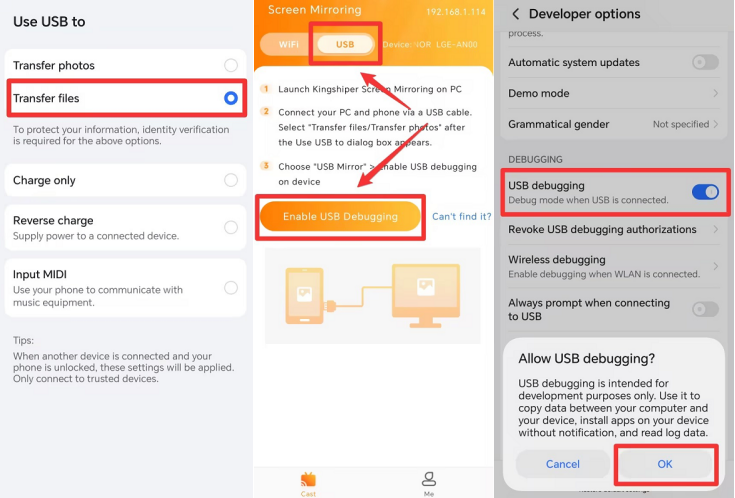
Step 2. Connect your phone to the computer with a USB cable. Set the phone to “Use USB to Transfer Files”, enable Developer Mode, and make sure the “USB Debugging” is turned on.

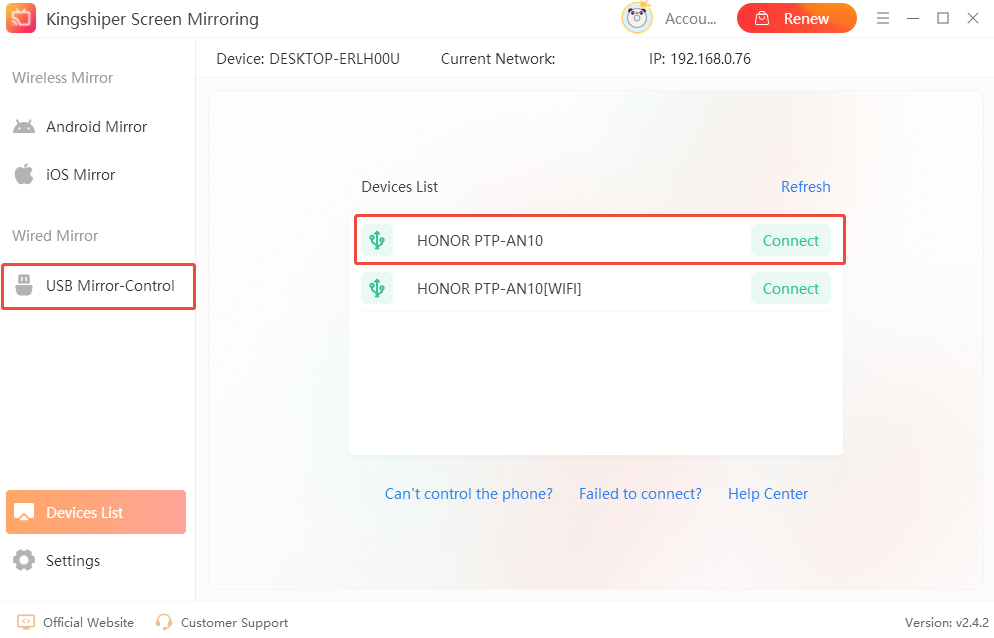
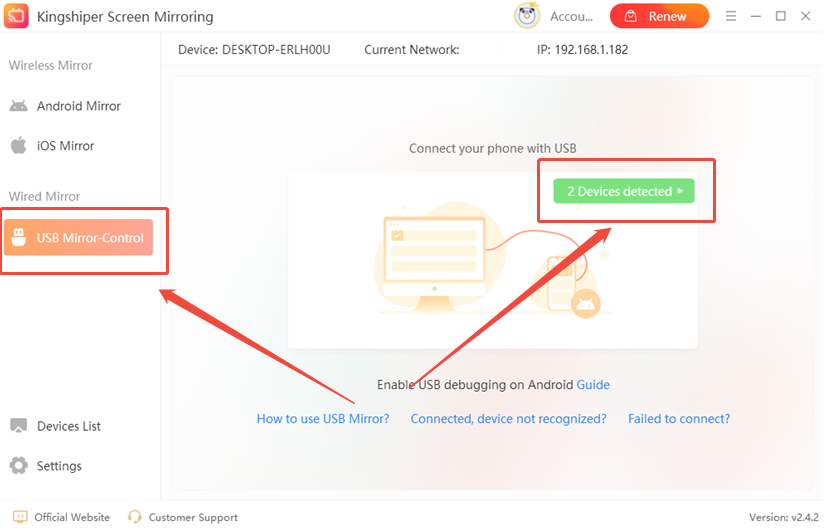
Step 3. Go back to your computer, click “USB Mirror-Control”, and click the green “2 Devices detected” button. Find your device and click “Connect”. Once connected, open Vita Mahjong on your phone and control it directly from your PC.

Being similar to screen mirroring software, different Android emulators also support different hardware configurations. You may need to choose an emulator that best matches your PC specs to get the smoothest gaming experience. You can visit the official websites of major Android emulators to find the version that fits your needs.
Notice: Some popular Android emulators, such as BlueStacks or LDPlayer, may require VT (Virtualization Technology) to be enabled in your PC’s BIOS. This helps ensure optimal performance on Windows and helps prevent lag.
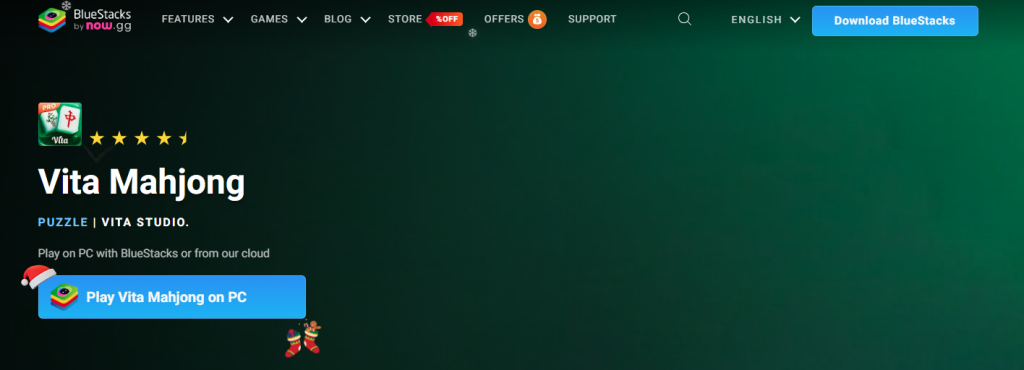
BlueStacks is a popular Android emulator designed to enhance mobile gaming on PC. With support for millions of Android apps and games, it offers features such as keyboard and mouse mapping, multi-instance mode, and high-frame-rate support. Whether you want clearer visuals on a larger screen, more precise control with a mouse, or the ability to run multiple game windows at the same time, BlueStacks makes it easy.
Steps to Play Vita Mahjong Using BlueStacks:
Step 1. Download and install BlueStacks on your PC.

Step 2. Launch BlueStacks and open the built-in Google Play Store.
Step 3. Search for “Vita Mahjong” and select the game from the results. Sign in to your Google account if required.

Step 4. Click “Install”. Once the download is complete, open the game from the home screen and start playing.
In conclusion, playing Vita Mahjong on a PC may require different approaches depending on your device setup, but with the right tools, the process becomes much simpler. Whether you’re using an Android emulator to create a standalone gaming environment or professional screen mirroring software like Kingshiper Screen Mirroring, each method provides unique advantages based on your operating habits.
For an all-in-one, smooth solution, Kingshiper Screen Mirroring stands out. It supports multiple connection options (Wi-Fi/USB), delivers low-latency, high-definition visuals on a large PC screen, and offers features like mouse control and image quality enhancement. It’s an ideal choice for users looking for an immersive Mahjong experience.