On Windows PC with TopBurn AI:
Import the WMV file, edit a DVD menu option, customize the export settings, click "Burn," and wait for AI to complete the burning process.
Using Windows DVD Maker:
Open the program, add the WMV video, customize the menu style and scenes, preview the playback, then click "Burn" to create the DVD.
Via Windows Media Player:
Switch to the Burn tab, drag the WMV file into the burn list, insert a blank DVD, and click "Start Burn" to save the data to the disc.
On Mac using Leawo Blu-ray Creator:
Import the WMV video, edit the menu background, select the DVD type (DVD-5/9), connect the external drive, and click "Burn" to start creating the DVD.
Using Finder:
Insert a blank DVD, open the disc window, drag the WMV file into the window, click the burn button, confirm, and start the writing process.
The WMV video files you own might be treasured memories stored on your computer’s hard drive, or they could be downloads from the internet or from an old Windows system. The method to convert them depends on your final goal, as creating a data disc differs from creating a video DVD that can be played on a DVD player.
In this guide, we’ll show you how to easily convert WMV files to DVD. But before we dive into the steps, it’s important to understand the differences between a digital WMV file and a physical DVD disc.
●1️⃣One of its differences is that WMV is a digital format designed specifically for Windows computers. This means it’s primarily intended for playback on computers. While you can easily watch WMV on a PC, you cannot directly play it on a home theater system or standard DVD player simply by copying the file.
●2️⃣Another difference is the way the content is structured. A WMV file is typically just a single video file, while a DVD video includes a full navigation menu, chapter selections, and additional audio tracks. These interactive features aren’t available from a single WMV file.
If you’re looking for a way to burn or convert WMV to DVD, keep reading. This article will provide you with 5 simple methods to convert WMV to DVD.
WMV to DVD Converter
Supported Platforms
Supported Video Formats
Conversion Quality
Ease of Use
TopBurn AI
Windows 7/8/10/11
WMV, MP4, AVI, MOV, etc
Up to 1080P
Super Easy
Windows DVD Maker
Windows 7
WMV, MPEG, AVI
Up to 720P
Easy
Windows Media Player
Windows 7/8/10
WMV
Up to 720P
Medium
Leawo Blu-ray Creator
macOS 10.10+, Windows 7/8/10
WMV, MP4, MOV
Up to 1080P
High
Finder
macOS 10.9+
WMV (requires conversion to supported format)
Up to 720P
Medium
Editor Recommendation:
✅For a quick and easy WMV to DVD conversion on Windows, TopBurn AI is your best option with its simple interface and broad format support.
✅For Mac users who need basic functionality without installing third-party software, Finder is the ideal choice for a quick conversion process.
Part 1. Convert WMV to DVD on Windows PC with TopBurn AI
Pro: AI technology enhances video quality, with a wide range of customize settings.
Con: Only supports Windows computers
Most WMV files are optimized for Windows, but to play them on a standard DVD player or home theater system, you can't simply copy the file as data. These devices require a specific video structure and encoding. In this case, converting and burning the WMV file into a standard DVD format is essential. The process is simple - you just need a smart DVD creation software.
TopBurn AI is an innovative tool designed for Windows users that lets you easily burn various video formats, including WMV, to DVD discs. You can import a single video or multiple clips to create a home movie DVD. It offers smart burning options, allowing you to use AI technology to enhance video clarity and customize the navigation menu.
Key Features
AI Smart Enhancement: Automatically boosts the resolution and clarity of old WMV videos before burning.
Versatile Menus: Provides a wide selection of dynamic and static DVD menu templates, perfect for events like weddings and holidays.
Fast Burning: Uses GPU acceleration for quick video transcoding and disc burning.
User-Friendly: Features an intuitive design that simplifies the burning process.
Unlike direct video file conversions, creating a physical DVD requires hardware support. Fortunately, this process is straightforward. To burn WMV to DVD, follow these steps:
Step 1. Make sure your computer has a built-in or external DVD burner.
Step 2. Insert a blank DVD disc into the drive.
You're now all set to create your DVD.
Now, follow these steps to use TopBurn AI to convert WMV to DVD:
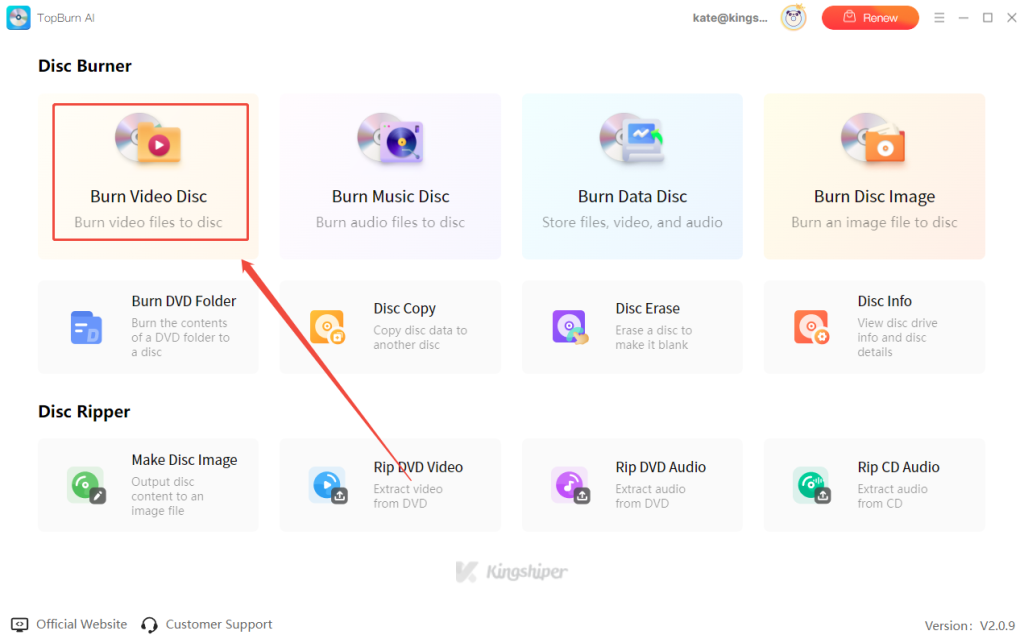
Step 1. Launch TopBurn AI on your PC and select "Burn Video Disc" from the main interface to burn your video files to a disc.
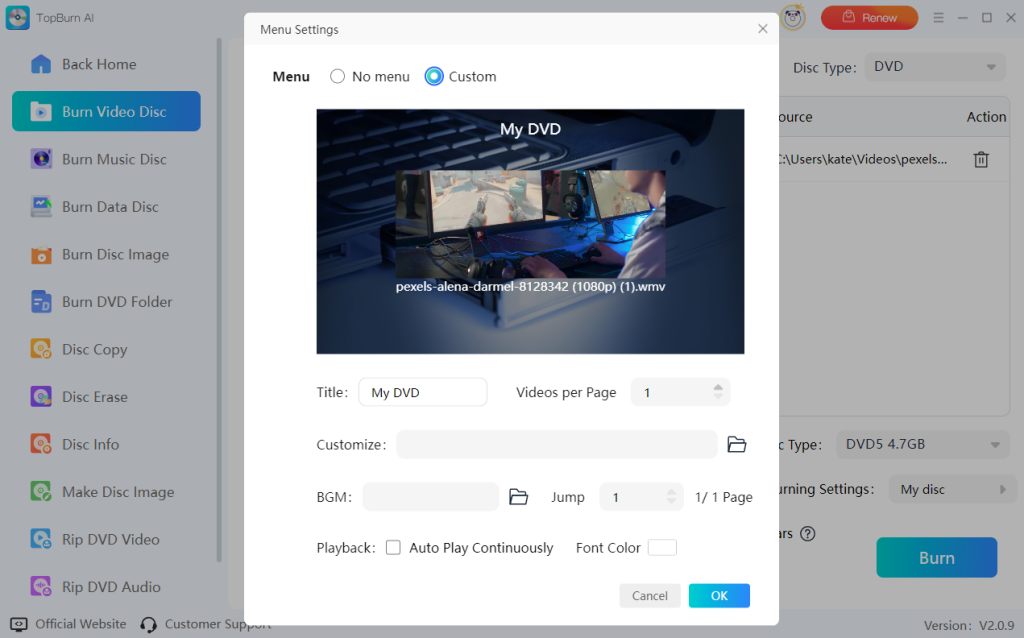
Step 2. Click "Add File" or "Add Folder" from the toolbar to import your video files. Once imported, click "Menu Settings" to customize a DVD menu template and edit the title or background music.
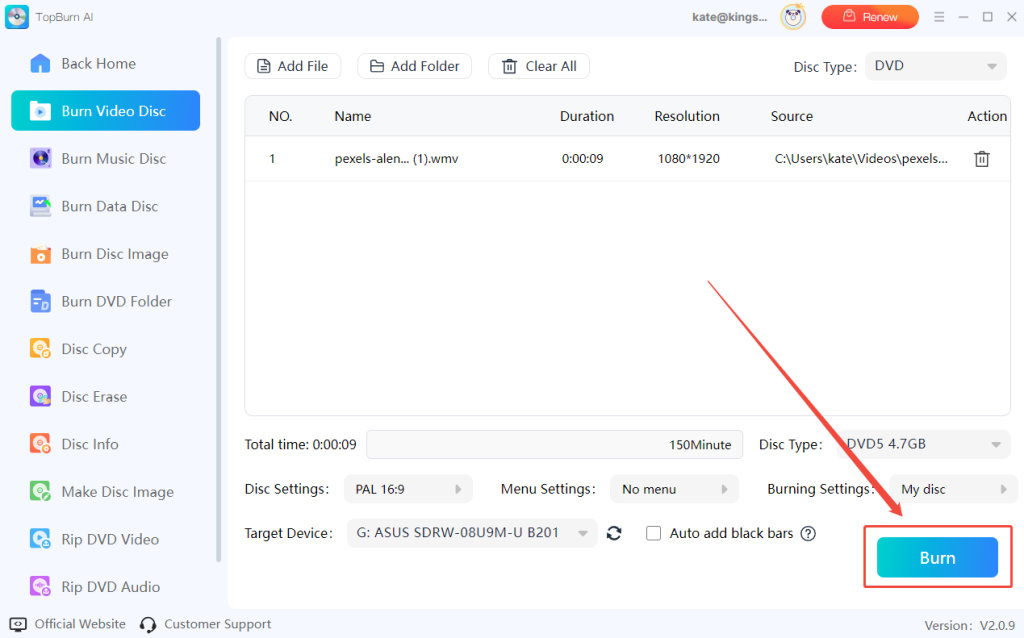
Step 3. Finally, click the "Burn" button in the lower-right corner to start the conversion and burn the WMV video onto the DVD disc.
Part 2. Burn WMV to DVD with Free Built-in Tool: Windows DVD Maker
Pro: Burn DVDs without installing third-party software using built-in tools.
Con: Only available for older versions of Windows (such as Win 7), with limited features.
We tested some of the system's built-in DVD maker that lets you burn videos to discs without needing to purchase any software. They’re straightforward to use, but they may only be available on specific versions of the operating system, and Microsoft has ceased updates for them. If you’re still using Windows 7, you can continue using this tool; otherwise, it’s useful to know about as a reference.
Windows DVD Maker is a system-integrated app mainly found in Windows Vista and Windows 7 that allows users to burn videos and photos, such as WMV, AVI, and MPG, to DVD discs. It offers basic menu customization and scene selection, so you can save digital content for offline playback on home theater systems.
Step 1. Tap on the "Start" menu, search for “Windows DVD Maker”, and click to launch the program. Click "Choose photos and videos" to import your WMV file.
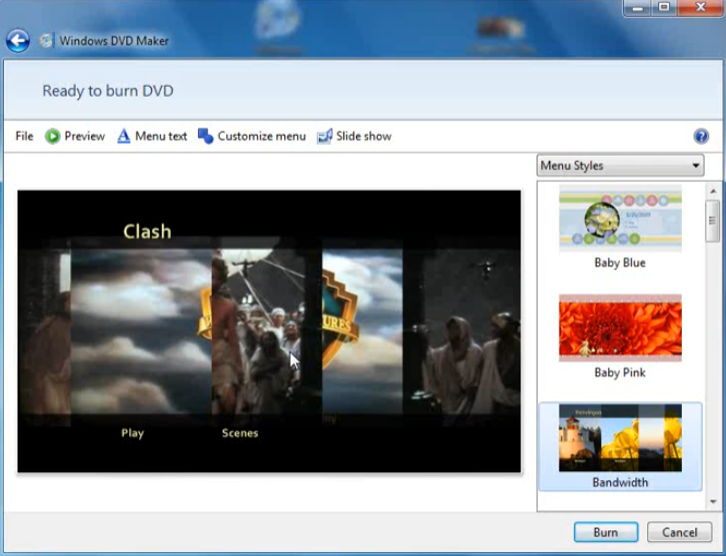
Step 2. Adjust the video order on the interface. You can preview and select from different DVD menu styles.
Step 3. Click the "Burn" button, and the software will quickly burn the WMV content onto your blank DVD disc.
Part 3. Burn WMV Files to DVD Using Windows Media Player Legacy
Pro: Easily burn WMV videos from your local media library.
Con: Primarily creates data DVDs, lacks advanced menu options.
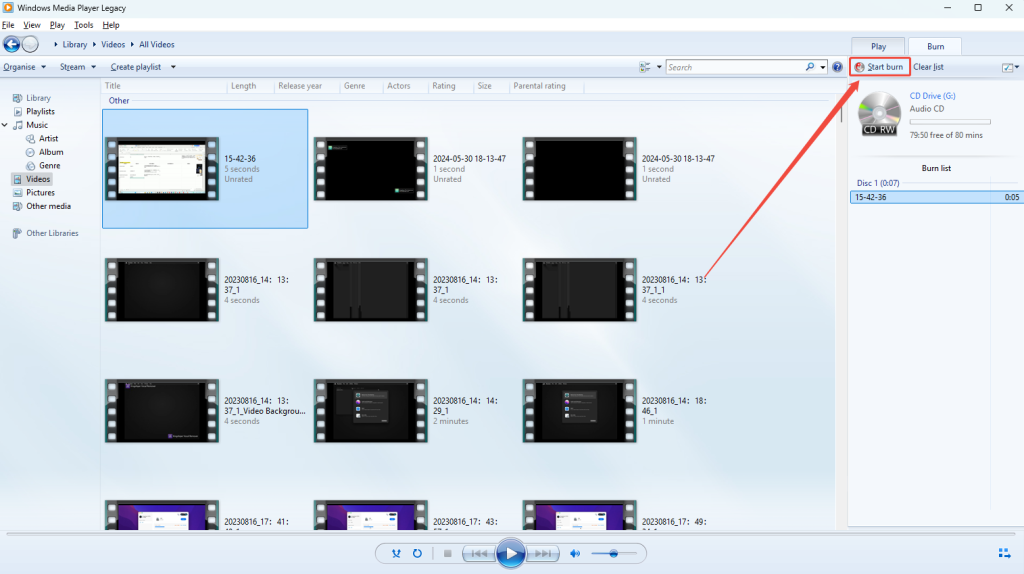
Burning WMV to DVD is much easier with Windows Media Player, a built-in tool in Windows that lets you quickly burn videos from your local library. While it supports various video formats, it's mainly used for creating data DVDs, which don't include navigation menus or features for older DVD players.
Follow these steps to burn WMV to DVD:
Step 1. Launch Windows Media Player and insert a blank DVD into your computer.
Step 2. Find the WMV files you want to burn and go to the "Burn" tab at the top-right of the interface.
Step 3. Drag and drop the files into the "Burn List" on the right. Then, click the "Start Burn" button, and your WMV videos will be written to the DVD in no time.
Part 4. Burn WMV to DVD on Mac with Leawo Blu-ray Creator
Pro: Easily create professional DVDs directly within macOS.
Con: Limited menu design options, no flexibility to move buttons or customize navigation logic.
If you're a Mac user and need to convert WMV files to DVD, Leawo Blu-ray Creator is a great solution. Unlike other software that only focuses on Windows versions, Leawo Blu-ray Creator can help you process WMV videos and create DVDs right on your Mac. This method works with all macOS devices, including those with M1, M2, or M3 chips.
Let's see how to do this.
Step 1. Launch Leawo Blu-ray Creator on your Mac.
Step 2. Click the “Add Video” to import your WMV files. Alternatively, drag and drop the WMV file from Finder into the “Drag File Here” area.
Step 3. On the main interface, choose a menu template from the right sidebar to preview it. To customize, click the pencil icon in the preview window, allowing you to modify the background music or images.
Step 4. Click the green “Burn” button. A sidebar will appear where you select your external drive under the “Burn to” option. Enter a Disc Label and click “Burn” to start the process of burning your video to the DVD.
Part 5. Convert WMV to DVD on Mac with Finder
Pro: Free, built-in, no third-party software required to burn files to disc.
Con: Only creates data discs, not playable on TV players.
Finder is the default file management tool in macOS, which is good at performing a variety of tasks like organizing documents, searching for files, and handling basic disc-burning operations. It works with all versions of macOS, from the latest to older releases, and is compatible with external drives without needing extra drivers, ensuring stable writing to the disc.
However, its functionality is primarily geared toward file management, so DVD creation is basic. It only produces a data disc, meaning the disc will only be usable for file transfer between computers, not for playing on home theater systems as a full-featured DVD with menus or chapters.
Step 1. Insert a blank DVD into your external drive connected to the Mac.
Step 2. Double-click the "Untitled Disc" icon on your desktop to open the burn folder.
Step 3. Open another Finder window, locate the WMV file you want to burn.
Step 4. Drag the WMV file into the disc window.
Step 5. Click the "Burn" button at the top right of the window.
Step 6. Set the disc name, select the burn speed, and click "Burn" to start saving the video to the DVD.
Bonus Tips to Improve the Burning Quality
Converting WMV to DVD involves key considerations around video quality and storage efficiency. While burning digital files to a physical disc for TV viewing may seem convenient, it's crucial to pay attention to the resolution and encoding format compatibility. Many original WMV files are in high definition, while standard DVDs only support standard-definition resolution, meaning that a direct conversion might result in a loss of some detail.
Additionally, disc capacity directly limits the final video clarity to prevent issues like blocky artifacts or blurring. Attempting to compress videos longer than 150 minutes onto a single-layer DVD not only sacrifices quality but can also cause playback interruptions. Before starting the burning process, make sure the total video length fits the chosen disc type, such as DVD-5 or DVD-9, and whenever possible, opt for the software’s "highest quality" setting to optimize the output.
Wrapping Up
In conclusion, converting WMV to DVD may require different methods depending on your operating system, but with the right tools, the process becomes much simpler. Whether you're using built-in system features, software like Leawo Blu-ray Creator for Mac, or specialized apps like TopBurn AI, each method offers unique benefits to suit different needs.
For an intelligent and professional solution, TopBurn AI shines, offering AI-based quality enhancement and providing cinema-quality output on Windows platforms. With a variety of menu templates and support for the highest quality, including 1080p resolution optimization, it is the perfect choice for those looking for the best DVD creation experience.

















 All
All






















 Windows
 win
win
 mac
mac