Got it

{{ postData.top_advertising_product.g_name }}

Windows
Buy Now

2025 Full Guide to Convert DVD Movies to MOV (Easiest!)

Key Takeaways: How to Convert DVD Movies to MOV

● 1️⃣Insert your DVD into your computer’s optical drive

● 2️⃣Launch TopBurn AI and select the “Rip DVD Video” feature.

● 3️⃣Choose “MOV” as the output format, and it will automatically detect all videos on the DVD.

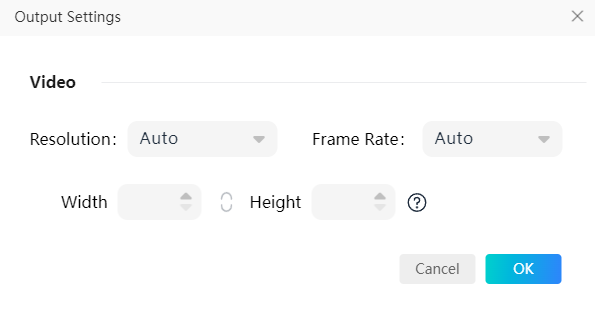
● 4️⃣Adjust output settings. You can set resolution, frame rate, or aspect ratio according to your preference.

● 5️⃣Click “Rip Now” to start converting the DVD to MOV.

Why Convert DVDs to MOV?

Digital Transition: Physical DVDs are becoming obsolete due to scratches, storage space, and incompatibility with modern devices. Digitizing preserves memories, frees up space, and ensures accessibility.

MOV Format Advantages: While MP4 is common, MOV (QuickTime File Format) offers benefits, especially for Apple users and professional video editing.

MOV File Definition: A multimedia container developed by Apple, associated with QuickTime. It stores video, audio, text, and effects.

Key Advantages:

  • Seamless integration with the Apple ecosystem (macOS, iOS, Final Cut Pro, iMovie).
  • High-quality video preservation, ideal for editing.
  • Support for various codecs, including professional options like Apple ProRes.
  • Better compatibility with professional video editing software (Adobe Premiere Pro, DaVinci Resolve).

MOV vs. MP4:

  • MP4: High compression, smaller files, broad compatibility, good for sharing and general playback.
  • MOV: Higher quality potential, preferred for editing and Apple ecosystem integration.
  • Choose MOV if: Primarily using Apple devices, intending to edit in professional software, prioritizing highest quality for archival/professional use, and not overly concerned with minimizing file size.

Common Scenarios: Digitizing personal collections for Mac, archiving family videos for editing, creating video assets for professional projects, playing DVDs on Apple devices without drives, and sharing high-quality video with Apple users.

Choose the Best DVD Ripping Software

When it comes to the best DVD ripping software, many third-party tools claim that they are the best ones. How do you pick the best one among so many options? Here are some standards to consider when choosing excellent DVD ripping software:

  • Powerful decryption capability: The software should be able to remove DVD copy protections and region codes effectively, ensuring smooth conversion of commercial discs.
  • High-quality output: The software should provide a stable and high-quality ripping process, keeping video and audio clear and smooth while minimizing quality loss.
  • Fast conversion speed: Good software should offer fast conversion, saving time when ripping full-length DVDs or large collections.
  • Wide format compatibility: The software should support popular output formats like MOV, MP4, AVI, and more, ensuring the converted files can play on various devices and media players.
  • User-friendly interface: A good DVD ripping software should have an intuitive and easy-to-use interface, allowing users of all skill levels to complete the ripping process without hassle.

Share this guide on your social media to help others choose the right DVD ripping software.

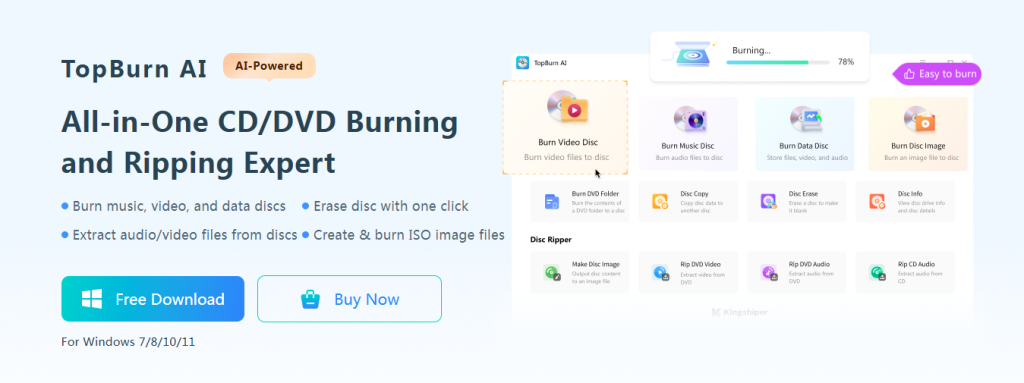
Based on these criteria, TopBurn AI is recommended as the best DVD ripping software. It offers a clean and intuitive interface, making it easy for everyone to start ripping DVDs quickly. The software comes with a powerful decryption engine, supports high-quality output in MOV and other formats, and ensures fast and stable conversion for a smooth experience.

TopBurn AI is compatible with DVDs from all regions and versions, providing flexibility for users worldwide. It also includes extra features like adjusting resolution, frame rate, and other settings, allowing you to customize the final output as you like.

What are you waiting for? Download and get this powerful and easy-to-use DVD ripper and burner on your Windows computer.

TopBurn AI

Official

Download
topburn-ai-convert-dvd-to-mov

Step Tutorial: How to Convert DVD to MOV on Windows

Since you know the best DVD converter and have installed it on your Windows computer, you can follow the steps below to convert a DVD movie to MOV format.

TopBurn AI

Official

Download

Please insert your DVD into the computer’s optical drive before starting the conversion.

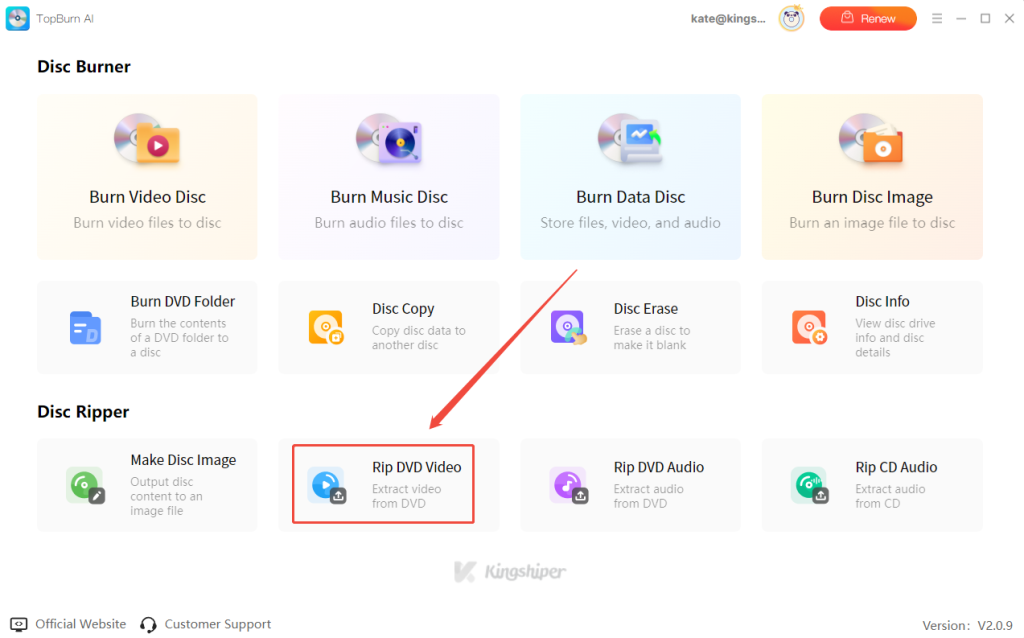
Step 1. Launch TopBurn AI on your PC. Click “Rip DVD Video” on the main interface to start the process.

toburn-ai-rip-dvd-video

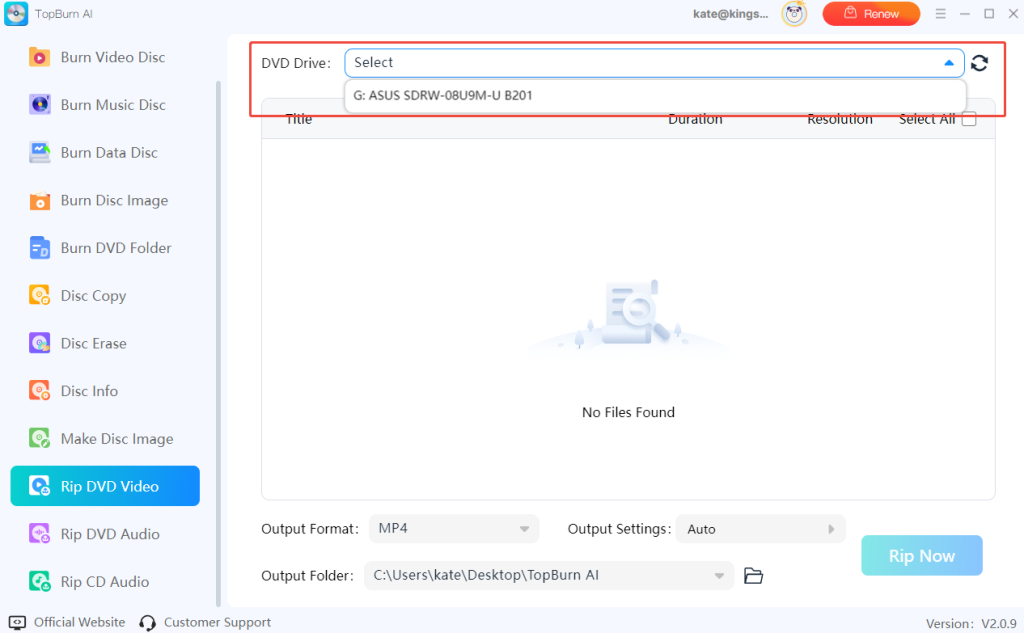
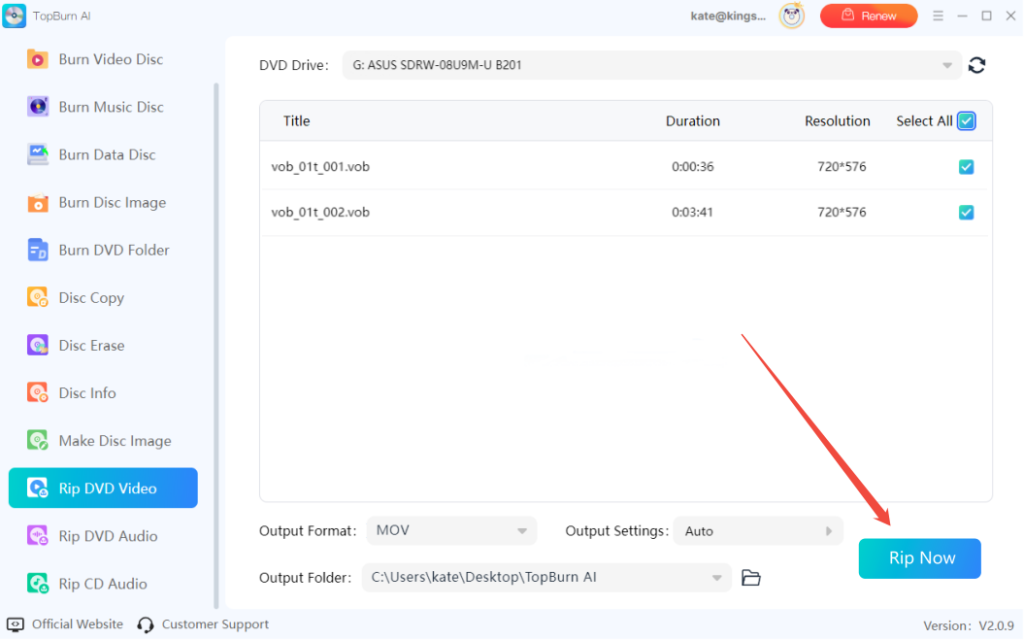
Step 2. Select your DVD from the DVD Drive dropdown at the top of the interface. If the DVD doesn’t appear, click the Refresh button to re-detect connected drives.

toburn-ai-select-dvd-drive

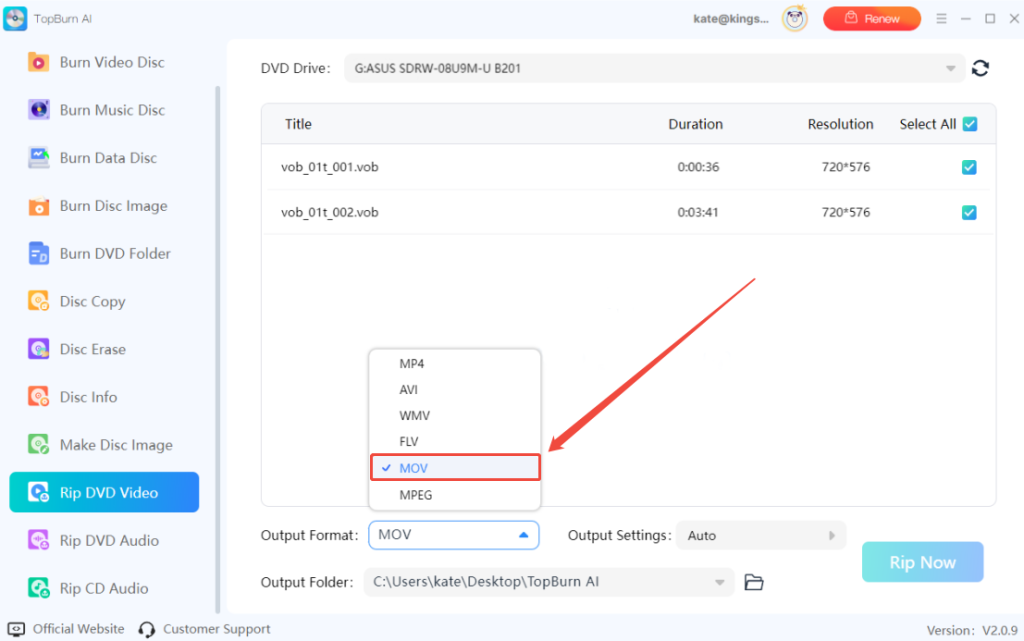
Step 3. Then choose “MOV” as the output format and select the folder where you want to save the converted file. Make sure there is enough disk space.

toburn-ai-select-mov-as-output-format

Step 4. Adjust output settings if needed by going to the “Output Settings”. For standard conversion, the default auto preset works fine.

toburn-ai-customize-output-settings

Step 5. Click “Rip Now” to start the conversion. The software will automatically handle DVD decryption and convert the movie to MOV format.

toburn-ai-rip-dvd-now

Wrap Up

Converting DVD movies to MOV format is crucial for digital archiving, cross-device playback, or post-production editing. TopBurn AI stands out as the best DVD ripper thanks to its intuitive interface, powerful decryption capability, high-quality output, fast processing speed, and overall reliability during the conversion process. Download and give it a try, and you won’t be disappointed.

FAQs about Converting DVD Movies to MOV

1. Can DVD movies be converted to MOV format?

Yes, DVD movies can be converted to MOV format. By using DVD ripping software such as TopBurn AI, you can extract the video from a DVD and export it as a MOV file. This makes it easier to play, edit, or archive your videos on computers, mobile devices, or video-editing software.

2. Does converting a DVD to MOV affect the video quality?

In most cases, it does not. As long as you use a tool that supports high-quality output, the software will preserve the original video and audio as much as possible. You can also customize settings such as resolution and frame rate to achieve clearer image quality or smaller file size, depending on your needs.

3. How can I ensure the converted MOV file remains in high definition?

To ensure a high-quality MOV output, you need to choose the right software and configure proper settings. A professional tool like TopBurn AI helps retain the original DVD quality during the conversion. In the output configuration, select a high bitrate, choose a higher resolution such as 720p or 1080p, and avoid overly aggressive compression to minimize quality loss.

  • Insert the DVD into your computer’s disc drive.
  • Launch TopBurn AI and choose “Rip DVD Video” from the main interface.
  • Select your disc drive under the “DVD Drive” section.
  • Choose “MOV” as the target output format.
  • Click “Output Settings” and adjust the video parameters manually.
  • Click “Rip Now” to start converting the DVD with your high-quality settings.

Latest Articles